> For the complete documentation index, see [llms.txt](https://docs.powerfulform.com/llms.txt). Markdown versions of documentation pages are available by appending `.md` to page URLs; this page is available as [Markdown](https://docs.powerfulform.com/~/revisions/A6iqcSvm9LlSNOeSiGON/form-setup/bulk-order-form.md).
# Bulk order form
#### Note
* Bulk Order Form only collects order data, it doesn’t create real Shopify orders automatically.
* Only one Bulk Order Form per store (on the paid plan).
### 🛠️ Steps to Create a Bulk Order Form
1\. Open the app > click **Forms** > click **Create new form** button
2\. In the template list, select **Order** > choose **Bulk Order** **form**
3\. Add **products** to this form (see detailed guideline below)
4\. Set up other needed form elements
5\. Click **Save** to finish.
***
### ⚙️ **Add products to bulk order form**
1\. Click **Products for Bulk Order** element
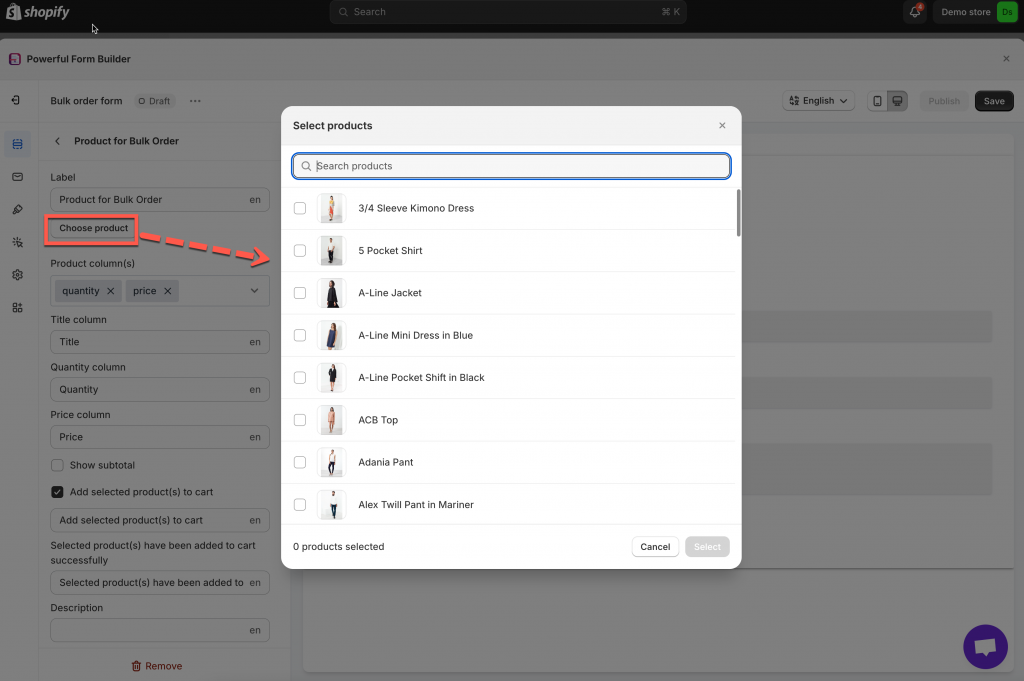
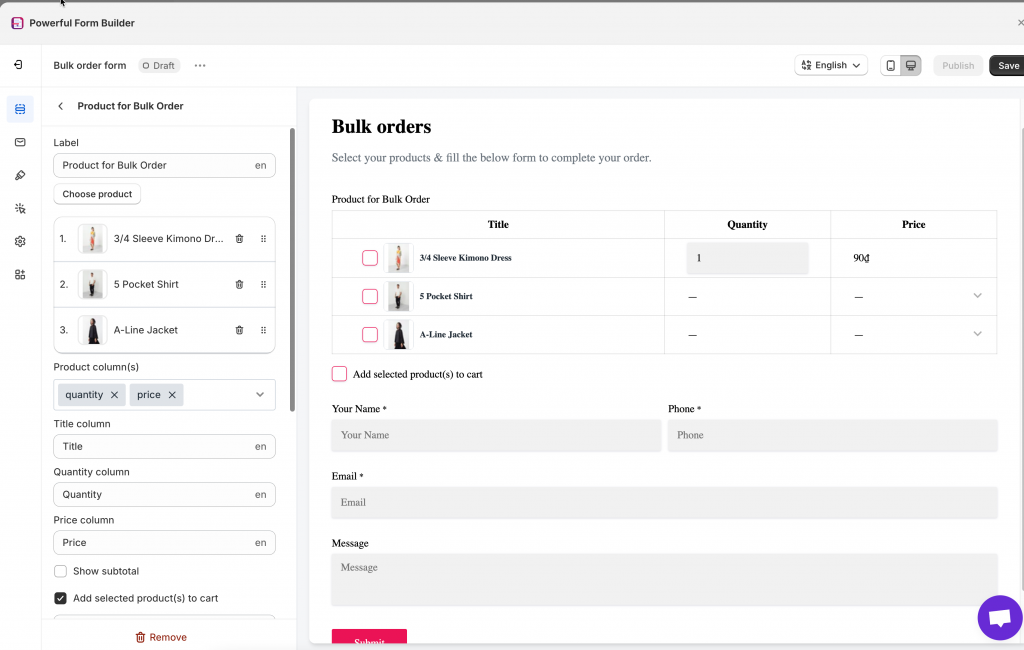
2\. Click **Choose product** button > tick on the corresponding checkbox to select any products to showcase on this form. The list of selected items will appear under the **Choose product** button. You can delete or change the position of each product.
3\. Select the product information in **Product column(s).** They are **quantity, price, and total**
4\. Enable **Add selected product(s) to cart** option if you want to allow customers adding selected items to the cart page
5\. Click **Save** to finish
***
### 🌐 Display form on the store
To show the form on front store, please view this guide:
Result on the front store:
***
### 🧩 How the form works
#### On the Storefront (Customer Experience)
When customers open the **Bulk Order Form** on your site, they can place a bulk request in just a few simple steps:
1. **Select products**
* Customers see a list of products available for bulk ordering.
* Each product can be expanded to show its variants (size, color, etc.).
2. **Choose variants & quantities**
* Customers select the variants they want.
* They enter the quantity for each selected variant.
* Prices are shown clearly next to each item.
3. **Optional: Add products to cart**
* If enabled, customers can choose to add selected products to the cart.
* This is useful when you want bulk orders to continue through checkout.
4. **Fill in contact details**
* Customers enter required information such as:
* Name
* Email
* Phone number
* They can also add a message (for example: asking for a quote or invoice).
5. **Submit the form**
Once submitted, the bulk order request is sent to your store.
#### After Submission (Merchant Experience)
After a customer submits the bulk order form:
1. **Submission is saved**
* The request appears in **Powerful Form Builder → Submissions**.
* Each submission includes:
* Selected products and variants
* Quantities and prices
* Customer submitted data
2. **Follow-up with the customer**
* You can contact the customer directly using the email or phone number they provided.
* This is ideal for:
* Sending quotes
* Creating invoices
* Confirming bulk pricing or availability
***
### ▶️ Tutorial video
{% embed url="" %}
***
#### Need More Help?
If you still need assistance, please contact us at [**support@powerfulform.com**](mailto:support@powerfulform.com). Our team will be happy to help you resolve any issues or guide you further.