> For the complete documentation index, see [llms.txt](https://docs.powerfulform.com/llms.txt). Markdown versions of documentation pages are available by appending `.md` to page URLs; this page is available as [Markdown](https://docs.powerfulform.com/~/revisions/A6iqcSvm9LlSNOeSiGON/form-design/change-forms-layout.md).
# Change form’s layout
### ✅ Steps to change the form layout
1\. Open the app > click **Forms** > open the form you want to edit
2\. Click **Appearance** icon on the left side
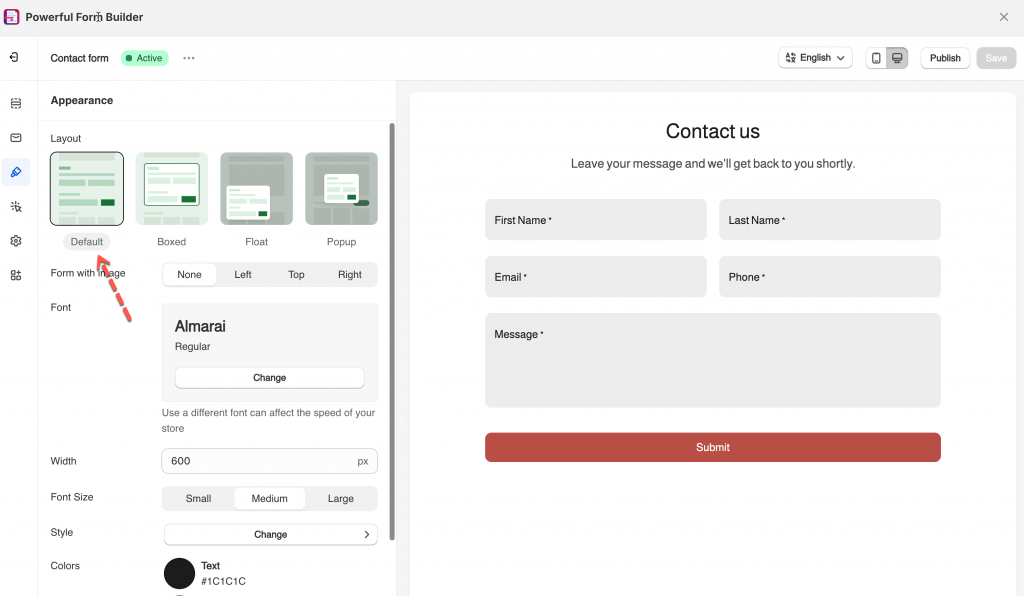
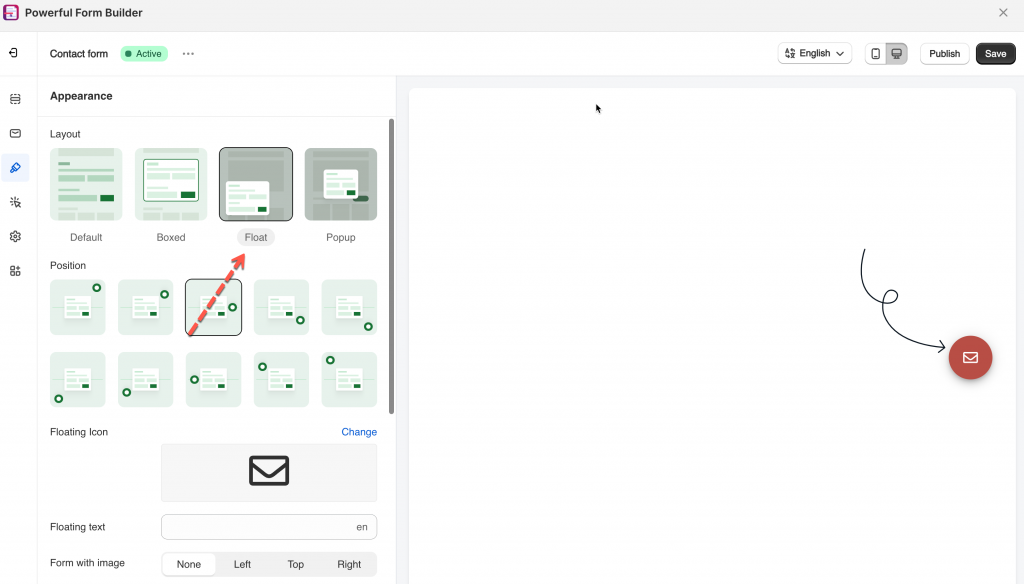
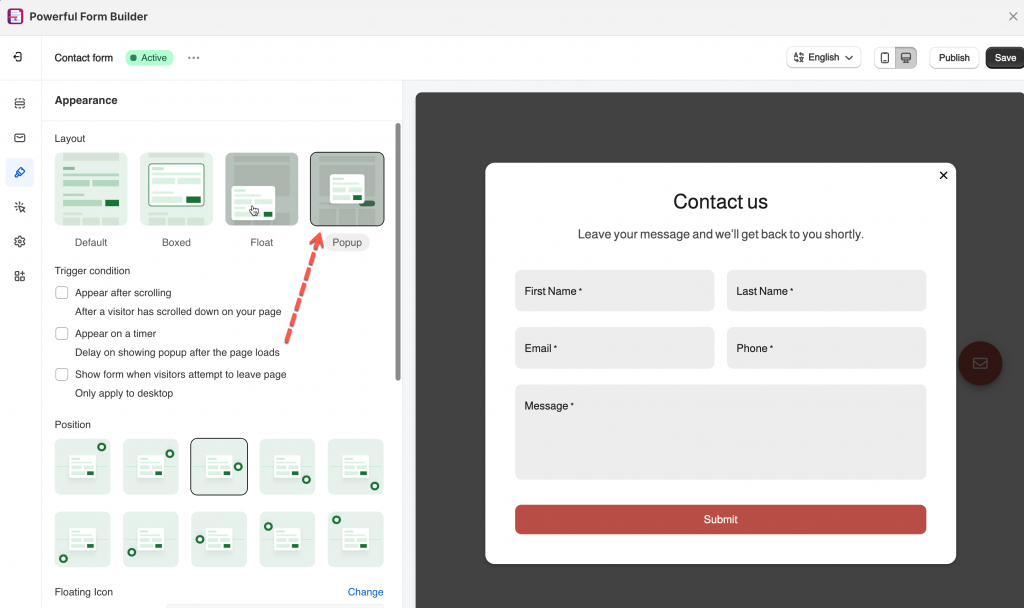
3. Select a form layout you want
4. Click Save.
***
### 🧩 Layout options
#### 🟩 Default (Inline)
* The form shows **directly on the page**, like normal content.
* Best for: Contact pages, landing pages, and simple forms.
#### 🧾 Boxed
* The form shows inside a **boxed card** (with padding and a clear container).
* Best for: Clean, modern look and better focus on the form.
#### 🎈 Float
* A floating button/icon appears on the page.
* When customers click it, the form opens.
* You can choose the button position (bottom right, bottom left, etc.).
* Best for: Always-available contact form without taking page space.
#### 🪟 Popup
* The form opens in a popup modal (center of the screen).
* You can set trigger conditions, like:
* after scrolling
* after a timer delay
* exit intent (when visitor attempts to leave)
* Best for: Lead capture, promotions, email signup.