> For the complete documentation index, see [llms.txt](https://docs.powerfulform.com/llms.txt). Markdown versions of documentation pages are available by appending `.md` to page URLs; this page is available as [Markdown](https://docs.powerfulform.com/readme.md).
# Powerful Contact Form Builder
Build a form by dragging fields into place, style it to match your store, and put it on any page of your storefront. Every submission is saved in the app, emailed to whoever needs it, and passed on to the tools you already use.
**No code, and no theme editing beyond a single switch.**
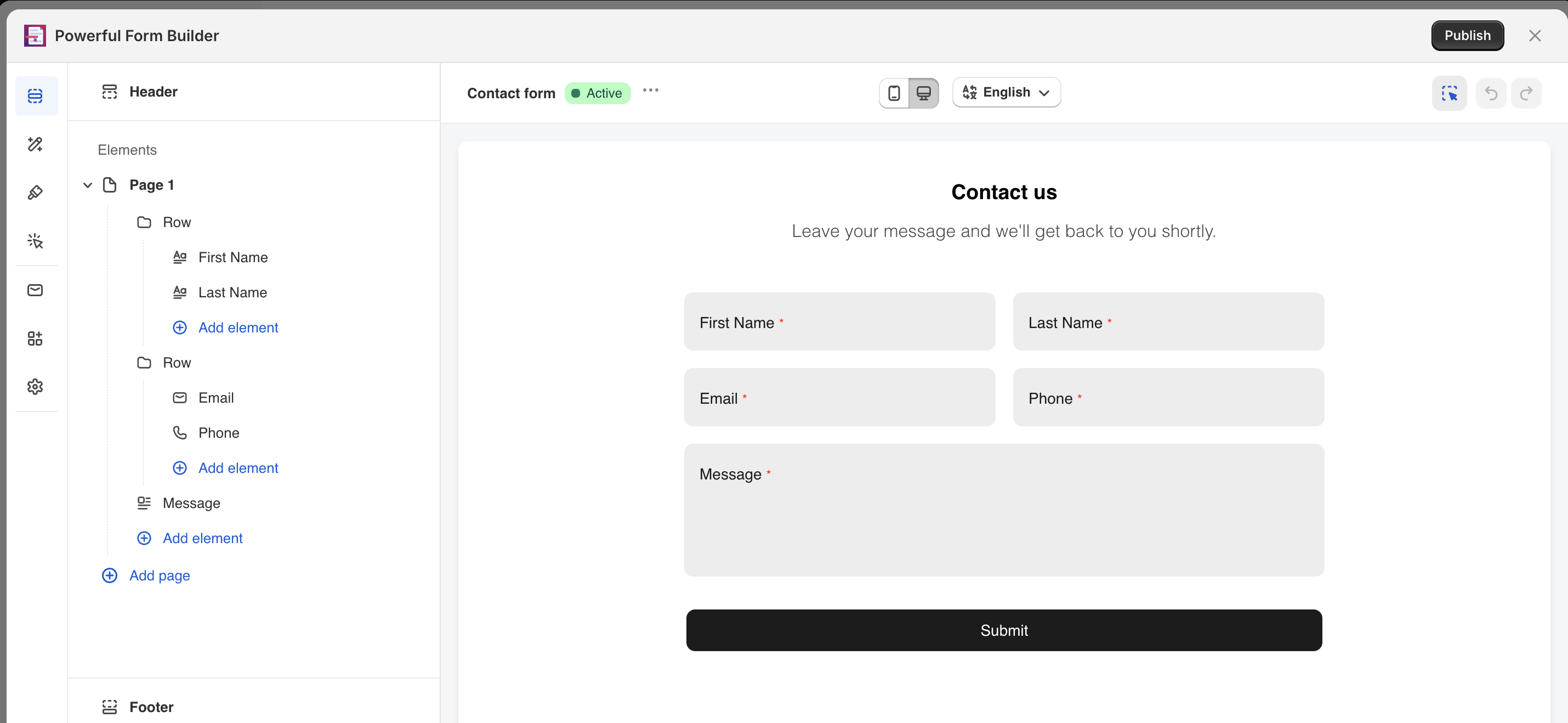
The editor: build on the left, watch the real form update on the right.
Start the QuickstartCreate a form
## ⚡ What you can do with it
{% columns %}
{% column %} :hammer: **Build any form** — 30+ field types, multi-step pages, conditional logic that shows fields only when they are relevant.
:palette: **Make it look like your store** — pick a palette and fonts, or let it match your theme automatically.
:store: **Put it anywhere** — inline on a page, floating, as a popup, on product pages, or behind its own link.
{% endcolumn %}
{% column %} :envelope: **Get told about it** — email yourself on every submission, and reply to the customer automatically.
:plug: **Send it onward** — Mailchimp, Klaviyo, HubSpot, Google Sheets, Slack, Zapier and more.
:users: **Create real customers** — turn a submission into a Shopify customer account, tagged and approved your way.
{% endcolumn %}
{% endcolumns %}
Merchants use it for contact forms, wholesale and B2B applications, custom order and quote requests, bookings and appointments, product warranty and return requests, customer surveys, and account registration — most of which start from a [ready-made template](/getting-started/new-form.md#form-templates).
## 📍 Where to go next
{% columns %}
{% column %} :bolt: [Getting started](/getting-started/getting-started.md)
:hammer: [Build your form](/build-your-form/build-your-form.md)
:shapes: [Field types](/field-types/field-types.md)
:store: [Display and placement](/display-and-placement/display-and-placement.md)
:circle-check: [After submit](/build-your-form/after-submit.md)
:users: [Customers and registration](/customers-and-registration/customer-fields.md)
{% endcolumn %}
{% column %} :envelope: [Email notifications](/email-notifications/mail-notification.md)
:plug: [Integrations](/integrations/app-integration.md)
:inbox: [Submissions and insights](/submissions/data.md)
:gear: [Settings](/settings/settings.md)
:credit-card: [Plans and billing](/settings/plans-and-billing.md)
:life-ring: [Help](/help/help.md)
:book-open: [Reference](/reference/reference.md)
{% endcolumn %}
{% endcolumns %}
## 🌱 New here? Three things first
{% stepper %}
{% step %}
### Make a form
Start from a template and change the fields — about five minutes. See [Create your first form](/getting-started/quickstart/create-your-first-form.md).
{% endstep %}
{% step %}
### Turn on the app embed
One switch in your theme, once for the whole store. Nothing shows on your storefront until it is on. See [Turn on the app embed](/getting-started/quickstart/turn-on-the-app-embed.md).
{% endstep %}
{% step %}
### Send yourself a test submission
Fill the form in on your own store and check it lands in **Submissions**. See [Test your form](/getting-started/quickstart/test-your-form.md).
{% endstep %}
{% endstepper %}
{% hint style="info" %}
Some features are only included on paid plans. Each page says so where it applies. See [Plans and billing](/settings/plans-and-billing.md) for what your plan includes.
{% endhint %}
\
## Next steps
* [Quickstart](/getting-started/quickstart.md) — the fastest route from installing the app to a working form.
* [Theme integration](/display-and-placement/enable-the-app-embed.md) — the one theme switch every form depends on.
* [FAQ](/help/faq.md) — the questions we are asked most.
* [Contact support](/help/contact-support.md) — reach the team when you are stuck.