> For the complete documentation index, see [llms.txt](https://docs.powerfulform.com/llms.txt). Markdown versions of documentation pages are available by appending `.md` to page URLs; this page is available as [Markdown](https://docs.powerfulform.com/~/revisions/zH3ocLtRhbVvMmUZwFWl/mail-notification/send-emails-from-a-different-address-gmail.md).
# Send emails from a different address (Gmail)
When you add another address to your account for sending messages, Gmail typically treats the new address the same as your original Gmail address. The added address is an *alias* for your original address.
***
### 📝 Step 1: Add an address you own
1\. On your computer, open [Gmail](https://mail.google.com/)
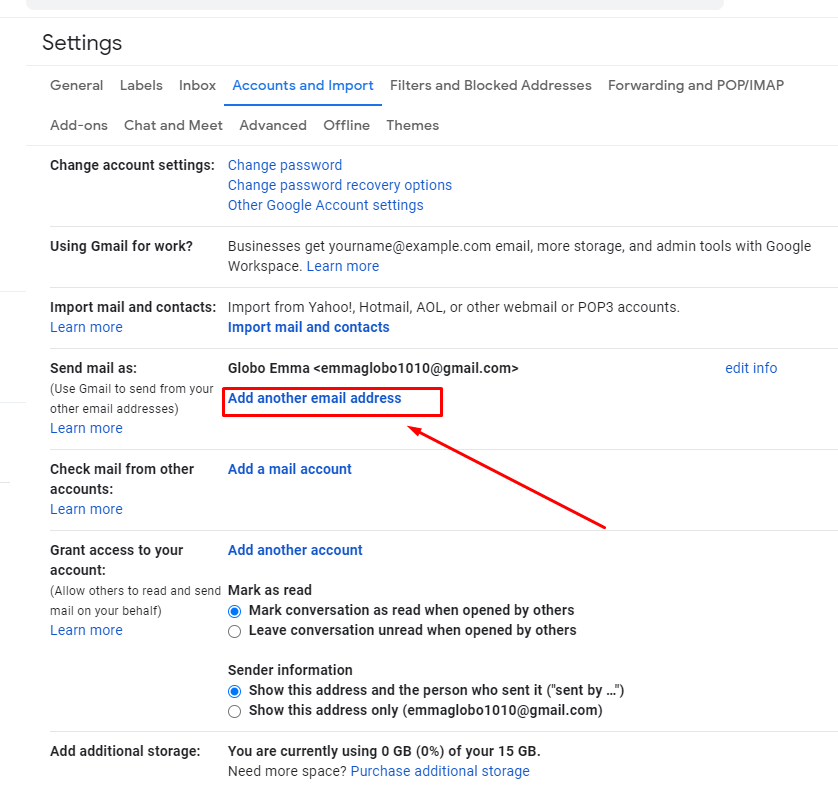
2\. In the top right, click **Settings** > **See all settings**
3\. Click the **Accounts and import** or **Accounts** tab
4\. In the “**Send mail as” section**, click **Add another email address**
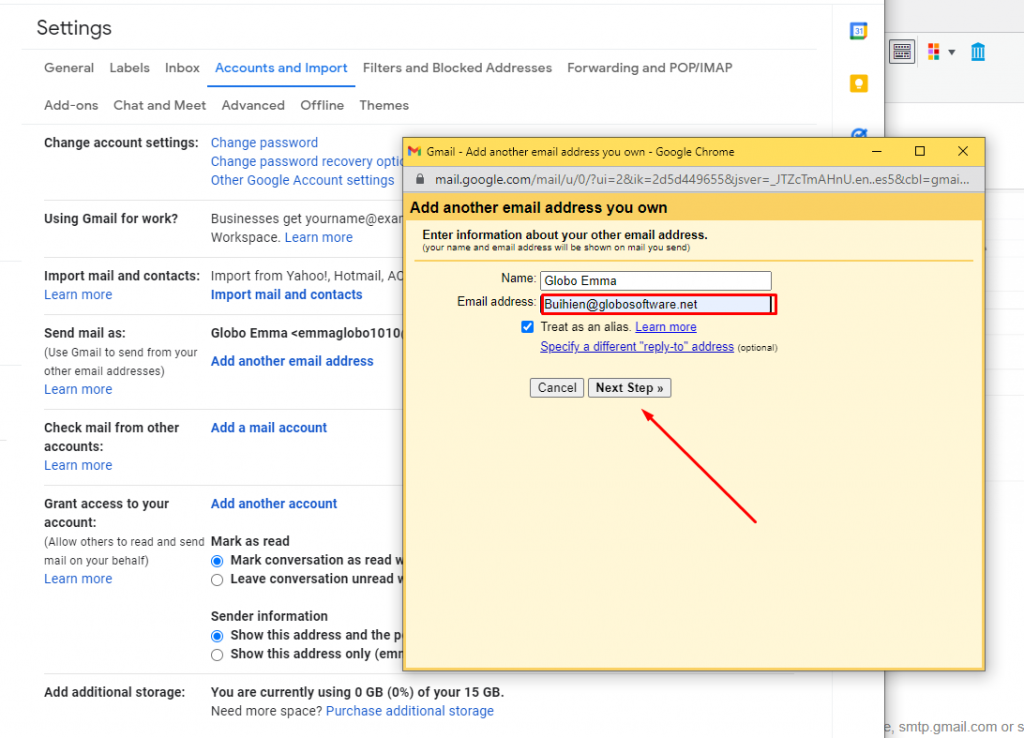
5\. Enter your name and the address you want to send from > Click **Next Step**
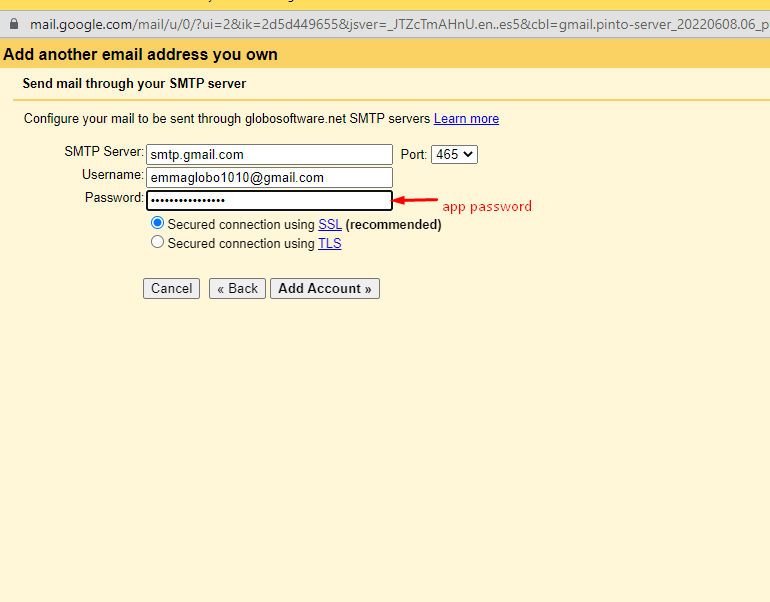
6\. Enter the SMTP server (for example, smtp.gmail.com) and the username and app password on that account.
It will require a confirmation code. Please follow steps below to know how to get the code.
***
### 📝 Step 2: Confirm the address
1. Sign in to the email account you added.
2. Open the confirmation message you got from Gmail.
3. Click the link or get the verify code
4. Enter the code to the fields on the last steps of **Step 1**
***
### 📝 Step 3: Change the “From” address in Form Builder app
If you still have not set up the SMTP for admin, please view this article for more details: Set up SMTP email
1\. In the SMTP configuration of admin, scroll down to **Send mail from another email checkbox** and tick on it
2\. Enter the newly added email address (alias email) to the field **From email**
3\. Add a custom name for email account if you want (optional)
4\. Click **Save** to update the changes
***
#### Need More Help?
If you still need assistance, please contact us at [**support@powerfulform.com**](mailto:support@powerfulform.com). Our team will be happy to help you resolve any issues or guide you further.