> For the complete documentation index, see [llms.txt](https://docs.powerfulform.com/llms.txt). Markdown versions of documentation pages are available by appending `.md` to page URLs; this page is available as [Markdown](https://docs.powerfulform.com/~/revisions/zH3ocLtRhbVvMmUZwFWl/app-integration/form-with-shogun.md).
# Form with Shogun
### 🧾 **Get the form shortcode**
1\. Open the app > click **Forms** > open a form you want
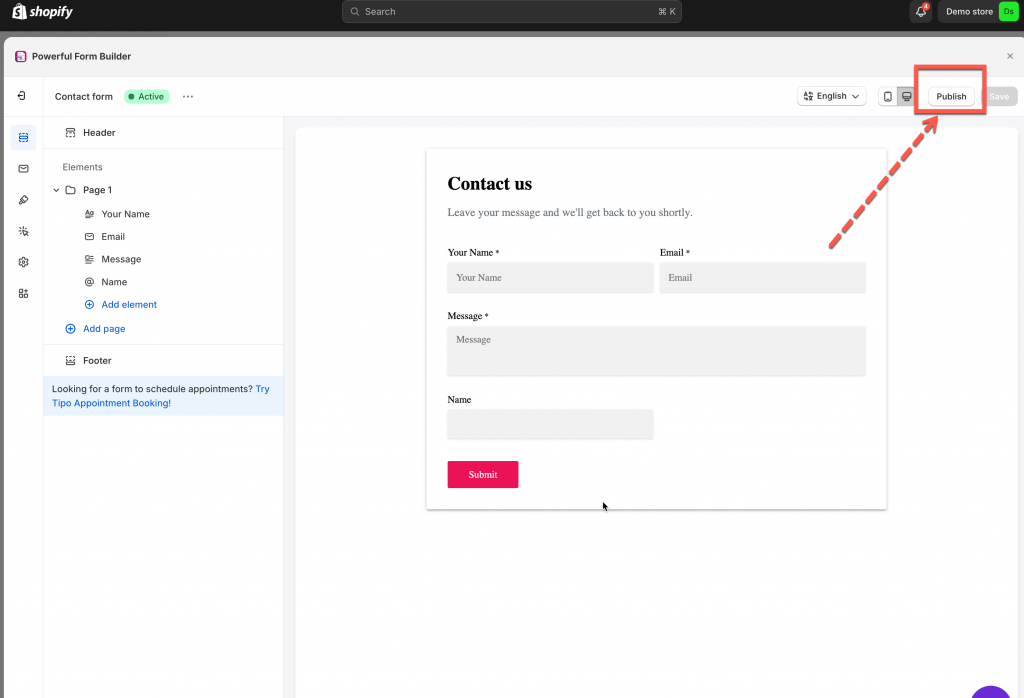
2\. Click **Publish** button on the right corner
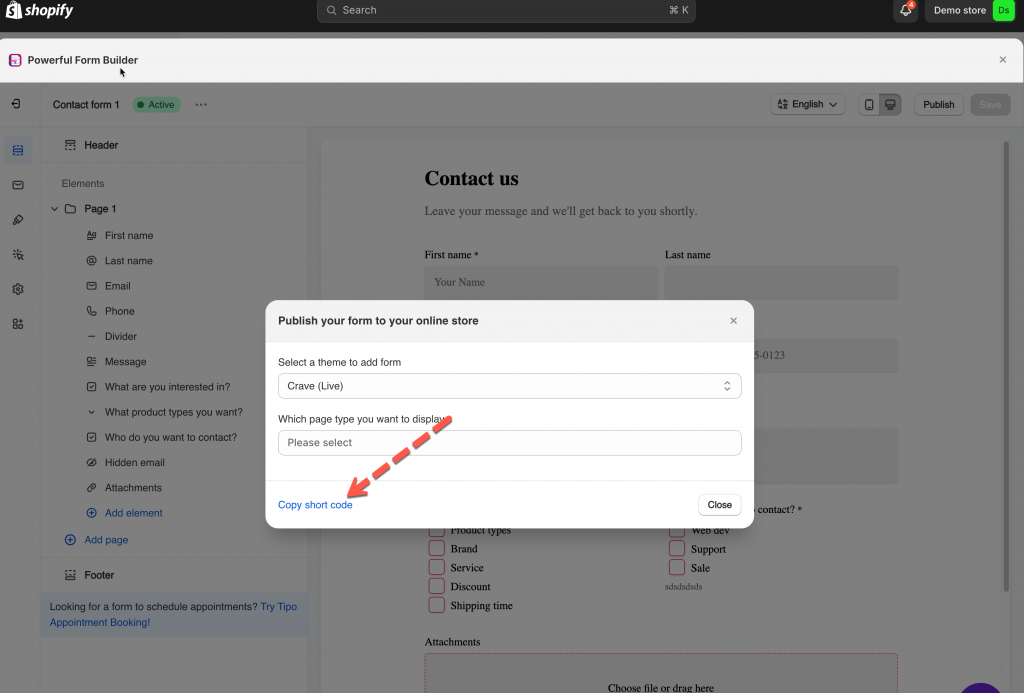
3\. Click **Copy short code**
***
### 🧩 In Shogun app
1\. In Shogun page builder app, go to page you would like to add form
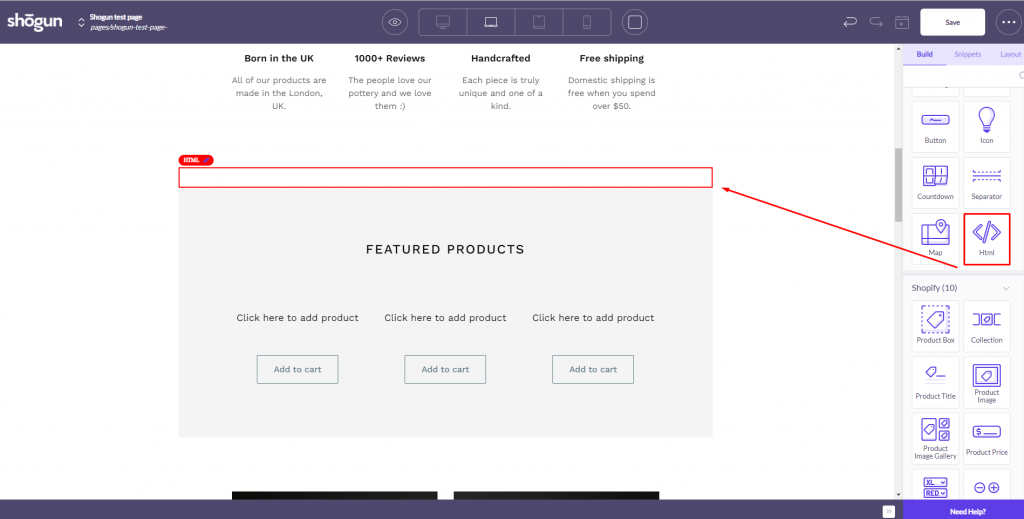
2\. On right navigation bar > click **Build** tab, click **HTML** session and drag to the position you want on the page
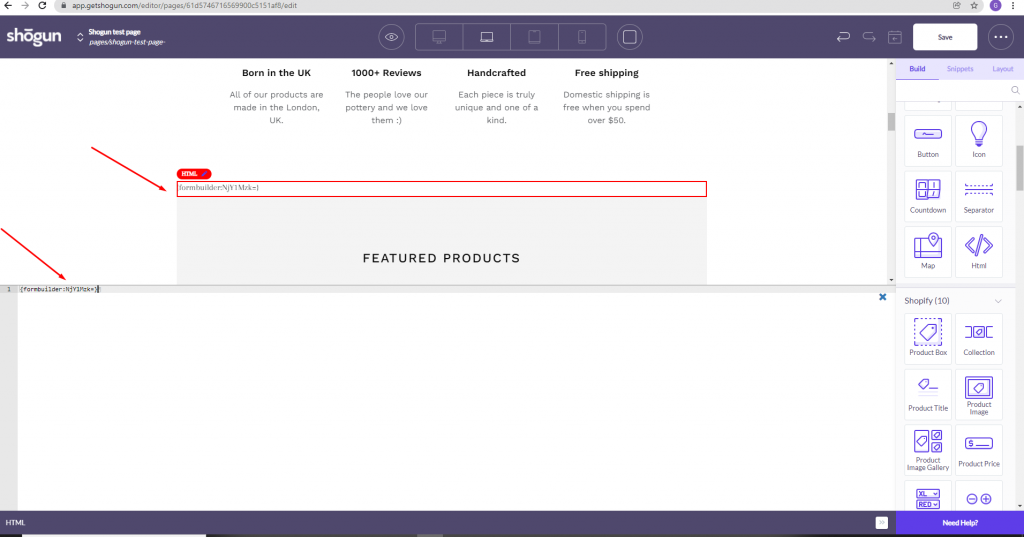
3\. In **HTML** session on the page, paste the shortcode of the form
4\. Click **Save** to update the changes
Preview the page to confirm the form displays correctly
Publish the page in Shogun so it appears on your storefront