> For the complete documentation index, see [llms.txt](https://docs.powerfulform.com/llms.txt). Markdown versions of documentation pages are available by appending `.md` to page URLs; this page is available as [Markdown](https://docs.powerfulform.com/~/revisions/KRfi0fHdeAFeAhiPrH7G/trouble-shooting/remove-form-from-a-page.md).
# Remove form from a page
If you added a PowerfulForm to a page and no longer want it there, you can remove it by deleting the **embed shortcode** (or the **block/element** that contains it). This guide shows the simplest ways to remove the form safely.
### ✅ Option 1: Remove form from a normal Shopify page
I suggest you check the form code in the page content and remove it if available
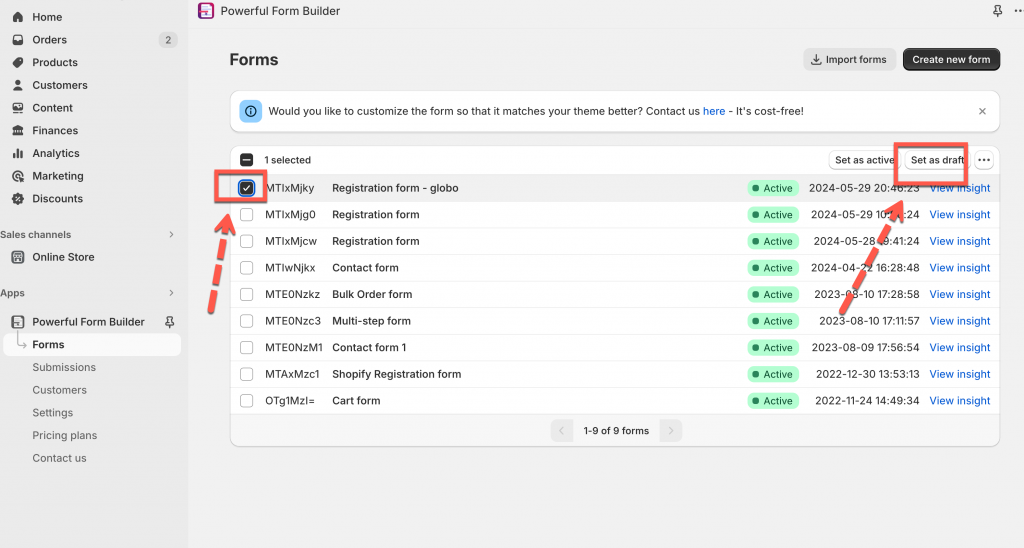
### ✅ **Solution 2 - Set form as draft**
This setting will hide the form on all pages on the site
### ✅ **Solution 3 - Contact support team**
In case you already proceeded two of the steps below but the form still shows up on the site, please get in touch with us to get the fastest support. We will offer the assistance to update the form as your desire.
Contact our support team: ****