> For the complete documentation index, see [llms.txt](https://docs.powerfulform.com/llms.txt). Markdown versions of documentation pages are available by appending `.md` to page URLs; this page is available as [Markdown](https://docs.powerfulform.com/~/revisions/KRfi0fHdeAFeAhiPrH7G/form-setup/add-a-form-with-app-block.md).
# Add a form with app block
This guide shows you how to place a form created with Powerful Contact Form Builder directly into any page or template on your Shopify store using the App Block method.
This is ideal when your theme (or page template) has been customized and you want precise control over where the form appears
### ⭐ Step 1 — Copy the Form Shortcode
1\. Open the app > click **Forms** > open a form you want
2\. Click **Publish** button on the right corner
3\. Select the display of the form: default, boxed, floating, popup
4\. Click **Get short code** > copy the short code of the form
### ⭐ Step 2 — Add the Form as an App Block
1\. From the Shopify admin page, click **Sale channels** > **Online store** > click **Edit theme** to go to the theme you want
2\. In theme editor > open the page template you want
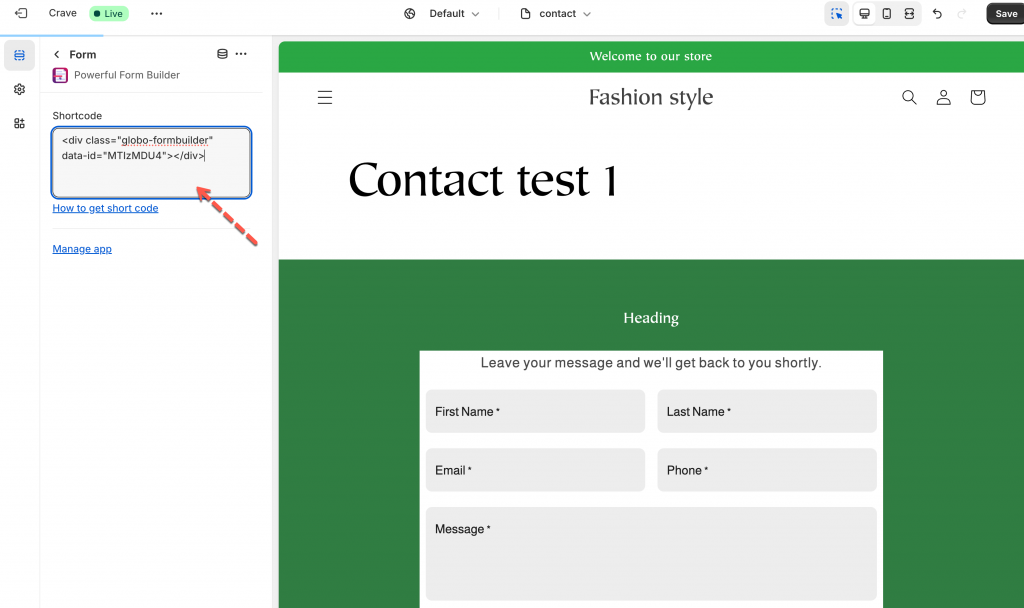
3\. Click **Add section** > add **Form** app section
4\. In the app section > paste the form **shortcode** here
5. Optionally, drag-and-drop or reorder blocks to control where the form appears on the page
6. Click **Save** to apply changes.
### ⭐ Step 4 — Preview and Check the Live Store
After saving, open the live version of the page (front store) to verify that the form appears correctly in the intended position.
### Tutorial video
{% embed url="" %}
### 🎯 When to Use App Block vs Other Methods
| Situation | Recommended Method |
| --------------------------------------------------------------------- | -------------------------------------- |
| Theme or page template is customized, or you need precise positioning | **App Block** (this method) |
| Simple pages or you want the fastest setup | Shortcode embed / default form display |
| Need to show form in product description or content area | Shortcode inside product/page conten |
### 🔧 Troubleshooting: Form Not Showing Up?
If your form does not appear, check the items below:
#### ✅ 1. Make sure the form is **published**
Forms must be saved and published in the app before they will show on your store.
#### ✅ 2. Ensure the page is using the **correct template**
If you added the form inside a specific theme template (e.g., a custom product template), make sure that product or page is actually using that template.
#### ✅ 4. Some themes require minor adjustments
Certain Shopify themes may require:
* Block placement adjustments
* Template changes
* Section settings updates
If you’re unsure, we’re here to help.
#### 📩 Need help?
Contact us anytime at **** — our support team can fix this quickly for you.