> For the complete documentation index, see [llms.txt](https://docs.powerfulform.com/llms.txt). Markdown versions of documentation pages are available by appending `.md` to page URLs; this page is available as [Markdown](https://docs.powerfulform.com/~/revisions/KRfi0fHdeAFeAhiPrH7G/app-integration/zapier-integration.md).
# Zapier integration
Integrating your Powerful form with Zapier allows you to automate tasks, such as sending form submissions directly to Google Sheets or other apps, without any coding required.
**Note:** This integration is available on the **PRO plan** of Powerful Form Builder. A **paid Zapier plan** is also required.
What You'll Need:
* A Google Sheet ready to receive form submissions.
* A Zapier account (with a paid plan).
* Access to your Powerful Form Builder dashboard.
***
### 🟦 Step 1 : Create a new sheet in your Google Sheets
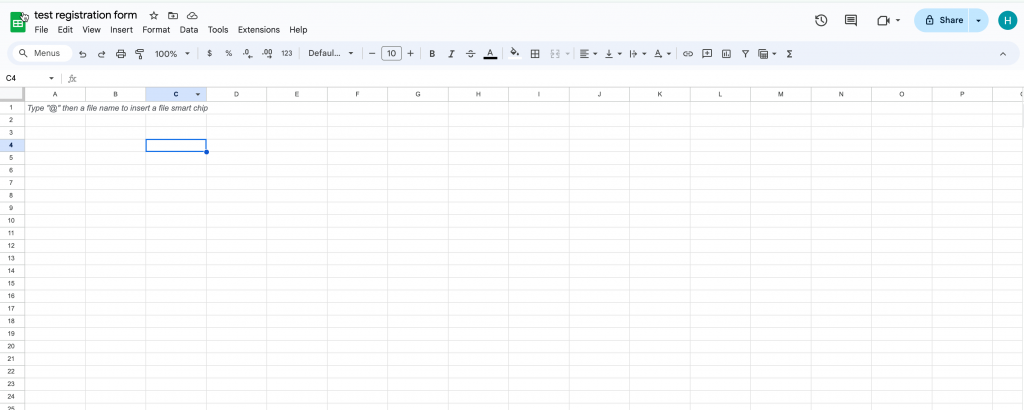
First, create a sheet you want to connect with the form in your Google Sheets
***
### 🪝 Step 2: Catch hook in Weebhook by Zapier
Here you’ll create a Zap that **receives your form submission** through a Zapier webhook.
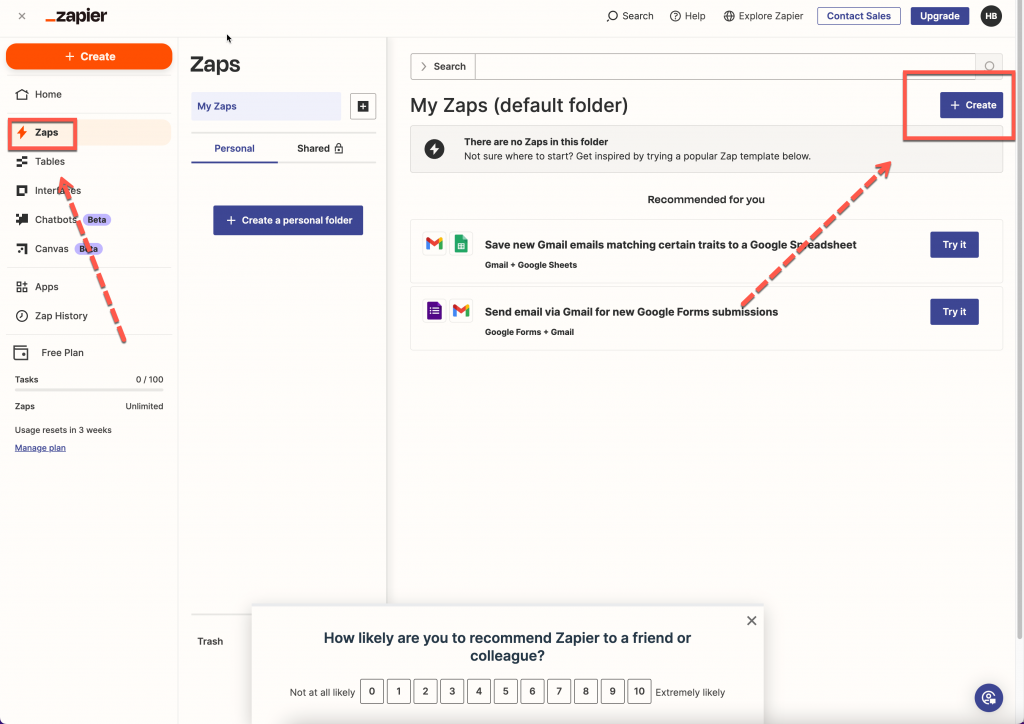
1\. In Zapier click **Create** button > select **Zaps**
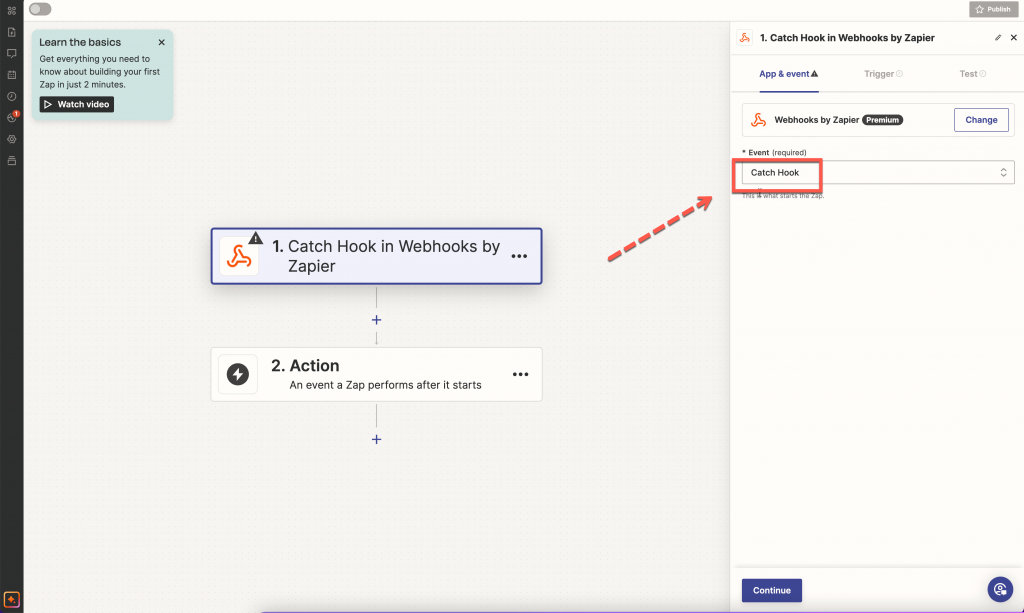
2\. Select **Trigger** > select **Webhook by Zapier** > select **Catch hook** > click **Continue** button > you can skip **Pick off a Child Key**
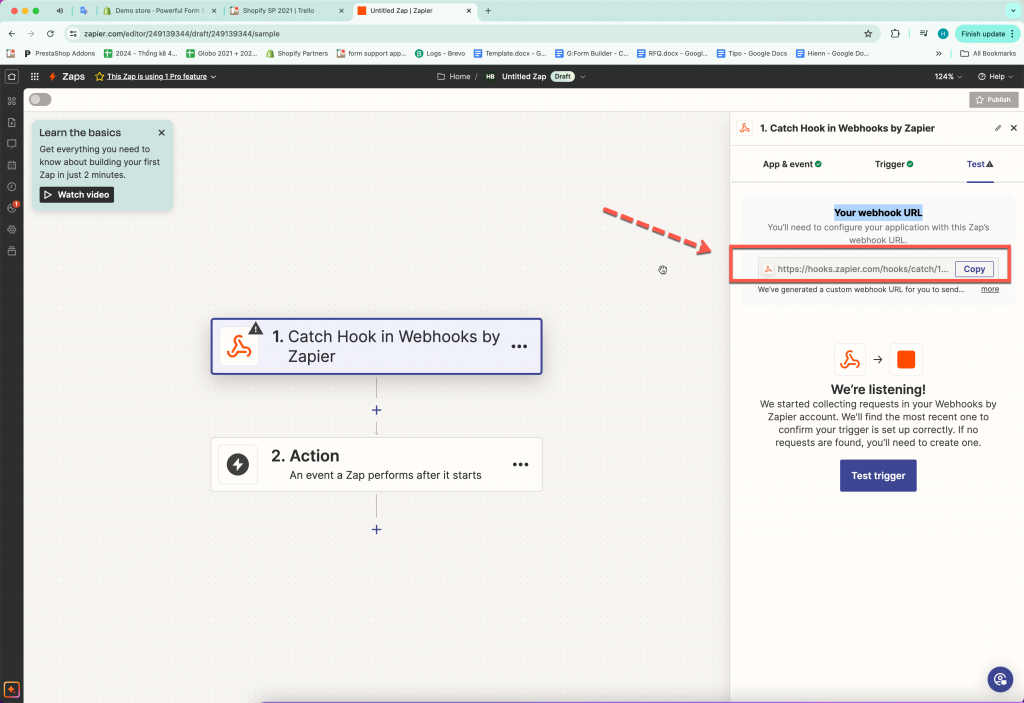
3\. In **Test** tab, copy the your **webhook URL**
***
### 🔗 Step 3: Add Webhook URL to Form builder app
Now you paste the Zapier Webhook URL into PowerfulForm so it knows where to send data.
1. Open the Powerful **Form Builder app** > click **Forms** > open a form > click **integration** icon > enable **Zapier**
2. Click **Zapier** option to open the setting
2\. Paste the **webhook URL** from Zapier here
3\. Click **Save**
***
### 🧾 Step 4: Create Spreadsheet Row in Google Sheets in Zapier
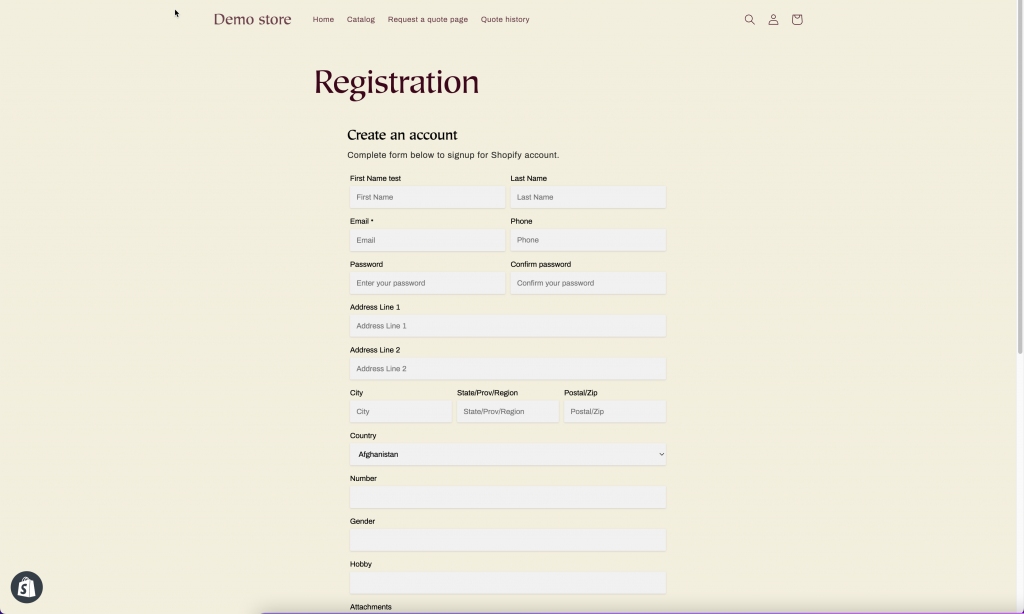
1. Submit the form once (from **app preview** or your **online store** if the form is published)
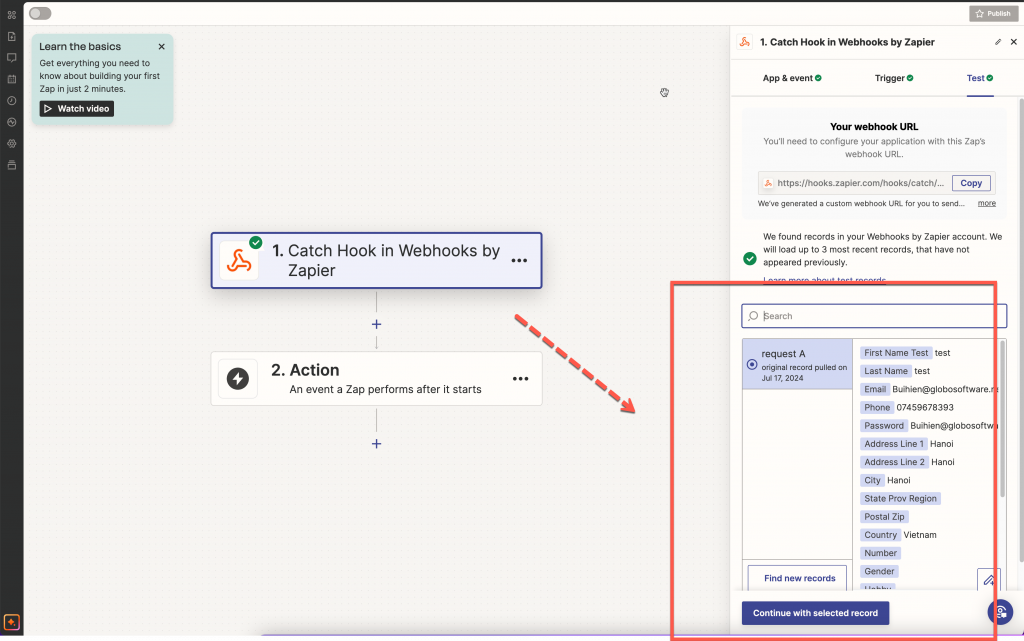
2\. Go back to **Zapier** > click **Test trigger** > the submission you have submitted is used to test > click **Continue with selected record**
3\. Search **Google Sheets** > select **Create Spreadsheet row > Continue** > sign into the Google account > select the sheet you want to use > map the form data with the sheet
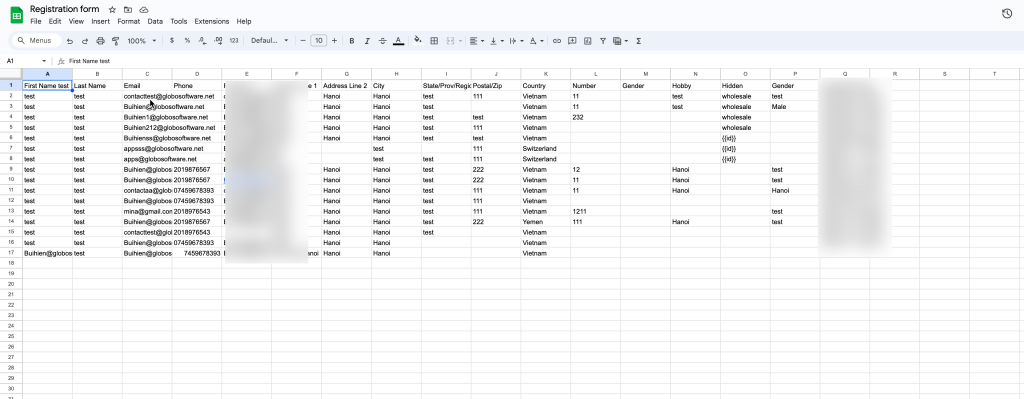
4\. Click **Test step** to submit a test > then check the result in the selected sheet in your Google Sheets
✅ If the row appears, your integration works. Future submissions will also be added automatically.
***
### 🎥 Tutorial video
{% embed url="" %}