> For the complete documentation index, see [llms.txt](https://docs.powerfulform.com/llms.txt). Markdown versions of documentation pages are available by appending `.md` to page URLs; this page is available as [Markdown](https://docs.powerfulform.com/~/revisions/KRfi0fHdeAFeAhiPrH7G/app-integration/getresponse-integration.md).
# GetResponse integration
Integrating Powerful Form Builder with GetResponse to automatically add new form submissions to your GetResponse contact lists, so your email marketing list stays updated without manual work.
💳 **Paid plan required:** GetResponse integration is available on **paid plans only**.
### 🔑 Step 1: Find or Generate GetResponse API Key (in GetResponse)
Powerful Form connects to GetResponse using an **API key**.
✅ How to get your API key
1. Log in to your **GetResponse** account
2. Click on **Tools** in the top menu and select **Integrations and API** > navigate to the **API** tab
3. Click the **Generate API key** button > enter a name for your API key (e.g., "Powerful Form Integration") and click **Generate**
4. Copy the generated API key for use in the next step
For detailed instructions, refer to GetResponse's official guide: [Where to find the API key?](https://www.getresponse.com/help/where-do-i-find-the-api-key.html)
***
### 🔌 Step 2: Add GetResponse API Key to the app settings (in PowerfulForm)
Now paste your GetResponse API key into Powerful Form so the app can send contacts to GetResponse.
1\. Open the app > **Settings** > **Third party integration** > hover **GetResponse** > click **Config**
2\. Enter **GetResponse API key** field created in the Steps 1 above
3\. Click **Save** to update the changes
***
### 🧩 Step 3: Map form data to GetResponse (in Form Builder)
This step decides:
* which GetResponse list/campaign receives new contacts
* which form fields go into the correct GetResponse contact fields
**✅ Before you start**
Make sure you already created a **list/campaign** in GetResponse (so you can select it in the integration settings).
Follow this [link](https://www.getresponse.com/help/how-do-i-create-a-new-contact-list.html) to know more.
✅ Mapping steps
1\. Open the app > click **Forms** > open the form you want to deal with
2\. Click **Integration** icon on the left side > turn on **GetResponse** > click on **GetResponse**
3. Select the **List**/Campaign you want to add contacts to
4. Map fields
4\. Select and enter value of **GetResponse** (on the left) to match with the form field.
For example:
* 📧 **Email** ← your form’s Email field
* 👤 **Name / First name / Last name** ← your form’s name fields
⭐ Required field
📧 **Email is required** to create a contact in GetResponse.
5. Click **Save** to update the changes
***
### ✅ Test & Check Your Results (in GetResponse)
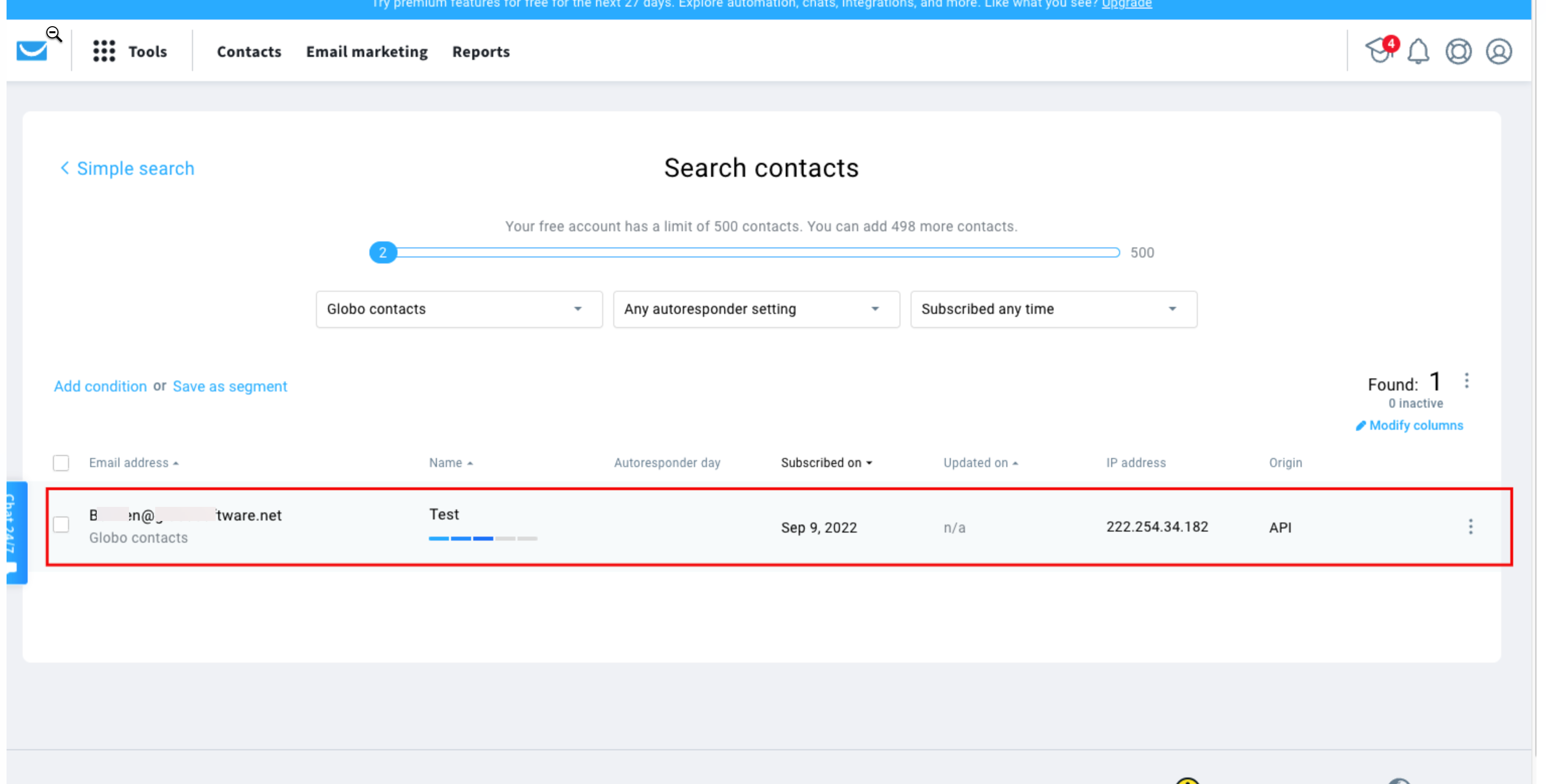
* Submit your form once (use a real email for testing)
* Open **GetResponse**
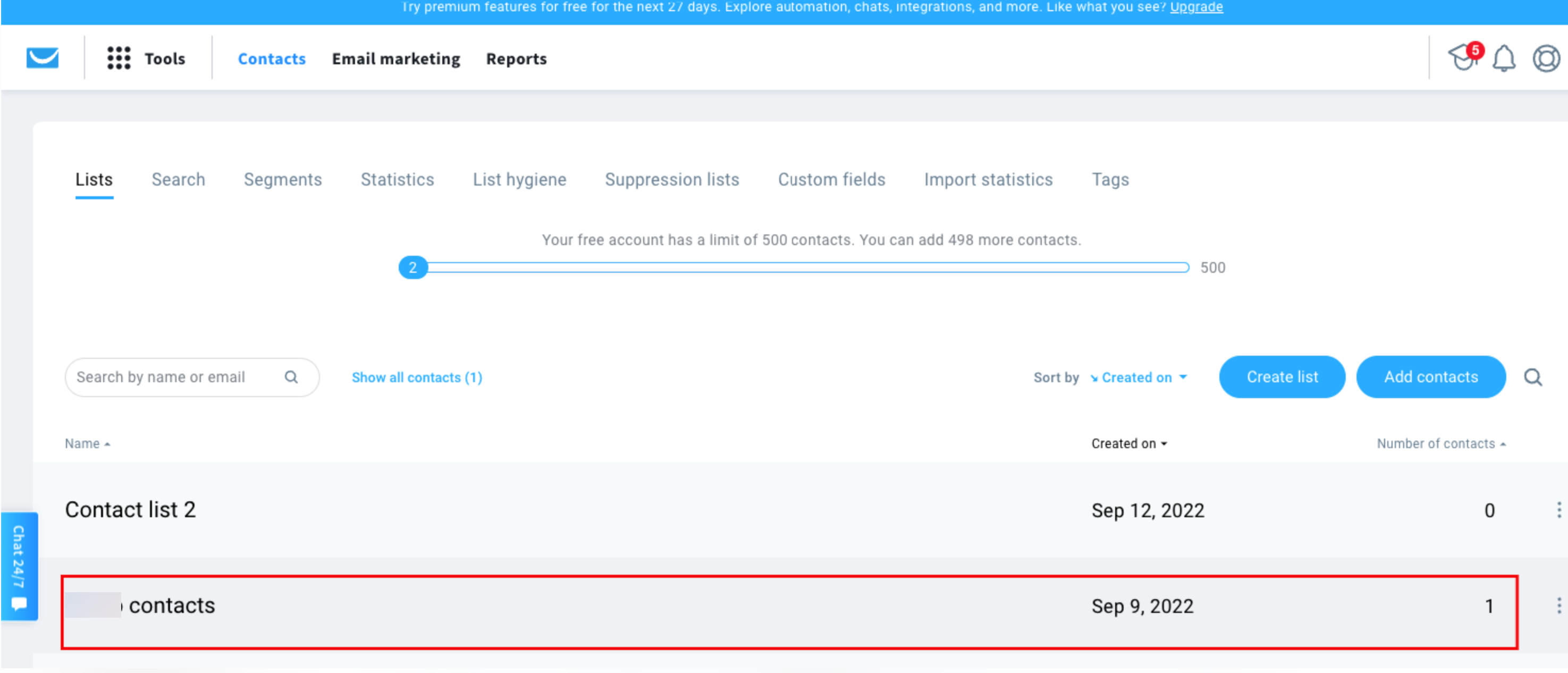
* Go to your selected **list/campaign**
* Confirm the new contact appears there
***
### 🛠️ Troubleshooting
#### 🔒 “Invalid API key” / connection failed
* Make sure you pasted the correct API key (no extra spaces).
* If the key was regenerated or disabled in GetResponse, create a new key and update it in Powerful Form.
#### 📭 Contacts not added after form submission
* Confirm GetResponse integration is enabled on the correct form.
* Click Save after mapping (mapping changes won’t apply until saved).
* Make sure the submission contains a valid email address.
#### 🧩 Some fields are missing in GetResponse
Re-check field mapping (e.g., “Full name” mapped into “First name” may not display as expected).