> For the complete documentation index, see [llms.txt](https://docs.powerfulform.com/llms.txt). Markdown versions of documentation pages are available by appending `.md` to page URLs; this page is available as [Markdown](https://docs.powerfulform.com/troubleshooting/gmail-app-password.md).
# Create app password for Gmail SMTP
Create a Google app password so Gmail SMTP can send your notifications.
This usually happens when your Google account has **2-Step Verification** turned on.
An **App Password** is a special 16-character password that allows apps (like Powerful Contact Form Builder) to sign in securely.
## How to set it up
{% stepper %}
{% step %}
### Turn on 2-Step Verification (Required)
Google only allows App Passwords if **2-Step Verification** is enabled.
1. Sign in to your Google Account.
2. Go to **Security**
3. Find **2-Step Verification**
4. Turn it **ON** and complete the setup.
✅ After this is enabled, you’ll be able to create an App Password.
Reference: [Enabling 2-Step Verification](https://support.google.com/accounts/answer/185839?hl=en\&co=GENIE.Platform%3DAndroid)
{% endstep %}
{% step %}
### Create an App Password (Gmail)
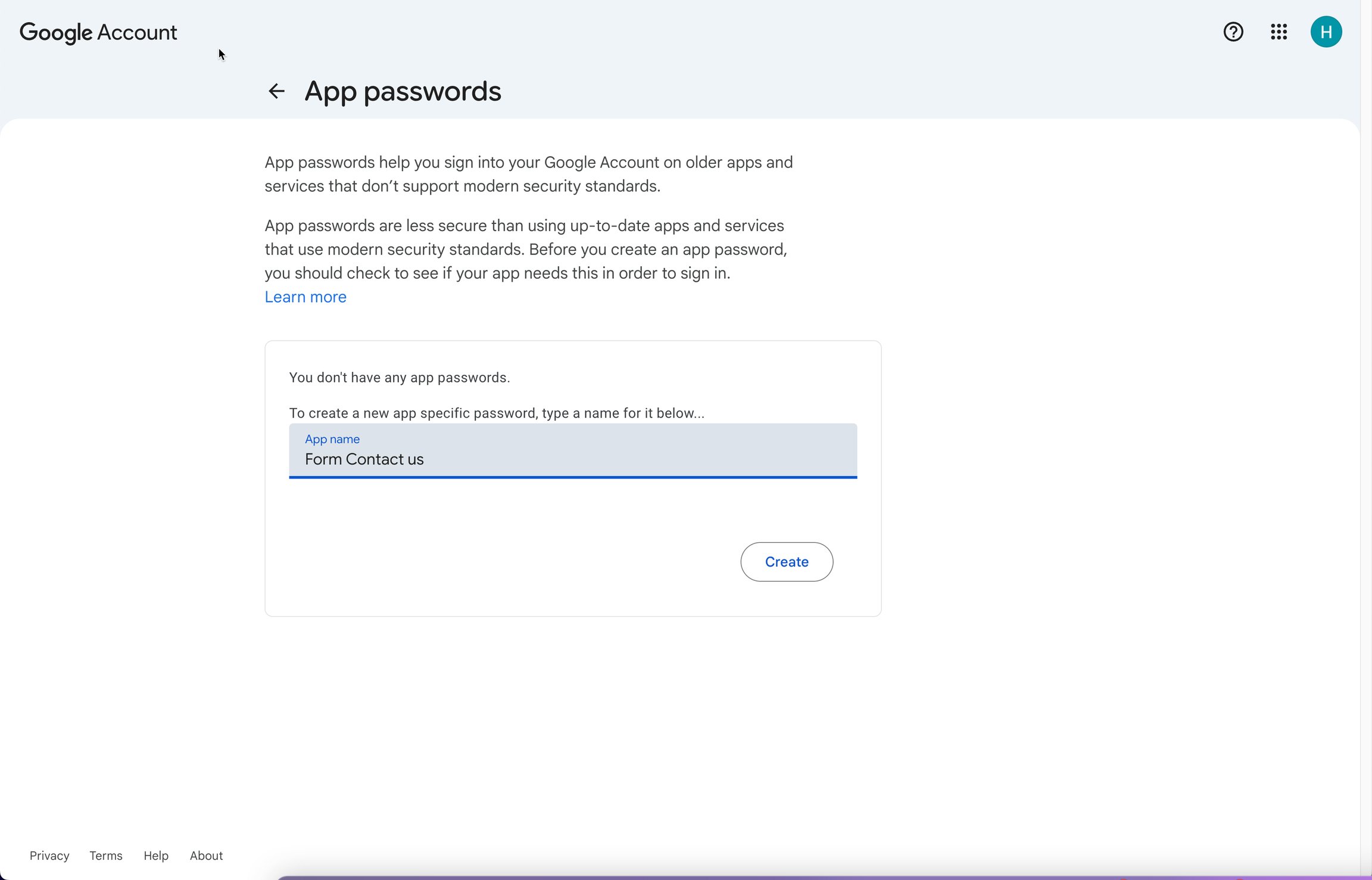
1. Go to your Google Account > **Security** > click **App passwords**
Or click [here](https://myaccount.google.com/apppasswords) to generate **App password**
2. Enter a name you want > click **Create**
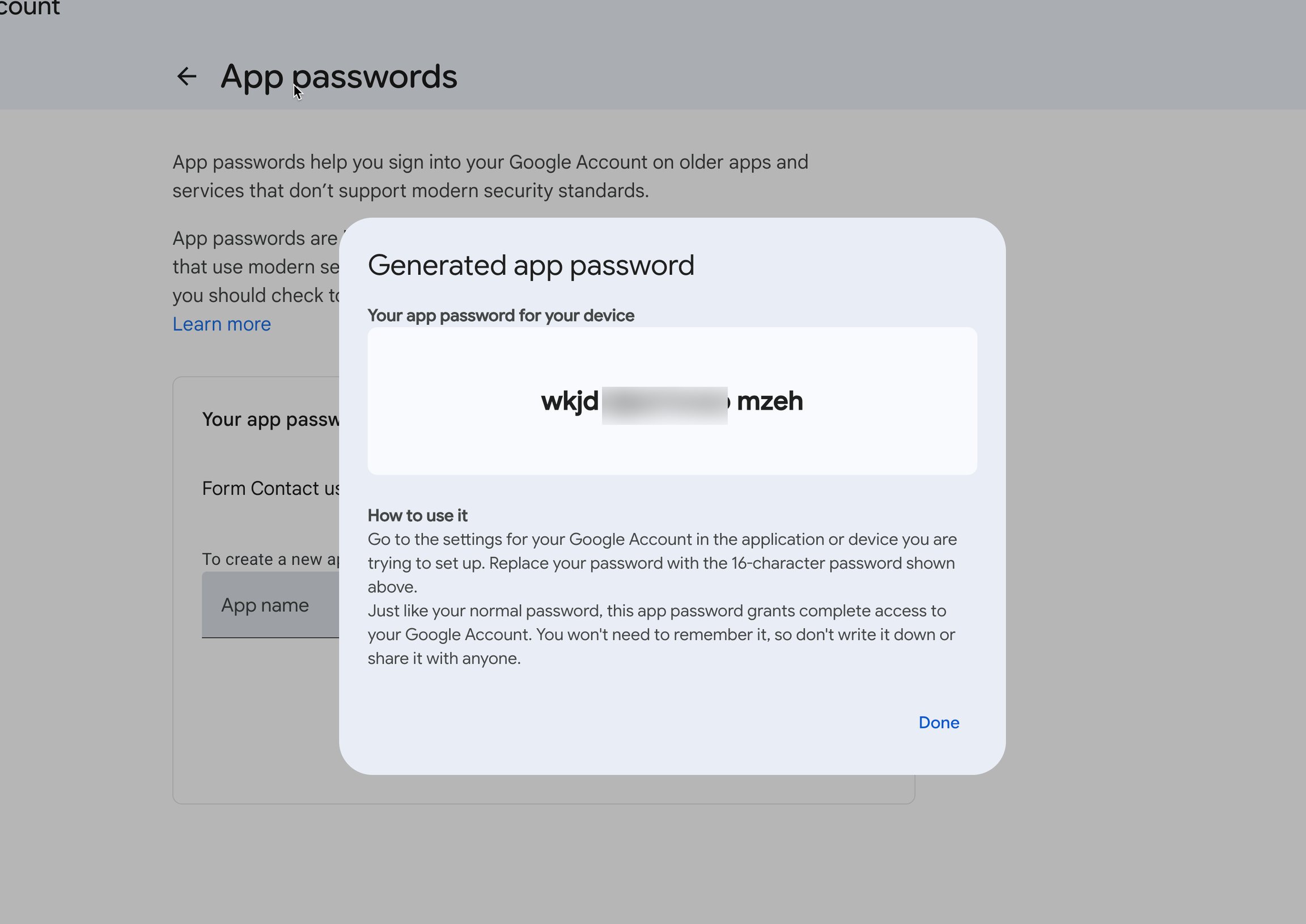
3. Copy the 16-character **App Password**
📌 Keep it safe, you will paste this password into your SMTP settings.
{% endstep %}
{% step %}
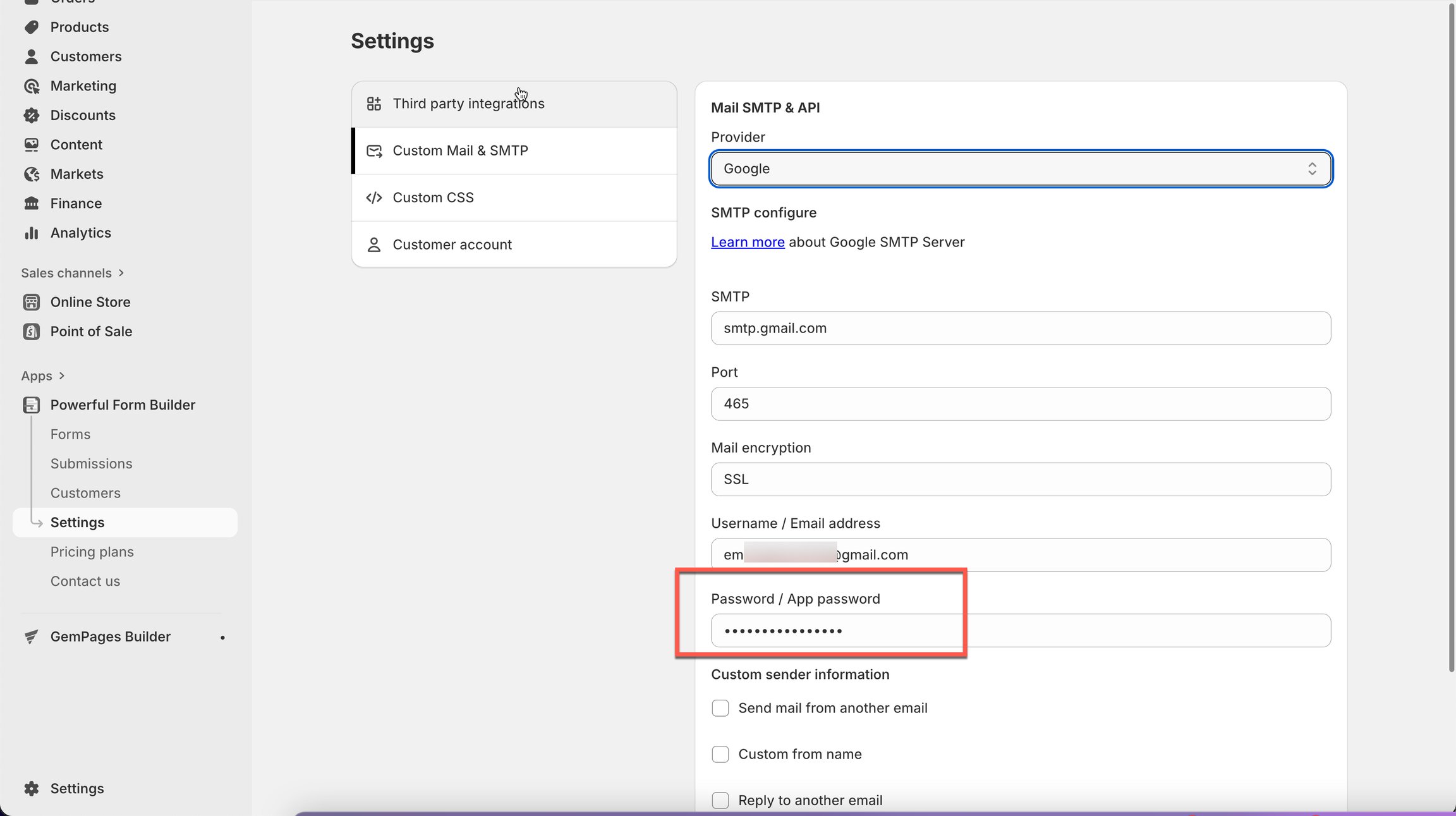
### Use the App Password in SMTP settings (in Powerful Contact Form Builder)
When setting up Gmail SMTP in Powerful Contact Form Builder:
* **SMTP Username:** your full Gmail address (example: `yourname@gmail.com`)
* **SMTP Password:** paste the **App Password** (NOT your normal Gmail password)
[Learn more](/email-notifications/custom-sender.md)
{% endstep %}
{% endstepper %}
## Next steps
* [SMTP](/email-notifications/custom-sender/custom-mail-smtp.md) — why you would do this.
* [Send from your own address](/email-notifications/custom-sender.md) — enter the password in the app.
* [Contact support](/help/contact-support.md) — if the problem is still there.