> For the complete documentation index, see [llms.txt](https://docs.powerfulform.com/llms.txt). Markdown versions of documentation pages are available by appending `.md` to page URLs; this page is available as [Markdown](https://docs.powerfulform.com/trouble-shooting/create-app-password-for-gmail-smtp.md).
# Create app password for Gmail SMTP
If you want to use Gmail SMTP to send emails, Google may require an App Password (instead of your normal Gmail password).
This usually happens when your Google account has **2-Step Verification** turned on.
An **App Password** is a special 16-character password that allows apps (like PowerfulForm) to sign in securely.
***
### 📝 Step 1: Turn on 2-Step Verification (Required)
Google only allows App Passwords if **2-Step Verification** is enabled.
1. Sign in to your Google Account.
2. Go to **Security**
3. Find **2-Step Verification**
4. Turn it **ON** and complete the setup.
✅ After this is enabled, you’ll be able to create an App Password.
Reference: [Enabling 2-Step Verification](https://support.google.com/accounts/answer/185839?hl=en\&co=GENIE.Platform%3DAndroid)
***
### 📝 Step 2: Create an App Password (Gmail)
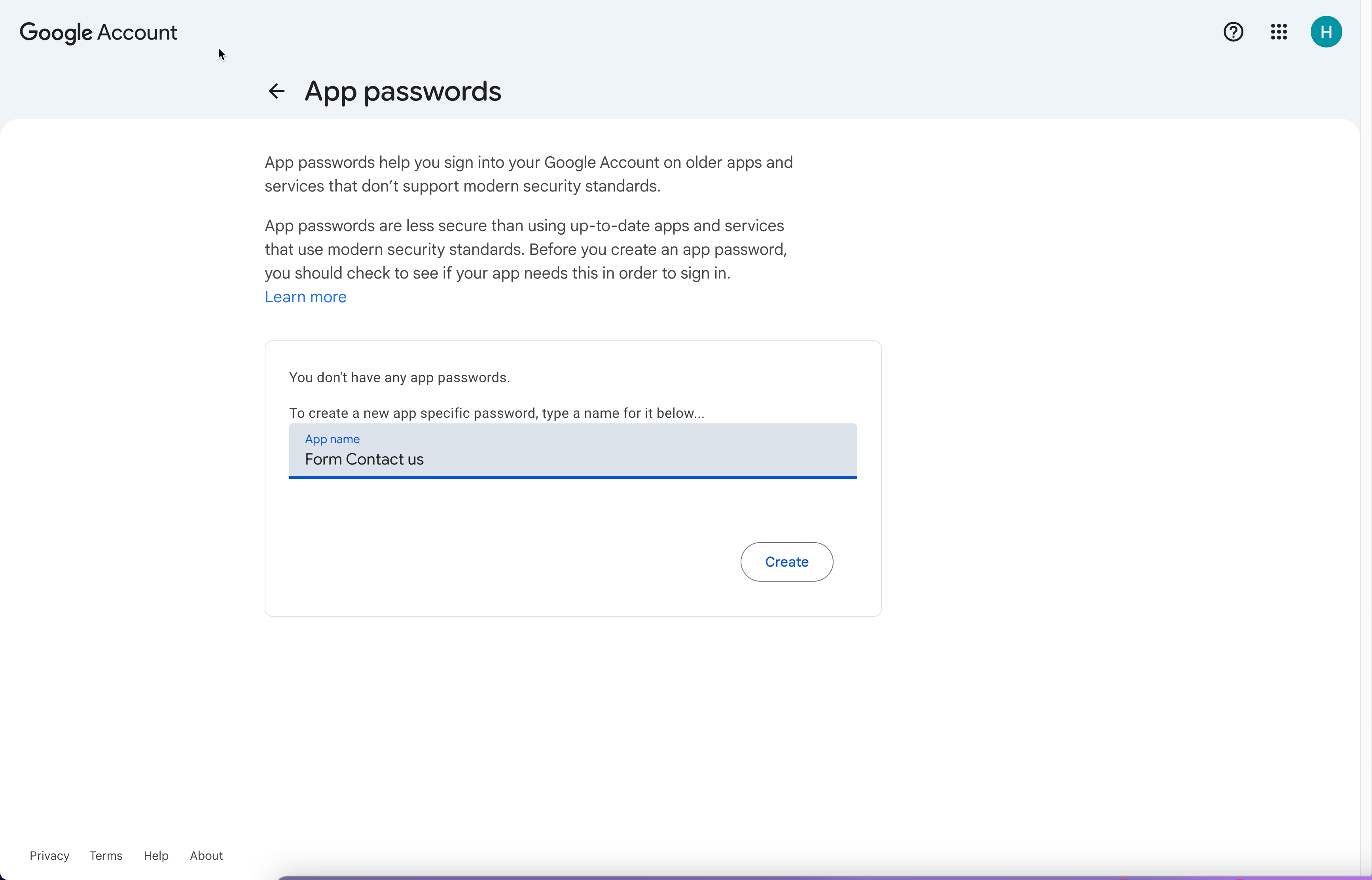
1. Go to your Google Account > **Security** > click **App passwords**
Or click [here](https://accounts.google.com/signin/v2/challenge/pwd?continue=https%3A%2F%2Fmyaccount.google.com%2Fapppasswords\&service=accountsettings\&osid=1\&rart=ANgoxcdLMmet3NvgjbdpzsMq0KoXNJyxtAoCLMbvDQUlJfgOx1aurad5UovfOx_VzIQCC3ngjDNa4NrhIcMzG1vVgoTmlSvedg\&TL=AC7eWV1D1q-bjvM25M6waxUjQCCabFxl0K9Bn0bW5AWXuTc3O0zPCDZxtbw2g3d0\&flowName=GlifWebSignIn\&cid=1) to generate **App password**
2. Enter a name you want > click **Create**
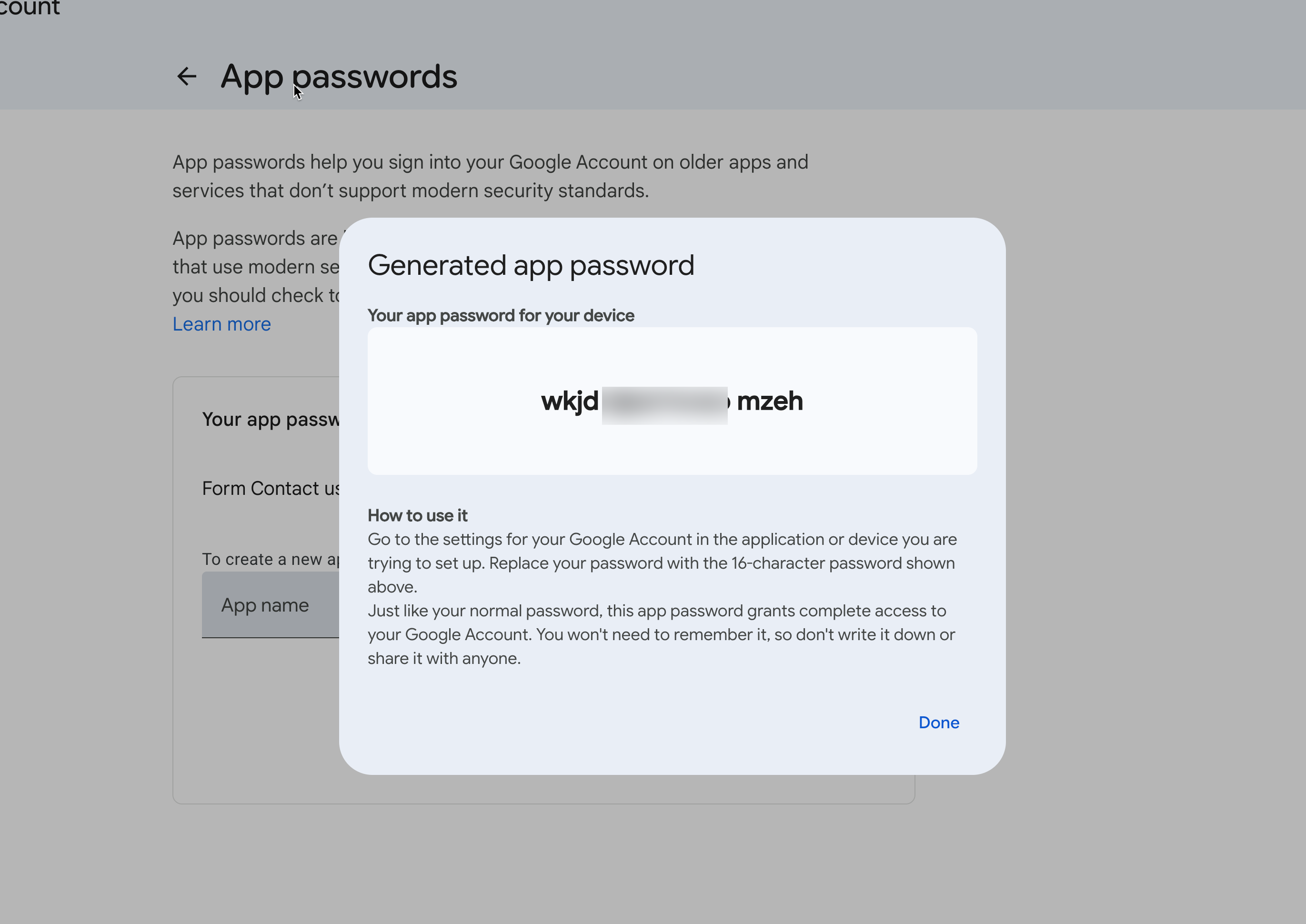
3. Copy the 16-character **App Password**
📌 Keep it safe, you will paste this password into your SMTP settings.
***
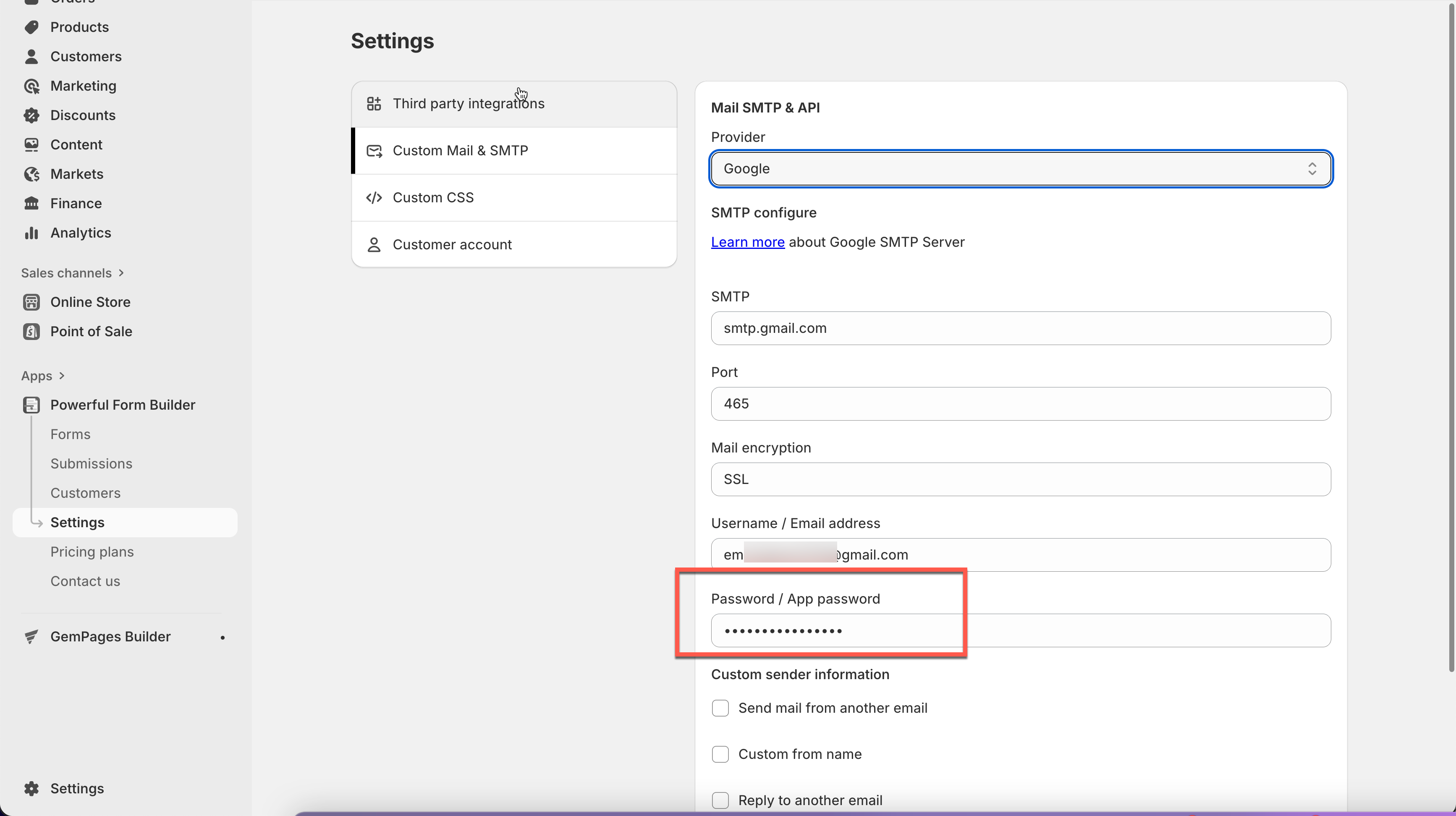
### 📝 Step 3: Use the App Password in SMTP settings (in Powerful Contact Form Builder)
When setting up Gmail SMTP in Powerful Contact Form Builder:
* **SMTP Username:** your full Gmail address (example: `yourname@gmail.com`)
* **SMTP Password:** paste the **App Password** (NOT your normal Gmail password)
[Learn more ](/mail-notification/smtp-setup.md)
***
#### Need More Help?
If you still need assistance, please contact us at . Our team will be happy to help you resolve any issues or guide you further.