> For the complete documentation index, see [llms.txt](https://docs.powerfulform.com/llms.txt). Markdown versions of documentation pages are available by appending `.md` to page URLs; this page is available as [Markdown](https://docs.powerfulform.com/submissions/view-submissions.md).

# View submissions

Everything you do with stored submissions: read the table, filter it, open an entry, tag it, and export it.

**Powerful Contact Form Builder** stores every submission your forms receive, so the **Submissions** table is the record of what customers actually sent you — independent of whether a notification email arrived. Open it with **Submissions** in the app menu.

<figure><img src="https://2907469752-files.gitbook.io/~/files/v0/b/gitbook-x-prod.appspot.com/o/spaces%2FehM2rz7MmKkWcJmgvJOe%2Fuploads%2Fgit-blob-77d1bf21c0edacd2552ebcb19531e62d8a140866%2Fscreenshot-data-submissions-page-full.png?alt=media" alt="The Submissions page showing the summary strip with Sections by device type, Form views, Submissions and Completion rate above the submissions table"><figcaption><p>The summary strip sits above the table on paid plans.</p></figcaption></figure>

## The summary strip

At the top of the Submissions page, you can see a quick overview of your form activity:

<figure><img src="https://2907469752-files.gitbook.io/~/files/v0/b/gitbook-x-prod.appspot.com/o/spaces%2FehM2rz7MmKkWcJmgvJOe%2Fuploads%2Fgit-blob-2dcaba9a3a050893be3a5c692b093d8463972098%2FScreenshot%202026-08-28%20at%2013-24-01.png?alt=media" alt=""><figcaption></figcaption></figure>

The numbers follow the **Form** filter if you set one. **View analytics** opens the full analytics view, on plans that include it — see [Form insights](/submissions/form-insights.md).

<table><thead><tr><th width="151.6666259765625">Metric</th><th width="315.3333740234375">What it means</th><th>Example</th></tr></thead><tbody><tr><td><strong>Device type</strong></td><td>Shows where your form views come from.</td><td>100% Desktop, 0% Mobile, 0% Other</td></tr><tr><td><strong>Form views</strong></td><td>The number of times the form successfully loads on a page. This is an estimate because some browsers or ad blockers may prevent views from being recorded.</td><td>3 views</td></tr><tr><td><strong>Submissions</strong></td><td>The number of submissions recorded for your form.</td><td>3 submissions</td></tr><tr><td><strong>Completion rate</strong></td><td>The percentage of form views that resulted in a submission.</td><td><strong>100%</strong> = 3/3 * 100</td></tr></tbody></table>

> **Note:** The completion rate can be over 100% if visitors submit the form more than once during the recorded period.

## Filtering submissions

You can easily narrow down submissions by using filters:

* Filter **By Form** — see submissions from a specific form only
* Filter **By Status** — e.g. pending, reviewed, completed (if you use statuses)
* Filter **By Date Created** — select a date range to view submissions from that period

**Example:** To find all submissions received for your **Contact Us** form this month, select **Contact Us** under **Form**, then choose the date range for this month.

<figure><img src="https://2907469752-files.gitbook.io/~/files/v0/b/gitbook-x-prod.appspot.com/o/spaces%2FehM2rz7MmKkWcJmgvJOe%2Fuploads%2Fgit-blob-369e06ae31e65e30c3c66b8ff017af3524744d9b%2Fimage%20(1)%20(1)%20(1)%20(1)%20(1).png?alt=media" alt=""><figcaption></figcaption></figure>

<figure><img src="https://2907469752-files.gitbook.io/~/files/v0/b/gitbook-x-prod.appspot.com/o/spaces%2FehM2rz7MmKkWcJmgvJOe%2Fuploads%2Fgit-blob-0b07c26bc4e04130dc789a1e13767573557b49d7%2Fimage%20(3).png?alt=media" alt=""><figcaption></figcaption></figure>

## Open a submission

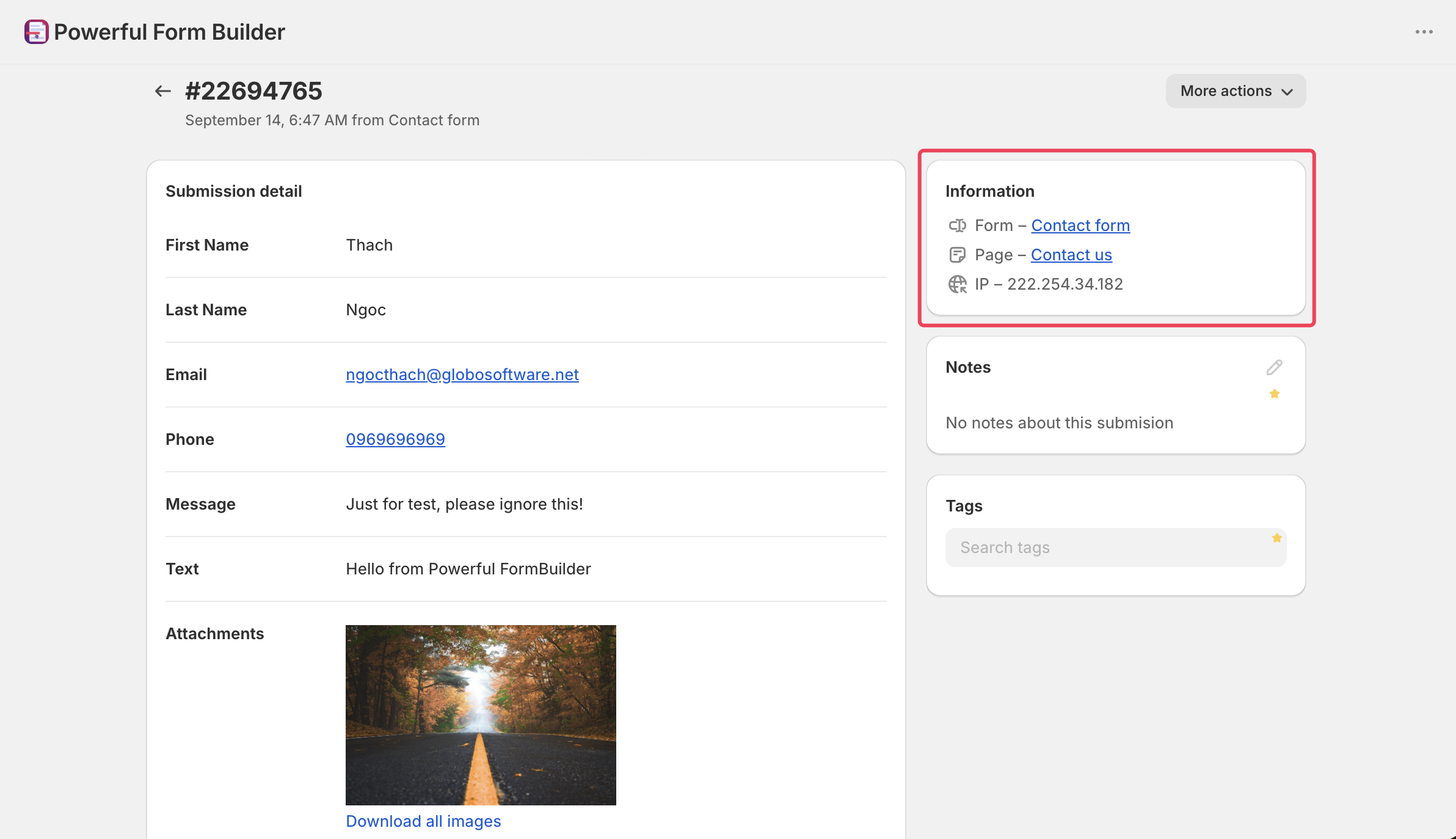
Click any submission in the list to view its details.

You can see:

* **Submitted data** — The answers provided by the customer.
* **Form** — The form used for the submission.
* **Submission time** — When the form was submitted.
* **Page** — The page where the form was submitted.
* **Customer** — Shopify customer information, when available.
* **IP address** — The visitor's IP address.

Uploaded files are also available from the submission when a **File Upload** field was used.

<figure><img src="https://2907469752-files.gitbook.io/~/files/v0/b/gitbook-x-prod.appspot.com/o/spaces%2FehM2rz7MmKkWcJmgvJOe%2Fuploads%2Fgit-blob-14ad2bf72fa9fb4e03276e3764f77a1c0b413fe9%2FScreenshot%202026-09-14%20at%2017-52-44.png?alt=media" alt=""><figcaption></figcaption></figure>

<figure><img src="https://2907469752-files.gitbook.io/~/files/v0/b/gitbook-x-prod.appspot.com/o/spaces%2FehM2rz7MmKkWcJmgvJOe%2Fuploads%2Fgit-blob-e2d606d868b49711b686c4e642fac2c24378563c%2FScreenshot%202026-09-14%20at%2017-53-28.png?alt=media" alt=""><figcaption></figcaption></figure>

## Export submissions

{% hint style="info" %}
Export is on **Premium** and **Pro**. On **Free** the action returns **Your plan does not include export submission features, please upgrade**. See [Plans and billing](/settings/plans-and-billing.md).
{% endhint %}

Select the submissions you want, click **Export submission(s)**, and download the **Excel (.xlsx)** file. For large exports, the file is prepared in the background and sent to your email instead.

<figure><img src="https://2907469752-files.gitbook.io/~/files/v0/b/gitbook-x-prod.appspot.com/o/spaces%2FehM2rz7MmKkWcJmgvJOe%2Fuploads%2Fgit-blob-99e9f47c803780105de4d17800935482518b60e7%2Fimage%20(5).png?alt=media" alt=""><figcaption></figcaption></figure>

[Export submissions](/submissions/export-submissions.md) covers the full walkthrough, including how to export every submission at once.

## Delete submissions

You can delete one or more submissions from the list.

1. Select the submissions you want to delete
2. Click **More actions (⋯)**
3. Select **Delete submissions**
4. Confirm the deletion

<figure><img src="https://2907469752-files.gitbook.io/~/files/v0/b/gitbook-x-prod.appspot.com/o/spaces%2FehM2rz7MmKkWcJmgvJOe%2Fuploads%2Fgit-blob-7b9e2f406f71eb681561dcf333a83b6e7af192fc%2Fimage%20(4).png?alt=media" alt=""><figcaption></figcaption></figure>

{% hint style="danger" %}
Deletion is permanent and cannot be undone. Any files attached to the deleted submissions are also deleted. Download any files you want to keep before deleting the submission.
{% endhint %}

## Add tags, notes, and comments

Use **tags, notes, and comments** to organize submissions and keep track of follow-ups.

### Add tags

Add one or more tags to a submission to categorize it. You can then use the tag to filter submissions later.

**Example:**\
Add the **VIP** tag to submissions from important customers. Later, filter by **VIP** to quickly find them.

<figure><img src="https://2907469752-files.gitbook.io/~/files/v0/b/gitbook-x-prod.appspot.com/o/spaces%2FehM2rz7MmKkWcJmgvJOe%2Fuploads%2Fgit-blob-01bfd294156a48fde3495d845cd8606f9c6b66c0%2Fscreenshot-data-submission-tags-card.png?alt=media" alt="The Tags card in the right column of a submission page with a tag name typed into the Search tags box and the highlighted &#x27;Add&#x27; option below it, which creates the tag and attaches it."><figcaption><p>Type a tag name and click Add to create it and attach it to the submission.</p></figcaption></figure>

### Add a note

Add a private note to keep useful information about a submission. Notes help your team remember what needs to be done without changing the customer's submitted data.

**Example:**

> “Customer requested a quote. Follow up next Monday.”

### Add a comment

Use comments to record updates or communicate with your team about a submission. This makes it easier to keep track of the submission's progress.

**Example:**

> “Quote sent to the customer.”

<figure><img src="https://2907469752-files.gitbook.io/~/files/v0/b/gitbook-x-prod.appspot.com/o/spaces%2FehM2rz7MmKkWcJmgvJOe%2Fuploads%2Fgit-blob-d0cbe55e1942713ed06f76ba222c2c8733b471ed%2FScreenshot%202026-09-14%20at%2017-56-48.png?alt=media" alt=""><figcaption></figcaption></figure>

> **Tip:** Use **tags** for categorizing, **notes** for reminders or important information, and **comments** for tracking updates.

{% hint style="info" %}
Tags, notes and Timeline comments make up the **Advanced submissions** feature and are not on every plan. None of them is ever visible to the customer. Submission tags are not Shopify customer tags — for those, see [Add Customer Tag](/customers-and-registration/customer-tags.md).
{% endhint %}

## When the table looks wrong

<details>

<summary>Some rows are unreadable and will not open</summary>

Rows beyond your plan's monthly submission allowance are masked. Hovering one shows **Your plan limit has been reached, please upgrade to higher plan to view this data**. The submissions are still stored — a larger allowance makes them readable again.

</details>

<details>

<summary>The table says there are no submissions at all</summary>

The empty state reads **There is no form submission**. If you already have forms, the usual cause is a form that is not published, or the theme app embed being off. See [The form is not showing on my store](/troubleshooting/form-not-showing.md).

</details>

<details>

<summary>A field I expected is missing from an export</summary>

Columns come from the fields on the form at export time, and each sheet covers one form. If you renamed a field, older submissions were stored under the old label.

</details>

<br>

## Next steps

* [Form insights](/submissions/form-insights.md) — measure views, submissions and completion rate over time.
* [Limit to one submission per customer](/submissions/one-submission-per-customer.md) — stop the same person entering twice.
* [Google Sheets](/integrations/google/google-sheets.md) — write new submissions to a spreadsheet automatically instead of exporting.