> For the complete documentation index, see [llms.txt](https://docs.powerfulform.com/llms.txt). Markdown versions of documentation pages are available by appending `.md` to page URLs; this page is available as [Markdown](https://docs.powerfulform.com/settings/custom-css.md).
# Custom CSS
Customize the appearance of your form beyond default styling options using custom CSS rules
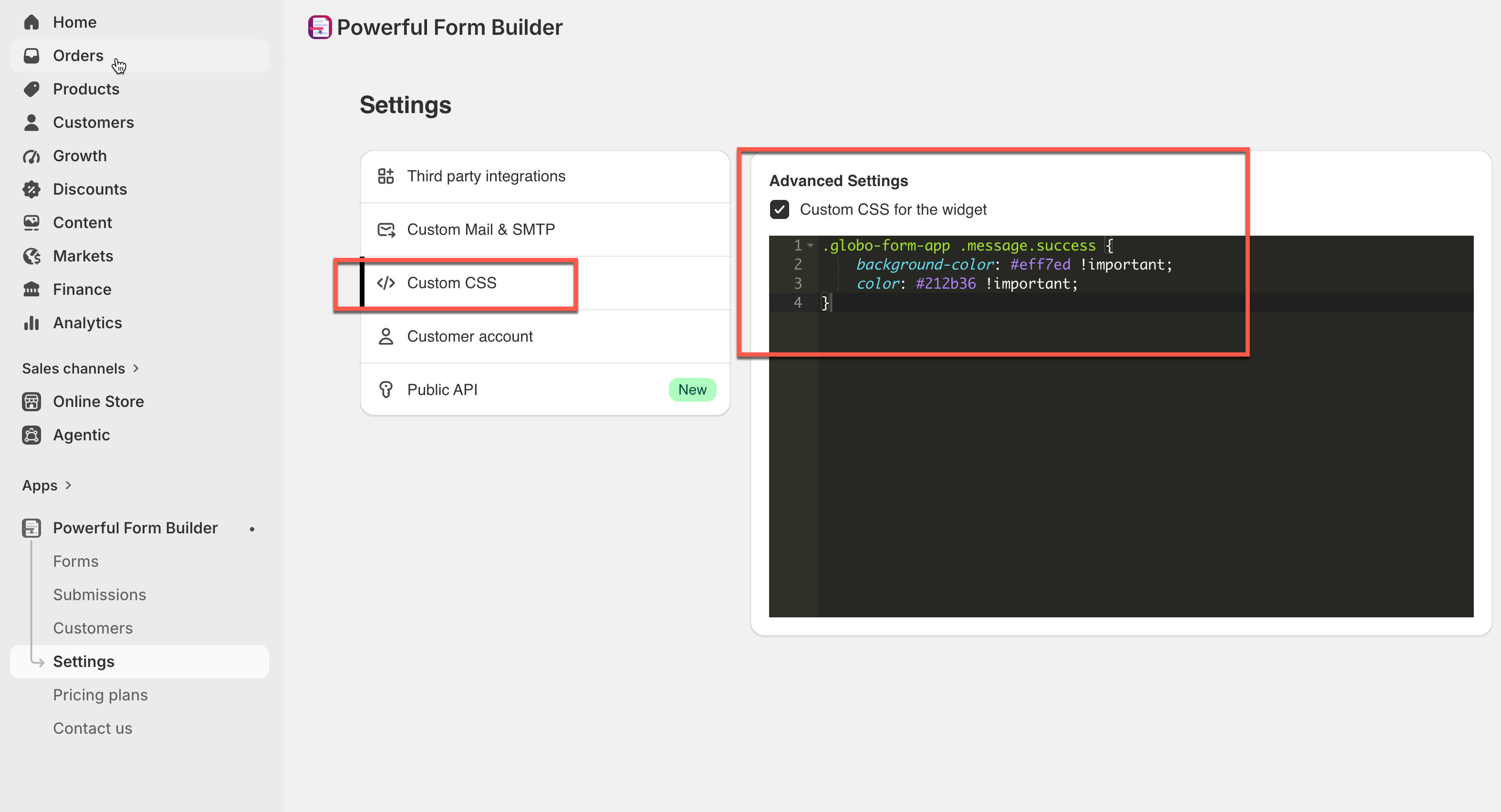
Where it lives
## ⚙️ How to Add Custom CSS
{% stepper %}
{% step %}
#### Go to app Settings > Custom CSS
{% endstep %}
{% step %}
#### Enable the **Custom CSS** toggle
{% endstep %}
{% step %}
#### Paste your CSS code into the editor box
{% endstep %}
{% step %}
#### Click Save to apply changes
{% endstep %}
{% step %}
#### Check your storefront
Open a page that has one of your forms on it and reload it. Check the result on a phone width as well as on desktop.
{% endstep %}
{% endstepper %}
{% hint style="info" %}
**Note**: Custom CSS only applies to the live form on your store front—it will not display in the app's form preview or theme editor.
{% endhint %}
## 🛡️ Best Practices for CSS
* **Use Specific Selectors:** Target form-specific classes (e.g., `.globo-formbuilder`) to avoid breaking your store theme's default styles.
* **Inspect Elements First:** Use your browser’s Inspect tool (F12) on the live store to target the exact CSS classes.
* **Keep a Backup: C**opy and save your CSS in a separate text file before making major changes.
* **Test Mobile Responsiveness:** Avoid using fixed `width` or `height` values so your form scales properly on mobile screens.
Is there a custom JavaScript box too?
Not in **Settings**. **Custom CSS** is the only code box that applies to your whole store. There is a separate per-form scripts setting inside the form editor, which is available on Pro and above.
My CSS has no effect on the storefront
Work through these in order:
1. **Custom CSS for the widget** is ticked and you clicked **Save**.
2. The app embed is switched on for your theme, otherwise nothing the app renders is on the page at all. See [Theme integration](/display-and-placement/enable-the-app-embed.md).
3. You reloaded the storefront page, with a hard reload if your browser or theme is caching assets.
4. Your selector matches what is actually rendered. Inspect the form in your browser and compare the class names.
5. Something more specific is overriding your rule — either your theme or the form's own design settings. Making the selector more specific usually resolves it.
## Next steps
* [Design your form](/design-your-form/form-design.md) — the built-in styling settings to try first.
* [Theme integration](/display-and-placement/enable-the-app-embed.md) — required before any storefront styling takes effect.
* [Settings](/settings/settings.md) — the other store-wide settings.