> For the complete documentation index, see [llms.txt](https://docs.powerfulform.com/llms.txt). Markdown versions of documentation pages are available by appending `.md` to page URLs; this page is available as [Markdown](https://docs.powerfulform.com/quick-start/form-field-types/product-field.md).
# Product field
The **Product** field lets customers search and select products from your Shopify store inside a form.\
It’s great for product questions, quote requests and wholesale inquiries.
#### ✅ When should I use it?
Use the Product field when you want customers to tell you which product(s) they mean.
**Example**
* “Which product are you interested in?”
* “Select the items you want a quote for”
* “Choose the product you need help with”
***
### 🧩 How to add a Product field
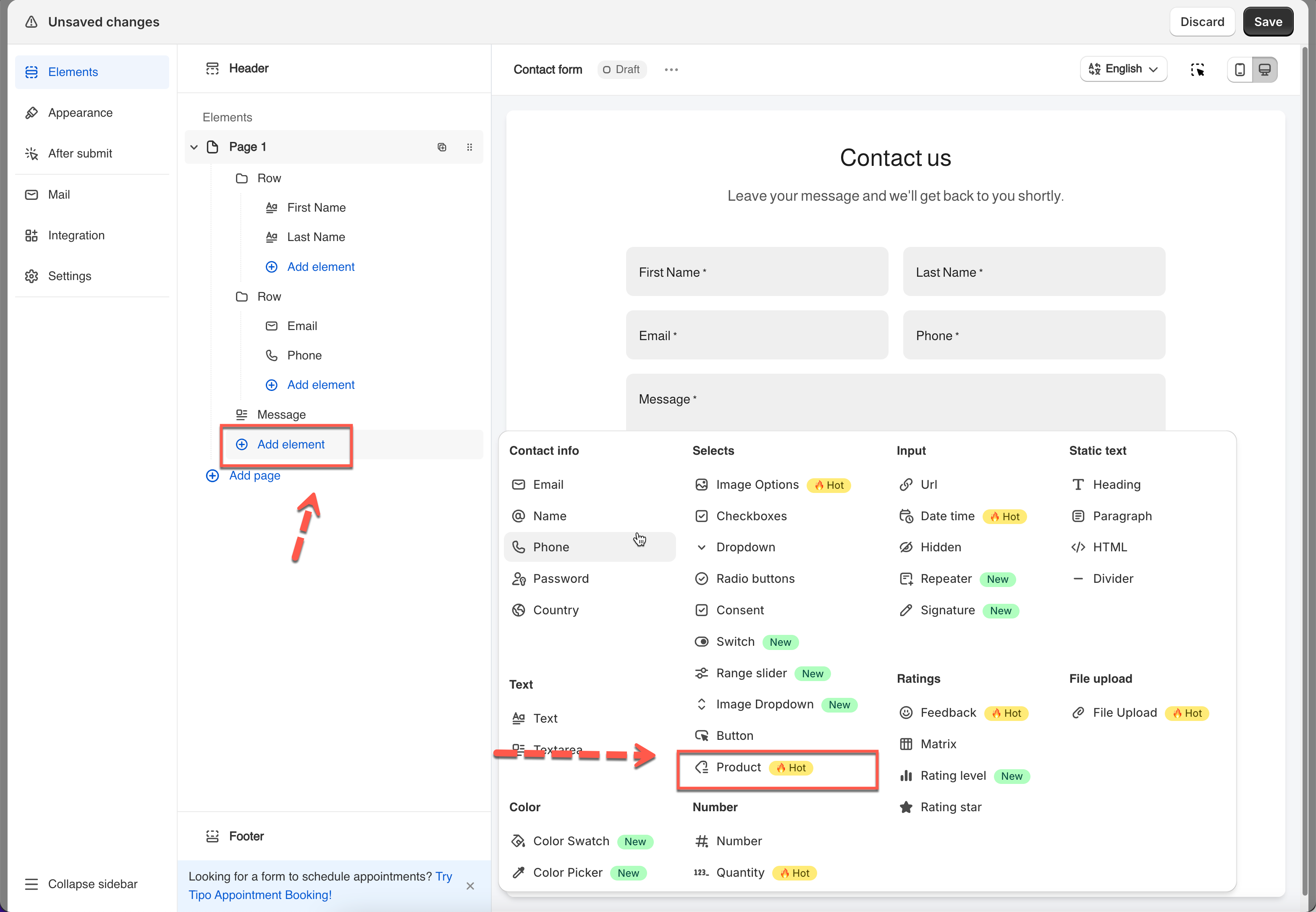
1. Open your form in the editor
2. Click **Add element**
3. Select **Product**
The field will automatically pull products from your Shopify store.
4. Configure the field detail like labels, placeholder, ...
5. Click Save
***
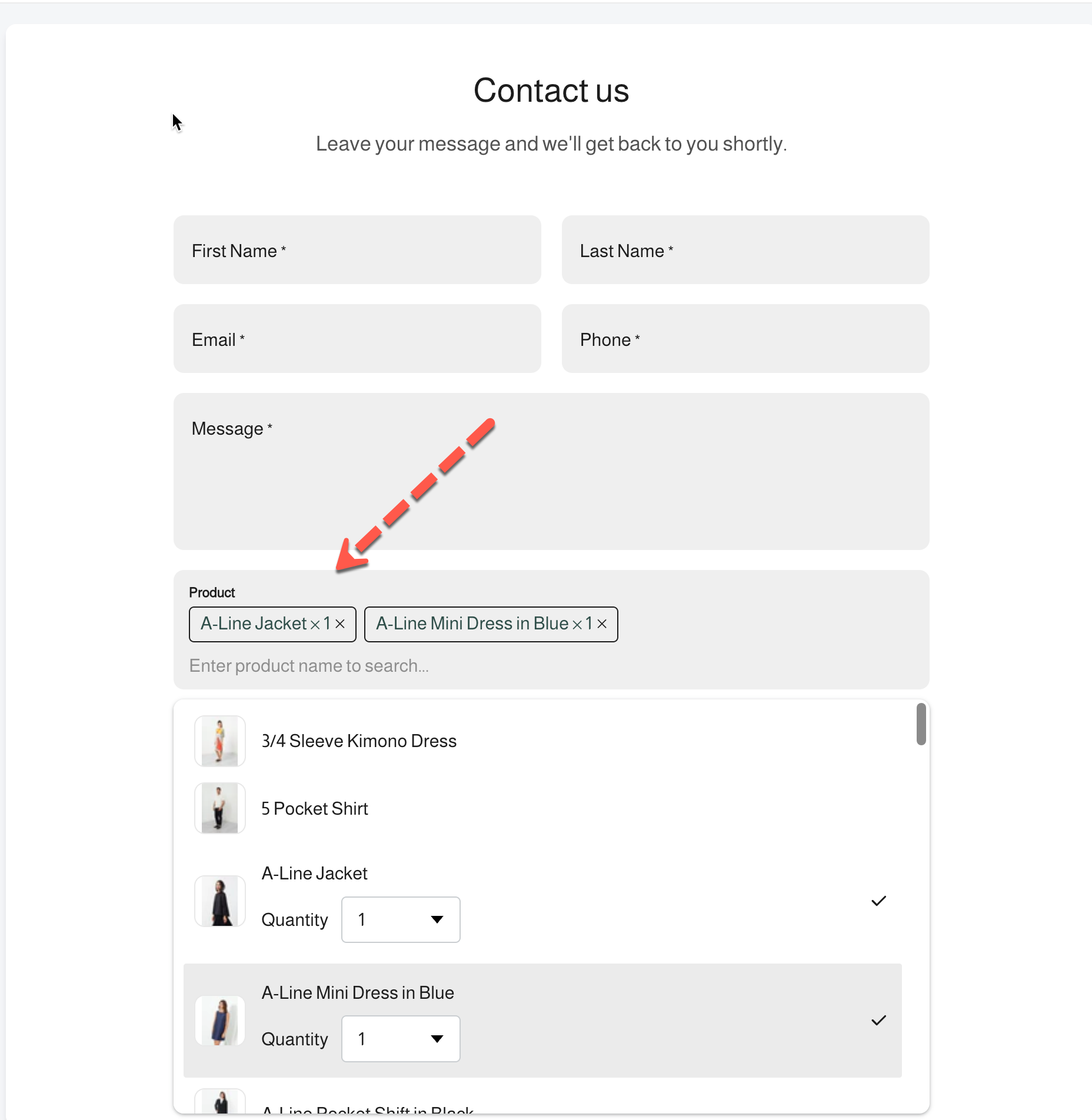
### ⚙️ What customers see
* A search box (they type the product name)
* A product list (with image + name)
* Selected products appear as “tags”
* (Optional) quantity selector for each product
***
### 🛠️ Product field settings
#### Label
This is the title shown above the field.
**Example**
* `Product`
* `Select product(s)`
***
#### Placeholder
Text shown inside the search box before customers type.
**Example**\
`Enter product name to search...`
***
#### Description
Helpful text shown under the field.
**Example**\
`Select the product(s) you are asking about.`
***
#### Notice when no product found
Message shown when nothing matches the search.
**Example**\
`No products found.`
***
#### Suggest when no product found
A helpful tip shown under the “no results” message.
**Example**\
`Try a different keyword (e.g., jacket, dress).`
***
### **☑️** Product selection options
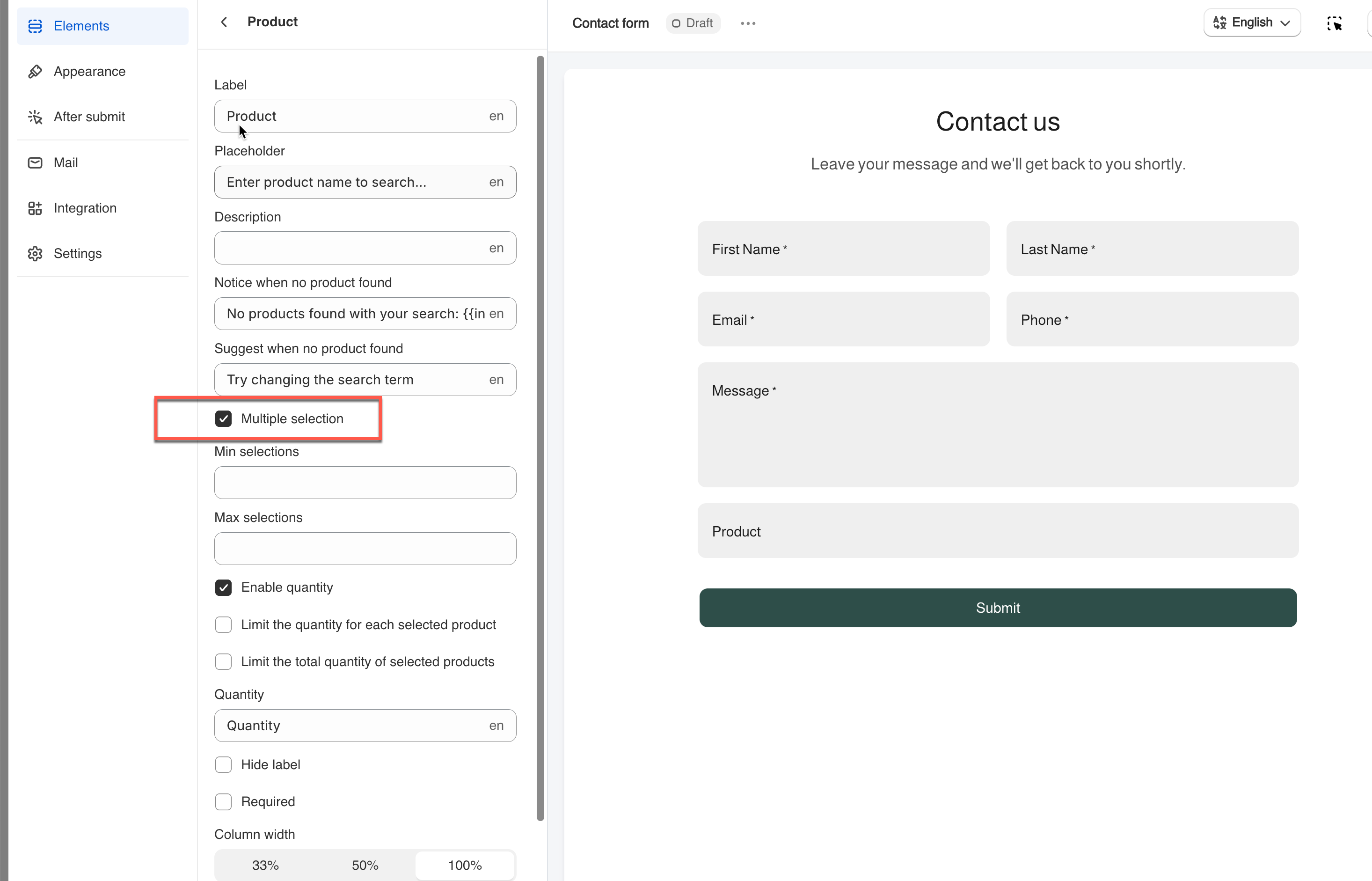
#### Multiple selection
Allow customers to select more than one product.
**Example**
* ON → Customers can select multiple items
* OFF → Customers can select only 1 item
***
#### Min selections
Set the **minimum** number of products customers must choose.
**Example**\
`Min selections: 1`\
⇒ Customer must pick at least 1 product to submit.
***
#### Max selections
Set the **maximum** number of products customers can choose.
**Example**\
`Max selections: 3`\
⇒ Customer can select up to 3 products only.
***
### 🔢 Quantity options (optional)
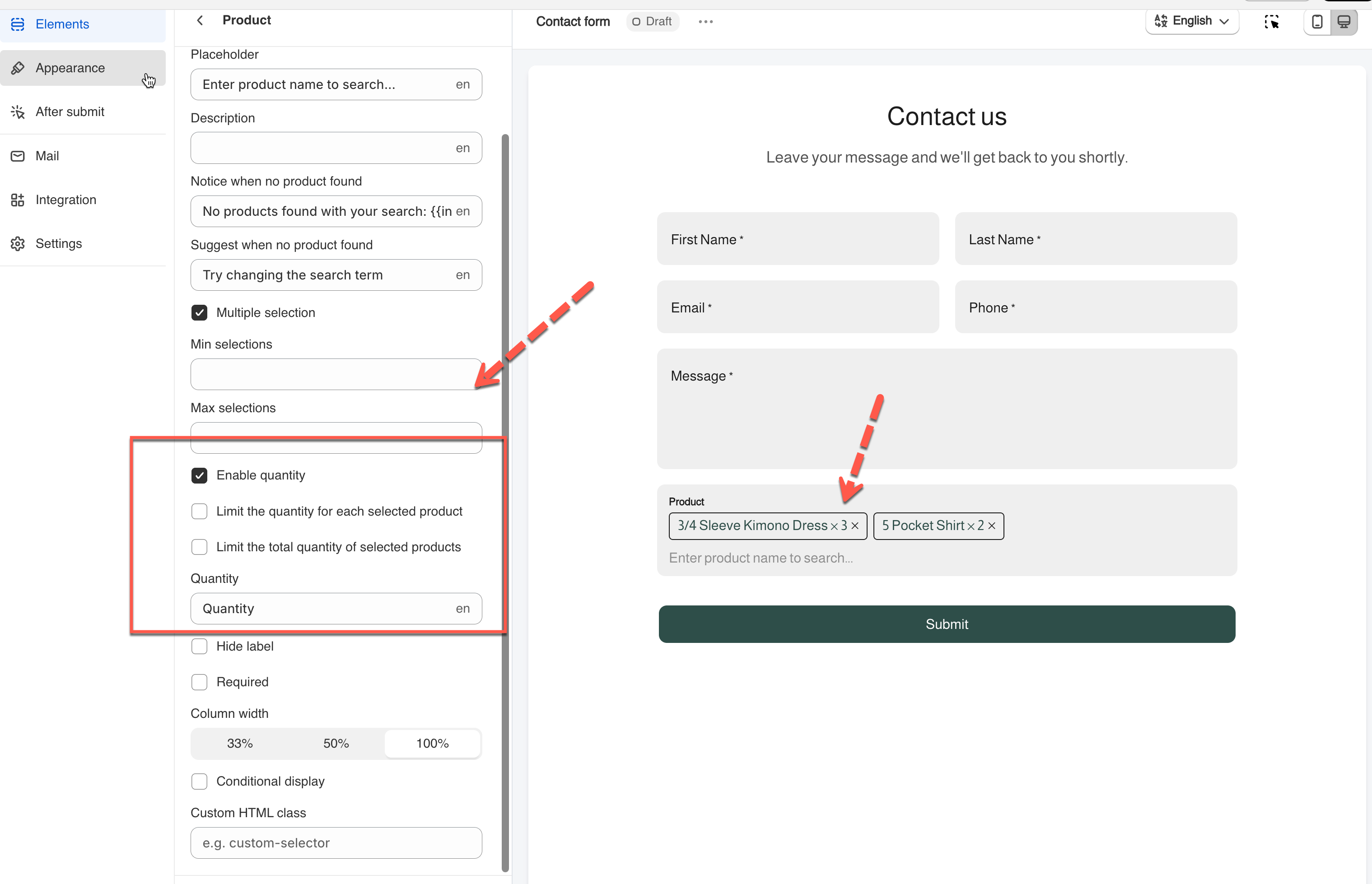
#### **Enable quantity**
Let customers choose quantity for each selected product.
**Example**\
Customer selects:
* A-Line Jacket → Quantity: 2
* 5 Pocket Shirt → Quantity: 1
***
#### Limit the quantity for each selected product
Set a max quantity per product.
**Example**\
`Max per product: 5`\
⇒ Each selected product can be 1–5.
***
#### Limit the total quantity of selected products
Set a max quantity across all selected products.
**Example**\
Total limit: `10`
* Jacket: 4
* Shirt: 3
* Dress: 3\
✅ Total = 10 → can submit
* Jacket: 6
* Shirt: 3
* Dress: 2\
❌ Total = 11 → cannot submit
***
#### Quantity label
Change the text shown next to the quantity dropdown.
**Example**
* `Quantity`
* `Requested quantity`
***
### ✅ Recommended settings
If you’re not sure what to choose, start with this:
* **Multiple selection:** ON
* **Min selections:** 1
* **Enable quantity:** ON
* **Required:** ON
* **Column width:** 100%
This works well for most “quote” and “product inquiry” forms.
***
#### Need More Help?
If you still need assistance, please contact us at . Our team will be happy to help you resolve any issues or guide you further.