> For the complete documentation index, see [llms.txt](https://docs.powerfulform.com/llms.txt). Markdown versions of documentation pages are available by appending `.md` to page URLs; this page is available as [Markdown](https://docs.powerfulform.com/integrations/zapier.md).
# Zapier integration
Send form submissions to thousands of apps with a Zapier webhook.
Integrating your Powerful Contact Form Builder form with Zapier allows you to automate tasks, such as sending form submissions directly to Google Sheets or other apps, without any coding required.
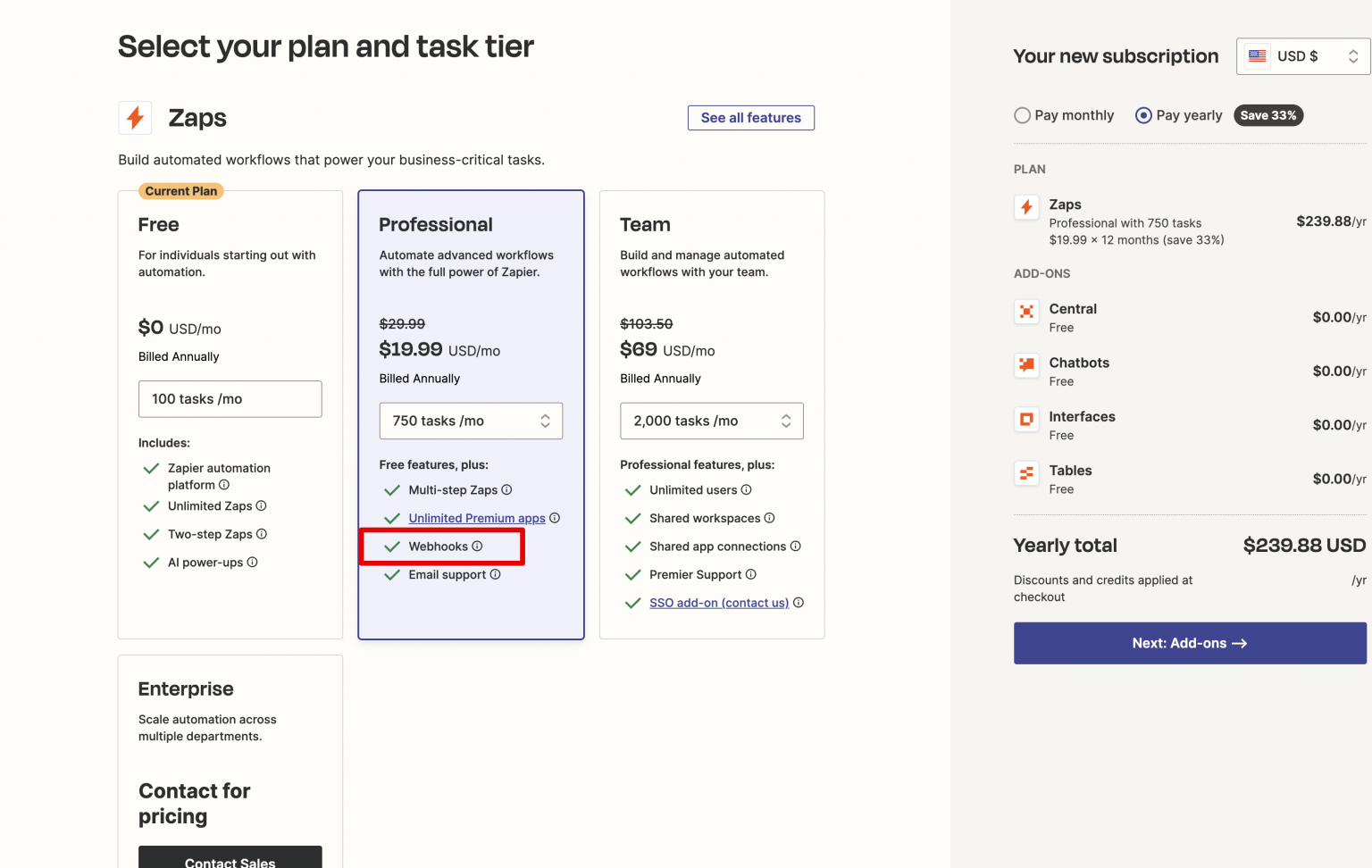
**Note:** This integration is available on the **PRO plan** of Powerful Contact Form Builder. A **paid Zapier plan** is also required.
What You'll Need:
* A Google Sheet ready to receive form submissions.
* A Zapier account (with a paid plan).
* Access to your Powerful Contact Form Builder dashboard.
## How to set it up
{% stepper %}
{% step %}
### Create a new sheet in your Google Sheets
First, create a sheet you want to connect with the form in your Google Sheets
{% endstep %}
{% step %}
### Catch Hook in Webhooks by Zapier
Here you’ll create a Zap that **receives your form submission** through a Zapier webhook.
1\. In Zapier click **Create** button > select **Zaps**
2\. Select **Trigger** > select **Webhook by Zapier** > select **Catch hook** > click **Continue** button > you can skip **Pick off a Child Key**
3\. In **Test** tab, copy your **webhook URL**
{% endstep %}
{% step %}
### Add Webhook URL to Form builder app
Now you paste the Zapier Webhook URL into Powerful Contact Form Builder so it knows where to send data.
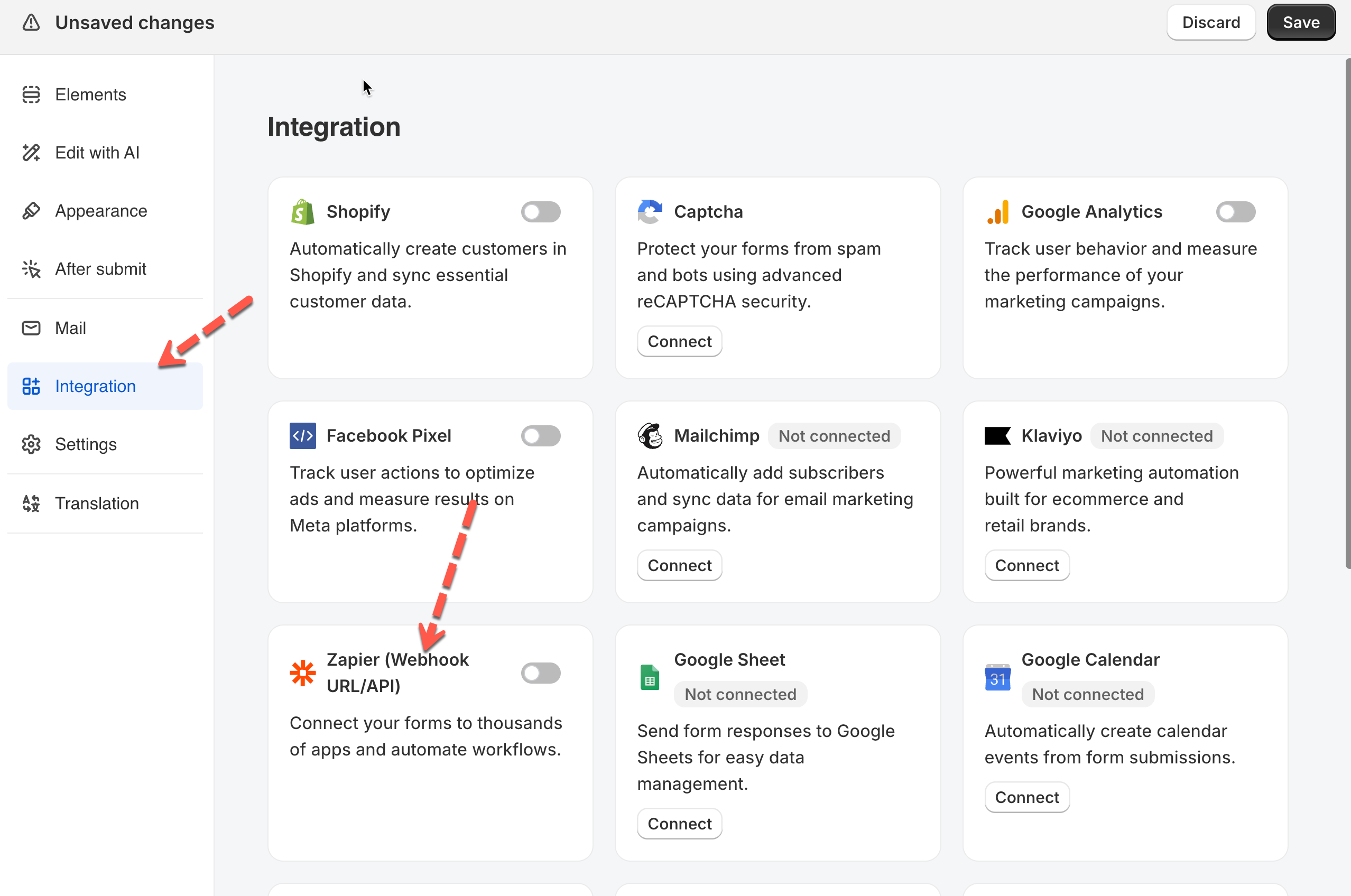
1. Open the Powerful **Form Builder app** > click **Forms** > open a form > click **integration** icon > enable **Zapier**
2. Click **Zapier** option to open the setting
2\. Paste the **webhook URL** from Zapier here
3\. Click **Save**
{% endstep %}
{% step %}
### Create Spreadsheet Row in Google Sheets in Zapier
1. Submit the form once (from **app preview** or your **online store** if the form is published)
2\. Go back to **Zapier** > click **Test trigger** > the submission you have submitted is used to test > click **Continue with selected record**
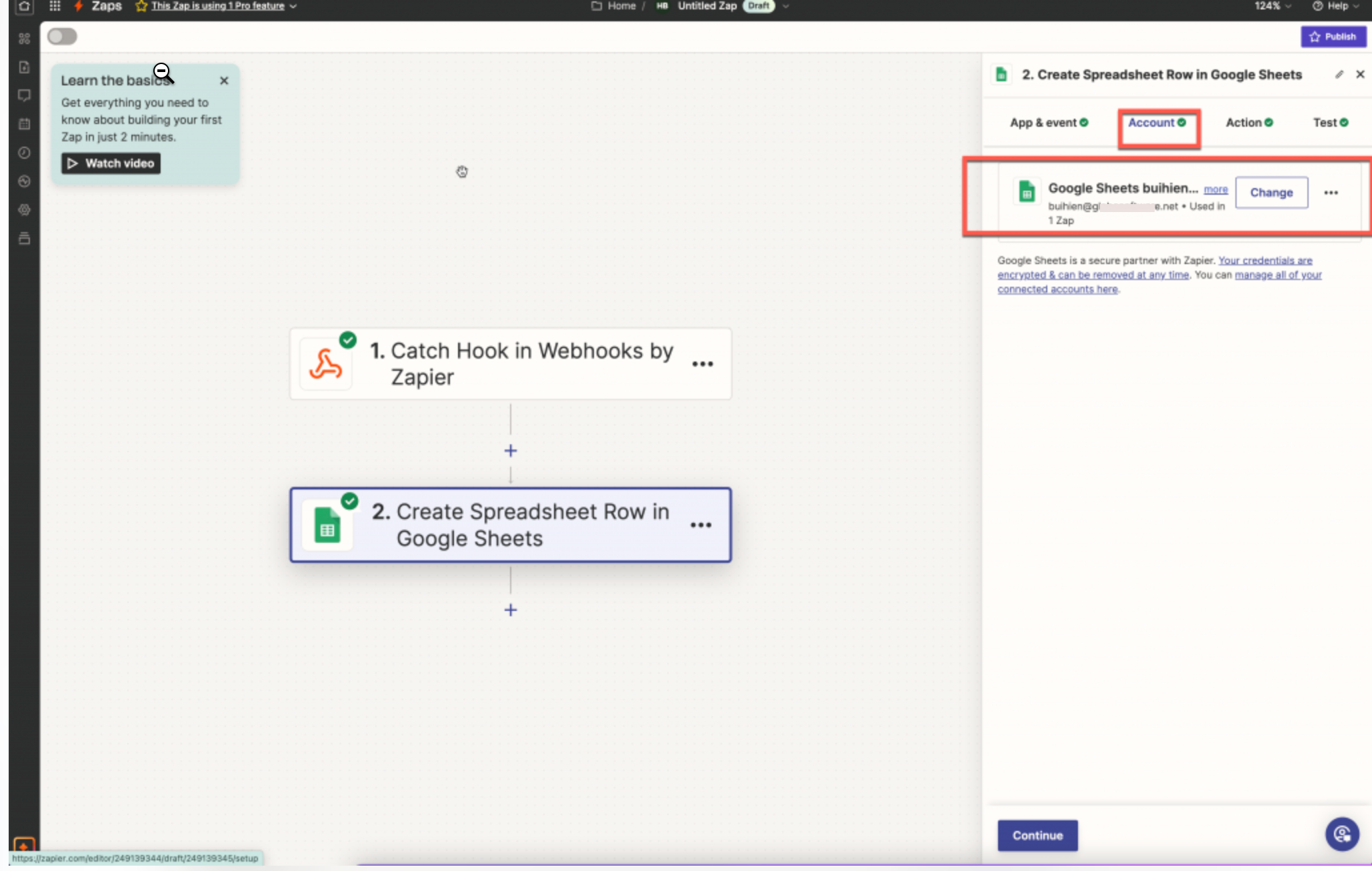
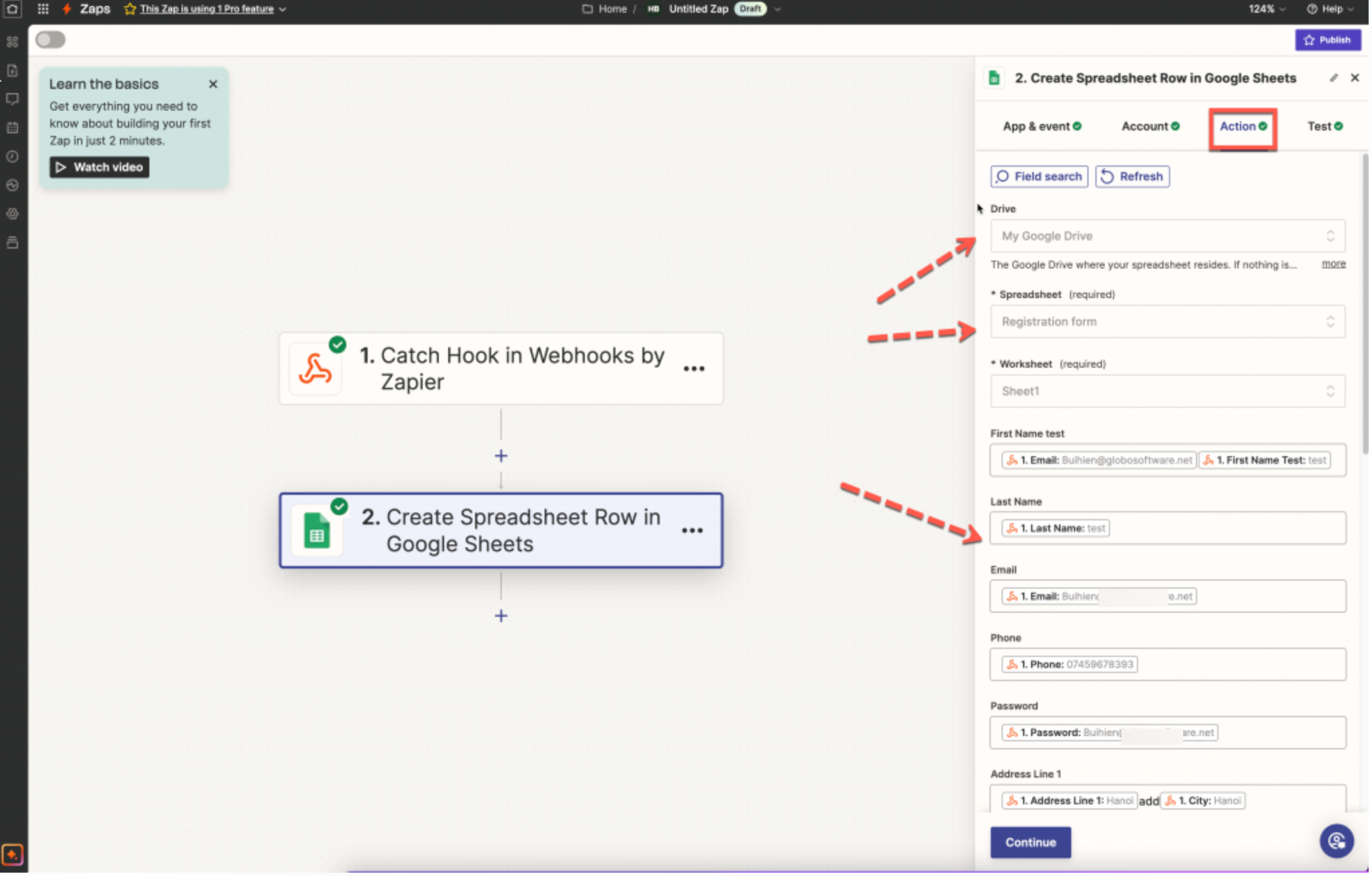
3\. Search **Google Sheets** > select **Create Spreadsheet row > Continue** > sign into the Google account > select the sheet you want to use > map the form data with the sheet
4\. Click **Test step** to submit a test > then check the result in the selected sheet in your Google Sheets
✅ If the row appears, your integration works. Future submissions will also be added automatically.
{% endstep %}
{% endstepper %}
### Tutorial video
{% embed url="" %}
## Next steps
* [Make](/integrations/make.md) — the same idea with a Make scenario.
* [n8n](/integrations/n8n.md) — the same idea with an n8n workflow.
* [Contact support](/help/contact-support.md) — if the connection still does not work.