> For the complete documentation index, see [llms.txt](https://docs.powerfulform.com/llms.txt). Markdown versions of documentation pages are available by appending `.md` to page URLs; this page is available as [Markdown](https://docs.powerfulform.com/integrations/n8n.md).
# n8n Integration
Send form submissions to an n8n workflow with an authenticated webhook.
## How to set it up
{% stepper %}
{% step %}
### Setup in n8n
First, you need to create a webhook inside your n8n instance to receive the form data.
1. Log in to your n8n dashboard and click **Create workflow**
2. Add a new node and select the **Webhook trigger**
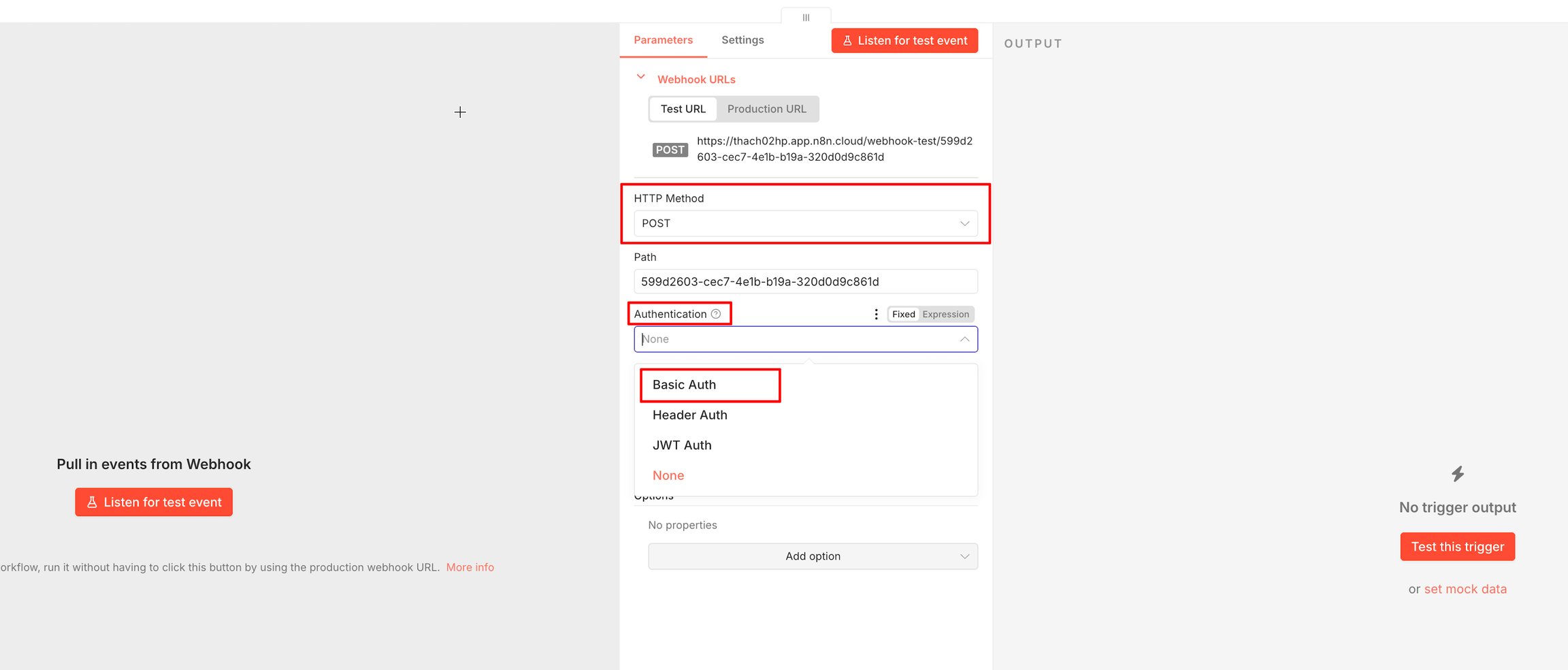
3. In the Webhook settings, configure the following:
* HTTP Method: Select `POST`
* Authentication: Select `Basic Auth`
4. Under **Credential** for **Basic Auth**, create a new credential and set a **Username** and **Password**
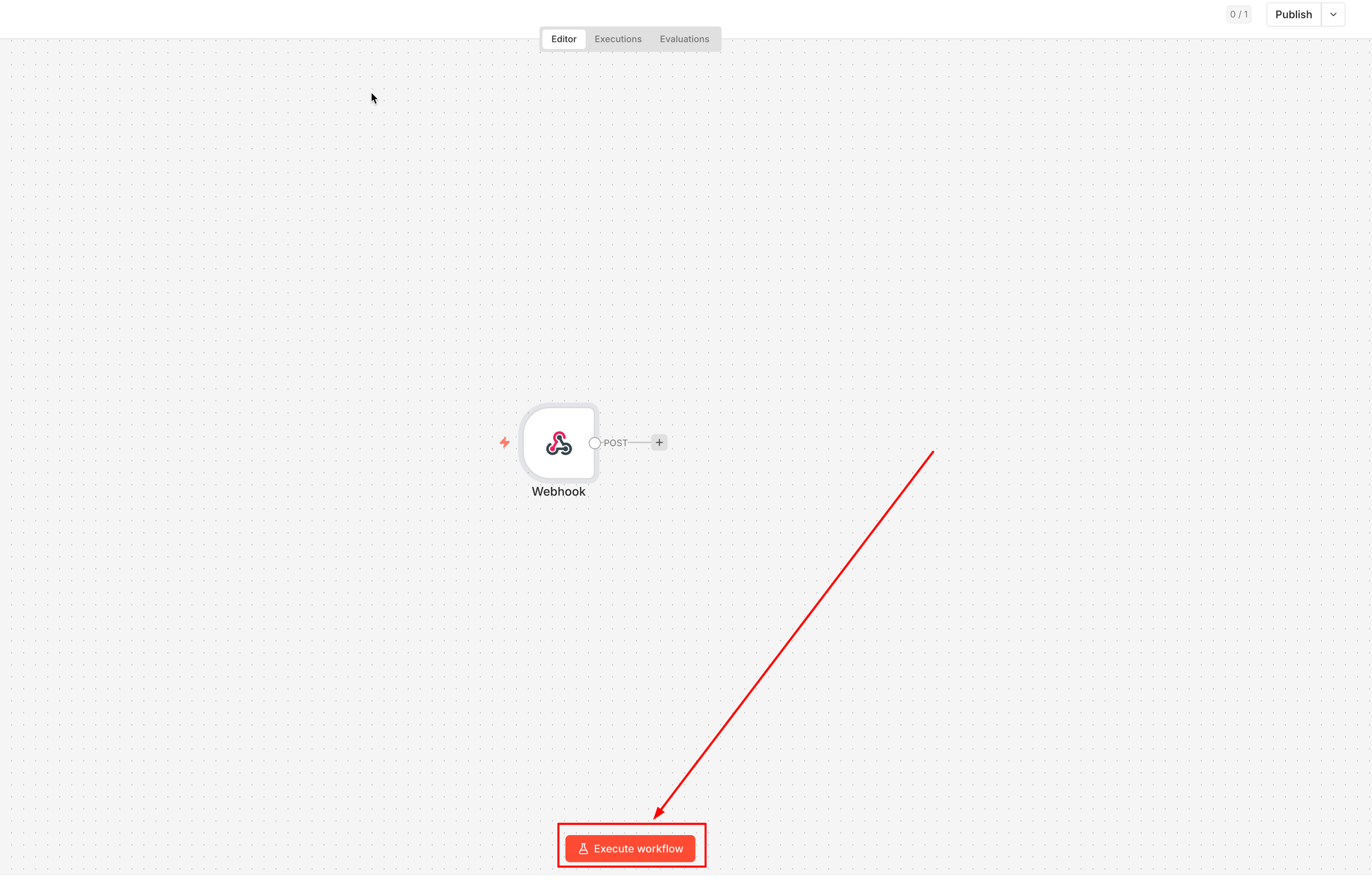
5. Click **Listen for test event** to prepare n8n to receive your form data.
{% hint style="info" %}
Keep the n8n window open; you will need to copy the Webhook URL, Username, and Password into the form app.
{% endhint %}
{% endstep %}
{% step %}
### Turn on n8n integration in the form
Once your webhook is ready in n8n, follow these steps to link it to your form.
1. Click **Forms** > open your form > navigate to the Integrations tab (icon in the left sidebar)
2. Find **n8n** in the list and toggle the switch to ON > click on n8n to see the setting detail
3. Enter the following details:
* **Username**: The username you created in the n8n Basic Auth settings
* **Password**: The password you created in the n8n Basic Auth settings
* **Webhook URL**: Copy the Test URL (or Production URL) from your n8n Webhook node
4. Click **Save** button
{% hint style="info" %}
Note on Credentials: The **Username** and **Password** entered in the form app must exactly match the ones you configured in your n8n Webhook node for the connection to be successful.
{% endhint %}
{% endstep %}
{% step %}
### Execute and Test
To ensure everything is working:
1. In n8n, make sure the node is actively "listening"
2. Go to your live Shopify store and submit the form
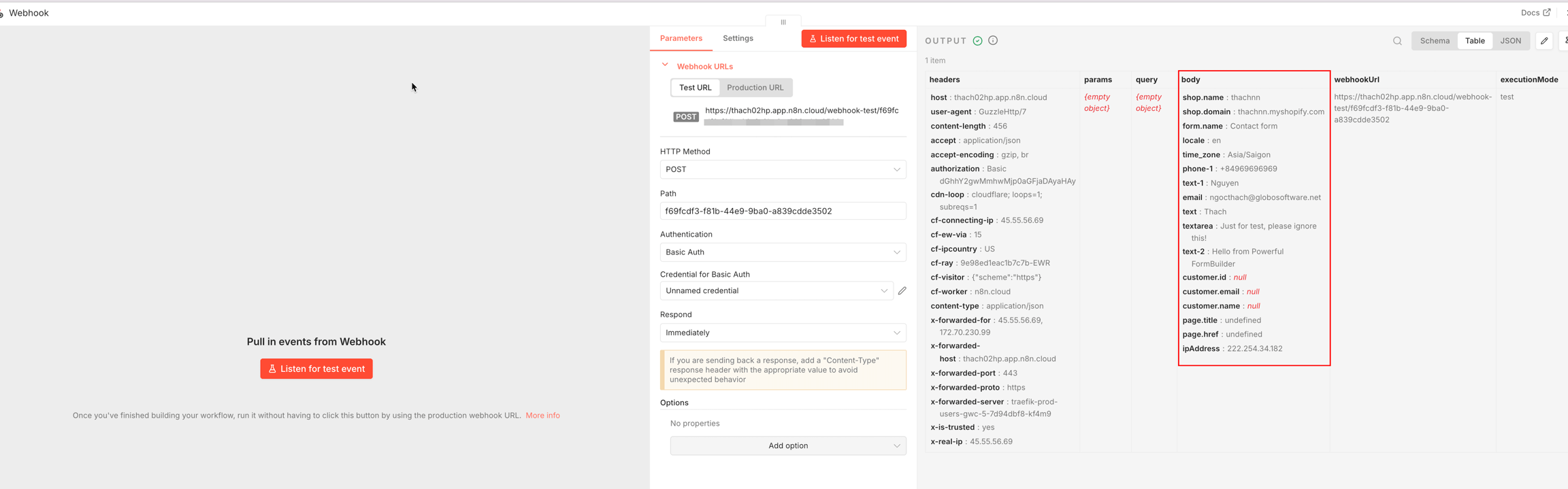
3. Check n8n: you should see the form data appear in the Output section of your Webhook node
4. Once tested, remember to switch your Webhook to the Production URL and activate the workflow in n8n
Here is how it shows after the form is submitted:
{% endstep %}
{% endstepper %}
## Next steps
* [Zapier](/integrations/zapier.md) — the same idea with a Zap.
* [Make](/integrations/make.md) — the same idea with a Make scenario.
* [Contact support](/help/contact-support.md) — if the connection still does not work.