> For the complete documentation index, see [llms.txt](https://docs.powerfulform.com/llms.txt). Markdown versions of documentation pages are available by appending `.md` to page URLs; this page is available as [Markdown](https://docs.powerfulform.com/integrations/hubspot.md).
# Hubspot integration
Create HubSpot contacts from form submissions and map form fields to contact properties.
## How to set it up
### Get HubSpot Portal ID (in HubSpot)
1. Log in to your **HubSpot** account
2. Click your **profile picture** (top-right corner)
3. Your **Portal ID** appears in the dropdown
Please follow this [link](https://knowledge.hubspot.com/account/manage-multiple-hubspot-accounts?&_ga=2.213679508.1258595645.1656994320-1460215817.1656259344#check-your-current-account) to know more.
### Find or Generate Your Access Token (Private App) (in HubSpot)
Powerful Contact Form Builder uses a **Private App Access Token** to securely send data to HubSpot.
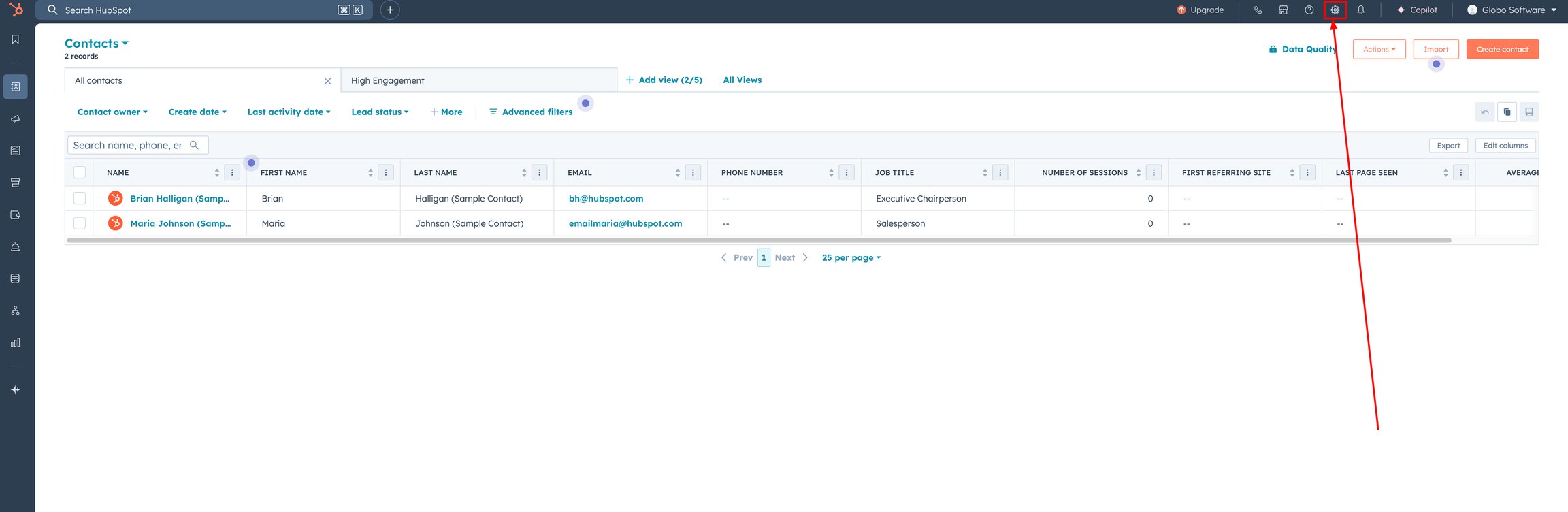
1. Log in to your HubSpot account > click the **Settings** icon in the top navigation bar
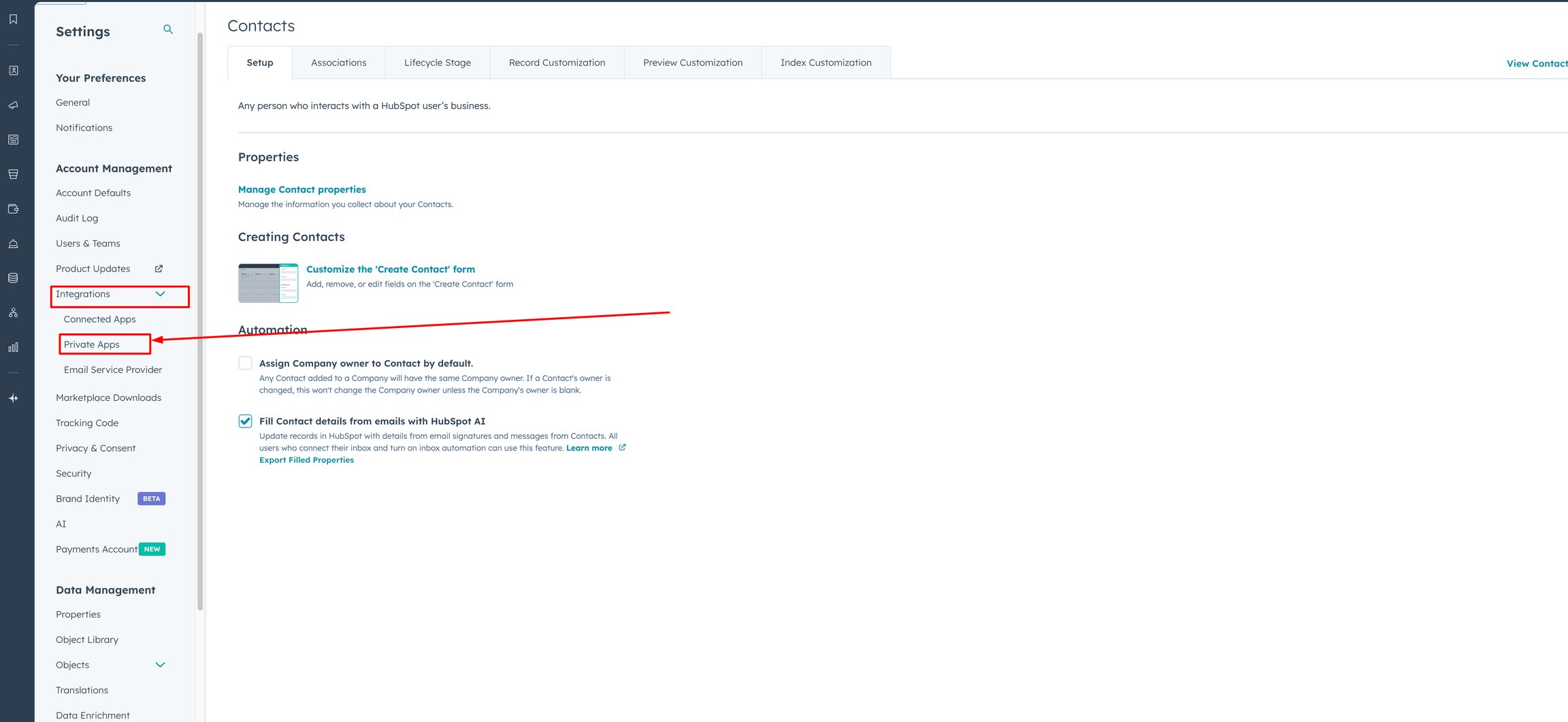
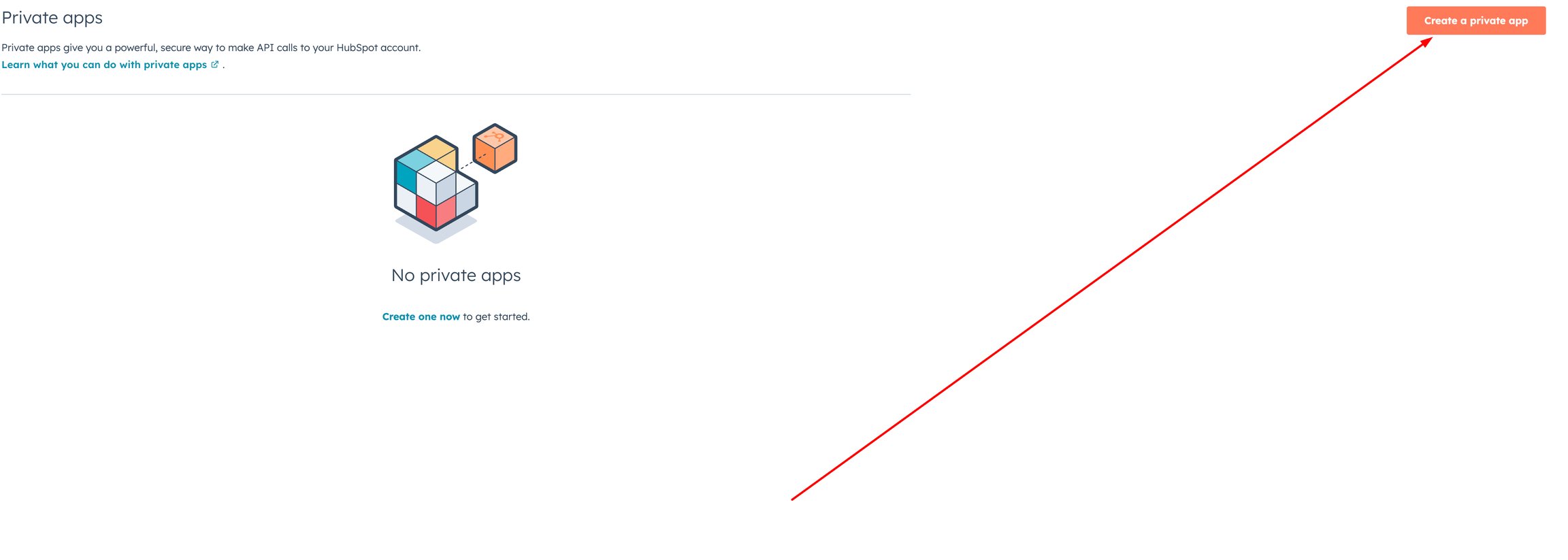
2. In the left sidebar, go to **Integrations** > **Private Apps**. If you haven't created a private app yet, click **Create a private app**
3. On the **Basic Info** tab, enter your app name (e.g., `Powerful Contact Form Builder`) > upload a logo (optional) > add a short description
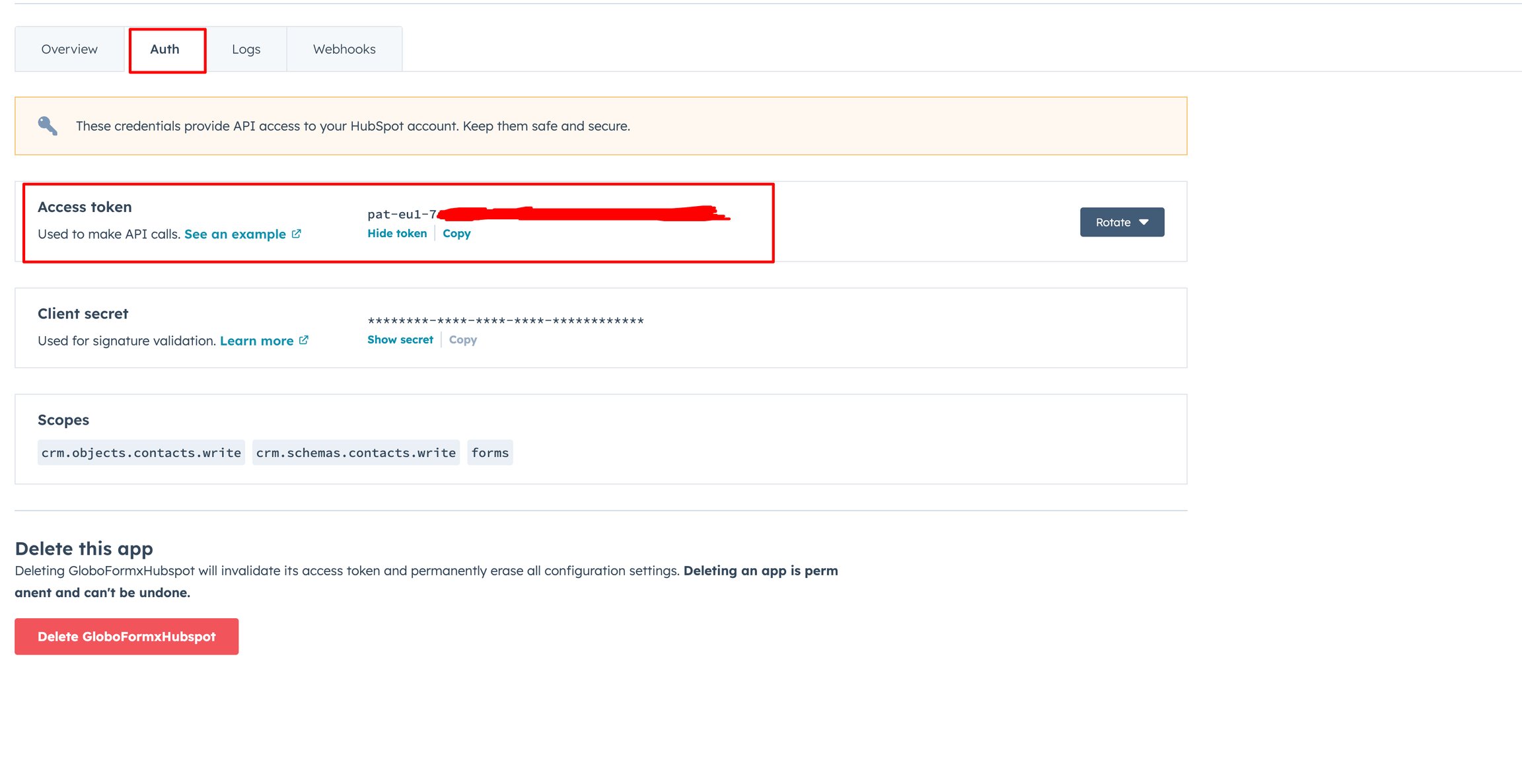
4. Switch to the **Scopes** tab > click **+ Add new scope** > select the permissions your app needs > click **Update** to save your scopes
* `forms`
* `crm.objects.contacts.write`
* `crm.schemas.contacts.write`
5. Click **Create app** in the top right corner > confirm the details and click **Continue creating**
6. After the app is created, go to the **Auth** tab > click **Show token** to reveal your access token > click **Copy** to copy it to your clipboard
Please follow this [link](https://developers.hubspot.com/docs/api/private-apps#create-a-private-app) to know more
### Add HubSpot Portal ID and Access Token to the app settings
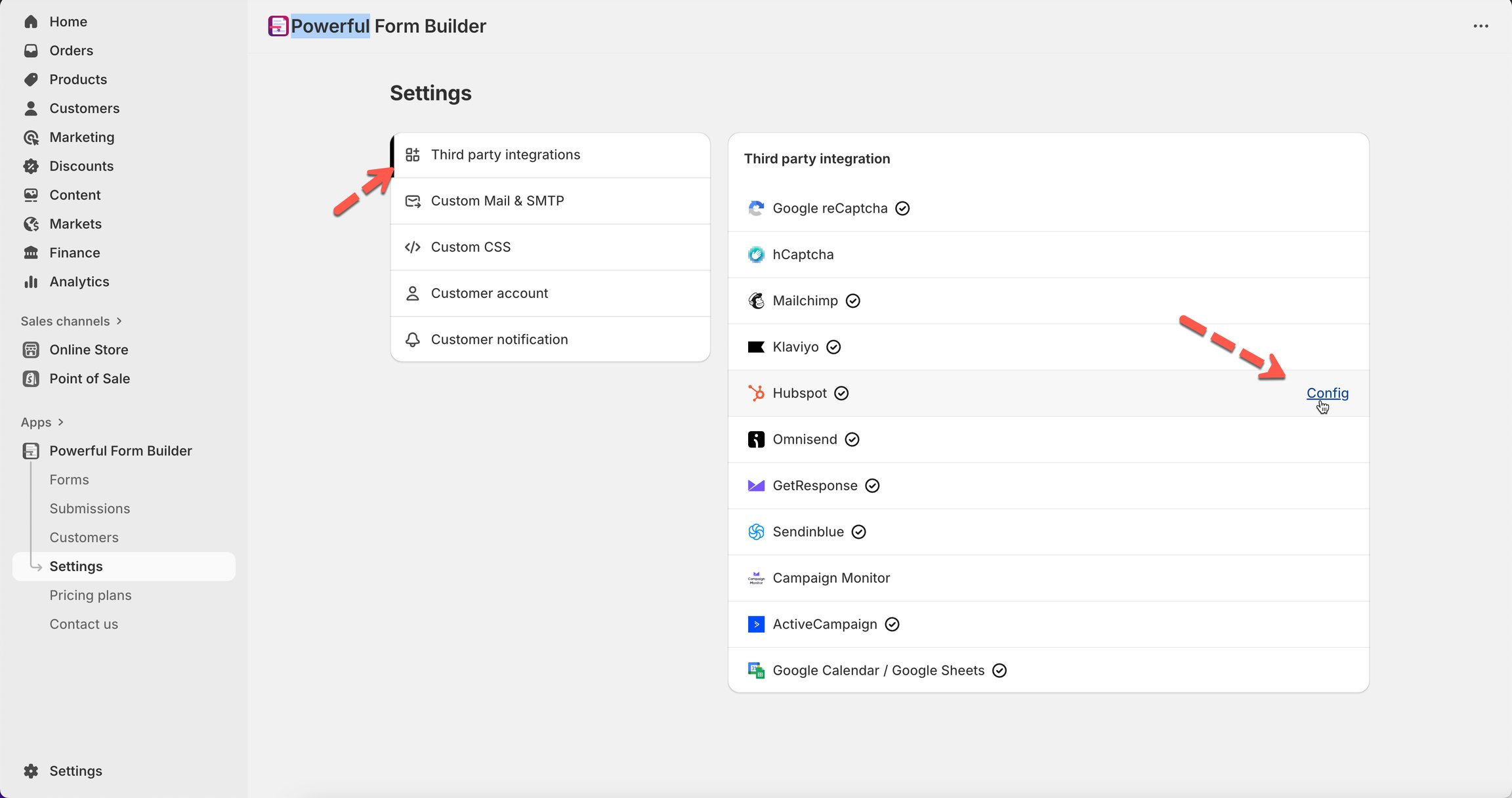
1. Open the app > **Settings** > **Third party integrations** > hover **Hubspot** > click **Config**
2\. Enter **Hubspot Portal Id** and **Hubspot Private App Access Token** > paste the ID you find in step 1 and 2
3\. Click **Save** to update the changes
### Map form fields to HubSpot (in Form Builder)
This step controls **what gets sent** to HubSpot when someone submits the form.
#### Before map the data
please make sure you already create a form in Hubspot to collect customers information. Learn more about [creating a form in Hubspot](https://knowledge.hubspot.com/forms/create-forms#create-a-form)
#### Mapping steps
1\. Open the app .> click **Forms** > open the form you want to deal with
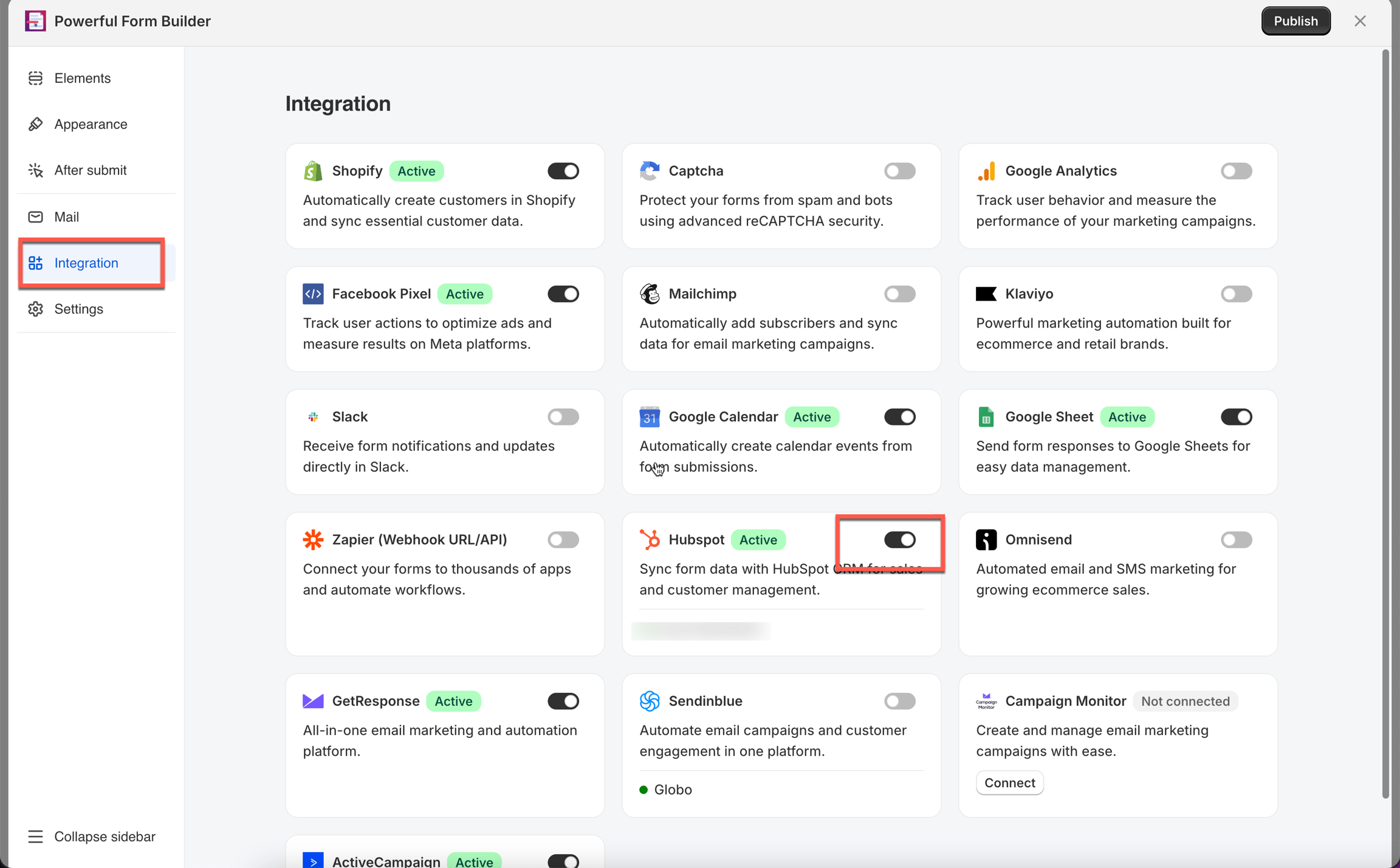
2\. Click **Integration** icon on the left side > turn on **Hubspot** > click on **Hubspot** option
3\. Select a form you want from Hubspot
4\. Select the value of the form (on the right) to match with the form field in Hubspot
For example:
HubSpot Email ← Form Email
HubSpot First name ← Form First name
HubSpot Last name ← Form Last name
* The **Email** value is compulsory here to create a new profile in Hubspot
* The other values are optional. Please map them based on your needs
5. Click **Save**
### Test & Check Your Results (in HubSpot)
1. Submit your form once using a real email address
2. In HubSpot, go to **Contacts**
3. Confirm the new contact appears (and fields are filled correctly)
For example: the **First name** field of Hubspot is matched with **First name** field of the form, the **Last name** field of Hubspot is matched with **Last name** field of the form
## Troubleshooting
“Invalid token” / “Authentication failed”
* Make sure you copied the **Private App Access Token** (not a different HubSpot key).
* Remove any extra spaces when pasting.
* Confirm your Private App includes these scopes:\
`forms`, `crm.objects.contacts.write`, `crm.schemas.contacts.write`
“Portal ID is wrong” / cannot connect
Re-check the **Portal ID** from the profile dropdown in HubSpot.
No contacts created after submission
* Confirm HubSpot integration is enabled on the **correct form**.
* Make sure you clicked **Save** after mapping.
* Submit a **new** test entry (older submissions won’t sync automatically).
## Next steps
* [Contact support](/help/contact-support.md) — if the connection still does not work.