> For the complete documentation index, see [llms.txt](https://docs.powerfulform.com/llms.txt). Markdown versions of documentation pages are available by appending `.md` to page URLs; this page is available as [Markdown](https://docs.powerfulform.com/integrations/hcaptcha.md).
# hCaptcha integration
Use hCaptcha instead of reCAPTCHA to block spam submissions on your forms.
**✅ What You Need**
Before enabling hCaptcha, you need two keys:
* **Site Key**
* **Secret Key**
You can get both keys from your hCaptcha account.
Create an account or log in here:
## How to set it up
{% stepper %}
{% step %}
### Get Your hCaptcha Site key and Secret Key
1. Sign up or log in to the [hCaptcha Dashboard](https://dashboard.hcaptcha.com/)
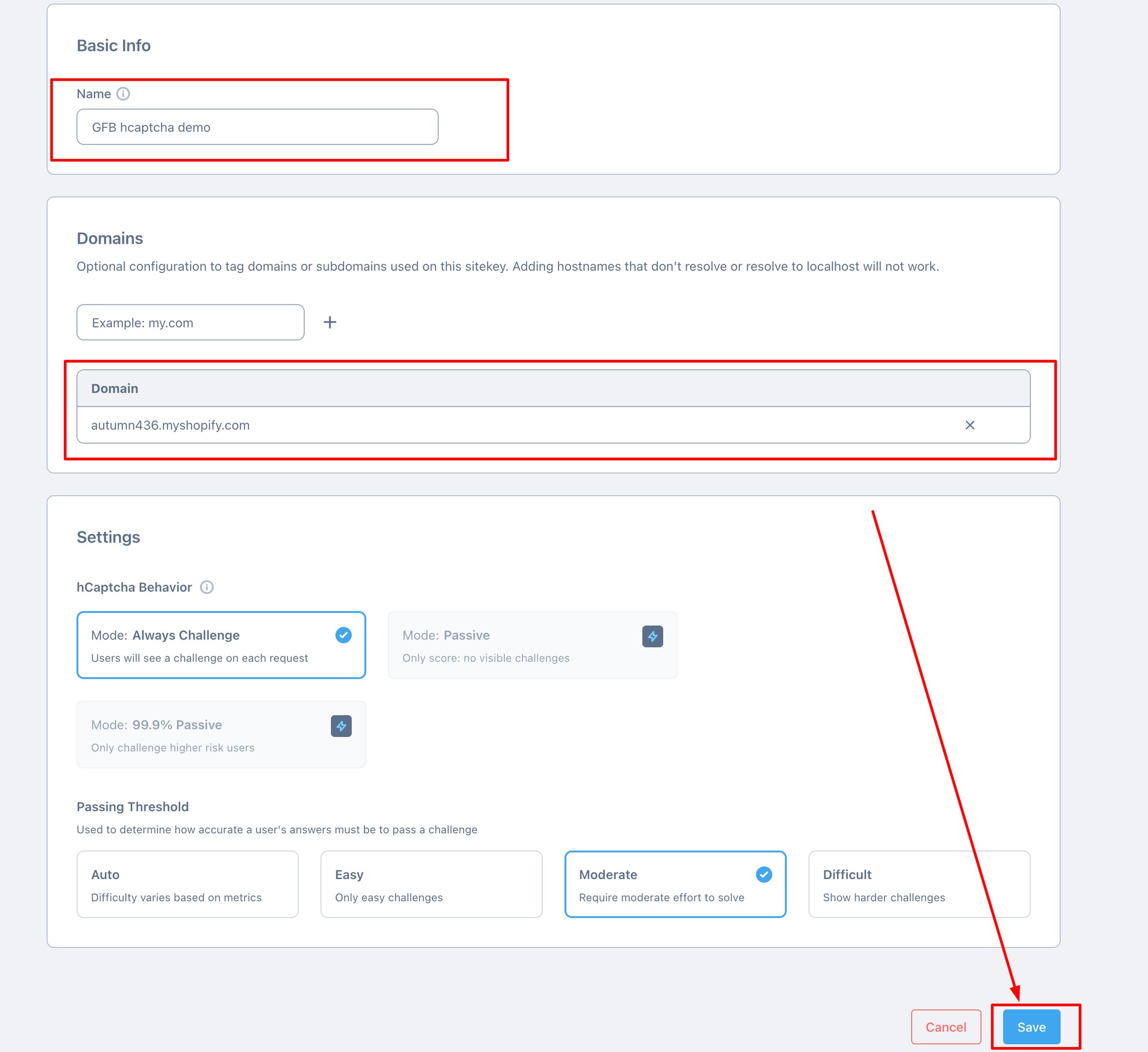
2. Go to the **Sites** tab in the dashboard and create a new sitekey
3. Go to the **Settings** tab in the dashboard and generate your secret key by clicking **Generate New Secret**
You now have:
* Site key
* Secret key
{% endstep %}
{% step %}
### Add the Keys to Powerful Contact Form Builder
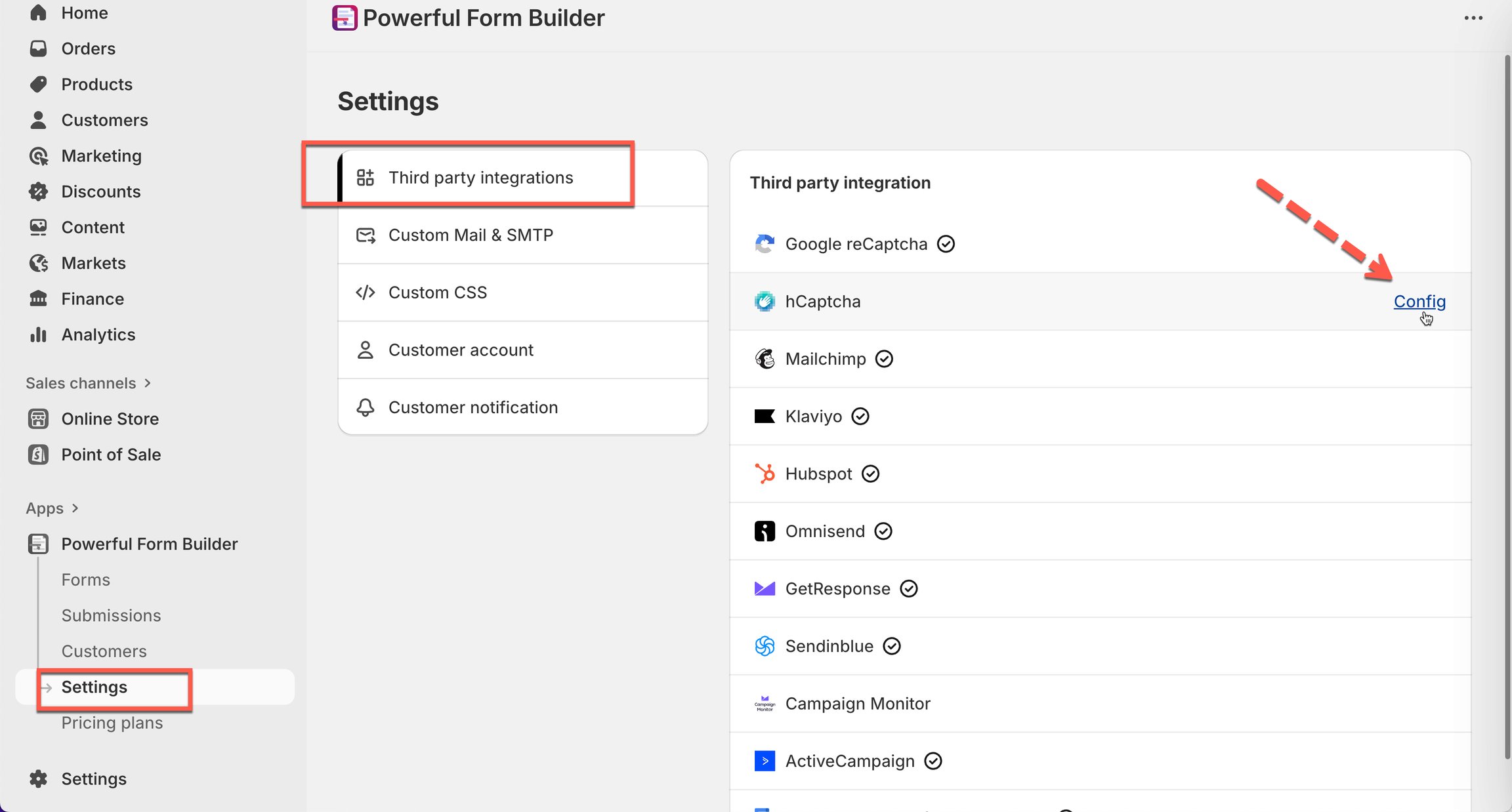
1. Open the form app > go to app **Settings** > hover on hcaptcha option
2. Paste the site **Site key** and **Secret key** from step 1 into the fields
3. Click **Save** to store your settings
{% endstep %}
{% step %}
### Enable hcaptcha for the form
1. In the app > click **Forms** > open the form
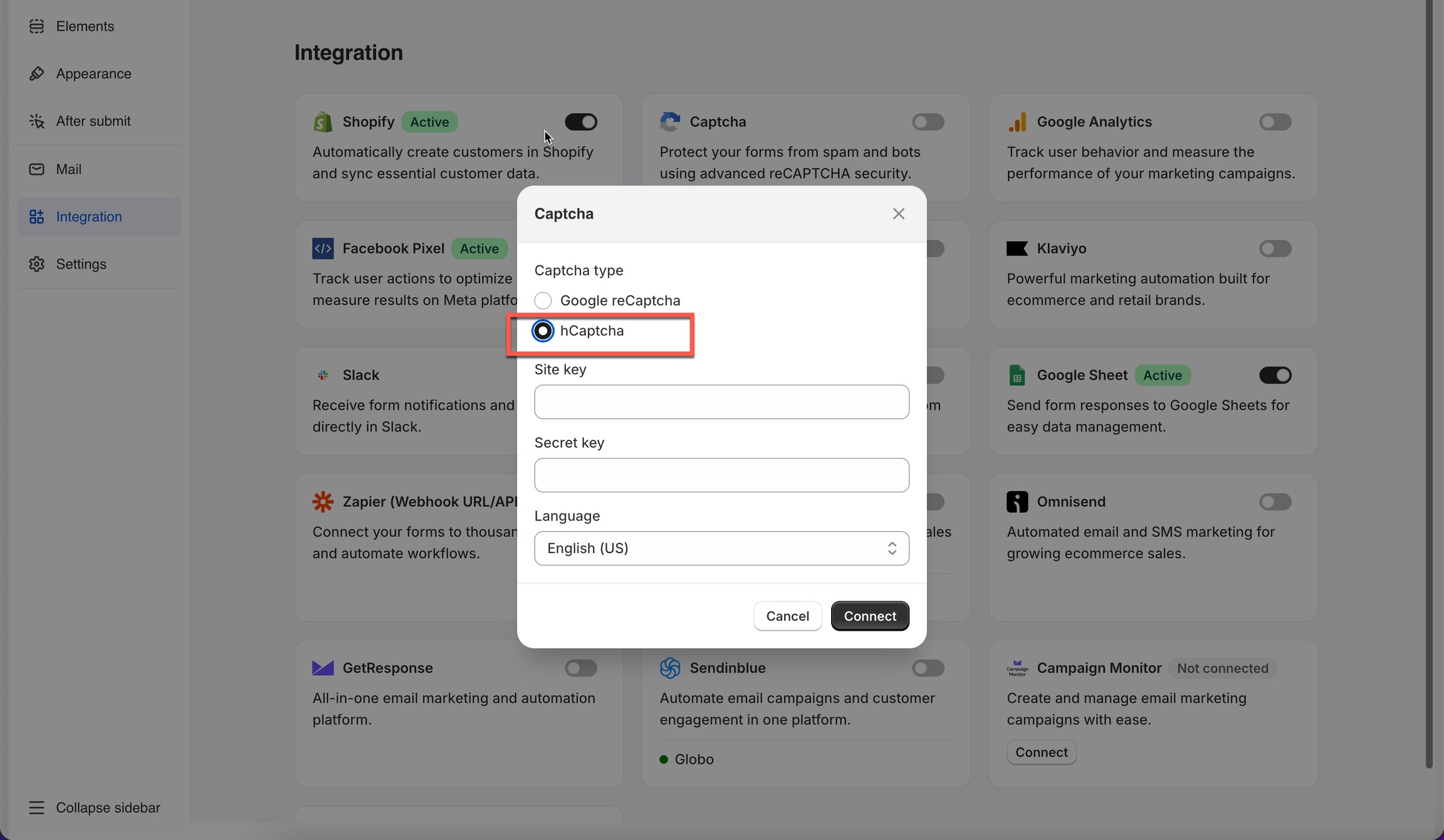
2. Click **Integration**, toggle on the **Captcha** option > click on the **Captcha** option to view detail > choose **hCaptcha**.
3. Save the form
4. Note: Verify the hCaptcha widget in the **live store**, as it may not display in the app preview.
{% endstep %}
{% endstepper %}
## How hCaptcha Works
hCaptcha protects your form by identifying humans vs bots.
#### Visible hCaptcha (checkbox or image challenge)
* Users must solve a simple verification (like selecting images).
* hCaptcha decides if the user is human before allowing submission.
#### Invisible hCaptcha (runs quietly in the background)
* No clicking, no challenge.
* hCaptcha analyzes user behavior silently.
* Only shows a challenge if activity looks suspicious.
Your form is protected in both cases.
## Troubleshooting
Issue: hCaptcha not showing
Try the following:
* Double-check your **Site Key** and **Secret Key**
* Make sure your **Shopify domain** is added in your hCaptcha dashboard
* Clear browser cache or test in Incognito mode
* Ensure the form is **published** and you’re on the correct page
Issue: Form cannot be submitted
Common causes:
* Incorrect Secret Key
* Incorrect domain
* Key fields accidentally left blank
* Theme scripts blocking the widget (rare)
## Next steps
* [Google reCAPTCHA](/integrations/google-recaptcha.md) — the other challenge option.
* [Prevent spam submissions](/troubleshooting/prevent-spam.md) — every anti-spam option in one place.
* [Contact support](/help/contact-support.md) — if the connection still does not work.