> For the complete documentation index, see [llms.txt](https://docs.powerfulform.com/llms.txt). Markdown versions of documentation pages are available by appending `.md` to page URLs; this page is available as [Markdown](https://docs.powerfulform.com/integrations/google/google-drive.md).
# Google Drive integration
Mirror the files people upload through your forms into a folder on your Google Drive.
The app allows you to automatically upload files submitted through your forms directly to a Google Drive folder. This is especially useful for forms that include file upload fields, helping you keep all submitted files organized and accessible in one place.
{% hint style="info" %}
**Note:** Only files from File Upload fields configured with **"Also upload to third-party storage" → "Google Drive"** will be uploaded to Google Drive.
{% endhint %}
## How to set it up
{% stepper %}
{% step %}
### Connect the app with Google
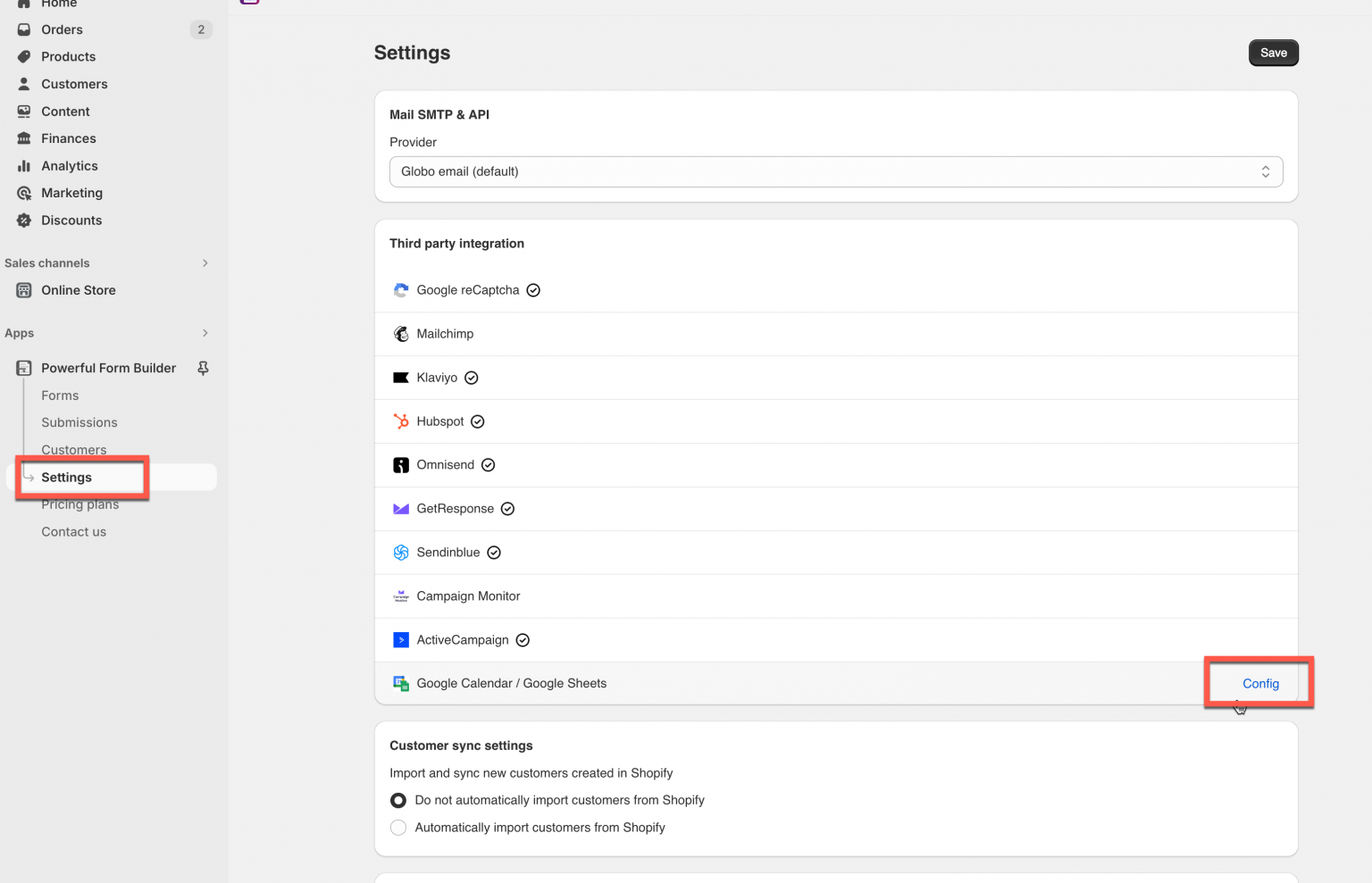
Please follow this [guide](/integrations/google.md#connect-your-google-account) to complete this step.
{% endstep %}
{% step %}
### Connect form data to Google Drive
1\. Open the app > click **Forms** > open the form you want to edit
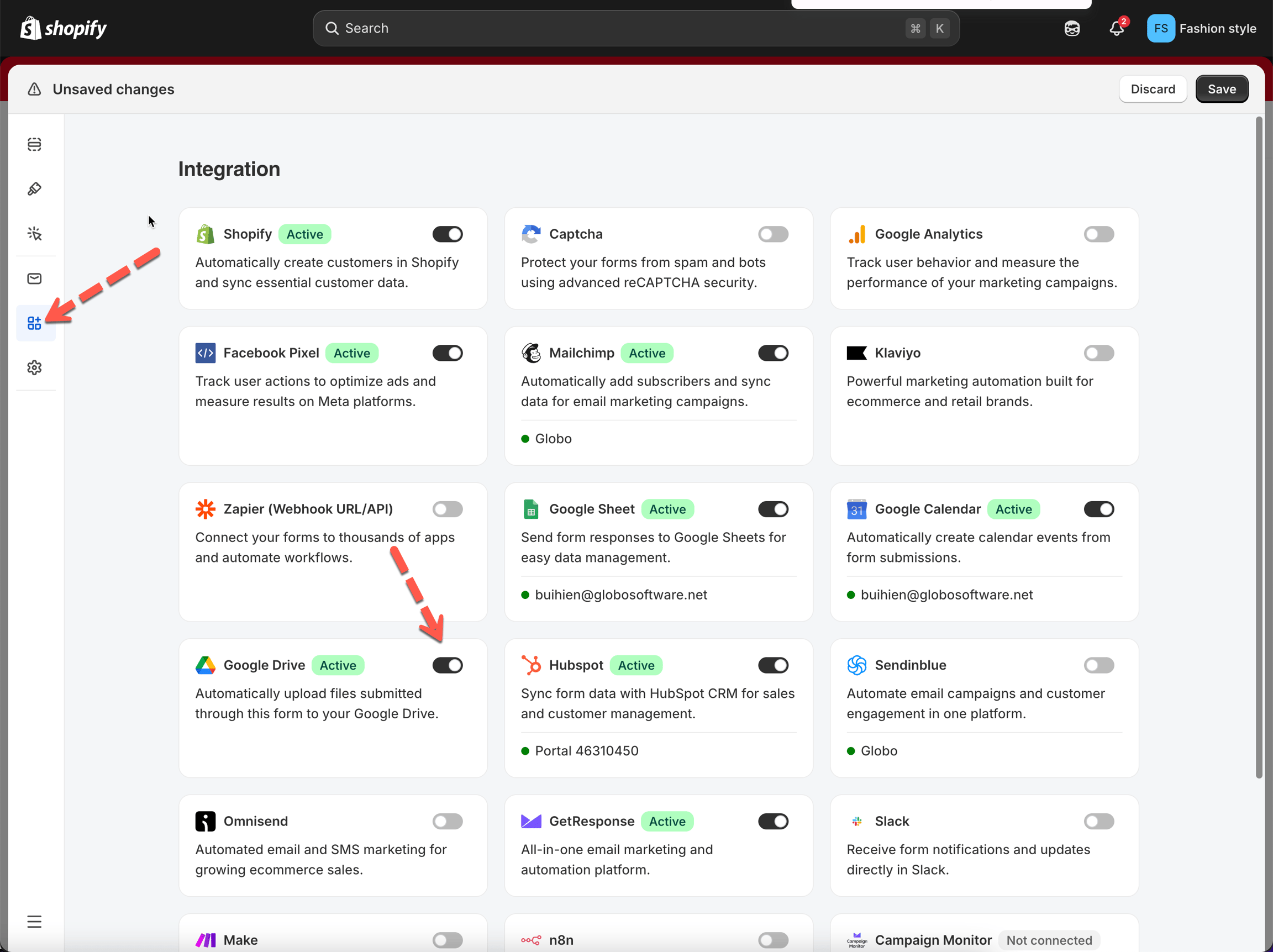
2\. Click **Integration** icon on the left side bar > enable **Google Drive** > click on **Google Drive** option
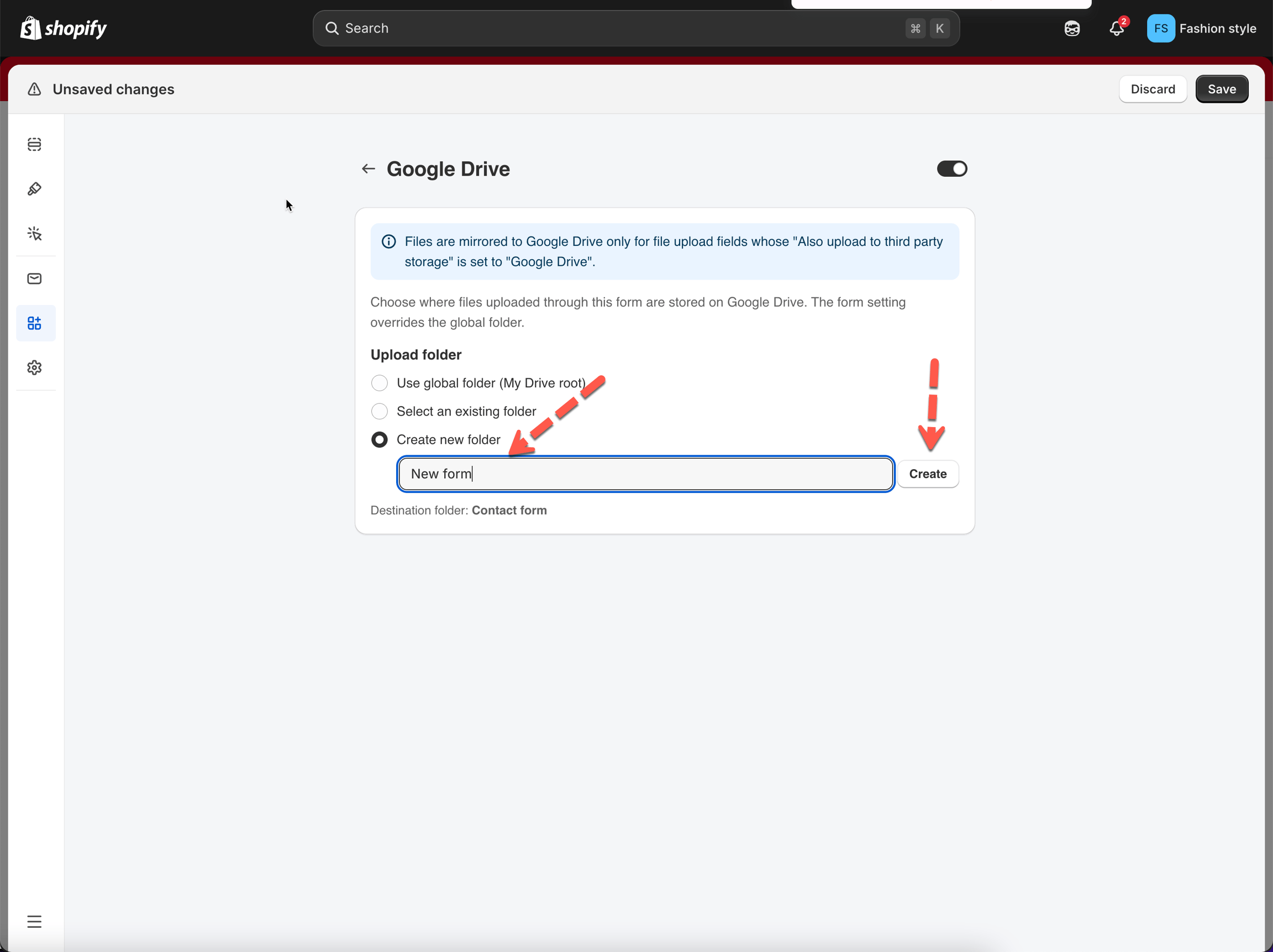
3. Create a new folder for your Google Drive > connect the form with the newly created folder
{% hint style="info" %}
The new folder will be created in your connected Google Drive account and selected automatically as the destination folder.
{% endhint %}
4. Click **Save** to apply the changes.
{% endstep %}
{% step %}
### Configure File Access Policy (Required)
To upload files to Google Drive, you must configure your File Upload field correctly.
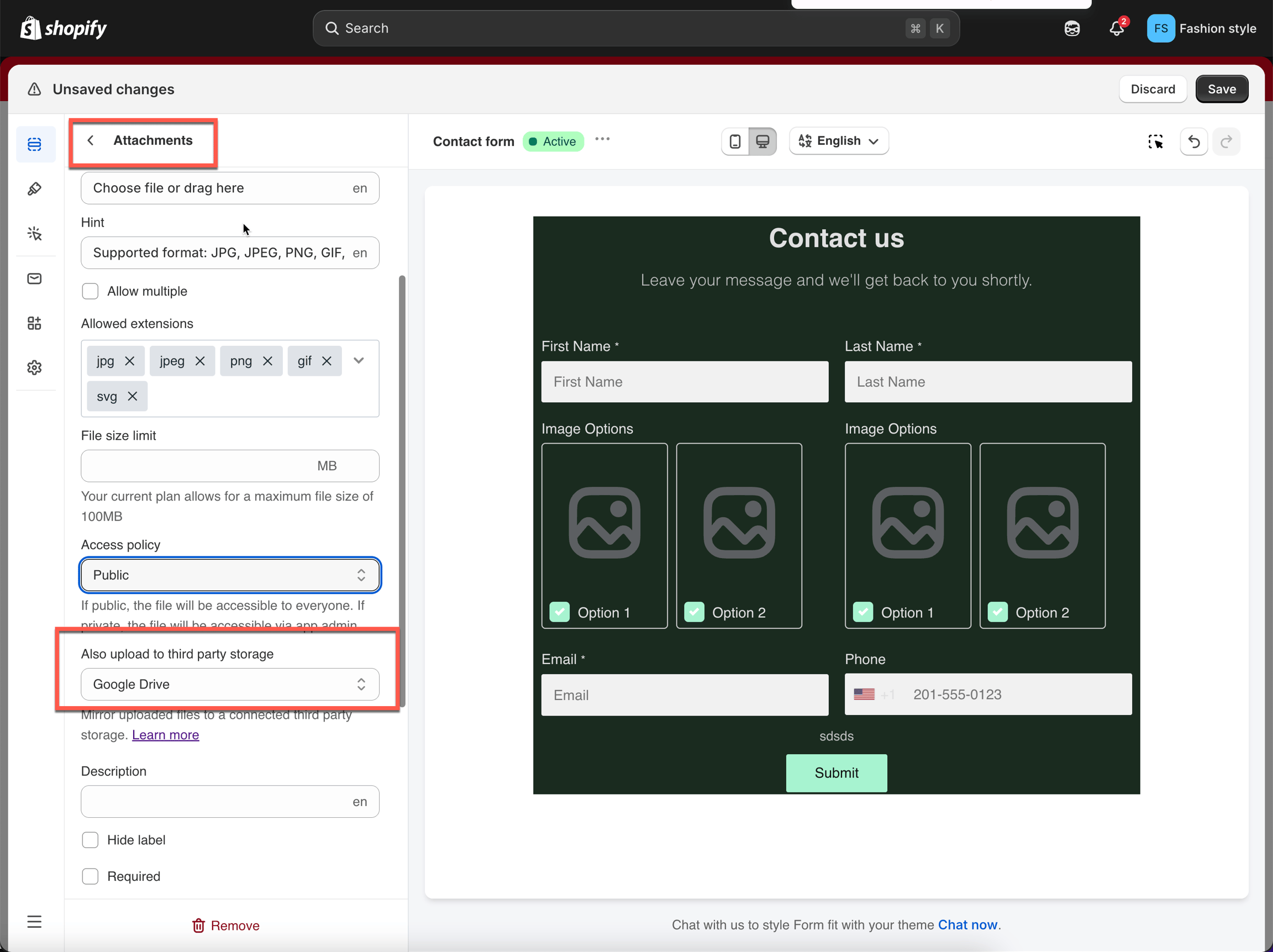
1. Open the File field
2. Under **Access policy**, choose:
* **Public** – Anyone with the file link can access the file.
* **Private** – The file can only be accessed through the app admin and authorized integrations.
3. Under **Also upload to third-party storage**, select **Google Drive**
4. Save the form
{% endstep %}
{% endstepper %}
## How it works
When a visitor submits your form:
1. The form submission is recorded normally in the app.
2. Files uploaded through eligible File Upload fields are automatically uploaded to the configured Google Drive folder.
{% hint style="info" %}
⚠️ **Important**: If a submission is deleted from the app, any files associated with that submission that were uploaded through the Google Drive integration will also be deleted from Google Drive.
{% endhint %}
## ❓ FAQs
Can I upload files from multiple File Upload fields?
Yes. Any File Upload field configured to use **Google Drive** storage will upload its submitted files to the selected Google Drive folder.
Can I use different folders for different forms?
Yes. Each form can have its own Google Drive integration settings and destination folder.
Will existing submissions be uploaded automatically?
No. Only new submissions received after the integration is enabled will be uploaded to Google Drive.
What happens if I change the destination folder?
New uploaded files will be stored in the newly selected folder. Previously uploaded files will remain in their original location.
## Next steps
* [Connect your Google account](/integrations/google.md#connect-your-google-account) — the sign-in this integration needs.
* [File Upload](/field-types/file-upload.md) — the field that produces the files.
* [Uploaded files and storage](/troubleshooting/file-storage.md) — where files live and how long they are kept.
* [Contact support](/help/contact-support.md) — if files stop reaching Drive.