> For the complete documentation index, see [llms.txt](https://docs.powerfulform.com/llms.txt). Markdown versions of documentation pages are available by appending `.md` to page URLs; this page is available as [Markdown](https://docs.powerfulform.com/integrations/google/google-calendar.md).
# Google Calendar integration
Turn a booking form submission into an event on your Google Calendar.
## How to set it up
{% stepper %}
{% step %}
### Connect the app with Google
Please follow this [guide](/integrations/google.md#connect-your-google-account) to complete this step.
{% endstep %}
{% step %}
### Connect form data to Google Calendar
1\. Open the app > click **Forms** > open the form you want to edit
2\. Click **Settings** > **Integration** > enable **Google Calendar** > click on **Google** **Calendar** option
3\. Choose a calendar + map fields
* Select the **Google Calendar** you want to add events to
* Match **Calendar** event fields with the data from your form. Click the **Form Inputs icon** to insert variables from your form.
What you should map
* 🕒 **Start Time** *(Required):* when the event begins
* ⏱️ **End Time** or **Duration** *(Required):* when it ends / how long it lasts
* 🏷️ **Title, Description, Location, etc.** *(Optional):* extra details
4\. Click **Save** to update the changes
{% endstep %}
{% endstepper %}
## How it works
Submit the form once, then open your Google Calendar to check the new event.
Check the event created after the form is submitted.
**Example**
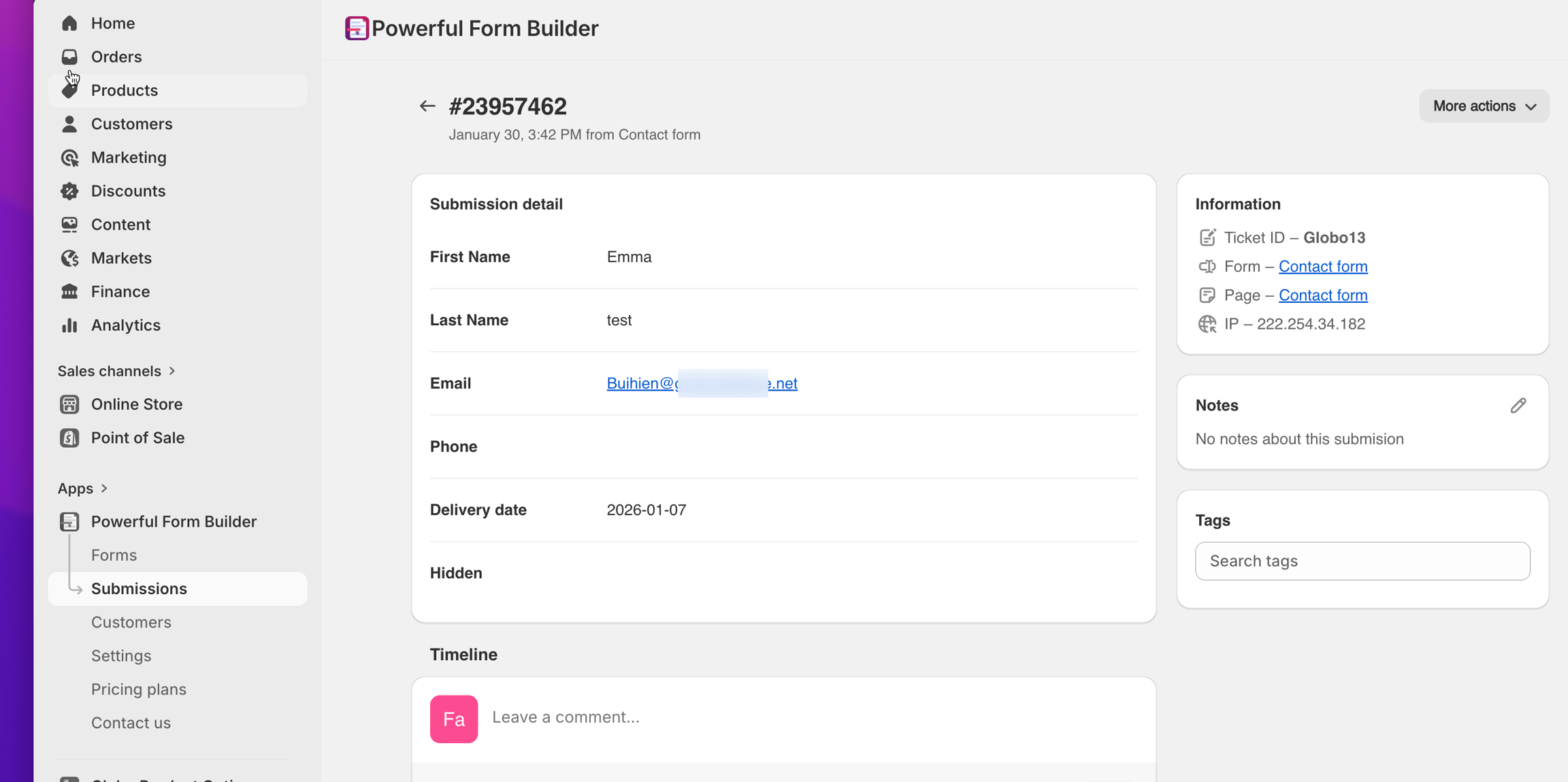
If a customer submits:
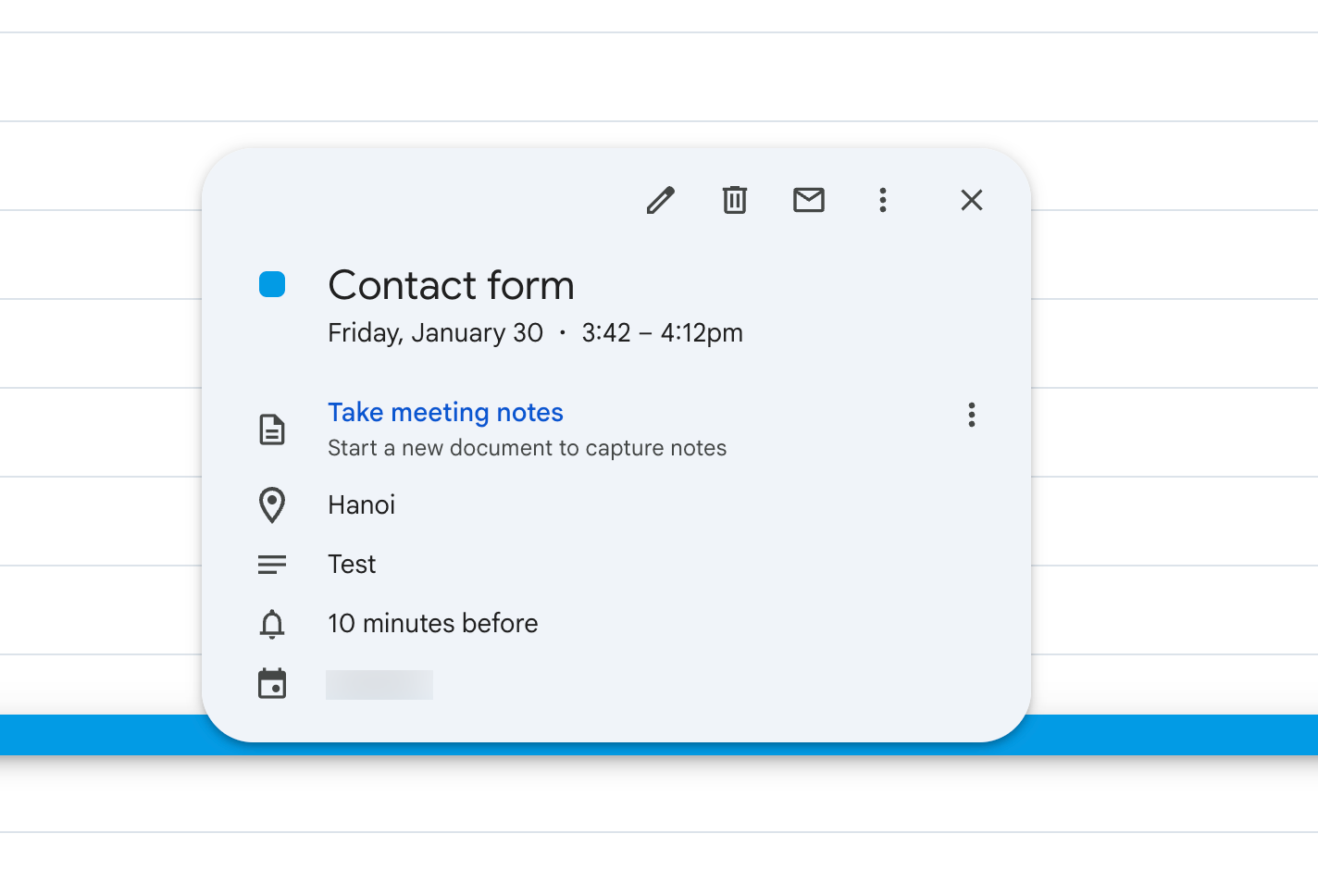
* **Start Time:** January 30⋅3:42 – 4:12pm
* **Duration:** 30 minutes
⇒ The form app creates a calendar event from 3:42 – 4:12pm on January 30 in the selected calendar.
Submission in the app:
A new event in Google Calendar
## Next steps
* [Connect your Google account](/integrations/google.md#connect-your-google-account) — the sign-in this integration needs.
* [Date time](/field-types/input-fields/date-time.md) — the field that supplies the booking date.
* [Google Sheets integration](/integrations/google/google-sheets.md) — keep a row for every booking too.
* [Contact support](/help/contact-support.md) — if events stop being created.