> For the complete documentation index, see [llms.txt](https://docs.powerfulform.com/llms.txt). Markdown versions of documentation pages are available by appending `.md` to page URLs; this page is available as [Markdown](https://docs.powerfulform.com/integrations/activecampaign.md).
# ActiveCampaign integration
Add form respondents to an ActiveCampaign list and map their answers to contact fields.
Please note that the ActiveCampaign integration is only available on the **paid plans** of the Form Builder app.
## How to set it up
### Find or Generate ActiveCampaign API Key and API URL (in ActiveCampaign)
To connect ActiveCampaign, you need 2 pieces of information:
* 🔗 **API URL**
* 🗝️ **API Key**
1. Log in to your **ActiveCampaign** account
2. Navigate to **Settings** > **Developer**
3. Copy your **API URL** and **API Key**
For detailed instructions, refer to ActiveCampaign's official guide: [Find Your API Key](https://help.activecampaign.com/hc/en-us/articles/207317590-Getting-started-with-the-API)
### Add ActiveCampaign API Key to the app settings (in Powerful Contact Form Builder)
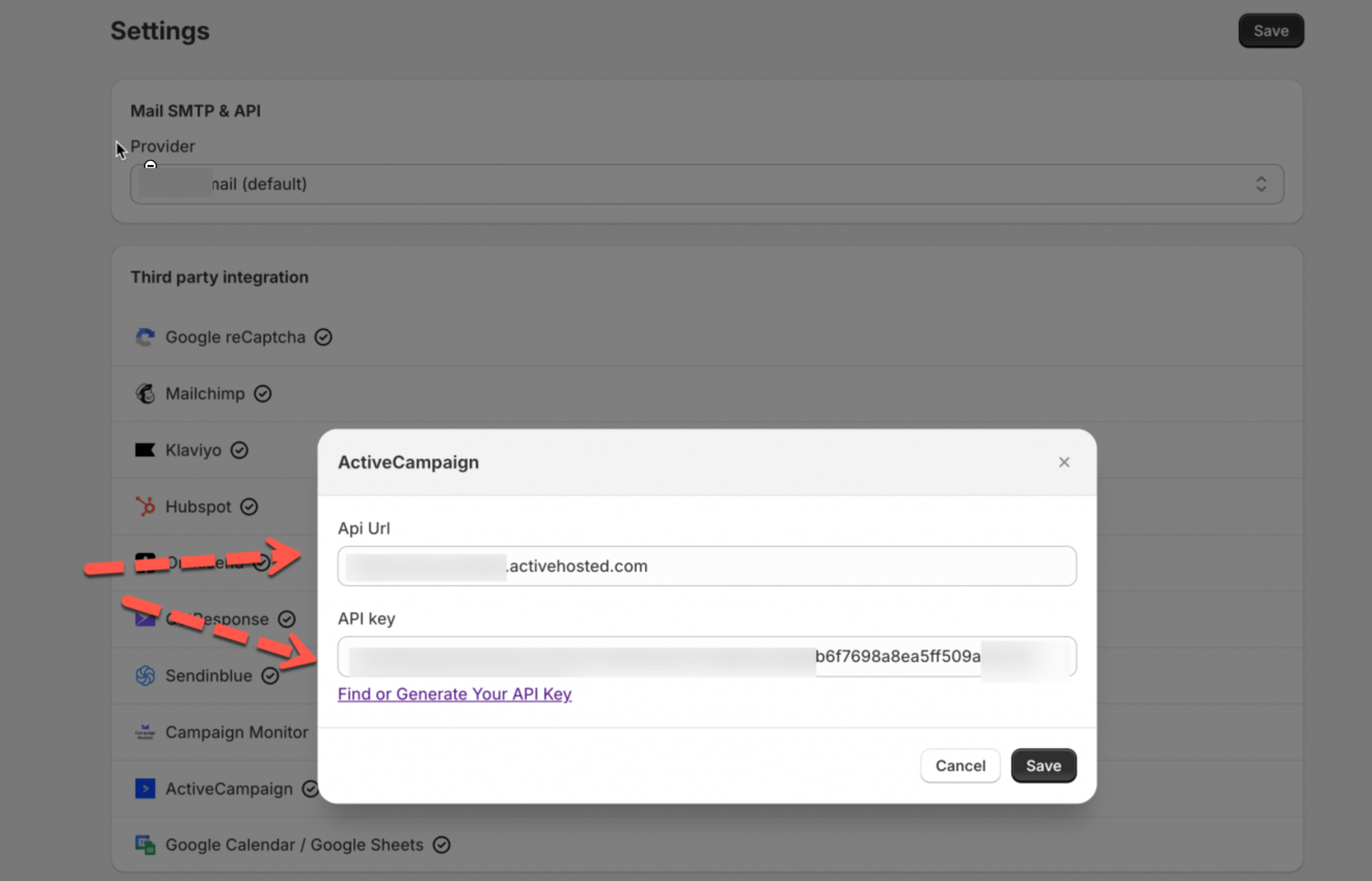
1\. Open the app > **Settings** > **Third party integrations** > hover **ActiveCampaign** > click **Config**
2\. In the **ActiveCampaign** > **ActiveCampaign API key and Api Url** field, enter API key created in **Step 1** above
3\. Click **Save** to update changes
Once saved, your ActiveCampaign account is connected.
### Map the form data to ActiveCampaign (in Form Builder)
This part controls **where** form submissions go in ActiveCampaign and **which form fields** fill which contact fields.
#### Before you start (important)
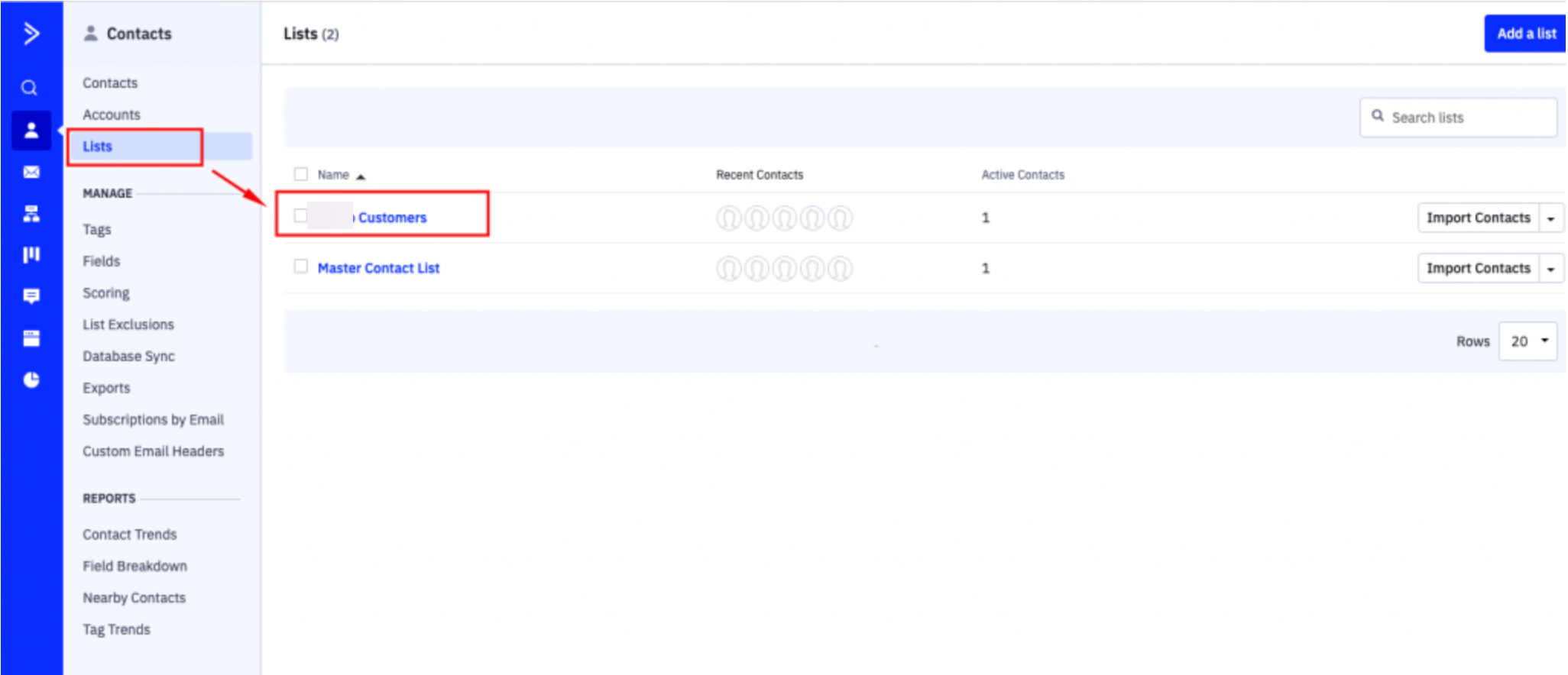
You must create a **contact list** in ActiveCampaign first—because Powerful Contact Form Builder needs a list to send contacts to.
Follow this [link](https://help.activecampaign.com/hc/en-us/articles/360000030559-Create-an-email-marketing-list-in-ActiveCampaign) to know more.
#### Mapping steps
1\. Open the app > click **Forms** > open the form you want to deal with
2\. Click **Integration** icon on the left side > turn on **ActiveCampaign** > click on **ActiveCampaign**
3. In **List** dropdown, select the ActiveCampaign **list** that should receive contacts
4. Map fields
* Left side = **ActiveCampaign fields**
* Right side = **Your form fields**
Example:
* ActiveCampaign **First name** → Form **First name**
* ActiveCampaign **Last name** → Form **Last name**
5. Click **Save** to finish
{% hint style="info" %}
#### Required field
**Email is compulsory** (required) to create a new contact profile in ActiveCampaign.
{% endhint %}
### Check the results in ActiveCampaign
After a customer submits the form:
1. Open ActiveCampaign
2. Go to **Contacts**
3. Open the list you selected
You should see the new contact added there.
## How it works
After the form is submitted, the new contact profile is created in the ActiveCampaign.
Then you can set up the email flow you want with the contacts.
## Troubleshooting
Data Not Appearing
* Confirm **Email field is mapped**
* Confirm the submission includes a **valid email**
Incorrect Field Mapping
* Re-check each mapping to ensure form fields match the correct ActiveCampaign fields
API Connection Issues
* Verify the **API URL** and **API Key** are correct
* Ensure your ActiveCampaign account has permission to use the API
## Next steps
* [How integrations work](/integrations/how-integrations-work.md) — what a connection does and where it is configured.
* [Integrations](/integrations/app-integration.md) — every service the app connects to.
* [Contact support](/help/contact-support.md) — if the connection still does not work.