> For the complete documentation index, see [llms.txt](https://docs.powerfulform.com/llms.txt). Markdown versions of documentation pages are available by appending `.md` to page URLs; this page is available as [Markdown](https://docs.powerfulform.com/getting-started/import-and-export-forms.md).
# Export and import forms
Move a form between stores, or keep a backup, by exporting and importing it.
## Exporting a form
**Steps**
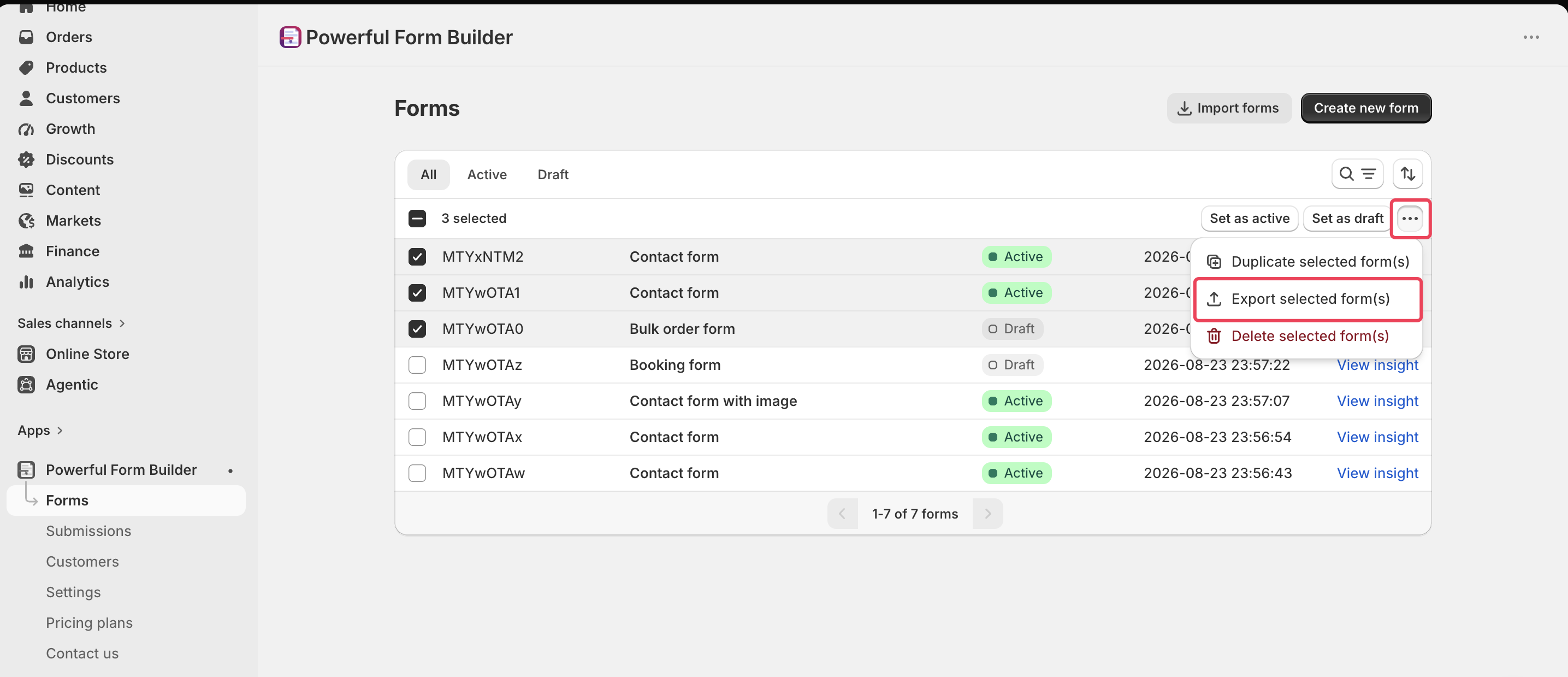
1. Open the app > click **Forms** > select the form you want
2. Click **More actions** icon > **Export selected form(s)**
3. A `.json` file will download to your device. This file contains your entire form structure and settings.
## Import a form
**Steps**
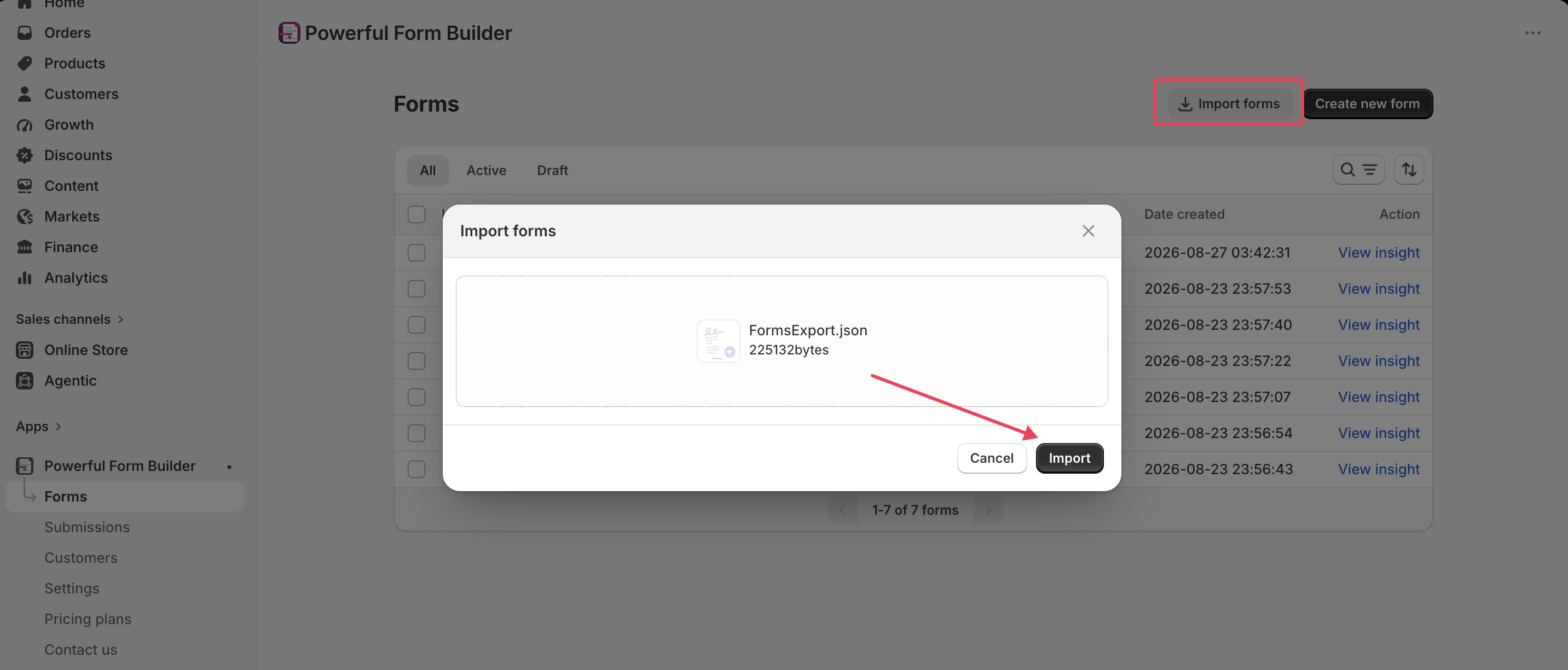
1. Open the app > click **Forms**
2. Click **Import** form text, a popup will appear
3. Click **Add File** and upload the `.json` file you previously exported
4. Click **Import**.
Your form will instantly appear in the **Forms** list.
## Important Notes
#### Form IDs Change in New Stores
When you import a form into a different Shopify store, the form will receive a **new Form ID**.\
This means:
* Any old embed codes will no longer work
* You must copy & use the **new Form ID** when embedding the form
* Replace old shortcodes, app blocks, and custom code references
This prevents ID conflicts and ensures forms work correctly on the new store.
#### Form content only (no submissions)
Importing a form brings over form structure, layout, fields, settings, but does NOT import past submissions.
#### Theme settings (App Blocks) not included
If you used app blocks or theme customizations on the old store, you’ll need to re-add the form to templates/pages in the new store.
## Next steps
* [Manage your forms](/getting-started/manage-your-forms.md) — the Forms list these live in.
* [Create a new form](/getting-started/new-form.md) — start a new form instead.
* [Export submissions](/submissions/export-submissions.md) — exporting data, not the form.