> For the complete documentation index, see [llms.txt](https://docs.powerfulform.com/llms.txt). Markdown versions of documentation pages are available by appending `.md` to page URLs; this page is available as [Markdown](https://docs.powerfulform.com/field-types/selects/radio-buttons.md).
# Radio buttons
Show a short list of choices and let the visitor pick exactly one.
The **Radio buttons** field puts every choice on the page and accepts one answer. Use it when the list is short and you want the visitor to see all the options without opening anything — *Delivery or store pickup?*, *Which size?*, *New customer or existing customer?*
## 🔧 How to Set It
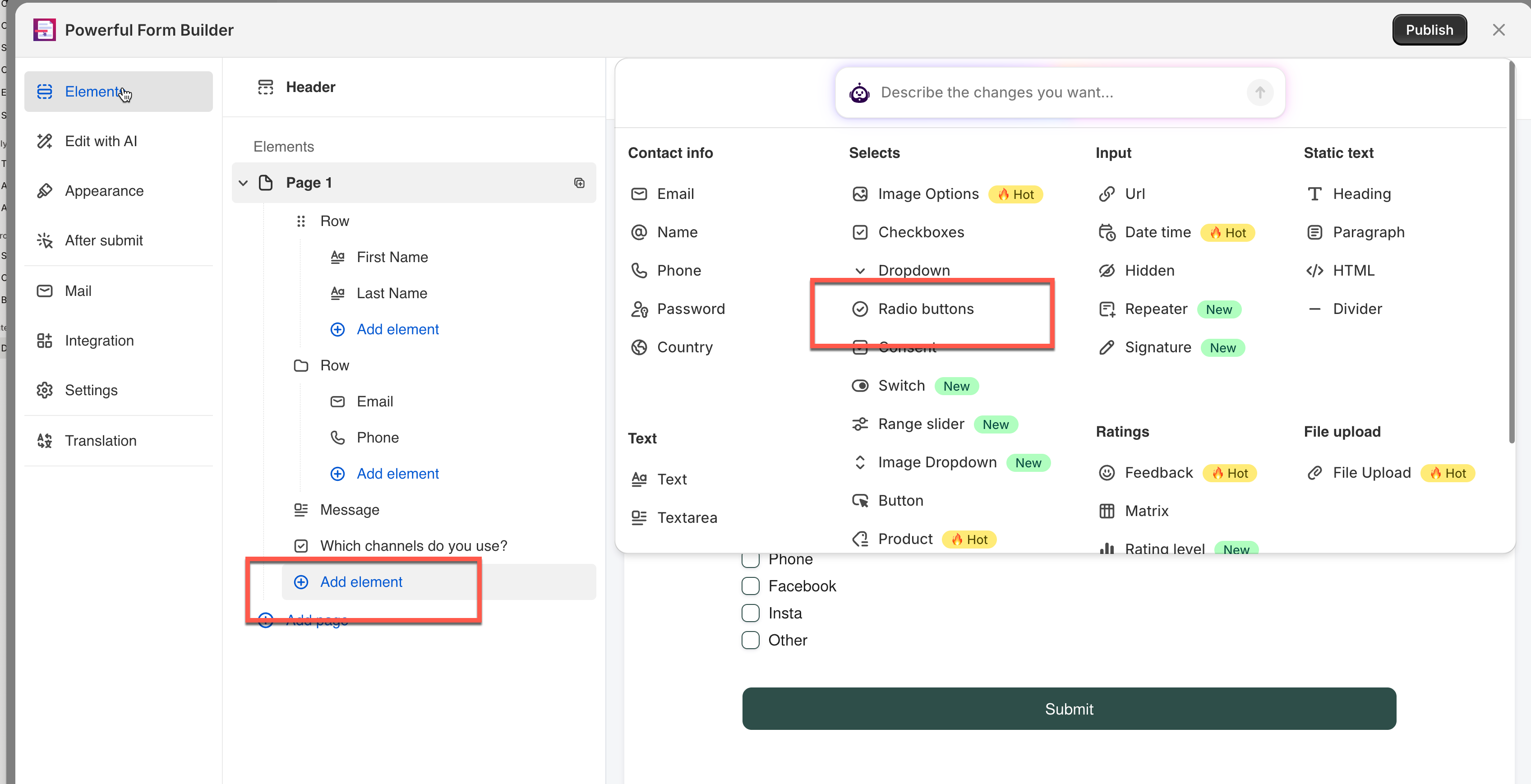
In the form editor, click **Add element > select Radio buttons**.
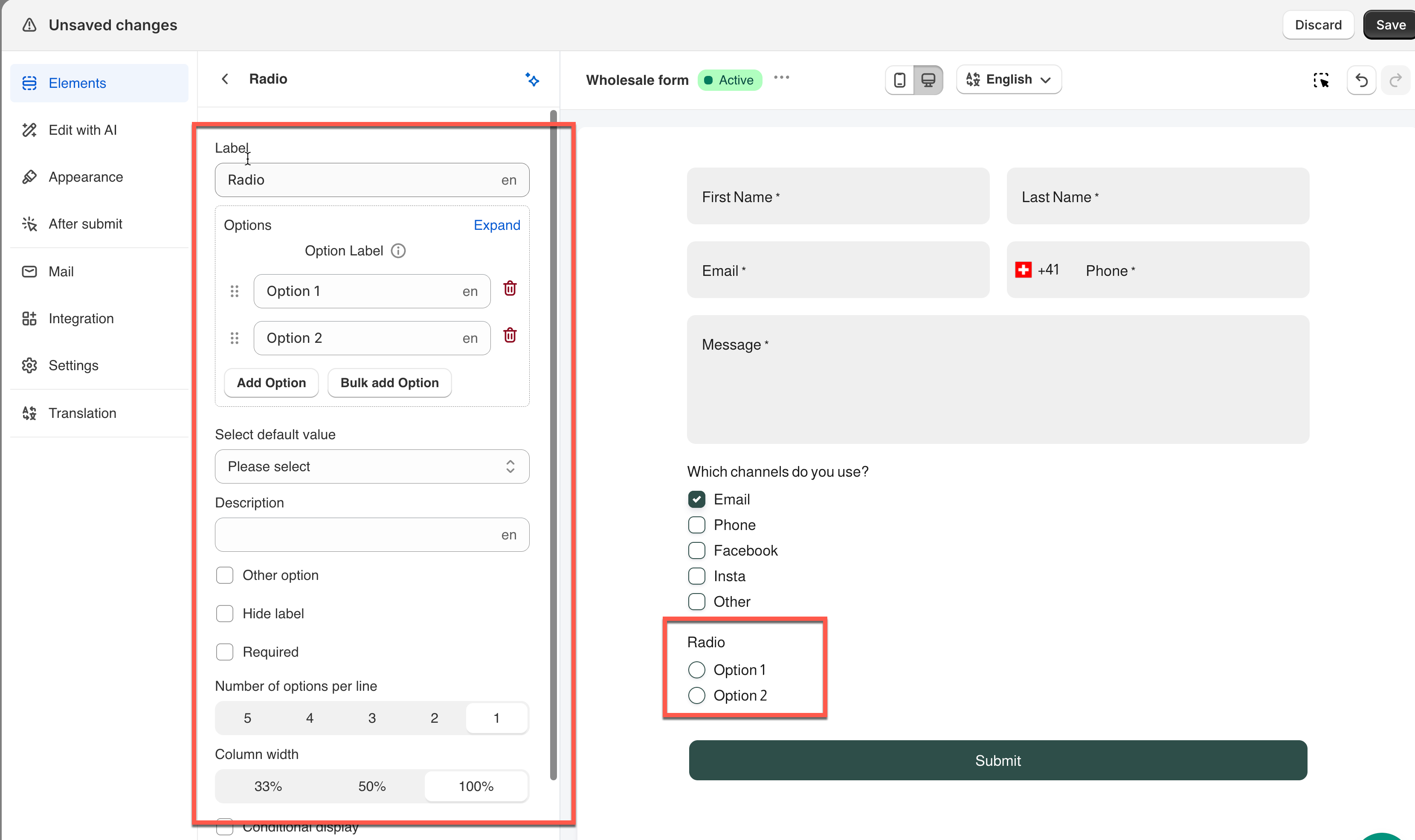
The field is added and its settings open on the left.
See [Add and arrange elements](/build-your-form/add-and-arrange-elements.md) for the other ways to add a field and how to reorder them.
## 🔧 Settings
Only the settings specific to this field are listed here. **Label**, **Placeholder**, **Description**, **Required**, **Hide label**, **Column width**, **Conditional display** and the rest of the shared settings work the same on every field.
### 📝 Options
The list of choices. Each one has
* a **Label** (what's shown to the visitor) and
* a **Value** (what's saved in the submission)
Click **Expand** to see and edit both side by side.
> **⚠️ Note:** Only the **Label** can be translated for other languages. The **Value** stays the same across all languages .
### 🔤 Select Default Value
Which choice is already selected when the form loads. The list also includes **Please select**, which leaves the field empty.
**Example:** *"Which size?"* sets this to the size you sell most of, so most visitors don't need to touch it.
> **⚠️ Note:** Once a visitor picks an option, the field can't be cleared back to empty — only moved to another choice. Leave the default on **Please select** if the question should start blank.
### ✍️ Other Option
Adds a write-in choice with its own text box, for answers you didn't list.
Turning it on reveals **Other label** (the choice's wording, default "Other") and **Other placeholder** (the hint inside the box, default "Enter other option").
### 📐 Number of Options Per Line
How many choices sit on one row.
**Example:** *"Yes / No / Not sure"* uses `3` to fit every option on one row. A longer list like shipping methods uses `1`, stacking vertically.
#### 🔁 Compare
Need several answers instead of one? Use [**Checkboxes**](https://globosoftware.gitbook.io/globosoftware-docs/field-types/selects/checkboxes) — same layout, multiple selections allowed.
## Next steps
* [Checkboxes](/field-types/selects/checkboxes.md) — the same layout when several answers are allowed.
* [Show or hide fields with conditional logic](/build-your-form/conditional-logic.md) — ask follow-up questions based on the choice.