> For the complete documentation index, see [llms.txt](https://docs.powerfulform.com/llms.txt). Markdown versions of documentation pages are available by appending `.md` to page URLs; this page is available as [Markdown](https://docs.powerfulform.com/field-types/selects/dropdown.md).

# Dropdown

Add a single-select dropdown so visitors pick one answer from a tidy list.

The **Dropdown** field shows a closed list that opens when the visitor clicks it, and accepts one answer. Use it when the list is long enough that radio buttons would take over the page — a *How did you hear about us?* question, a list of service types, or the branch a customer wants to collect from.

## 🔧 How to Set It

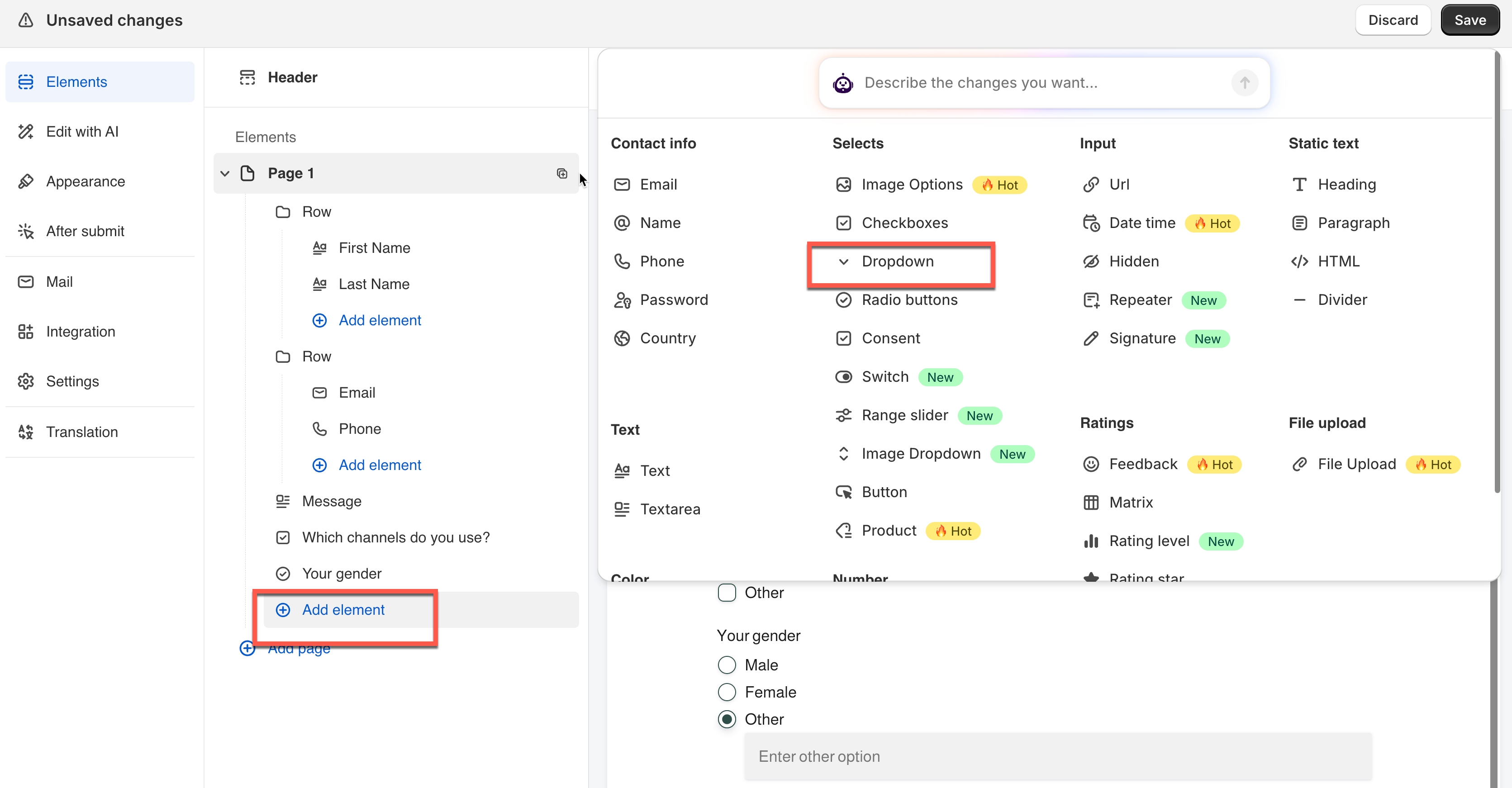
In the form editor, click **Add element** > pick **Dropdown**.

The field is added and its settings open on the left.

<figure><img src="https://2907469752-files.gitbook.io/~/files/v0/b/gitbook-x-prod.appspot.com/o/spaces%2FehM2rz7MmKkWcJmgvJOe%2Fuploads%2Fgit-blob-85f20e48f7538bcb1fb47722811a520b9be2ed20%2F2026-10-02_10-24-49.png?alt=media" alt=""><figcaption></figcaption></figure>

<figure><img src="https://2907469752-files.gitbook.io/~/files/v0/b/gitbook-x-prod.appspot.com/o/spaces%2FehM2rz7MmKkWcJmgvJOe%2Fuploads%2Fgit-blob-8fb744e365adeb1966df53c7e2cd222803d148f2%2F2026-10-02_10-25-10.png?alt=media" alt=""><figcaption></figcaption></figure>

See [Add and arrange elements](/build-your-form/add-and-arrange-elements.md) for the other ways to add a field and how to reorder them.

## 🔧 Settings

Only the settings specific to this field are listed here. **Label**, **Placeholder**, **Description**, **Required**, **Hide label**, **Column width**, **Conditional display** and the rest of the shared settings work the same on every field.

<table><thead><tr><th width="171.5667724609375">Setting</th><th width="417.7666015625">What it does</th><th>Default</th></tr></thead><tbody><tr><td><strong>Options</strong></td><td>The list of choices.</td><td>Option 1, Option 2</td></tr><tr><td><strong>Select default value</strong></td><td>Which choice is already selected when the form loads. The list also carries a <strong>Please select</strong> entry, which leaves the field empty.</td><td>Please select</td></tr><tr><td><strong>Enable search</strong></td><td>Adds a search box inside the open dropdown so the visitor can type to filter.</td><td>off</td></tr></tbody></table>

### 📝 Options

The list of choices. Each one has

* a **Label** (what's shown to the visitor) and
* a **Value** (what's saved in the submission).

Click **Bulk add Option** to paste many choices at once,

> **⚠️ Note:** Only the **Label** can be translated for other languages. The **Value** stays the same across all language.

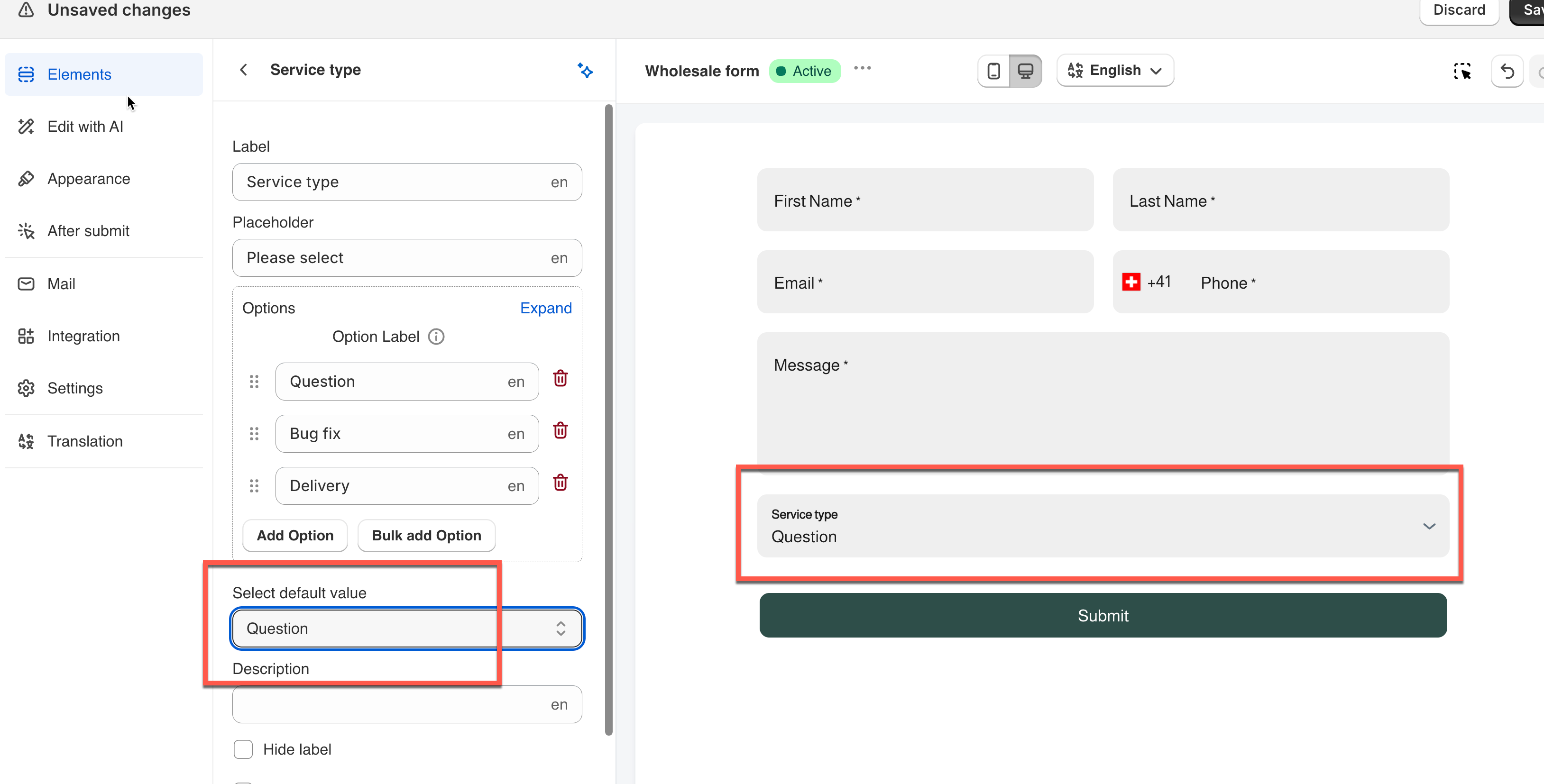
### 🔤 Select Default Value

Which choice is already selected when the form loads. The list also includes **Please select**, which leaves the field empty.

**Example:** *"Service type"* leaves this on **Please select**, so the visitor has to make a real choice rather than accidentally submitting a default.

<figure><img src="https://2907469752-files.gitbook.io/~/files/v0/b/gitbook-x-prod.appspot.com/o/spaces%2FehM2rz7MmKkWcJmgvJOe%2Fuploads%2Fgit-blob-b9759daa9f6d8770c172e5cc1b3752ea5e2fed72%2F2026-10-02_10-27-32.png?alt=media" alt=""><figcaption></figcaption></figure>

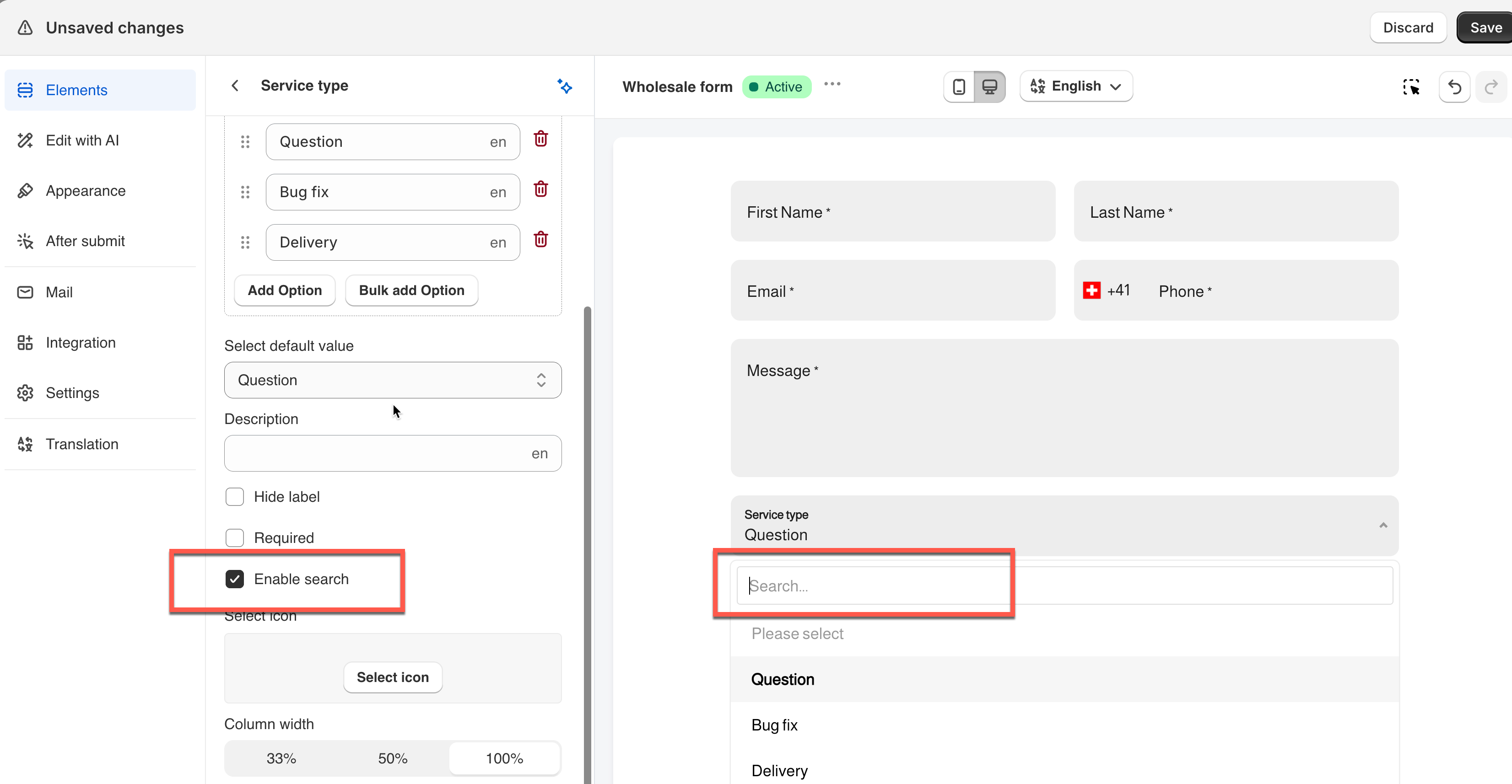
### 🔍 Enable Search

Adds a search box inside the open dropdown, so the visitor can type to filter instead of scrolling.

**Example:** *"Which branch will you collect from?"* turns this on for a list of 40+ locations — much faster than scrolling on a phone.

> **💡 Tip:** Turn this on once a list runs past a dozen or so entries.

<figure><img src="https://2907469752-files.gitbook.io/~/files/v0/b/gitbook-x-prod.appspot.com/o/spaces%2FehM2rz7MmKkWcJmgvJOe%2Fuploads%2Fgit-blob-9623b75e91b560136becd2bd5744b85076d94d5f%2F2026-10-02_10-28-24.png?alt=media" alt=""><figcaption></figcaption></figure>

## 🔄 How It Works

**What's saved:** A dropdown stores the chosen option's **Value**, not its **Label**. If you never touched the Value column, they're the same text — but if you set them separately, it's the Value that shows up in **Submissions**, notification emails, exports, and any connected integration.

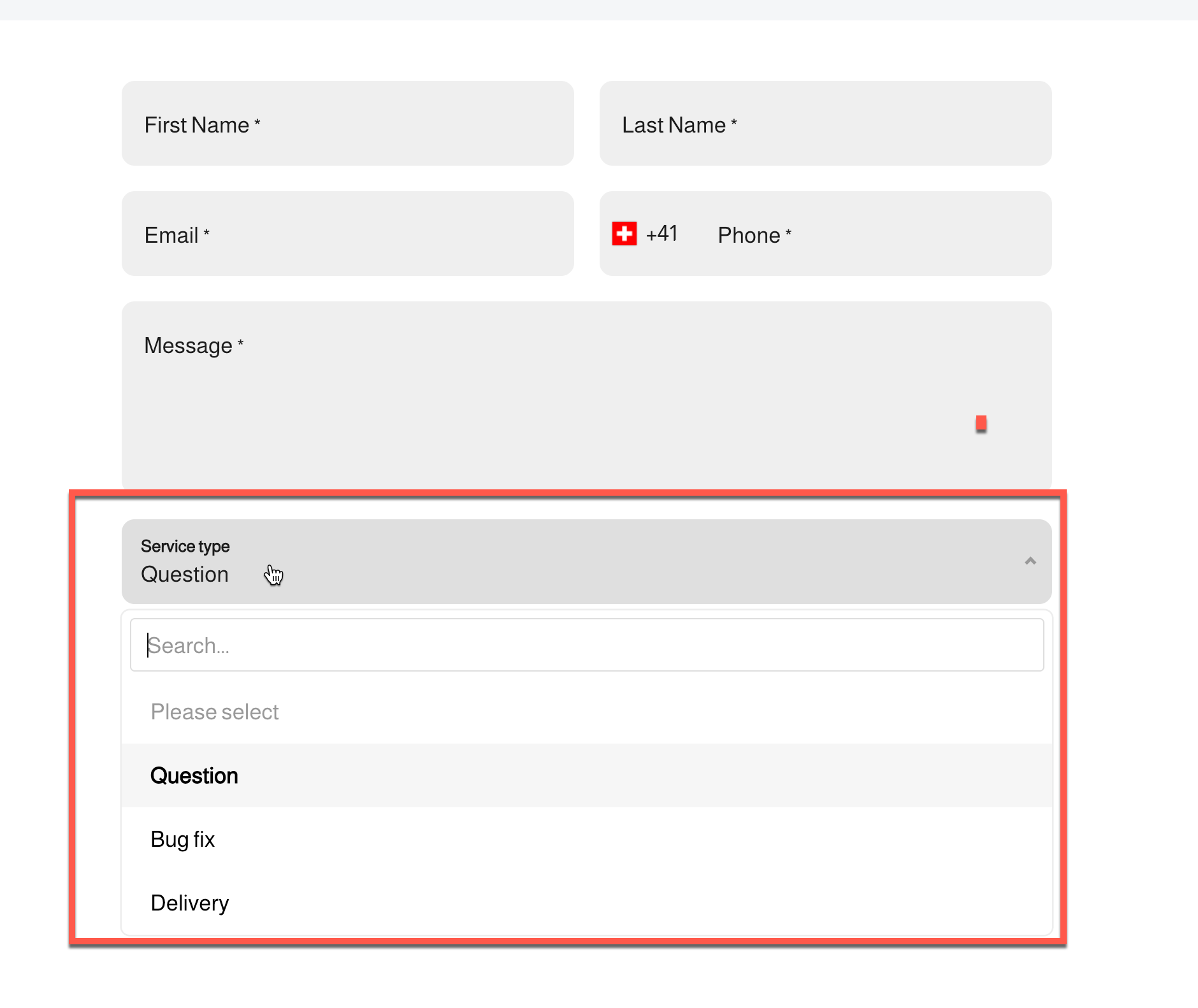
**What the visitor sees:** The field shows as a closed box with the current selection (or **Please select**). Clicking it opens the full list — with a search box at the top if **Enable search** is on.

<figure><img src="https://2907469752-files.gitbook.io/~/files/v0/b/gitbook-x-prod.appspot.com/o/spaces%2FehM2rz7MmKkWcJmgvJOe%2Fuploads%2Fgit-blob-2968277bb6e174f97baefd3a5760a76a3b51cfd4%2F2026-10-02_10-31-15.png?alt=media" alt=""><figcaption></figcaption></figure>

<figure><img src="https://2907469752-files.gitbook.io/~/files/v0/b/gitbook-x-prod.appspot.com/o/spaces%2FehM2rz7MmKkWcJmgvJOe%2Fuploads%2Fgit-blob-d60cfa7bbcd364cc6c08fb81badd479c8efb3180%2F2026-10-02_10-33-25.png?alt=media" alt=""><figcaption></figcaption></figure>

## 🔁 Compare

<table><thead><tr><th width="150.36669921875">Use</th><th>When</th></tr></thead><tbody><tr><td><strong>Dropdown</strong></td><td>One answer, a long list, keep the form compact</td></tr><tr><td><strong>Radio buttons</strong></td><td>One answer, a short list, show every choice at once</td></tr><tr><td><strong>Checkboxes</strong></td><td>The visitor may pick more than one</td></tr><tr><td><strong>Button</strong></td><td>One or more answers shown as large tappable buttons</td></tr><tr><td><strong>Image Dropdown</strong></td><td>A dropdown where each entry carries a thumbnail</td></tr></tbody></table>

\ <br>

## Next steps

* [Radio buttons](/field-types/selects/radio-buttons.md) — the same question with every option on show.
* [Show or hide fields with conditional logic](/build-your-form/conditional-logic.md) — react to the option a visitor picks.