> For the complete documentation index, see [llms.txt](https://docs.powerfulform.com/llms.txt). Markdown versions of documentation pages are available by appending `.md` to page URLs; this page is available as [Markdown](https://docs.powerfulform.com/field-types/selects/consent.md).
# Consent
Add an agreement checkbox whose wording links straight to your own terms and privacy pages.
The **Consent** field is a single checkbox with wording you write yourself — the *I agree to the terms and conditions* line at the bottom of a form. Because the wording is edited in a small rich-text box, you can turn any part of it into a link to your store's own terms or privacy page.
## 🔧 How to Set It
In the form editor, click **Add element**, open the **Selects** category and pick **Consent**. The field is added and its settings open on the left.
See [Add and arrange elements](/build-your-form/add-and-arrange-elements.md) for the other ways to add a field and how to reorder them.
## 🔧 Settings
Only the settings specific to this field are listed here. **Label**, **Placeholder**, **Description**, **Required**, **Hide label**, **Column width**, **Conditional display** and the rest of the shared settings work the same on every field.
| Setting | What it does | Default |
| -------------------------------------------------------------- | -------------------------------------------------------------------------------------------------------- | ----------------------------------- |
| **Terms and conditions content** | The wording beside the checkbox, edited as rich text so it can carry formatting and links. Translatable. | I agree to the terms and conditions |
| **Default is selected** | Ticks the box for the visitor when the form loads. | off |
| **Used only to require user consent (value is not submitted)** | The visitor still has to tick the box, but nothing is stored against the submission. | off |
This field has no **Label**, **Placeholder** or **Hide label** setting. The wording in **Terms and conditions content** is the label.
### Link to your own terms and privacy pages
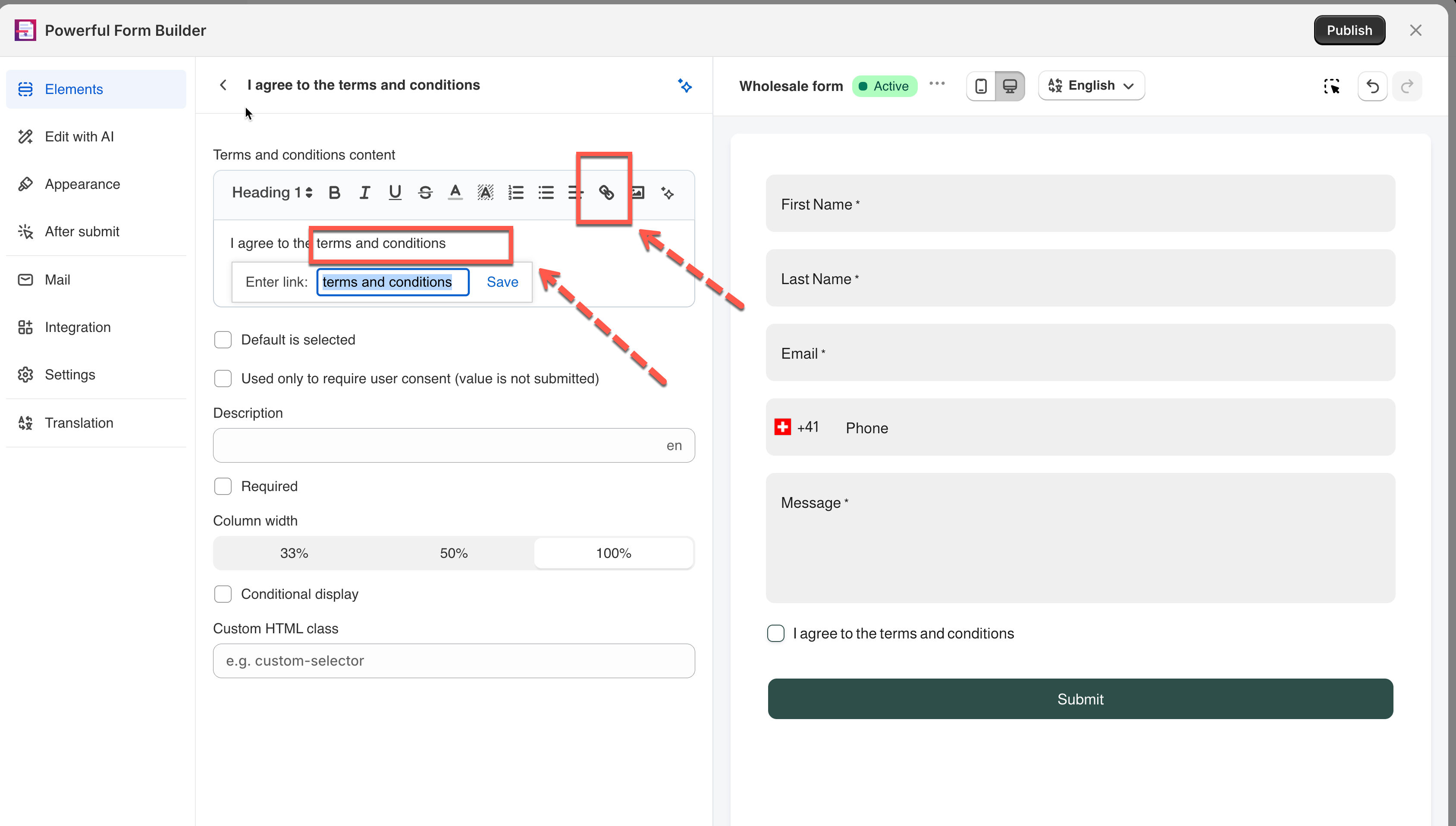
The **Terms and conditions content** box has a small toolbar above it with bold, italic, underline, text color, alignment, link and image controls. The link control is what you need.
{% stepper %}
{% step %}
Copy the address of your page
{% endstep %}
{% step %}
Select the words that should become the link
In **Terms and conditions content**, write the full sentence first — for example *I agree to the terms and conditions and the privacy policy*. Then select only the words **terms and conditions** with your mouse.
{% endstep %}
{% step %}
Click the link button and paste the address
{% endstep %}
{% step %}
Save
{% endstep %}
{% endstepper %}
## 🔄 How It Works
What gets saved
When the box is ticked, the field stores `Yes` against the submission. You see it in **Submissions**, in your notification emails, in exports and in connected integrations, next to the field's wording.
With **Used only to require user consent (value is not submitted)** on, nothing is stored at all — the field only blocks the submit button until the box is ticked.
💡 Example
* **I agree to the terms and conditions** ⇒ link the words to your terms page, **Required** on
* **Marketing opt-in** ⇒ **Default is selected** off, so the visitor has to choose it themselves
* **Workshop waiver** ⇒ the full wording in the box, **Required** on
## ⚠️ Limits & Notes
### Consent as a gate, without storing an answer
Turn on **Used only to require user consent (value is not submitted)** when the tick is a condition of submitting rather than a piece of data you need to keep. The visitor must still tick the box, but no answer is written to the submission, so the field does not clutter your exports or your notification emails.
Leave it off when you need to be able to show later that a particular customer agreed. In that case the answer is part of the record.
{% hint style="danger" %}
**Default is selected** pre-ticks the box for the visitor. Pre-ticked consent is not accepted as valid agreement under several privacy and marketing laws. Leave it off for anything that acts as legal consent, and check with your own adviser before using it for marketing opt-ins.
{% endhint %}
### Marketing opt-in instead of terms
If what you want is a *Subscribe to our emails* tick that feeds Shopify's marketing consent rather than a terms agreement, that is a separate setup with its own wiring. See [Shopify marketing consent](/integrations/shopify/shopify-marketing-consent.md).
\
## Next steps
* [Shopify marketing consent](/integrations/shopify/shopify-marketing-consent.md) — record a marketing opt-in against the customer.
* [Switch](/field-types/selects/switch.md) — a two-state toggle for questions that are not agreements.