> For the complete documentation index, see [llms.txt](https://docs.powerfulform.com/llms.txt). Markdown versions of documentation pages are available by appending `.md` to page URLs; this page is available as [Markdown](https://docs.powerfulform.com/field-types/selects/checkboxes.md).
# Checkboxes
Let visitors tick more than one answer, with an optional write-in choice and selection limits.
The **Checkboxes** field shows every choice at once and lets the visitor tick as many as apply. Use it for questions like *Which products are you interested in?* or *Which days can we deliver?*
## 🔧 How to Set It
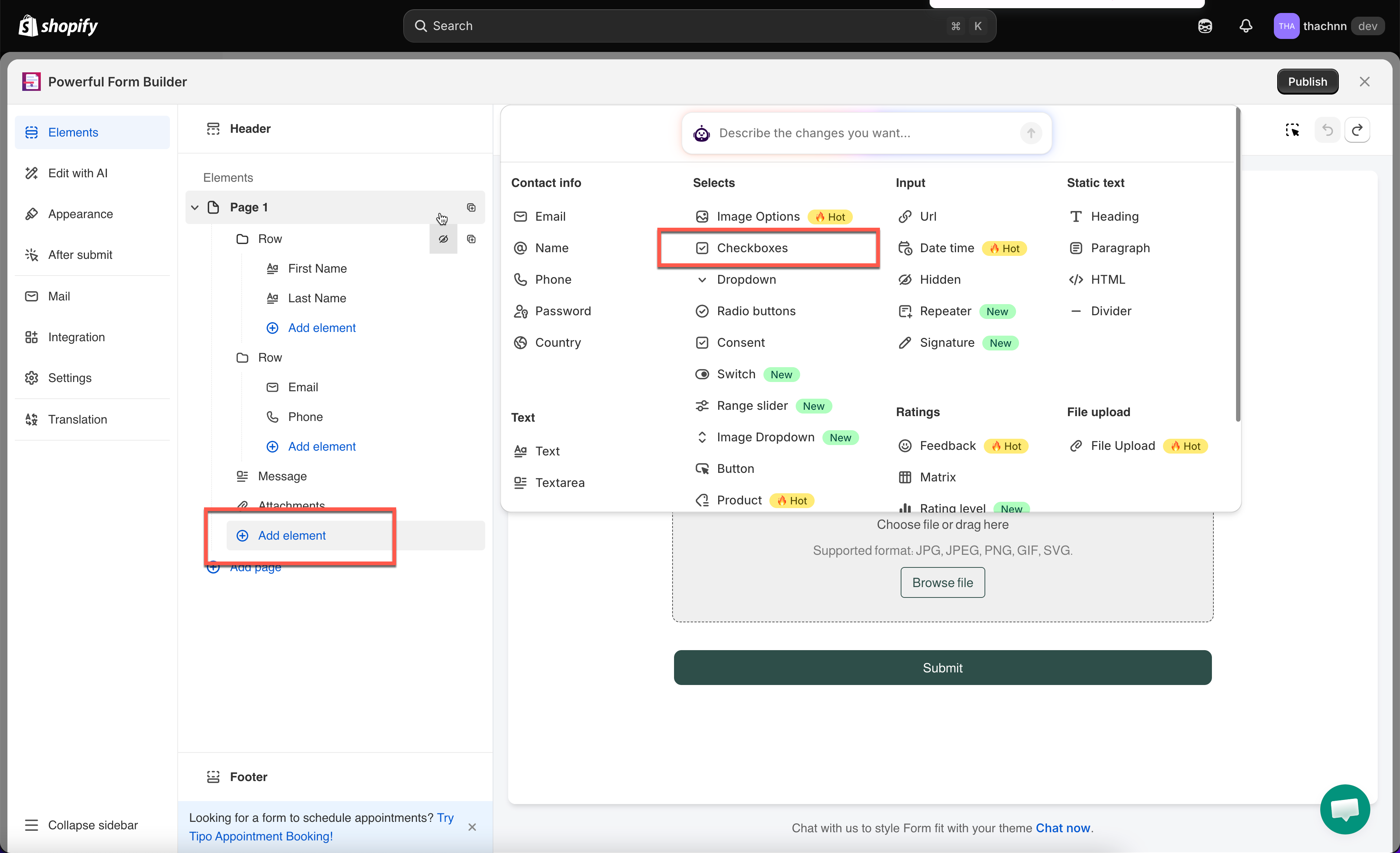
In the form editor, click **Add element** > pick **Checkboxes**.
The field is added and its settings open on the left.
{% hint style="info" %}
See [Add and arrange elements](/build-your-form/add-and-arrange-elements.md) for the other ways to add a field and how to reorder them.
{% endhint %}
## 🔧 Settings
Only the settings specific to this field are listed here. **Label**, **Placeholder**, **Description**, **Required**, **Hide label**, **Column width**, **Conditional display** and the rest of the shared settings work the same on every field.
### 📝 Options
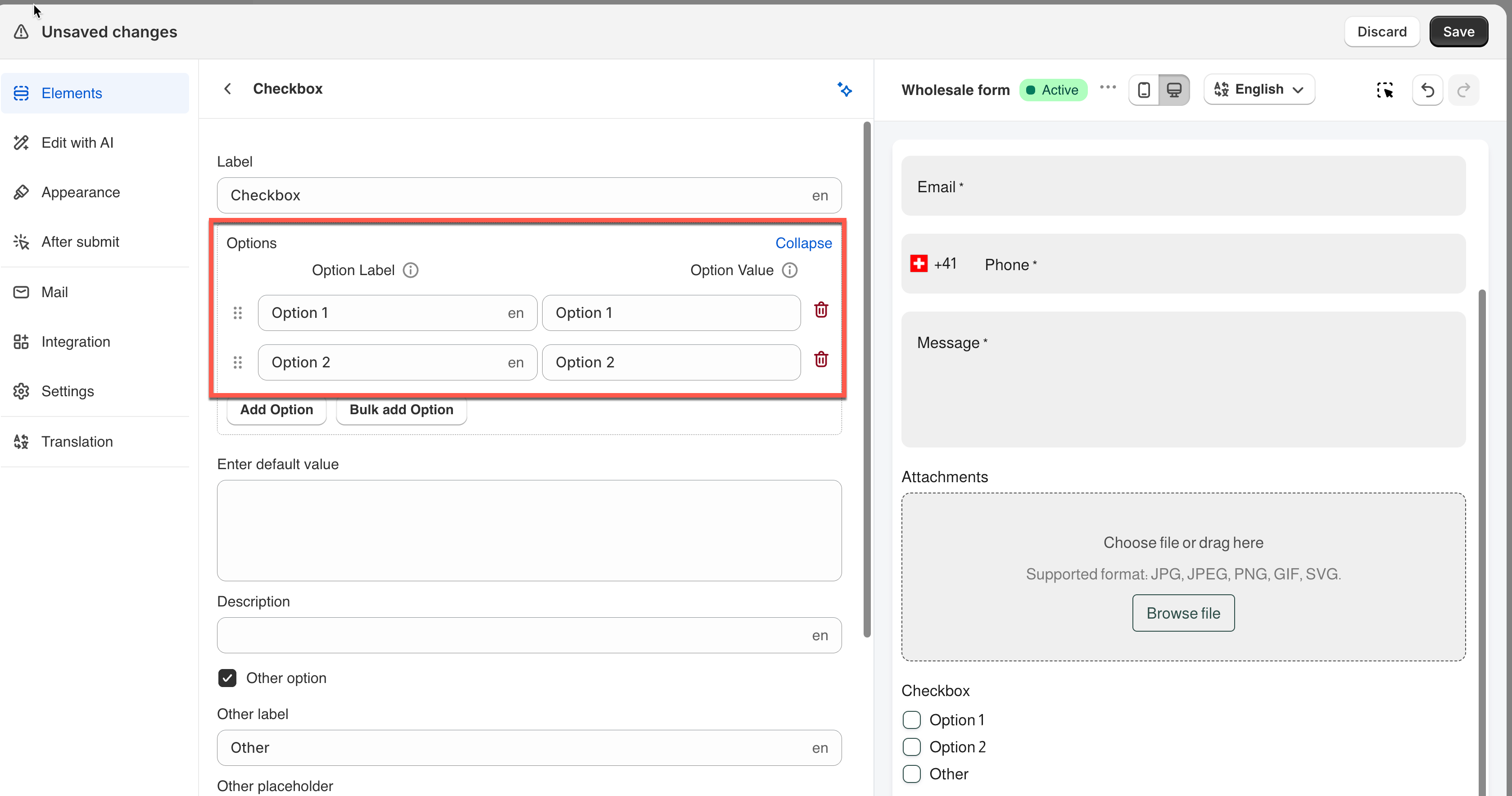
The list of choices. Each one has
* a **Label** (what's shown to the visitor) and
* a **Value** (what's saved in the submission).
Click **Expand** to see and edit both side by side.
**⚠️ Note:** Only the **Label** can be translated for other languages. The **Value** stays the same across all languages.
Every ticked choice is stored using its **Value**, not its visible **Label**.
Click **Expand** above the options list to see and edit the values.
Multiple ticks are recorded together against the one field, so a submission shows all of them under that field's name in **Submissions**, in notification emails and in exports.
### Enter Default Value
Pre-ticks one or more choices when the form loads, so the visitor only needs to adjust from there.
**Example:** A feedback form asks *"Which channels do you use?"* and sets this to `Email` — Email is pre-ticked, and the visitor just adds any others that apply.
> **⚠️ Note:** Must match an option's **Value** exactly — a typo means nothing gets pre-ticked.
### Other Option
Adds a write-in choice with its own text box, for answers you didn't list.
Turning it on reveals **Other label** (the choice's wording, default "Other") and **Other placeholder** (the hint inside the box, default "Enter other option").
### Limit Selections
Turns on a minimum and/or maximum number of ticks, with **Min selections** and **Max selections** appearing once it's on.
**Example:** *"Pick up to 2 add-ons"* sets **Min 0 / Max 2** — the visitor can tick none, one, or two, and a third tick is blocked until they remove one.
> **📌 Note:** The limit is checked when the visitor clicks **Submit** — not as they tick each box. A visitor can tick past the max while filling in the form; the error only appears at submit time.
### Number of Options Per Line
How many choices sit on one row.
**Example:** A size picker (XS–XL) uses `5` to fit every option on one row. A longer list of product interests uses `1`, stacking vertically — safer on mobile.
## 🔁 Compare
Need only **one** answer instead of several? Use [**Radio buttons**](https://globosoftware.gitbook.io/globosoftware-docs/field-types/selects/radio-buttons) — same layout, single selection.
## Next steps
* [Radio buttons](/field-types/selects/radio-buttons.md) — the same layout when only one answer is allowed.
* [Show or hide fields with conditional logic](/build-your-form/conditional-logic.md) — react to what the visitor ticked.


.png?alt=media)
