> For the complete documentation index, see [llms.txt](https://docs.powerfulform.com/llms.txt). Markdown versions of documentation pages are available by appending `.md` to page URLs; this page is available as [Markdown](https://docs.powerfulform.com/field-types/number-fields/number.md).

# Number

Collect a number and nothing else, with an optional minimum and maximum.

The **Number** field gives the visitor a box that only accepts a number. Use it for a budget on a quote request, the number of guests at a tasting, the headcount for a wholesale order, or the character count someone wants engraved.

## 🔧 How to Set It

In the form editor, click **Add element**, open the **Number** category and pick **Number**. The field is added and its settings open on the left.

See [Add and arrange elements](/build-your-form/add-and-arrange-elements.md) for the other ways to add a field and how to reorder them.

<figure><img src="https://2907469752-files.gitbook.io/~/files/v0/b/gitbook-x-prod.appspot.com/o/spaces%2FehM2rz7MmKkWcJmgvJOe%2Fuploads%2Fgit-blob-12b27add91a88d41c5c496326c620ad9670dda15%2F2026-10-02_16-16-02.png?alt=media" alt=""><figcaption></figcaption></figure>

<figure><img src="https://2907469752-files.gitbook.io/~/files/v0/b/gitbook-x-prod.appspot.com/o/spaces%2FehM2rz7MmKkWcJmgvJOe%2Fuploads%2Fgit-blob-06f6cdebb22e3deb6a657b8f324f21b20777fb4d%2F2026-10-02_16-16-22.png?alt=media" alt=""><figcaption></figcaption></figure>

## 🔧 Settings

Only the settings specific to this field are listed here. **Label**, **Placeholder**, **Description**, **Required**, **Hide label**, **Column width**, **Conditional display** and the rest of the shared settings work the same on every field.

<table><thead><tr><th>Setting</th><th width="516.0999755859375">What it does</th><th>Default</th></tr></thead><tbody><tr><td><strong>Set min value</strong></td><td>Turns on a lowest accepted number. An unlabeled number box appears underneath for the value.</td><td>Off</td></tr><tr><td><strong>Set max value</strong></td><td>Turns on a highest accepted number. An unlabeled number box appears underneath for the value.</td><td>Off</td></tr></tbody></table>

> 💡 Because it's a real number, conditional rules on this field offer is greater than / is less than, in addition to is equal to / is not equal to — letting you ask a follow-up question only for larger values.

## 🔄 How It Works

**What the visitor sees:** A box that only accepts a number — possibly with small up/down arrows, and a numeric keypad on mobile.

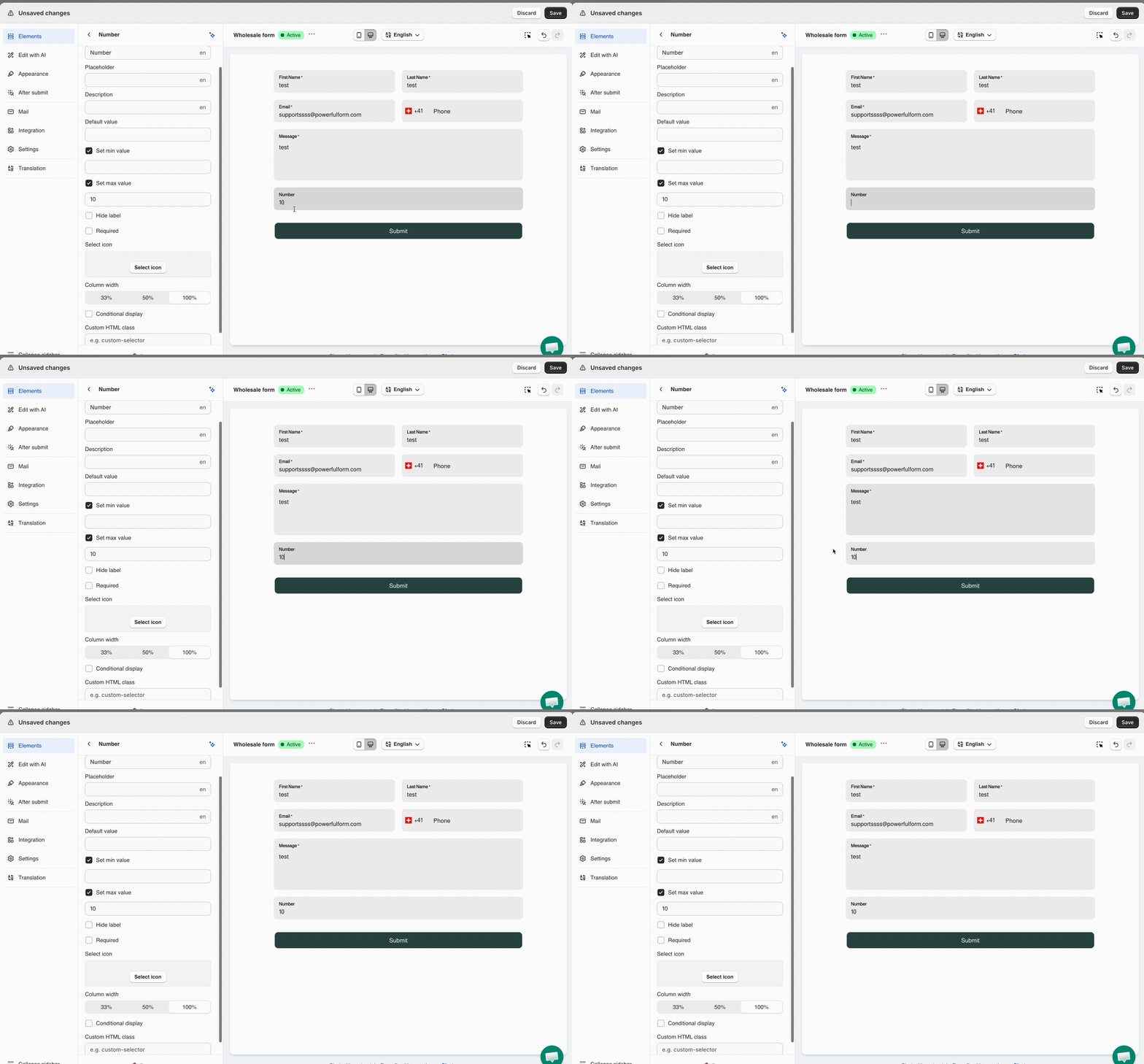
**What happens outside the range:** The limit applies immediately, not at submit. If the visitor types a number beyond **Set min/max value**, the field auto-corrects to the nearest bound right away.

**Example:** **Set max value** = `10`. A visitor types `20` — the field immediately changes it to `10`, before they even reach Submit.

<figure><img src="https://2907469752-files.gitbook.io/~/files/v0/b/gitbook-x-prod.appspot.com/o/spaces%2FehM2rz7MmKkWcJmgvJOe%2Fuploads%2Fgit-blob-57d196617858bfbdbf59107aa65ac491f35e4f34%2FScreen%20Recording%202026-10-02%20at%2016.37.10.gif?alt=media" alt=""><figcaption></figcaption></figure>

## Next steps

* [Quantity](/field-types/number-fields/quantity.md) — the same idea with minus and plus buttons.
* [Range slider](/field-types/selects/range-slider.md) — let the visitor drag instead of type.
* [Show or hide fields with conditional logic](/build-your-form/conditional-logic.md) — react to the number someone enters.