> For the complete documentation index, see [llms.txt](https://docs.powerfulform.com/llms.txt). Markdown versions of documentation pages are available by appending `.md` to page URLs; this page is available as [Markdown](https://docs.powerfulform.com/email-notifications/email-template-editor.md).

# Edit email template

Customize what your form's emails say. Works the same way for the Admin email (sent to you) and the Customer email (sent to the visitor).

## 🔧 Where to Edit

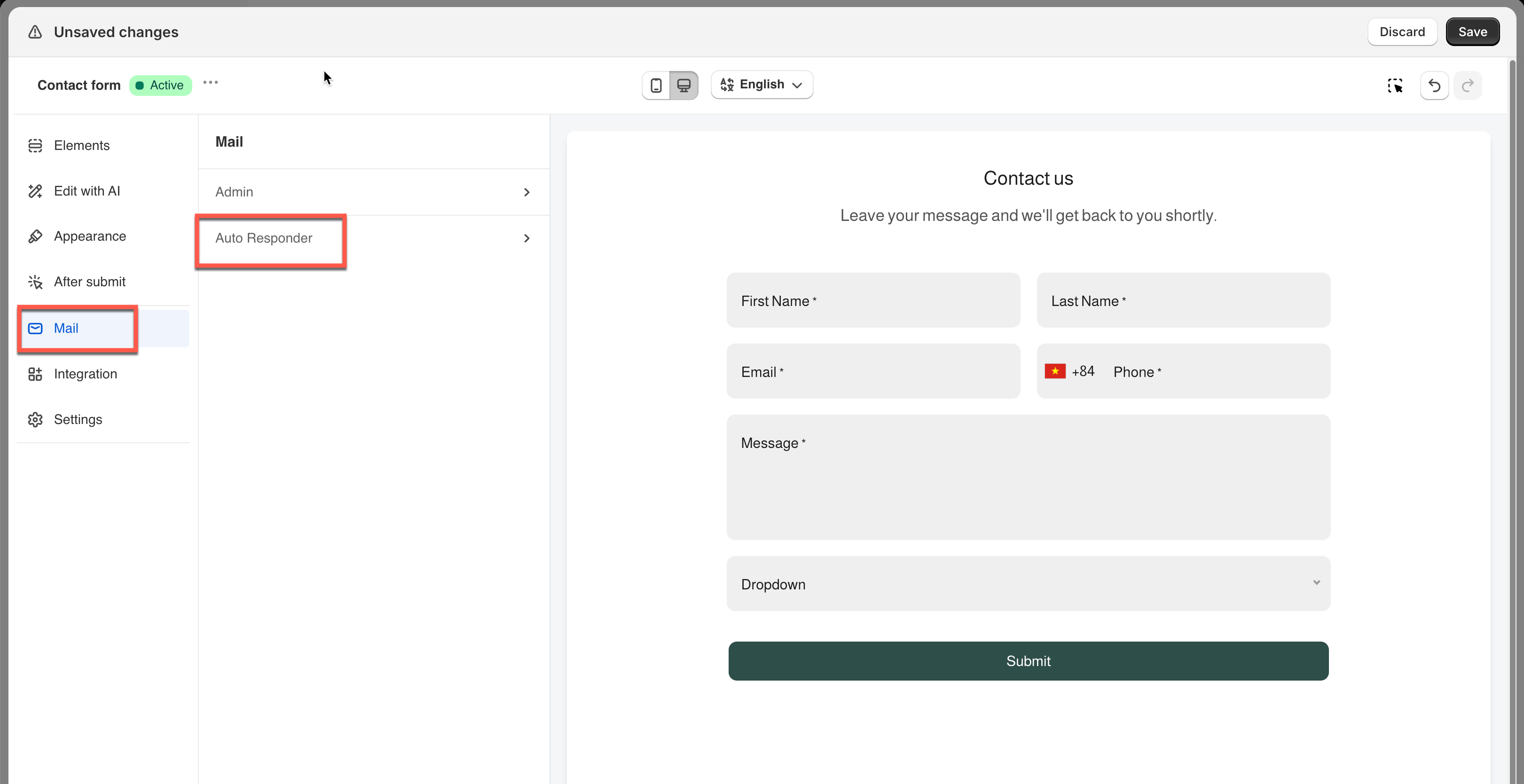
1. Open the app > click **Forms** > open the form you want to edit
2. Click **Mail** icon on the left side
3. Choose the email: Admin or Auto Responder (customer)

<figure><img src="https://2907469752-files.gitbook.io/~/files/v0/b/gitbook-x-prod.appspot.com/o/spaces%2FehM2rz7MmKkWcJmgvJOe%2Fuploads%2Fgit-blob-ea886a1b3c0c6061eea64cb95d5f2e10e699421d%2F2026-09-28_14-08-34.png?alt=media" alt=""><figcaption></figcaption></figure>

4. Scroll to Email content and edit
5. Click **Save**

<figure><img src="https://2907469752-files.gitbook.io/~/files/v0/b/gitbook-x-prod.appspot.com/o/spaces%2FehM2rz7MmKkWcJmgvJOe%2Fuploads%2Fgit-blob-27c87a9224fcf31ce184bec8370832fbcabb91a4%2F2026-09-28_14-09-45.png?alt=media" alt=""><figcaption></figcaption></figure>

> **📌 Note:** The Customer email only shows its editor once **Send email to customer** is enabled.

## 📝 What You Can Edit

<table><thead><tr><th width="261.1666259765625">Part</th><th width="201.1334228515625">Admin email</th><th>Customer email</th></tr></thead><tbody><tr><td><strong>Subject</strong></td><td>✅</td><td>✅</td></tr><tr><td><strong>Intro / greeting</strong></td><td>✅</td><td>✅</td></tr><tr><td><strong>Body text</strong></td><td>✅</td><td>✅</td></tr><tr><td><strong>Layout of submitted data</strong></td><td>✅</td><td>✅</td></tr><tr><td><strong>Footer / signature</strong></td><td>✅</td><td>✅</td></tr></tbody></table>

## 🧩 Dynamic Variables

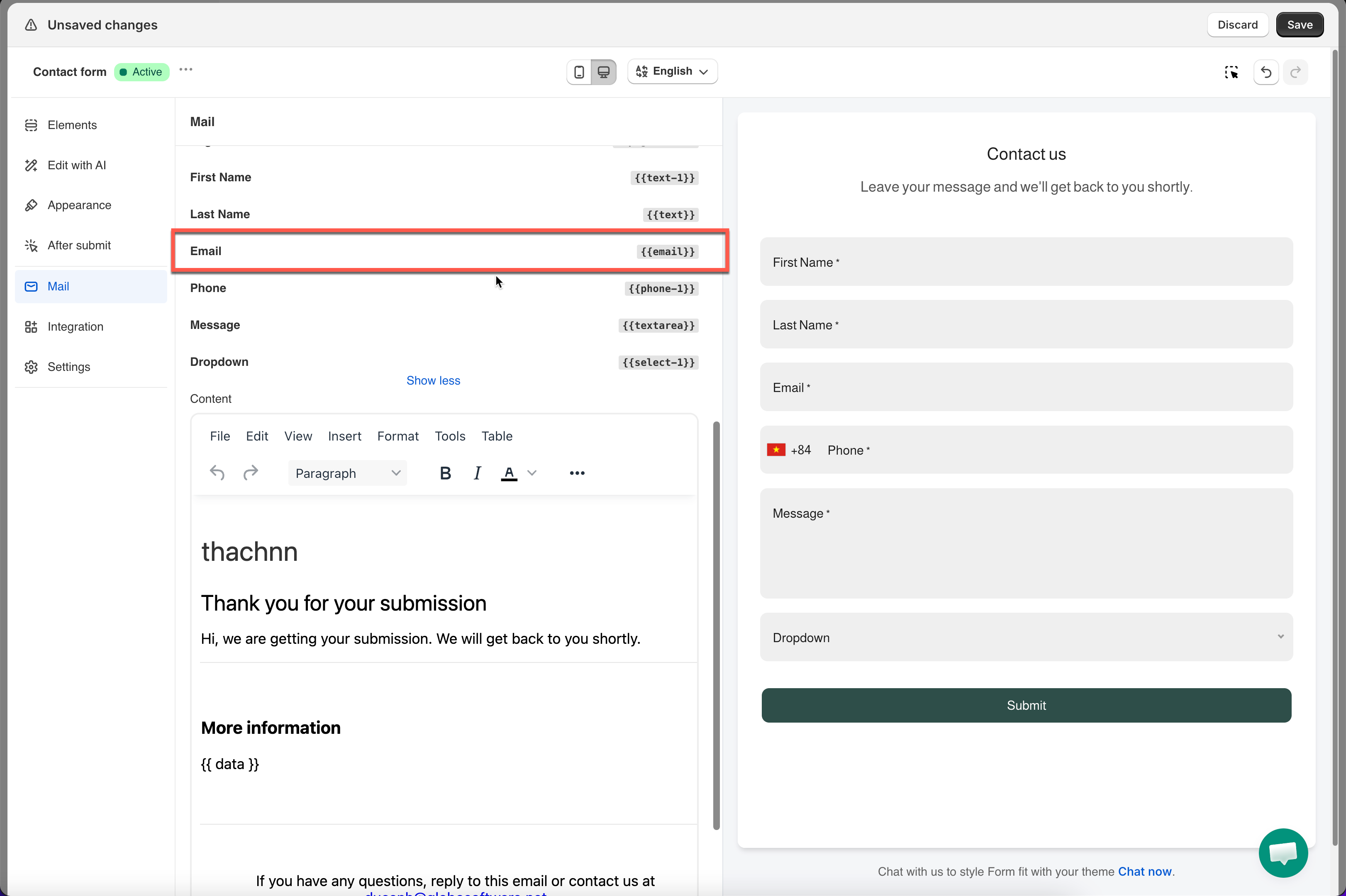
Variables are placeholders in double curly braces, like `{{data}}`. The app swaps in the real answer when the email is sent. A blank or hidden field simply produces nothing.

Examples:

* **{{customer.name}}** — Customer’s name (logged-in customers only)
* **{{email}}** — Email entered in form
* **{{data}}** — All visible form fields

These variables automatically populate when the email is sent.

<table><thead><tr><th width="131.63336181640625">Where</th><th>How to insert</th></tr></thead><tbody><tr><td><strong>Subject</strong></td><td>Click the <strong>database icon</strong> beside the label > pick from <strong>Form inputs</strong></td></tr><tr><td><strong>Content</strong></td><td>Click a variable in the list above the editor to copy it > paste into the editor</td></tr></tbody></table>

<figure><img src="https://2907469752-files.gitbook.io/~/files/v0/b/gitbook-x-prod.appspot.com/o/spaces%2FehM2rz7MmKkWcJmgvJOe%2Fuploads%2Fgit-blob-f5170b91c7125bfaa4e1d049ee0cbe06ea0e9bf0%2Fscreenshot-mail-mail-notification-customer-email-notification-edit-customer-email-template-3.png?alt=media" alt=""><figcaption></figcaption></figure>

<figure><img src="https://2907469752-files.gitbook.io/~/files/v0/b/gitbook-x-prod.appspot.com/o/spaces%2FehM2rz7MmKkWcJmgvJOe%2Fuploads%2Fgit-blob-ab7675abe8b7288d764ee2b46e8876ff6432ddba%2Fimage%20(13).png?alt=media" alt=""><figcaption></figcaption></figure>

**🔔 Note:** `{{customer.name}}` and `{{customer.email}}` only work for customers who already have a Shopify account and are logged in when they submit. The app then pulls their name and email from their account.

Guest (not logged in)? These variables stay blank. Use `{{email}}` instead, which inserts the email typed into the form.

<figure><img src="https://2907469752-files.gitbook.io/~/files/v0/b/gitbook-x-prod.appspot.com/o/spaces%2FehM2rz7MmKkWcJmgvJOe%2Fuploads%2Fgit-blob-2dc1dc3ea37982e78a9268e5d99eb6e7350db919%2F2026-09-28_14-13-47.png?alt=media" alt=""><figcaption></figcaption></figure>

## Next steps

* [Customer email notification](/email-notifications/customer-autoresponder.md) — the email this template is for.
* [Add an image to an email template](/email-notifications/email-template-editor/add-image-to-email-template.md) — put a logo or a banner in the template.
* [Insert form answers into an email](/email-notifications/dynamic-fields.md) — the full list of variables you can drop in.
* [Contact support](/help/contact-support.md) — if it still does not work.