> For the complete documentation index, see [llms.txt](https://docs.powerfulform.com/llms.txt). Markdown versions of documentation pages are available by appending `.md` to page URLs; this page is available as [Markdown](https://docs.powerfulform.com/email-notifications/customer-autoresponder.md).

# Customer email

Send an automatic confirmation to whoever filled in your form.

## 🔧 Set It Up

{% stepper %}
{% step %}

#### Open the app > click Forms > open the form you want to edit

{% endstep %}

{% step %}

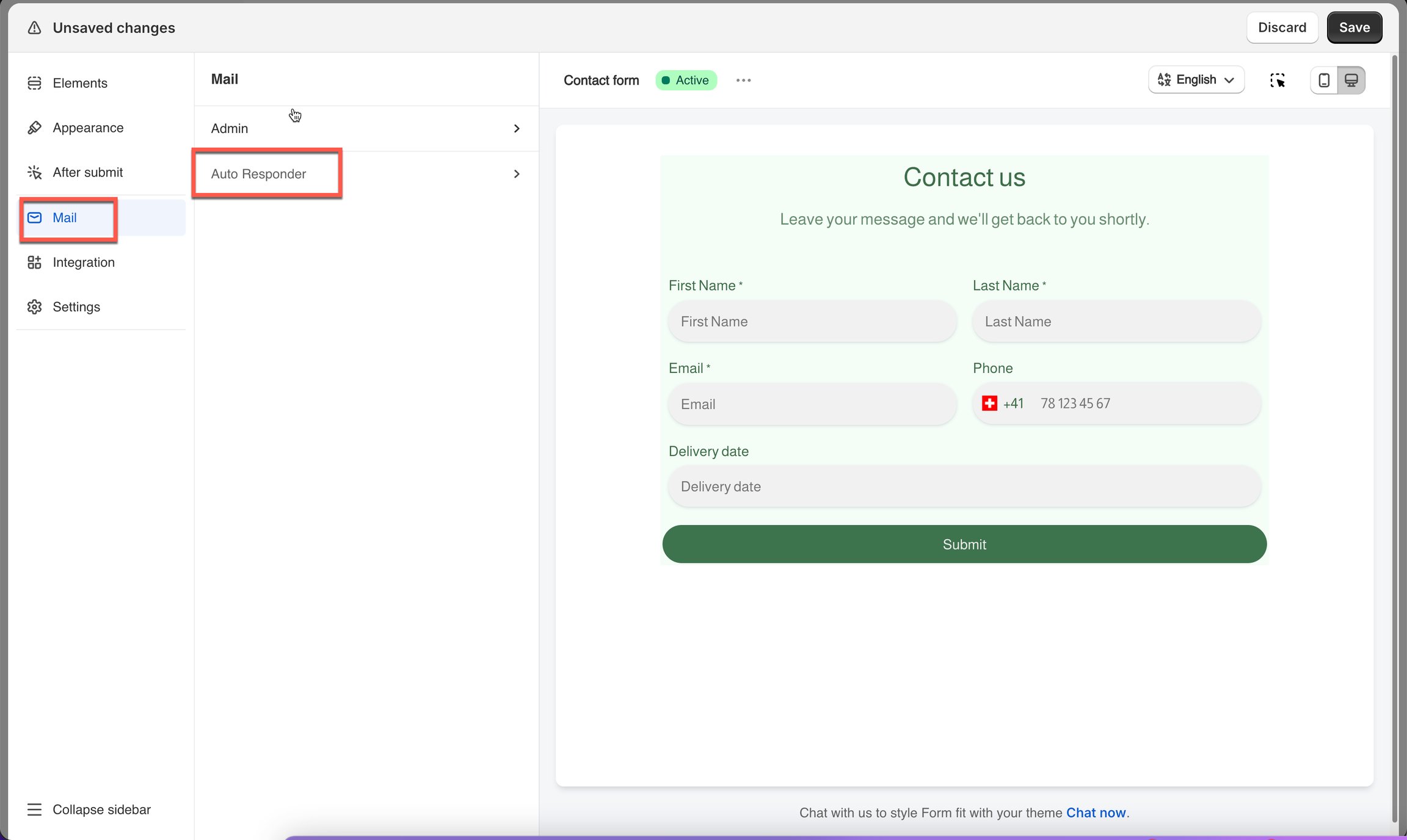
#### **Click Mail icon on the left side > click Auto Responder**

<figure><img src="https://2907469752-files.gitbook.io/~/files/v0/b/gitbook-x-prod.appspot.com/o/spaces%2FehM2rz7MmKkWcJmgvJOe%2Fuploads%2Fgit-blob-5cd030978e4d51dd544fc4762850b86a22d65266%2Fscreenshot-mail-mail-notification-customer-email-notification-1.png?alt=media" alt=""><figcaption></figcaption></figure>
{% endstep %}

{% step %}

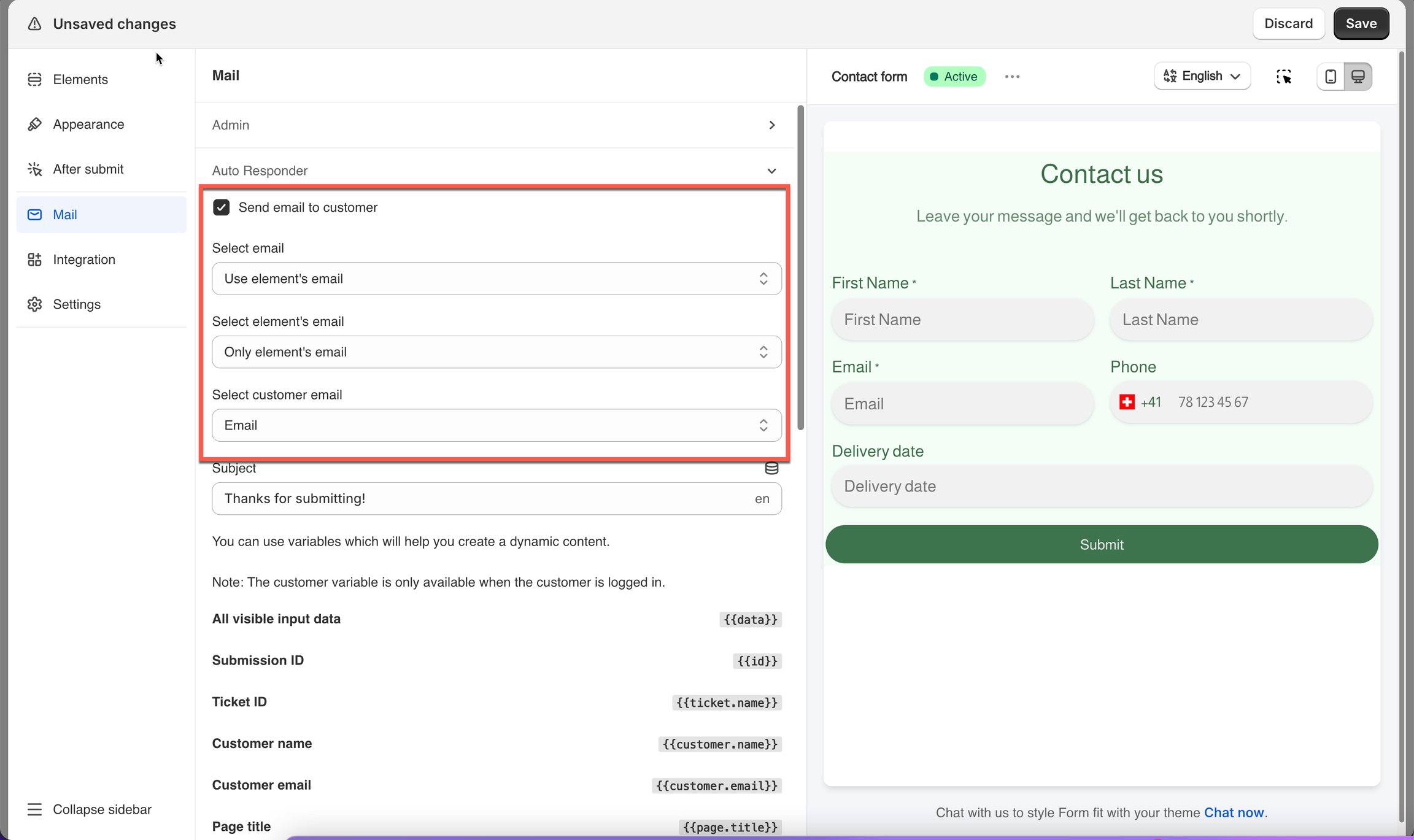
#### Enable the checkbox "Send email to customer"

Select the type of email address to send notification: **Use element’s email**

<figure><img src="https://2907469752-files.gitbook.io/~/files/v0/b/gitbook-x-prod.appspot.com/o/spaces%2FehM2rz7MmKkWcJmgvJOe%2Fuploads%2Fgit-blob-585cc76fa370e1d604f6c48ebcdb008fa8f28e37%2Fscreenshot-mail-mail-notification-customer-email-notification-2.png?alt=media" alt=""><figcaption></figcaption></figure>
{% endstep %}

{% step %}

#### Edit email content

{% endstep %}

{% step %}

#### Save it

{% endstep %}
{% endstepper %}

## 📮 Who Gets It

<table data-header-hidden><thead><tr><th width="194"></th><th></th><th></th></tr></thead><tbody><tr><td><strong>Option</strong></td><td><strong>What It Does</strong></td><td><strong>Example</strong></td></tr><tr><td><strong>Use account’s email</strong></td><td>Sends email to the <strong>Shopify customer account email</strong> (customer must be logged in).</td><td>A logged-in user submits the form → email is sent to their Shopify account email.</td></tr><tr><td><strong>Use element’s email</strong></td><td>Sends email to the <strong>email entered in the form’s Email field</strong>.</td><td>Customer enters <a href="mailto:john@example.com"><em>john@example.com</em></a> → confirmation is sent to that email.</td></tr><tr><td><strong>Only element’s email</strong></td><td>Sends email <strong>only</strong> to the selected Email field (if you have multiple Email fields).</td><td>Form has two email fields but you choose only one → email is sent only to that specific input.</td></tr><tr><td><strong>Conditional field email</strong></td><td>Sends email to a field that appears <strong>only when conditions are met</strong>.</td><td>“Business Email” appears only when user selects "Business" → email is sent to that field.</td></tr><tr><td><strong>All elements email</strong></td><td>Sends email to <strong>all Email fields</strong> the user fills (if multiple exist).</td><td>Form has <a href="mailto:john@example.com"><em>john@example.com</em></a> and <a href="mailto:team@example.com"><em>team@example.com</em></a> → email goes to both.</td></tr></tbody></table>

> **Tip:** Guests → use **Use element's email**. Logged-in customers → use **Use account's email**.

## 🔄 How It Works

Once enabled:

1. Customer fills out the form
2. App verifies the email entered
3. A confirmation email is automatically sent to the customer
4. The email includes:
   * Submission details
   * Custom message you configured
   * File links (if any were uploaded)
   * Date and timestamp

This helps customers feel confident that their submission was received successfully.

## ❓ FAQs

<details>

<summary>1- Can I send confirmation to multiple customer emails?</summary>

Yes, just select **All elements email**.

</details>

<details>

<summary>2- Does this work for guests and logged-in customers?</summary>

Yes.\
Just select the appropriate option:

* Guests → **Use element’s email**
* Logged-in customers → **Use account’s email**

</details>

<details>

<summary>3- Why email is not sent to customers?</summary>

* **Wrong Email Option Selected:**

Double-check Select email dropdown.\
Sometimes users accidentally choose “Use account’s email” instead of “Use element’s email”.

* **The Email Field Was Deleted or Renamed**

Make sure the email field exists and is correctly mapped.

* **Email Went to Spam or Promotions**

Ask customer to check spam, junk, or Gmail “Promotions” tab.

* **Still not working?** Please contact us at our support email: <support@powerfulform.com>

</details>

<br>

## Next steps

* [Edit customer email template](/email-notifications/email-template-editor.md) — rewrite the subject and body.
* [Insert form answers into an email](/email-notifications/email-template-editor.md#dynamic-variables) — put the answers in the message.
* [Admin email notification](/email-notifications/admin-notification.md) — the email that comes to you.