> For the complete documentation index, see [llms.txt](https://docs.powerfulform.com/llms.txt). Markdown versions of documentation pages are available by appending `.md` to page URLs; this page is available as [Markdown](https://docs.powerfulform.com/email-notifications/custom-sender/custom-mail-smtp.md).
# SMTP
Send your form notifications through your own SMTP server instead of the app's default sender.
## ✅ Why Use SMTP?
Using SMTP allows you to send emails directly through your own email provider (Gmail, Outlook, Zoho, custom domain, etc.).
* Better email deliverability
* Allows emails to come from your domain
* More control and fewer deliverability issues
If you set up SMTP, the email notification will be sent from your own email address. (optional)
The sender will be your SMTP email address, not .
What you need to do:
* Set SMTP in the app settings
* Apply the app settings to each form
## 📮 How to Set Up SMTP in app settings
1\. Open the app > click **Settings** > click **Email sending** > select **Your own email server** > choose a provider in the **Email provider** dropdown
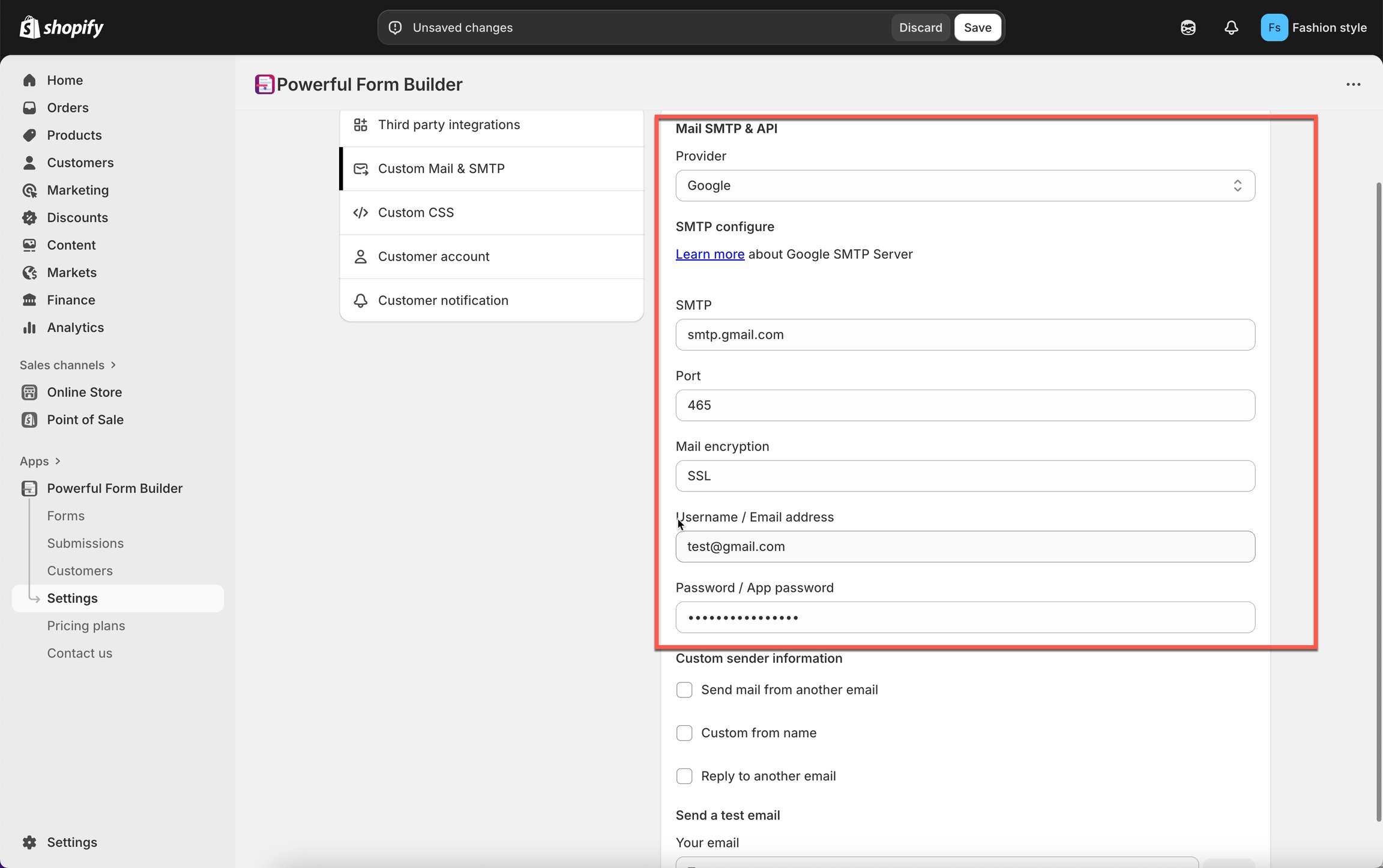
2\. Enter the data of SMTP config: SMTP **Host, user name/email, password, port, Encryption**
| Field | What to Put | Example |
| -------------- | --------------------------------------------------- | -------------------------- |
| **Host** | Your SMTP server hostname | `smtp.gmail.com` |
| **Port** | SMTP port number | `587` (TLS) or `465` (SSL) |
| **Encryption** | TLS / SSL / None | `TLS` |
| **Username** | Your email login or SMTP username | `you@yourdomain.com` |
| **Password** | Your email / SMTP password or app-specific password | `••••••` |
3. Click **Save** to update the settings
4. Send a **test email** to confirm settings and check your inbox to see if it arrives.
If everything is correct:
✔ A test email will be sent to your admin email\
✔ You’ll see a success message
🔔 Remember to **Save** the configuration before sending test email
## ⚙️ Apply the setting to the form
1. Go to the **Forms** tab of the app, open the form you want
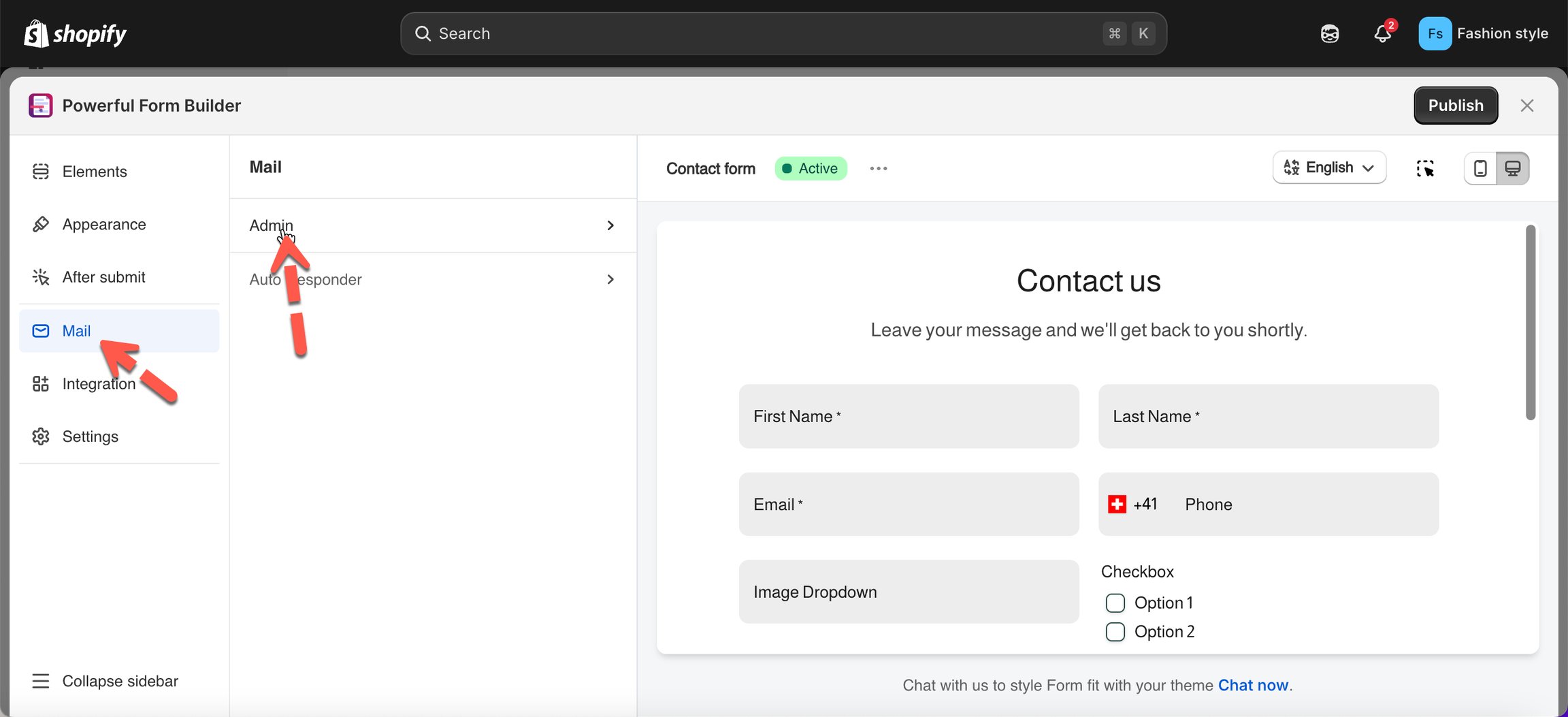
2. In the form config, click **Mail** icon on the left side> click **Admin** > scroll down to **Use SMTP & API** > select **Mail provider** (Mail provider = SMTP you set in the app settings)
3. Click **Save**
Then you can submit the form to see if the sender email is from your own email address.
## 📧 Example: How to Set Up Google SMTP
* Select **Gmail** in the **Email provider** dropdown
* **SMTP (host):** smtp.gmail.com
* **Port:** 465
* **User name/Email address:** your Gmail address, for example
* **App password:** not your email password, app password contains 16 characters without blank space. [Learn more](/troubleshooting/gmail-app-password.md)
* Send email from another email address (optional). [Learn more](/email-notifications/custom-sender.md)
⚠️ Important Notes for Google SMTP
* Google **requires** 2-Step Verification + App Password
* Normal Gmail password will **not** work
## 📧 Example: How to Set Up Outlook SMTP
You can view Google SMTP for reference. Below are some credentials for Outlook SMTP.
**Provider**: Outlook
**SMTP** (host): smtp-mail.outlook.com
**Port**: 587
**Username / Email address**: your outlook email address, for example: **Password / App password**: generate here
## ❓ FAQs
1- Why can’t I send a test email?
If the test email fails, it means the SMTP configuration is **not working yet**.\
Usually one of the values is wrong.
Please double-check:
* ✅ **Email username** – is it your full email address?
* ✅ **Password / App password** – copied exactly, no spaces?
* ✅ **SMTP server** – correct host name from your provider?
* ✅ **Port** – matches the encryption type (e.g. 465 for SSL, 587 for TLS)?
* ✅ **Encryption** – set to the value your provider requires (SSL or TLS)?
If everything looks correct and it still doesn’t work, please contact us at t **.**
2- Do I need an App Password for Gmail / Outlook / Yahoo?
Some providers do not allow normal passwords for SMTP.
You should generate an **App Password** if you use:
* Gmail / Google Workspace
* Outlook / Hotmail
* Yahoo Mail
* iCloud Mail
3- Can I use a free Gmail account for SMTP?
Yes, BUT:
* You must enable **2-Step Verification**
* You must generate a **Google App Password**
4- What’s the difference between SSL and TLS?
Both encrypt your emails.
* **SSL (port 465)** → more secure, recommended
* **TLS (port 587)** → alternative if SSL is not supported
Use the option recommended by your email provider.
4- Is SMTP required?
No. SMTP is optional.\
If you don’t want to use it, the app will send emails using the **PowerfulForm system email** by default.
## Send from a different address (Gmail alias)
Gmail can send as another address you own. Once Gmail treats that address as an **alias**, you point the app at it and your form emails arrive from it instead of from your Gmail address.
### Step 1: Add the address in Gmail
{% stepper %}
{% step %}
#### Open the Accounts settings
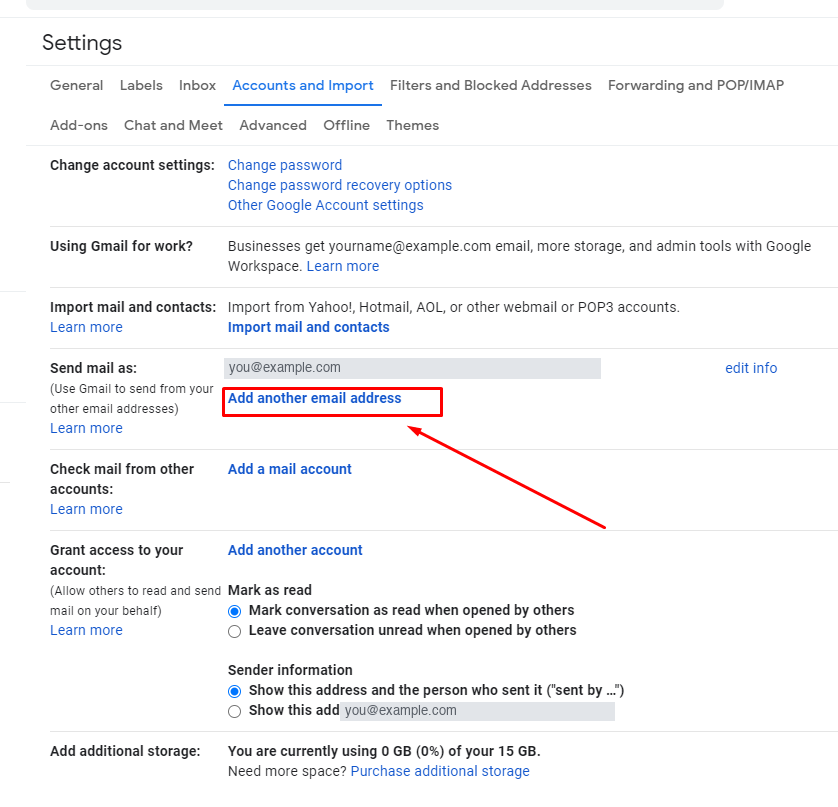
On a computer, open [Gmail](https://mail.google.com/). Top right, click **Settings** > **See all settings**, then the **Accounts and import** tab.
{% endstep %}
{% step %}
#### Add another email address
In the **Send mail as** section, click **Add another email address**.
{% endstep %}
{% step %}
#### Enter the address
Type the name and the address you want to send from, leave **Treat as an alias** ticked, and click **Next Step**.
{% endstep %}
{% step %}
#### Give Gmail the SMTP details
Enter the SMTP server — `smtp.gmail.com` for a Gmail account — with the username and the **app password** for that account, then click **Add Account**.
{% hint style="info" %}
This is an app password, not your normal Google password. See [Create app password for Gmail SMTP](/troubleshooting/gmail-app-password.md).
{% endhint %}
{% endstep %}
{% endstepper %}
### Step 2: Confirm the address
Gmail sends a confirmation to the address you added. Sign in to that mailbox, open the message, and either click the link or copy the verification code into the field Gmail left waiting at the end of Step 1.
### Step 3: Point the app at the alias
{% stepper %}
{% step %}
In the app's SMTP configuration, scroll down to **From email**
{% endstep %}
{% step %}
Put the address you just added into **From email**, and add a sender name if you want one.
{% endstep %}
{% step %}
Click **Save**. Send yourself a test submission and check the **From** line on the email that arrives.
{% endstep %}
{% endstepper %}
{% hint style="warning" %}
Set the SMTP connection up first. This section only changes which address the mail is sent **as** — the connection above is what actually sends it.
{% endhint %}
## Next steps
* [Send from your own address](/email-notifications/custom-sender.md) — the full provider walkthrough.
* [Admin email notification](/email-notifications/admin-notification.md) — who gets notified.
* [Not receiving admin emails](/troubleshooting/not-receiving-admin-emails.md) — if mail still does not arrive.