> For the complete documentation index, see [llms.txt](https://docs.powerfulform.com/llms.txt). Markdown versions of documentation pages are available by appending `.md` to page URLs; this page is available as [Markdown](https://docs.powerfulform.com/email-notifications/custom-sender.md).

# Send from your own address

By default, form notification emails come from no-reply\@powerfulform.com. Connect your own mailbox or email service to send them from your own address instead.

**Why do it:** better deliverability, your own sender address, and more control over sending limits.

> **📌 Optional.** Skip this and the app keeps sending from its default address. No setup needed.

> **✉️ Only want to change the sender address?** [Verify your From email](/email-notifications/custom-sender/verify-from-email.md) to send as `you@yourstore.com` through Powerful Form, with no SMTP or API key.

## 🔀 Two Options

<table data-header-hidden><thead><tr><th width="140.29998779296875"></th><th></th><th></th></tr></thead><tbody><tr><td>Option</td><td><strong>SMTP</strong></td><td><strong>Email API</strong></td></tr><tr><td><strong>What it is</strong></td><td>Connect a mailbox you already own</td><td>Connect a dedicated email sending service</td></tr><tr><td><strong>Best for</strong></td><td>Small to medium volume, quick setup</td><td>High volume, delivery reports</td></tr><tr><td><strong>You provide</strong></td><td>Server, port, encryption, username, password</td><td>An API key (plus a few extra values for some services)</td></tr><tr><td><strong>Examples</strong></td><td>Gmail, Outlook, your own mail server</td><td>SendGrid, Mailgun, Amazon SES</td></tr></tbody></table>

## 📮 Option 1: SMTP

Send through a normal mailbox, so emails leave from your own address.

**Where:** app **Settings** > **Email sending** > **Your own email server** > **Email provider** > choose **Gmail**, **Outlook**, or **Other SMTP server**.

<figure><img src="https://2907469752-files.gitbook.io/~/files/v0/b/gitbook-x-prod.appspot.com/o/spaces%2FehM2rz7MmKkWcJmgvJOe%2Fuploads%2Fgit-blob-a65334b50fdcf60692be03edf6040626fb586518%2Fscreenshot-settings-mail-smtp-provider.png?alt=media" alt="Settings with Email sending selected and the Email provider control highlighted"><figcaption><p>Email provider controls whether the app uses its default sender, SMTP or an email API.</p></figcaption></figure>

**What you enter:**

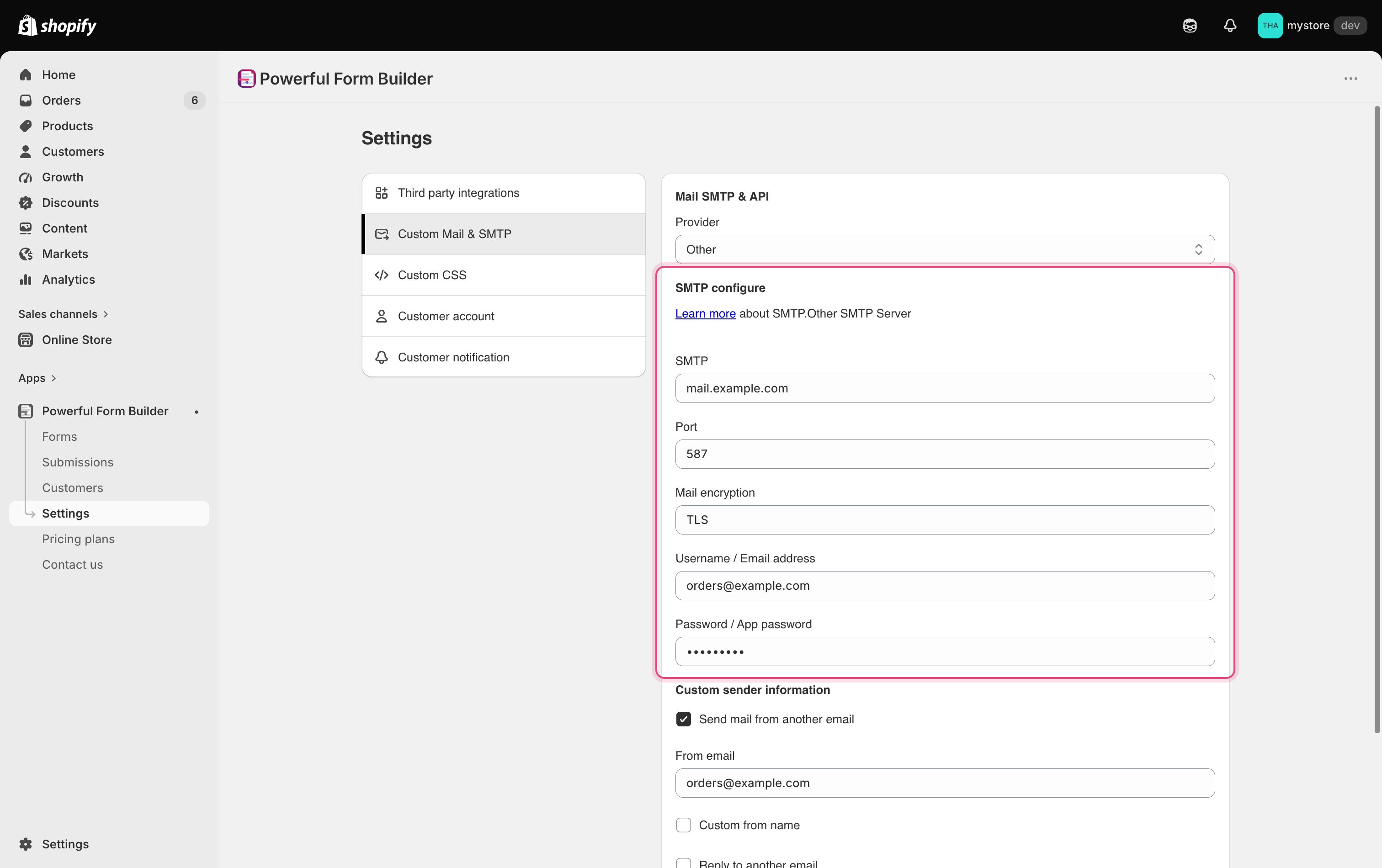
<table><thead><tr><th width="177.0333251953125">Field</th><th>Enter</th><th>Example</th></tr></thead><tbody><tr><td><strong>SMTP</strong></td><td>Server hostname</td><td><code>smtp.gmail.com</code></td></tr><tr><td><strong>Port</strong></td><td>Port your provider requires</td><td><code>465</code> (SSL) or <code>587</code> (TLS)</td></tr><tr><td><strong>Mail encryption</strong></td><td>SSL, TLS, or None</td><td><code>SSL</code></td></tr><tr><td><strong>Username</strong></td><td>Full email address</td><td><code>orders@yourstore.com</code></td></tr><tr><td><strong>Password</strong></td><td>Password or app password</td><td><code>••••••</code></td></tr></tbody></table>

<figure><img src="https://2907469752-files.gitbook.io/~/files/v0/b/gitbook-x-prod.appspot.com/o/spaces%2FehM2rz7MmKkWcJmgvJOe%2Fuploads%2Fgit-blob-a38bc0f6e012b427647ff96ba46585d5a4b2ba1f%2Fscreenshot-mail-notification-other-smtp-fields.png?alt=media" alt="Email sending with Email provider set to Other SMTP server and the SMTP, Port, Mail encryption, Username or Email address, and Password or App password fields highlighted"><figcaption><p>With Other selected, enter the host, port, encryption, username and password supplied by your provider.</p></figcaption></figure>

Google and Outlook pre-fill the server values. With **Other** , get every value from your mail provider.

> **💡 Using Gmail?** Use `smtp.gmail.com`, port `465`, SSL, and a Google **app password** , not your normal password.

<details>

<summary>Create a Google app password</summary>

1. Sign in to the Google account you want to send from and open **Google Account** > **Security**.
2. Under **How you sign in to Google**, turn on **2-Step Verification** if it is off.
3. Search your Google Account for **App passwords** and open it.
4. Name the password something recognizable, such as `Powerful Contact Form Builder`, then create it.
5. Copy the 16-character password and enter it in **Password / App password** without spaces.

Google shows the password once. If you lose or revoke it, create a new one and update the saved SMTP configuration. See [Create app password for Gmail SMTP](/troubleshooting/gmail-app-password.md) for the illustrated walkthrough.

</details>

➡️ Full walkthrough:[ Set up SMTP](/email-notifications/custom-sender/custom-mail-smtp.md)

***

## 🔑 Option 2: Email API

Send through a service built for volume and deliverability. You connect with a key instead of a mailbox password.

**Where:** app **Settings** > **Email sending** > **Your own email server** > **Email provider** > choose an API service.

➡️ Full walkthrough: [Set Up Email API](/email-notifications/custom-sender/set-up-email-api.md)

<figure><img src="https://2907469752-files.gitbook.io/~/files/v0/b/gitbook-x-prod.appspot.com/o/spaces%2FehM2rz7MmKkWcJmgvJOe%2Fuploads%2Fgit-blob-dc2e03effcfb76dc2a4e23c355c16d6abfb53b81%2Fscreenshot-settings-smtp-api-configure.png?alt=media" alt="Email sending with an API provider selected and its API configure section visible"><figcaption><p>API providers use a key instead of an SMTP server and password.</p></figcaption></figure>

<table><thead><tr><th width="338.2000732421875">Provider</th><th>What you provide</th></tr></thead><tbody><tr><td><strong>Sendinblue</strong></td><td><strong>API key</strong></td></tr><tr><td><strong>SendGrid</strong></td><td><strong>API key</strong></td></tr><tr><td><strong>Pepipost</strong></td><td><strong>API key</strong></td></tr><tr><td><strong>Elastic Email</strong></td><td><strong>API key</strong></td></tr><tr><td><strong>Mailgun</strong></td><td><strong>API key</strong>, <strong>Domain</strong>, <strong>Region</strong></td></tr><tr><td><strong>Zoho</strong></td><td><strong>API key</strong>, <strong>From address</strong>, <strong>Bounce address</strong></td></tr><tr><td><strong>Amazon SES</strong></td><td><strong>Key ID</strong>, <strong>Secret key</strong>, <strong>Region</strong></td></tr></tbody></table>

For **Mailgun**, use the sending domain and region registered in Mailgun. For **Zoho**, use a verified

> **⚠️ Before you connect:** Create a key with permission to send, and verify the domain or sender address you plan to use. For Amazon SES, the **Region** must match where your identity is verified.

➡️ Full walkthrough: [Set up email API](https://globosoftware.gitbook.io/globosoftware-docs/email-notifications/mail-api)

***

## ✅ After You Connect

Connecting a provider does **not** switch your forms automatically. Apply it to each form that should use it:

**Forms** > open the form > **Mail** > **Admin** > **Use SMTP & API** > select **Mail provider** > **Save** .

Then submit the form once and check the sender address. Forms left on **PowerfulForm** keep the default sender.

***

## ❓ FAQs

<details>

<summary>Why can't I send a test email?</summary>

A failed test means the saved provider configuration is not working yet.

For SMTP, check that:

* **Username / Email address** contains the full address.
* **Password / App password** was copied exactly and contains no extra spaces.
* **SMTP** is the correct hostname for the provider.
* **Port** matches **Mail encryption** — commonly `465` with SSL or `587` with TLS.
* **Mail encryption** matches the value required by the provider.

For an email API, confirm that the key was copied exactly, has permission to send, and has not been revoked. Verify the sender address or domain with the provider, and make sure values such as **Region** match the provider account.

If the values are correct and the test still fails, use the exact error message when you [contact support](/help/contact-support.md).

</details>

<details>

<summary>Which providers may require an app password?</summary>

Gmail, Google Workspace, Outlook, Hotmail, Yahoo Mail and iCloud Mail may require a provider-generated app password instead of your normal account password, especially when two-step verification is enabled. Follow your provider's current security instructions.

</details>

<details>

<summary>Can I use a free Gmail account?</summary>

Yes. Turn on **2-Step Verification**, generate a Google app password, and use that app password in **Password / App password**.

</details>

<details>

<summary>What's the difference between SSL and TLS?</summary>

Both encrypt the connection to your mail server. Port `465` is commonly paired with SSL and port `587` with TLS. Use the port and encryption combination specified by your email provider.

</details>

<details>

<summary>Is SMTP required?</summary>

No. Leave **Provider** on **PowerfulForm email (default)** and keep **Use SMTP & API** on **PowerfulForm** in the form when you want the app to send through its own service.

</details>

### What common errors mean

<details>

<summary>Authentication failed / invalid login</summary>

The username or password is wrong. Google requires an app password. Outlook may require one when two-step verification is enabled. For another provider, try the full email address as the username rather than only the part before `@`.

</details>

<details>

<summary>Invalid API key / unauthorized</summary>

The key was mistyped, revoked or created without permission to send. Generate a fresh key with sending permission and paste it again, checking for an extra space.

</details>

<details>

<summary>Sender address not verified / domain not allowed</summary>

The provider will not send from the address in **From email**. Verify that address or its domain in the provider dashboard, or turn off **Send mail from another email**.

</details>

<details>

<summary>Connection timed out or refused</summary>

The host, port or encryption is wrong. Check the provider's SMTP documentation and confirm that the port matches the encryption method.

</details>

<details>

<summary>Region mismatch (Amazon SES)</summary>

The selected **Region** does not match the region where the SES identity is verified. Use the region shown in the Amazon SES console.

</details>

<br>

## Next steps

* [Admin email notification](/email-notifications/admin-notification.md) — choose who receives the submission email.
* [Create app password for Gmail SMTP](/troubleshooting/gmail-app-password.md) — generate the password Google requires.
* [Customer autoresponder](/email-notifications/customer-autoresponder.md) — send a confirmation to the customer.
* [Not receiving admin emails](/troubleshooting/not-receiving-admin-emails.md) — troubleshoot a notification that does not arrive.
* [Email sending limits](/email-notifications/email-limits.md) — understand what your plan allows.