> For the complete documentation index, see [llms.txt](https://docs.powerfulform.com/llms.txt). Markdown versions of documentation pages are available by appending `.md` to page URLs; this page is available as [Markdown](https://docs.powerfulform.com/display-and-placement/popup-new-button.md).
# New popup button
Add a brand-new button that opens your form in a popup when clicked.
{% hint style="info" %}
**Not what you need?** If your theme **already has a button** and you just want it to trigger the popup, use [Trigger a Popup Form via Theme Button](https://globosoftware.gitbook.io/globosoftware-docs/form-setup/display-and-placement/popup-theme-button) instead. This guide is for adding a **new** button.
{% endhint %}
This guide explains two easy ways to display a popup form button on your Shopify store:
* **Method 1:** Assign the popup form button to a specific page (automatic placement)
* **Method 2:** Copy the popup code and insert the button anywhere on your page (custom placement)
Choose the method that fits your needs.
## 🚀 Method 1 — Assign the Button to a Page (Automatic)
✨ *Fastest & easiest — the app inserts the popup button for you.*
{% stepper %}
{% step %}
#### Open your form
Open the app > click **Forms** > open the form you want to display or create the new one
{% endstep %}
{% step %}
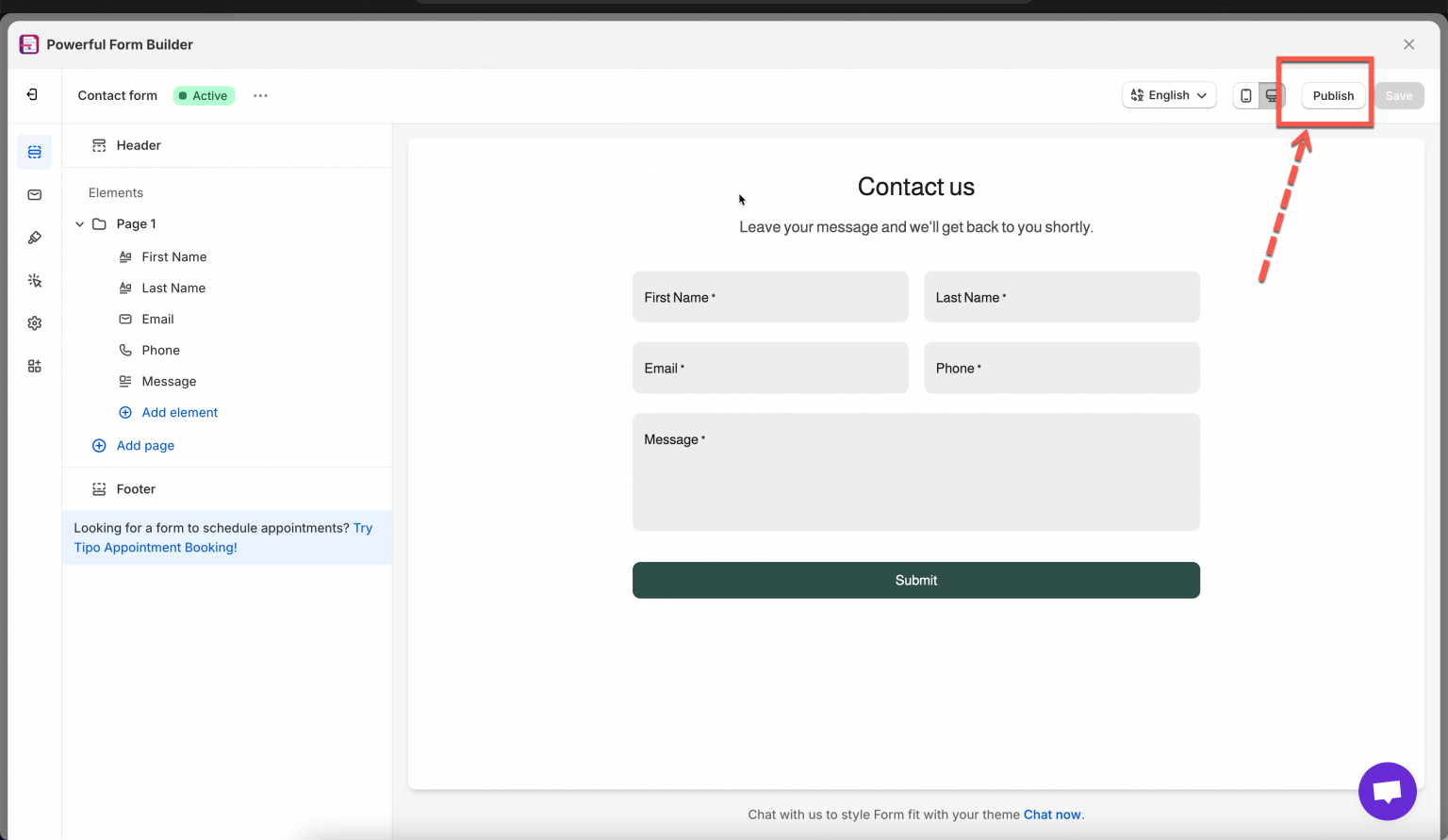
#### **Click Publish button**
{% endstep %}
{% step %}
#### **Select Popup display layout**
{% endstep %}
{% step %}
#### Set the page and trigger
* In the Publish window: select your **theme** > pick the **page type**
* Under **Popup triggers**, choose **Form button**.
{% endstep %}
{% step %}
#### Position and publish
Choose where the button appears (Top / Bottom) > **Publish**.
View the page on the site to check the result.
{% endstep %}
{% endstepper %}
***
## 🎯 Method 2 — Add the Button with Code (Custom Placement)
{% stepper %}
{% step %}
### Copy the popup button code
1. Open the app > click **Forms** > open the form you want to display
2. Click **Publish** button
3. In the Publish window: select your theme > pick the page type
4. Under **Popup triggers**, choose **Form button**
5. Position **Custom location** > copy the code.
Example:
```
```
{% endstep %}
{% step %}
{% endstep %}
{% step %}
### Paste the code where you want the button
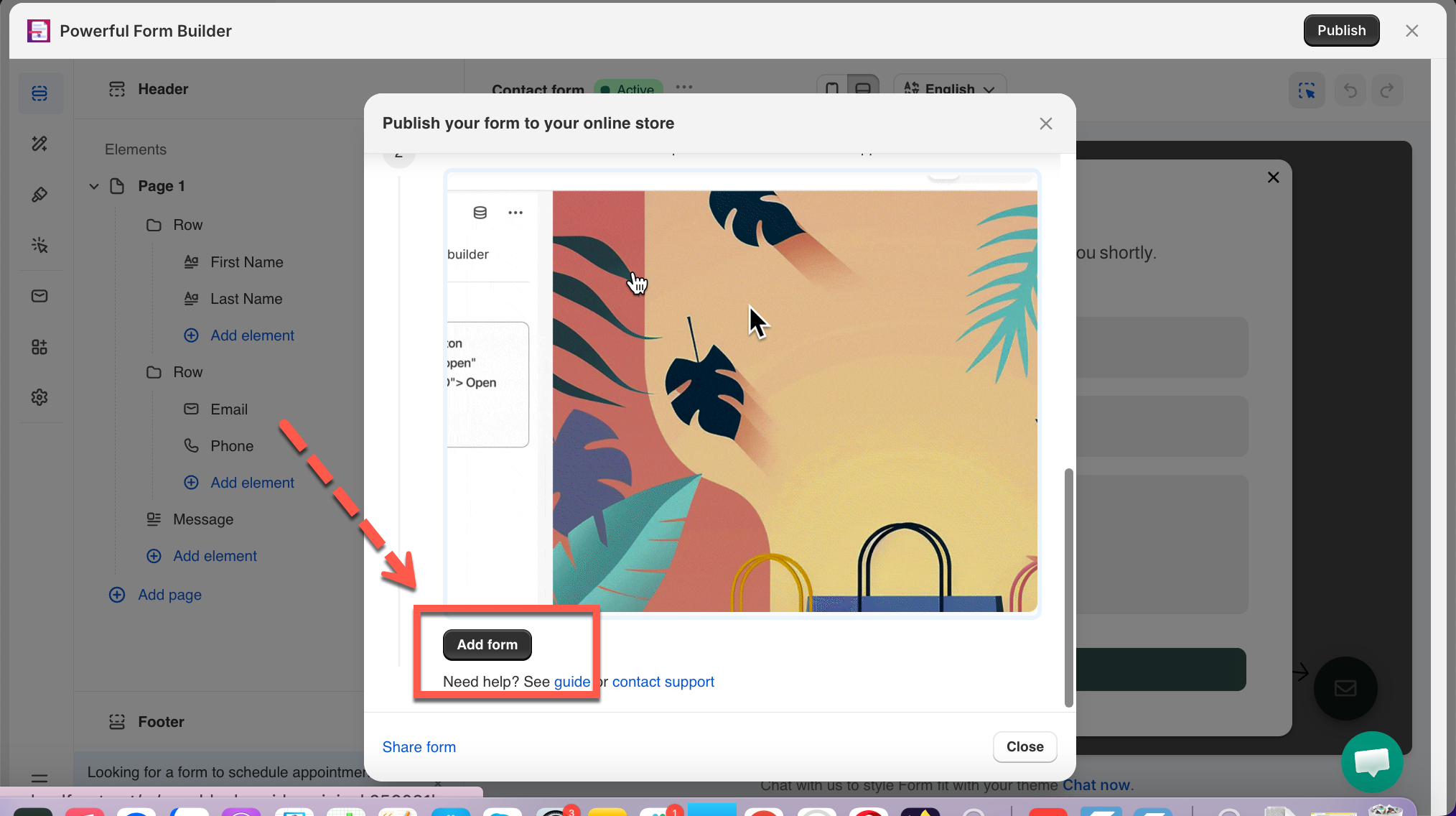
* Click **Add form** button, it directs to theme editor > make sure you open the page template you want
* **Add section** > **Powerful Contact Form Builder** > paste the button code > **Save**.
{% endstep %}
{% step %}
A new button is added to the page.
{% endstep %}
{% endstepper %}
## ✏️ Editing the Button
Once the popup button is added to your page, you can customize its **text** or **style** directly in the page editor.
### ✏️ **Change the button text**
Edit the text between the tags:
Example code:
```
```
Replace **Open form** with the button text you want. E.g. **Contact us**
Change to
```
```
### ✏️ Change the Button Style
*Adjust color, border, size, etc.*
The popup button automatically uses your theme’s default button style.
At the moment, the app does not include built-in styling options inside the editor.
If you want a custom style:
Our support team can style the button for you (colors, borders, font, spacing, hover effects, etc.).
📩 **Email:** \
Please include:
* The page link
* The form ID
* A description or example of the style you want\
(For example: “green background”, “rounded corners”, “larger button”, etc.)
We’ll be happy to customize it for you.
***
## ✅ How This Button Works
1. The button appears exactly where you placed it — for example, a **"contact"** button in the page content.
2. When the shopper clicks the button, your form opens instantly as a popup overlay on top of the page. The page behind it dims, and no new page loads.
3. The shopper fills in the form (e.g. **First Name, Last Name, Email, Phone, Message**) and clicks **Submit**.
4. They can close the popup anytime using the **✕** in the top-right corner, or by submitting the form.
## Next steps
* [Trigger a Popup form via theme button](/display-and-placement/popup-theme-button.md) — use a button you already have.
* [Choose a display style](/design-your-form/display-style.md) — the Popup layout itself.
* [Contact support](/help/contact-support.md) — if the form still does not appear.