> For the complete documentation index, see [llms.txt](https://docs.powerfulform.com/llms.txt). Markdown versions of documentation pages are available by appending `.md` to page URLs; this page is available as [Markdown](https://docs.powerfulform.com/display-and-placement/display-form-on-product-pages/display-different-forms-on-different-products.md).
# Display Different Forms on Different Products
Powerful Contact Form Builder allows you to display a unique form for each product on your Shopify store.\
You can do this in two ways, depending on how precise you want the form placement to be.
You now have **two clean options** to display different forms on individual product pages:
Option
Difficulty
Best For
1. Add code in product description
⭐ Easy
Fast setup, basic placement
2. Use custom product template
⭐⭐ Professional
Perfect layout control, recommended
***
### 🛠️ Option **1 — Add the Form Code Directly Inside the Product Description**
*Quick & simple — but positioning may not be perfect.*
Use this method if you want a fast setup and don’t need exact placement on the product page.
#### ⭐ Step 1 — Copy Your Form’s Embed Code
1\. Open the app > click **Forms** > open a form you want
2\. Click **Publish** button on the right corner
3\. Select the display of the form: default, boxed, floating, popup
4\. Click **Get short code** > copy the short code of the form
Example: (xxx is form ID)
```
```
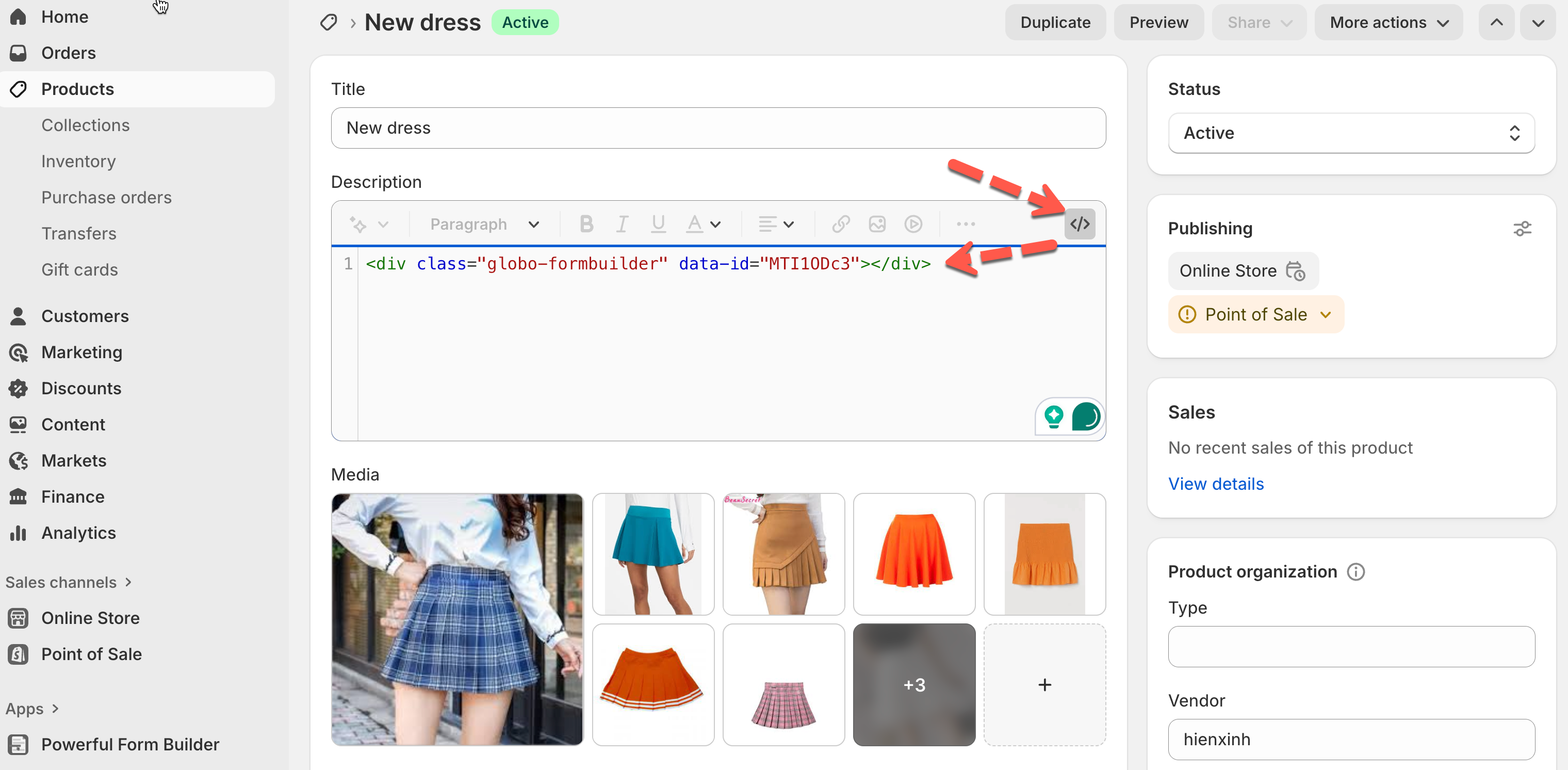
⭐ Step 2 - Add form code to the product description
1. From Shopify admin page > go to **Products** > open a product detail
2. In the product **Description** section, click the **\** button (HTML editor)
3. Paste your embed code into the description.
4. Click **Save**.
Now your form will appear on the product page inside the description area.
💡 Note: This method is easy but the form may not appear exactly where you want inside the layout.
***
### 🛠️ **Option 2 — Add Form Using a Custom Product Template**
*Most professional method — allows perfect placement using the Theme Editor.*
This method allows you to add the form exactly where it should appear on product pages.
#### 📝 Step 1 — Create a New Product Template
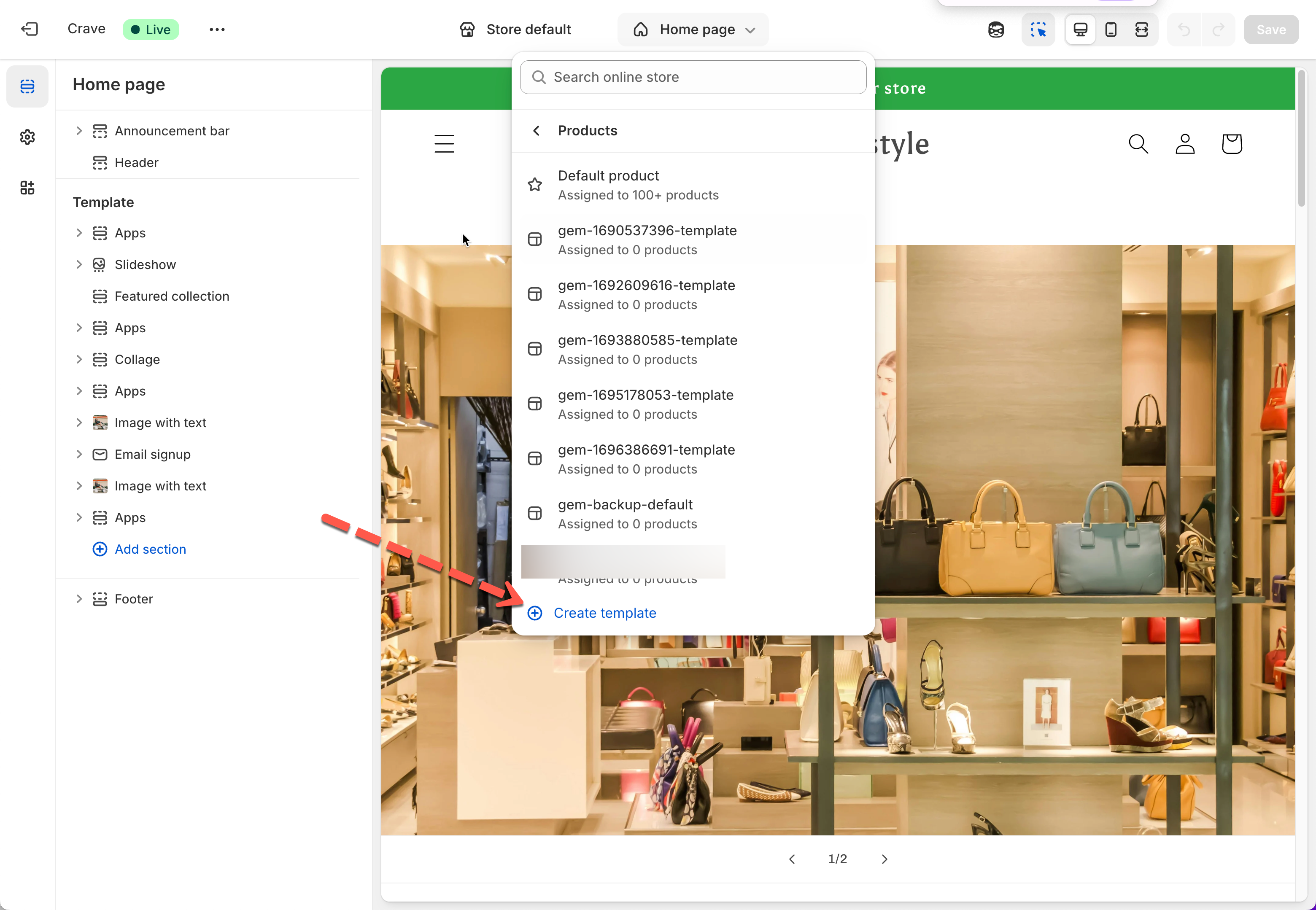
1. From Shopify admin page > click **Online stores** > **Themes** > **Edit theme** > open the theme editor
2. At the top center, click the **template selector** > choose **Products**
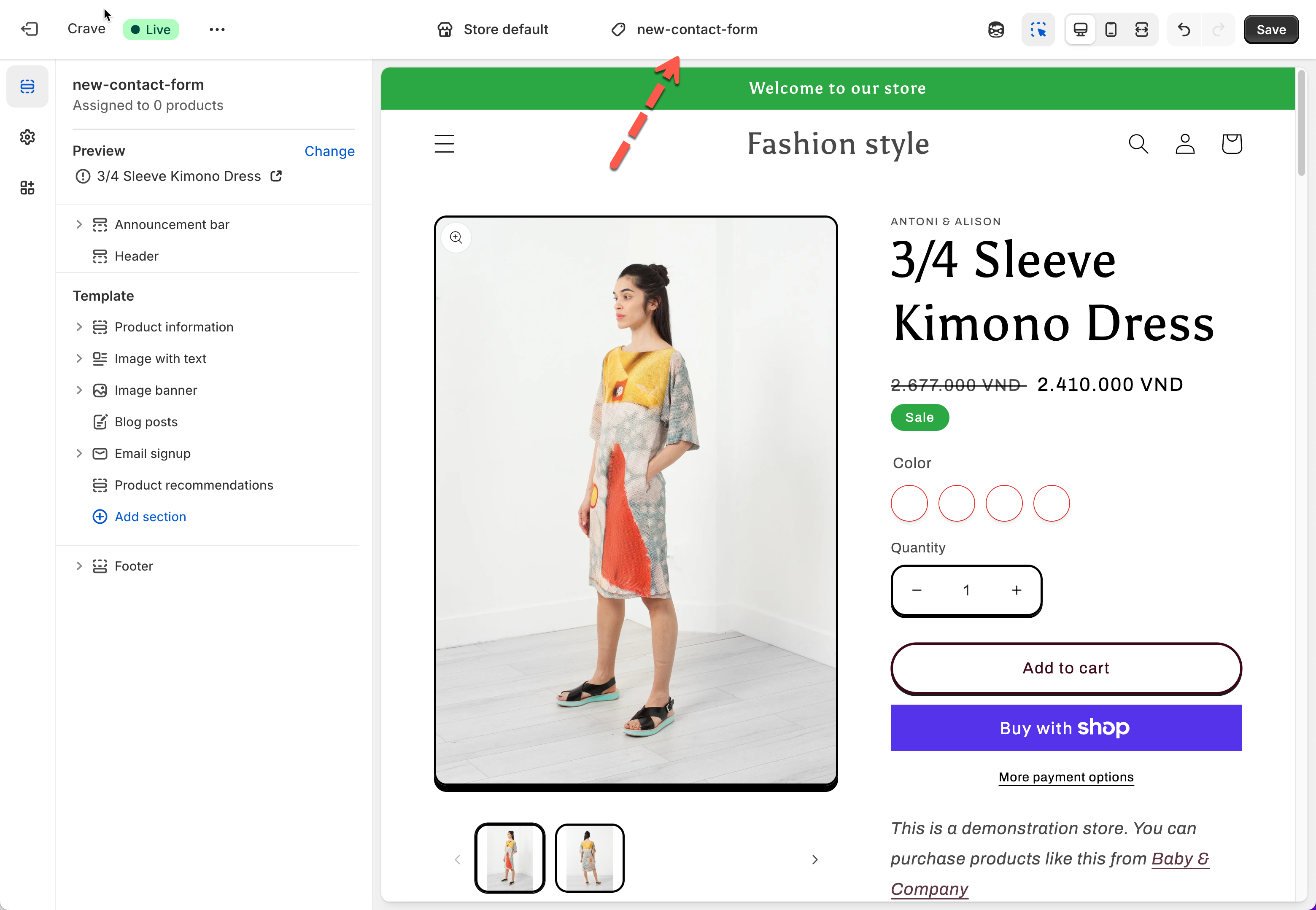
3. Click **Create template** > name your new template (e.g **new contact form**).
#### 📝 Step 2 — Add Form Block to the Template
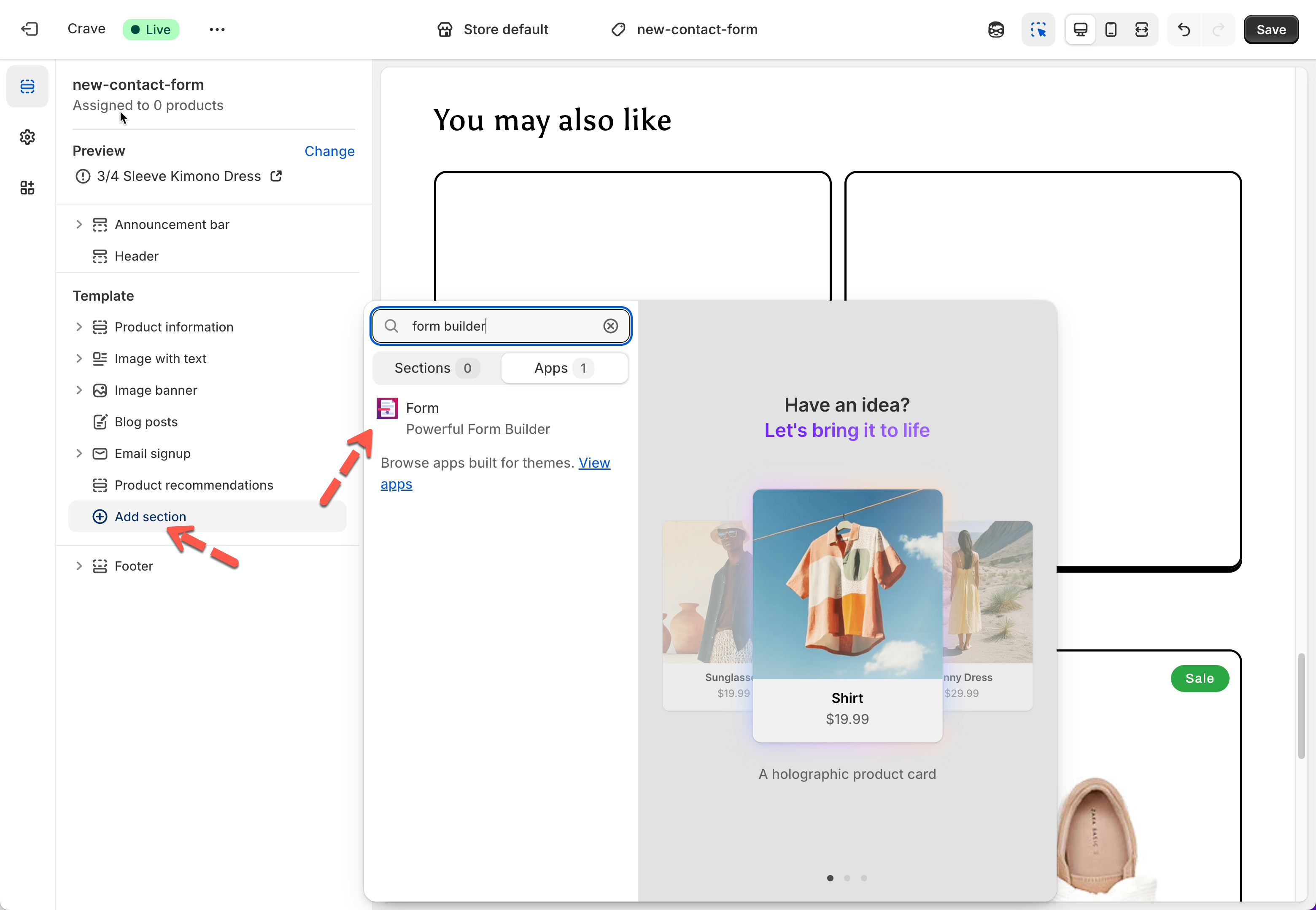
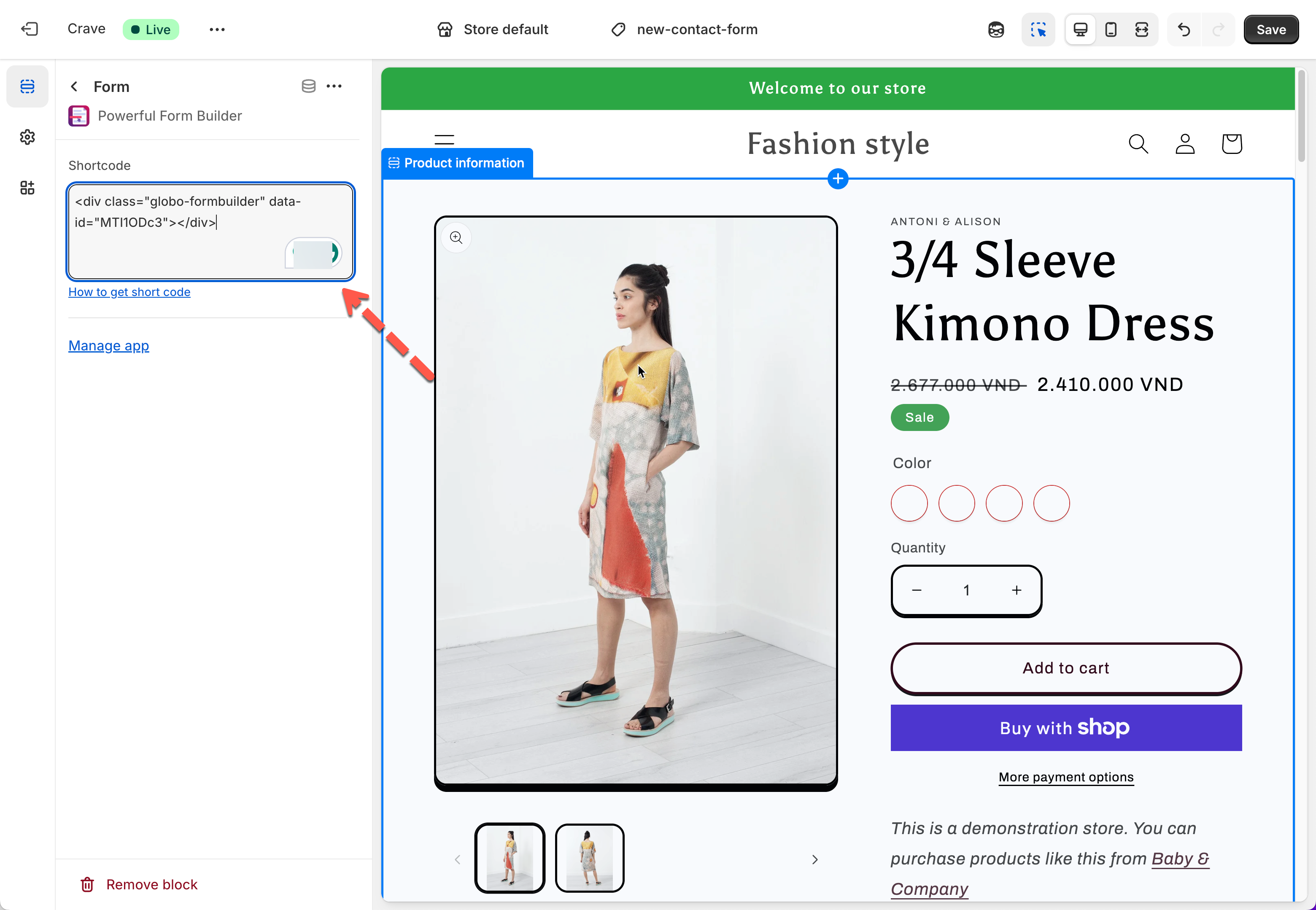
1. In the left sidebar, click **Add section** > **Apps** > add **Powerful Form Builder**
2. Inside the block settings, paste your embed code:
Example code: ``
(xxxx is the form ID)
3. Drag the block to place the form where you want (before/after product info, below media, etc.)
4. Click **Save**.
#### 📝 Step 3 — Assign Template to a Product
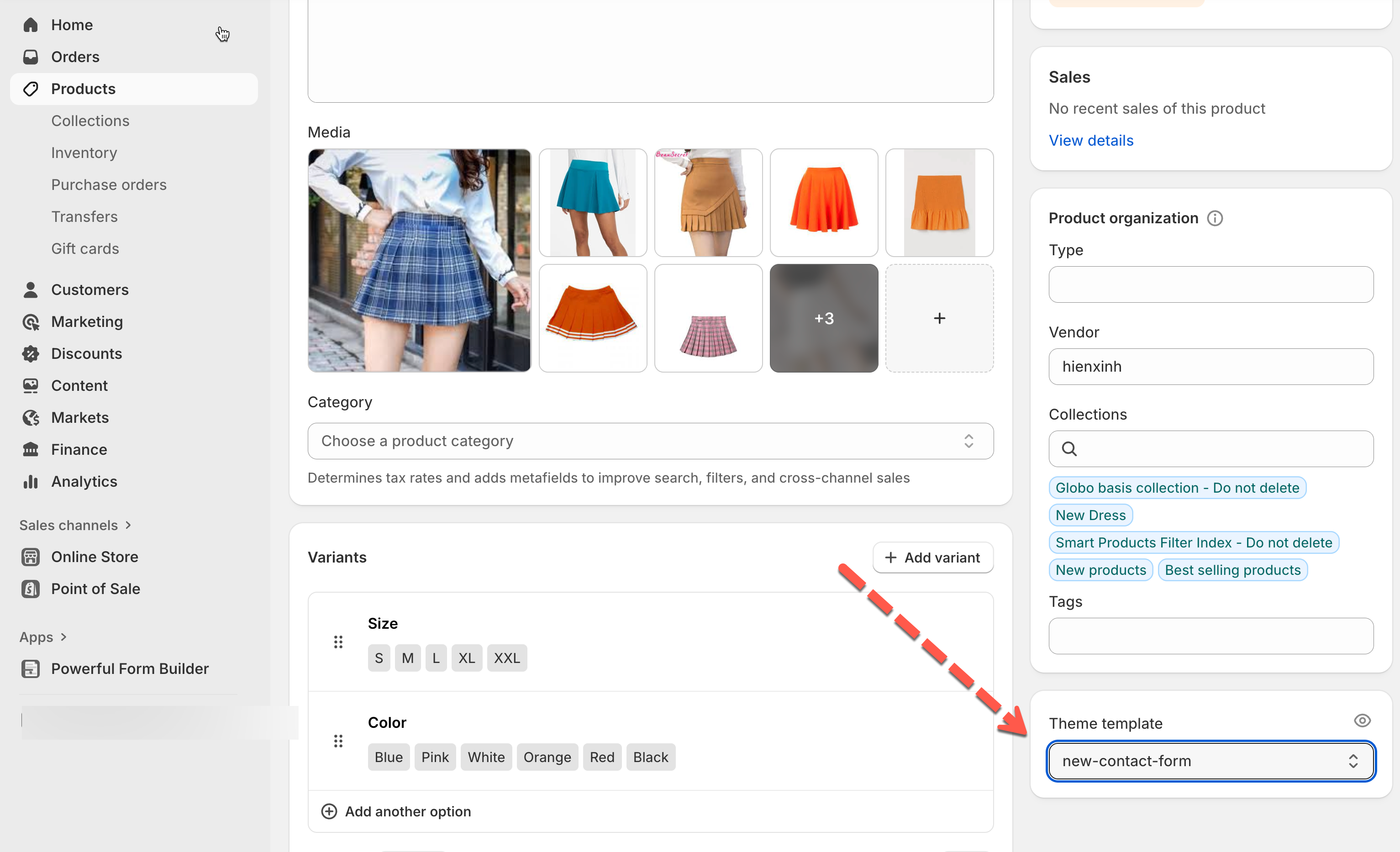
1. Go back to Shopify admin > **Products** > open the product that needs this specific form
2. On the right sidebar, find **Theme template** > select n**ew contact form** template (the template you just created)
3. Click **Save**.
Now only this product uses the template that contains your custom form.
#### 📝 Repeat for Each Product
To assign a different form for another product:
* Create or duplicate the product template
* Insert a different form block or embed code
* Assign that template to that product
This gives you full control and unlimited flexibility.
***
#### Need More Help?
If you still need assistance, please contact us at . Our team will be happy to help you resolve any issues or guide you further.