> For the complete documentation index, see [llms.txt](https://docs.powerfulform.com/llms.txt). Markdown versions of documentation pages are available by appending `.md` to page URLs; this page is available as [Markdown](https://docs.powerfulform.com/display-and-placement/app-block.md).
# App block
Place a form into any page or template using the theme editor's app block. Best when your theme is customized and you need precise control over where the form appears.
## 💡 Compare this method with others
| Situation | Recommended Method |
| --------------------------------------------------------------------- | -------------------------------------- |
| Theme or page template is customized, or you need precise positioning | **App Block** (this method) |
| Simple pages or you want the fastest setup | Shortcode embed / default form display |
| Need to show form in product description or content area | Shortcode inside product/page content |
## 📝 How to set it up
{% stepper %}
{% step %}
### Copy the Form Shortcode
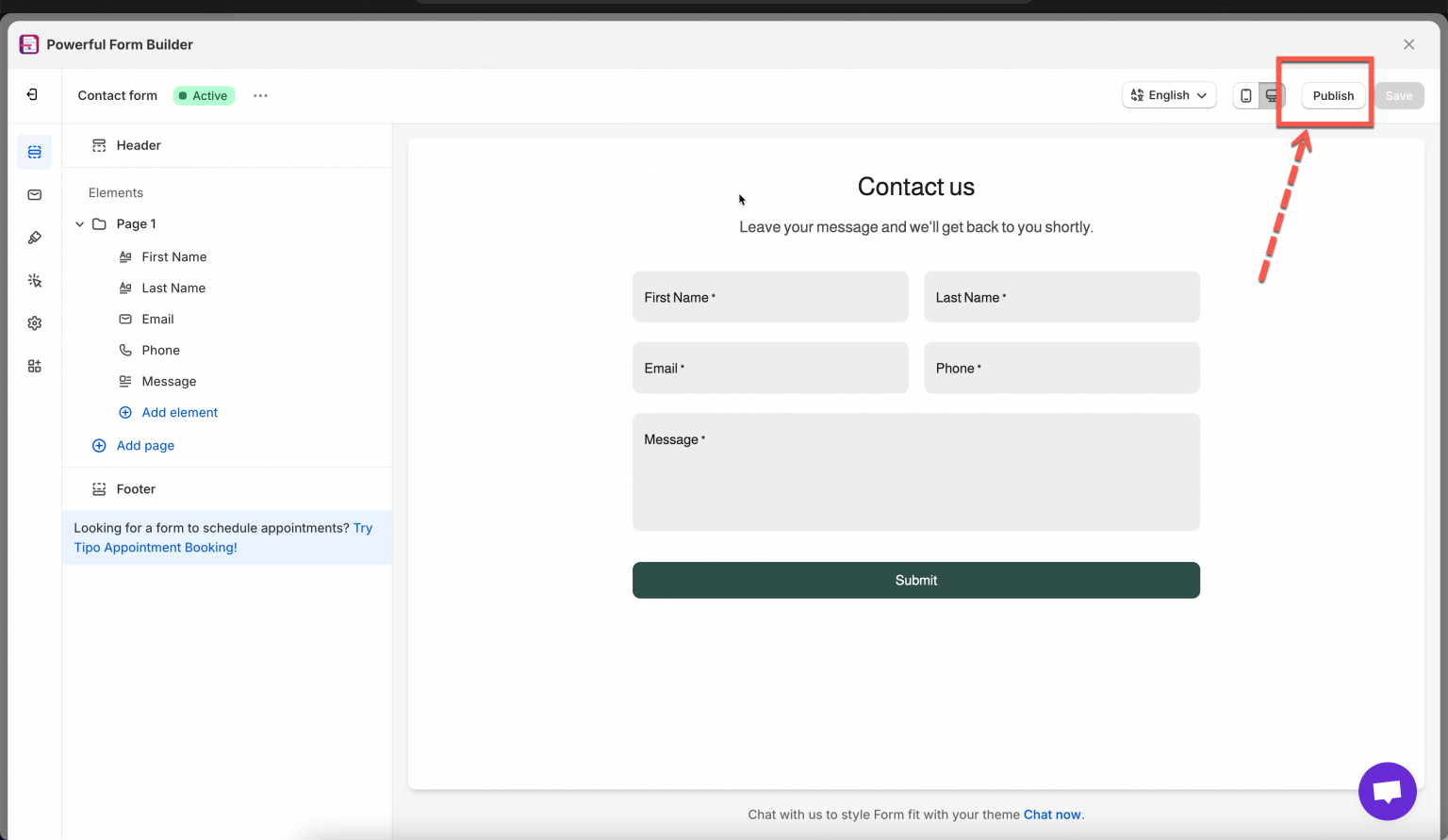
1\. Open the app > click **Forms** > open a form you want
2\. Click **Publish** button on the right corner
3\. Select the display of the form: default, boxed, floating, popup
4\. Click **Get short code** > copy the short code of the form
{% endstep %}
{% step %}
### Add the Form as an App Block
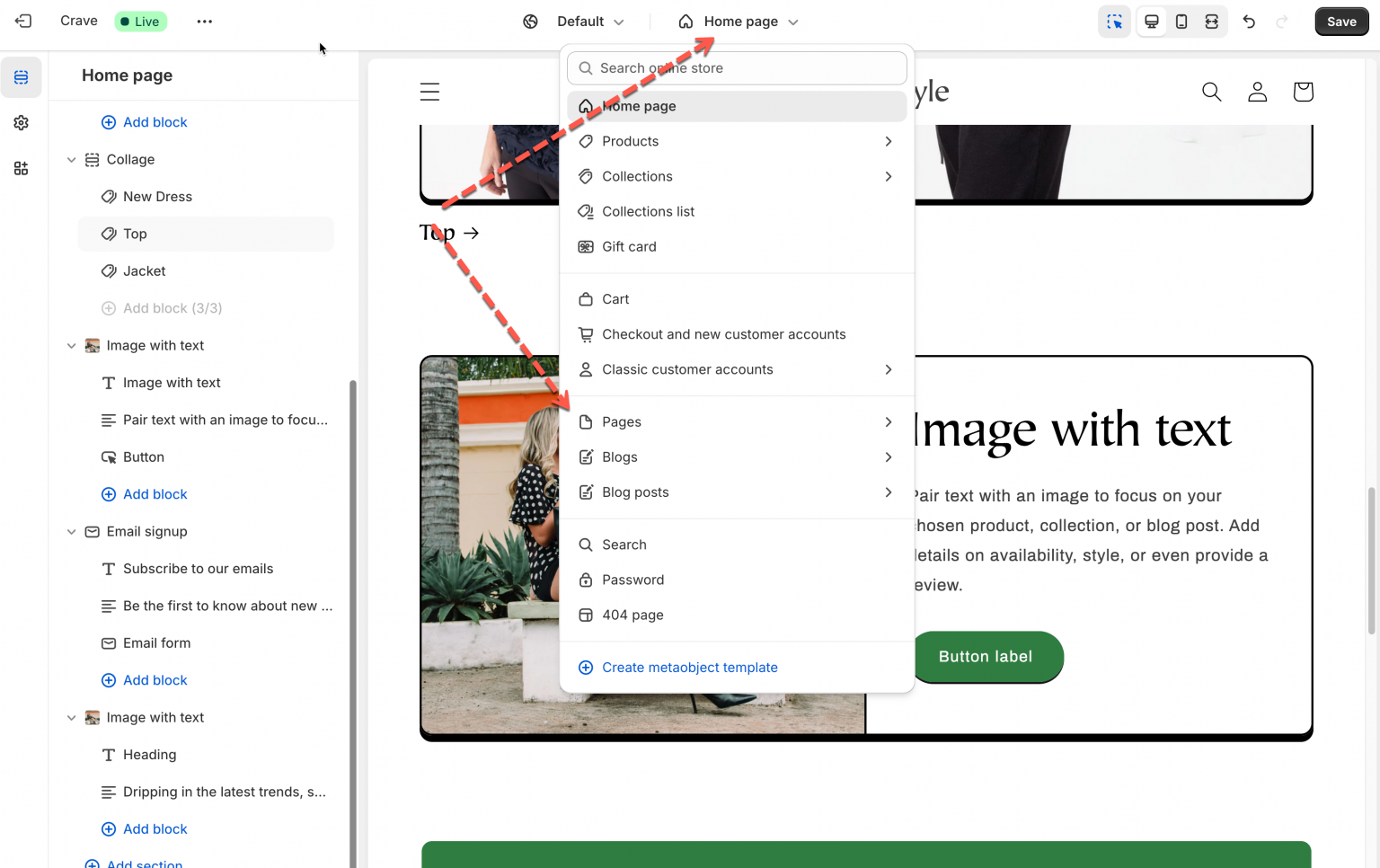
1\. From the Shopify admin page, click **Sale channels** > **Online store** > click **Edit theme** to go to the theme you want
2\. In theme editor > open the page template you want
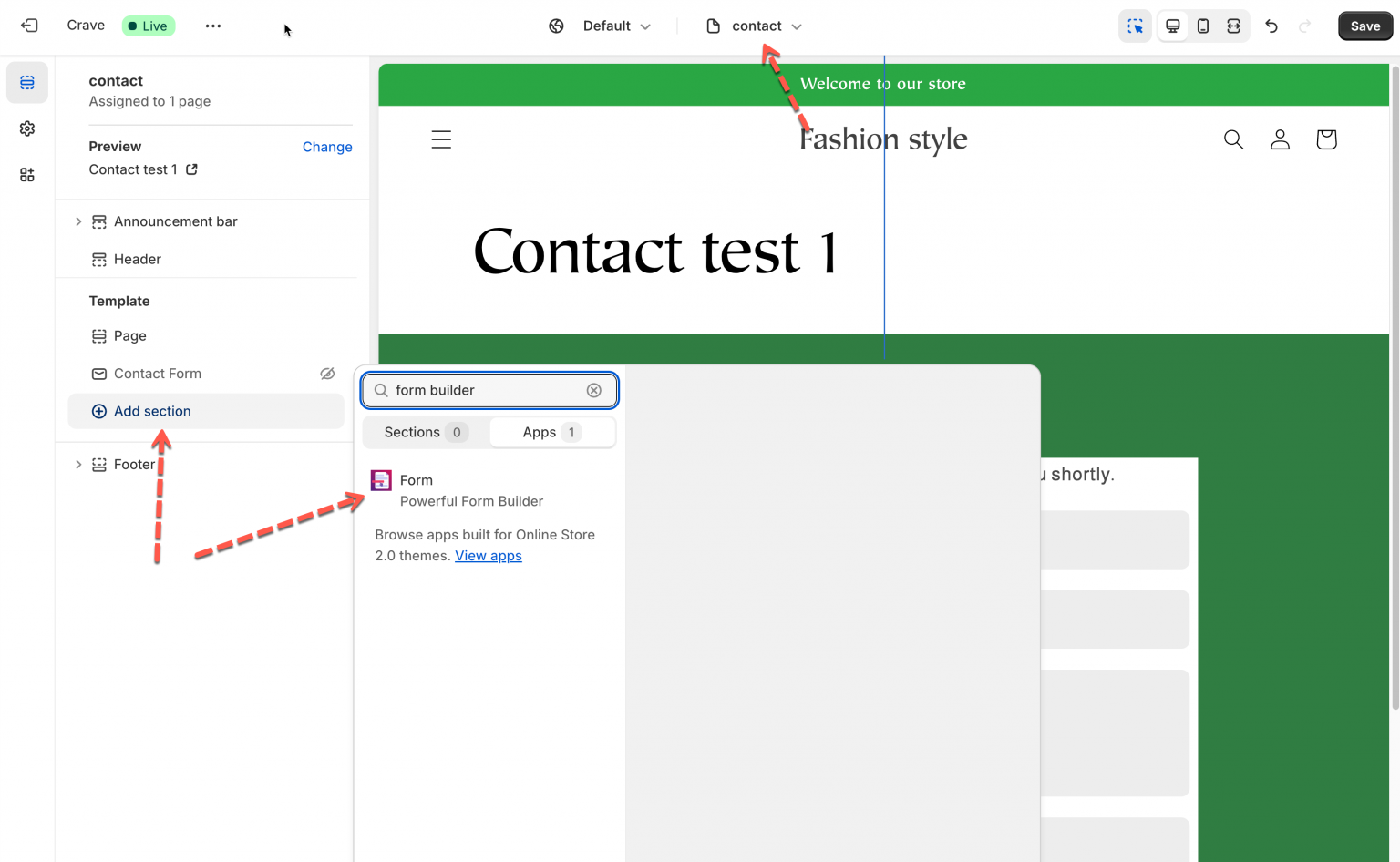
3\. Click **Add section** > add **Form** app section
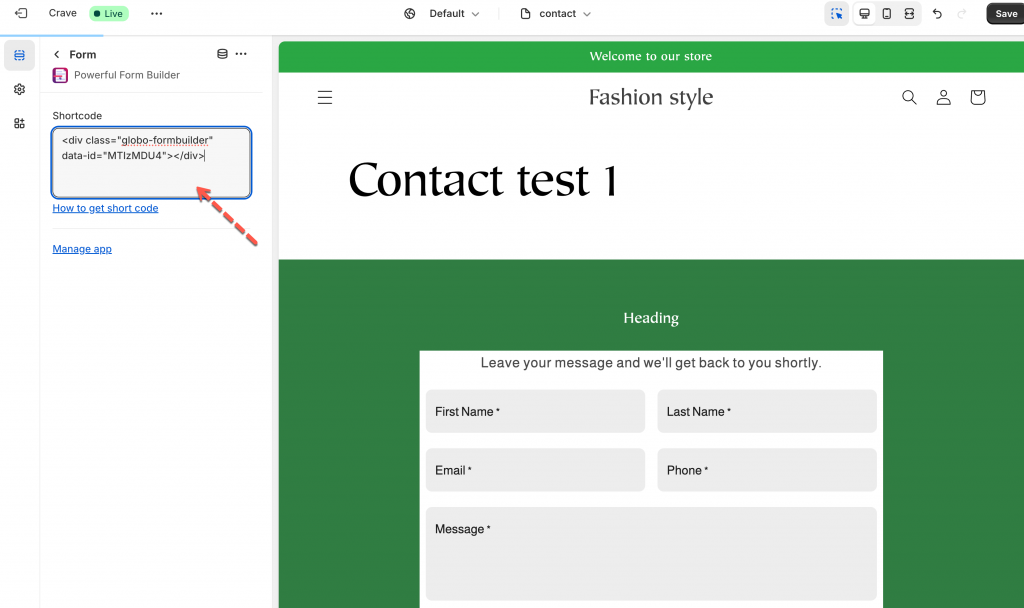
4\. In the app section > paste the form **shortcode** here
5. Optionally, drag-and-drop or reorder blocks to control where the form appears on the page
6. Click **Save** to apply changes.
{% endstep %}
{% step %}
### Preview and Check the Live Store
After saving, open the live version of the page (front store) to verify that the form appears correctly in the intended position.
{% endstep %}
{% endstepper %}
## 🎥 Tutorial video
{% embed url="" %}
## 🔧 Troubleshooting
If your form does not appear, check the items below:
1. Make sure the form is **published
Forms must be saved and published in the app before they will show on your store.
2. Ensure the page is using the **correct template
If you added the form inside a specific theme template (e.g., a custom product template), make sure that product or page is actually using that template.
3. Some themes require minor adjustments
Certain Shopify themes may require:
* Block placement adjustments
* Template changes
* Section settings updates
If you’re unsure, we’re here to help.
## Next steps
* [Get embed code of a form](/display-and-placement/short-code.md) — the code the block needs.
* [Theme integration](/display-and-placement/enable-the-app-embed.md) — the store-wide switch. The app block carries its own code, so a form placed in a block keeps working with the embed off; see [Forms loading on every page](/troubleshooting/forms-load-everywhere.md).
* [The form is not showing on my store](/troubleshooting/form-not-showing.md) — checks to run if nothing appears.