> For the complete documentation index, see [llms.txt](https://docs.powerfulform.com/llms.txt). Markdown versions of documentation pages are available by appending `.md` to page URLs; this page is available as [Markdown](https://docs.powerfulform.com/display-and-placement/add-a-form-with-app-block.md).
# Add a form with app block
This is ideal when your theme (or page template) has been customized and you want precise control over where the form appears
### 📝 Step 1: Copy the Form Shortcode
1\. Open the app > click **Forms** > open a form you want
2\. Click **Publish** button on the right corner
3\. Select the display of the form: default, boxed, floating, popup
4\. Click **Get short code** > copy the short code of the form
***
### 📝 Step 2: Add the Form as an App Block
1\. From the Shopify admin page, click **Sale channels** > **Online store** > click **Edit theme** to go to the theme you want
2\. In theme editor > open the page template you want
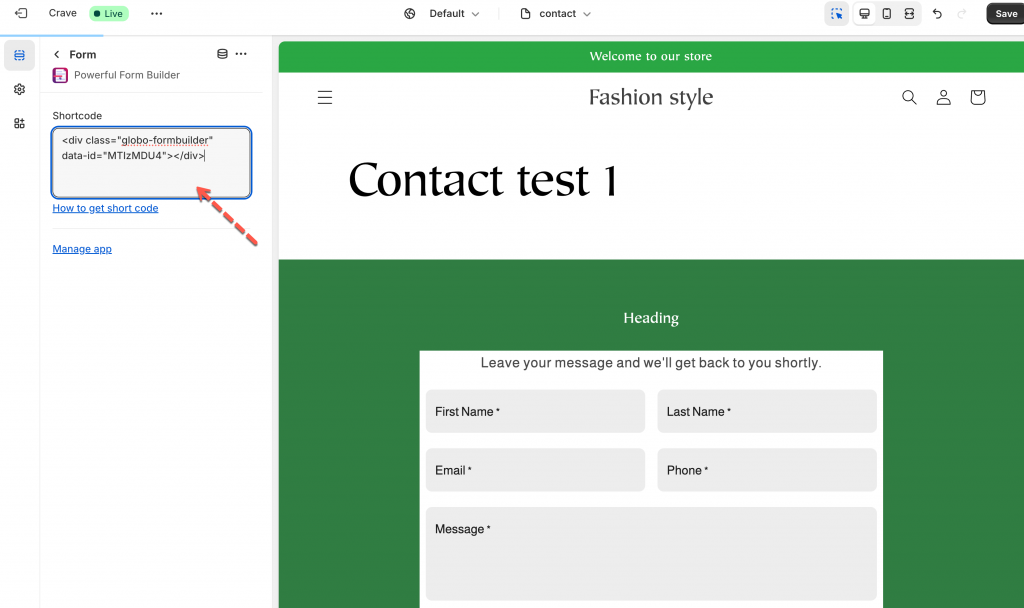
3\. Click **Add section** > add **Form** app section
4\. In the app section > paste the form **shortcode** here
5. Optionally, drag-and-drop or reorder blocks to control where the form appears on the page
6. Click **Save** to apply changes.
***
### 📝 Step 3: Preview and Check the Live Store
After saving, open the live version of the page (front store) to verify that the form appears correctly in the intended position.
***
### ▶️ Tutorial video
{% embed url="" %}
***
### 🆚 Compare this method with others
| Situation | Recommended Method |
| --------------------------------------------------------------------- | -------------------------------------- |
| Theme or page template is customized, or you need precise positioning | **App Block** (this method) |
| Simple pages or you want the fastest setup | Shortcode embed / default form display |
| Need to show form in product description or content area | Shortcode inside product/page conten |
***
### 🔧 Troubleshooting: Form Not Showing Up?
If your form does not appear, check the items below:
#### 1. Make sure the form is **published**
Forms must be saved and published in the app before they will show on your store.
#### 2. Ensure the page is using the **correct template**
If you added the form inside a specific theme template (e.g., a custom product template), make sure that product or page is actually using that template.
#### 3. Some themes require minor adjustments
Certain Shopify themes may require:
* Block placement adjustments
* Template changes
* Section settings updates
If you’re unsure, we’re here to help.
***
#### Need More Help?
If you still need assistance, please contact us at . Our team will be happy to help you resolve any issues or guide you further.