> For the complete documentation index, see [llms.txt](https://docs.powerfulform.com/llms.txt). Markdown versions of documentation pages are available by appending `.md` to page URLs; this page is available as [Markdown](https://docs.powerfulform.com/design-your-form/fonts-and-sizing.md).

# Fonts, size and spacing

Set the font, width, text size, and field style — all in the Appearance panel.

Open a form from **Forms**, then click **Appearance** in the left sidebar to find them.

Four controls on the **Appearance** panel decide how your form is set out and how its fields look: **Font**, **Width**, **Font Size** and **Style**.

## ✏️ Font

By default the form inherits the font of your store theme, so it matches the rest of the page with no work from you.

The control shows **Default** with the line "Inherit from theme's font" underneath.

{% stepper %}
{% step %}

#### Open the font picker

Open the app > click **Forms** > open the form you want to edit

Next to **Font**, click **Change**. The **Select font** panel opens

<figure><img src="https://2907469752-files.gitbook.io/~/files/v0/b/gitbook-x-prod.appspot.com/o/spaces%2FehM2rz7MmKkWcJmgvJOe%2Fuploads%2Fgit-blob-95a5343b71a9e78033e574ad02e77f2a3c77d0cc%2Fscreenshot-form-design-font-picker.png?alt=media" alt="The Select font panel open, showing the Search field, the font list with a font selected, the weight and style selector, and the Cancel and Select buttons."><figcaption><p>The Select font panel open, showing the Search field, the font list with a font selected, the weight and style selector, and the Cancel and Select buttons.</p></figcaption></figure>
{% endstep %}

{% step %}

#### Find a font

Type in the **Search** field to filter the list, or scroll it. **Default** at the top of the list puts the form back on your theme's font.
{% endstep %}

{% step %}

#### Pick a weight or style

Choose the variant you want, such as a regular or bold weight, from the variant selector.
{% endstep %}

{% step %}

#### Confirm and save

{% endstep %}
{% endstepper %}

{% hint style="info" %}
Choosing a font requires a paid plan. On the Free plan the form keeps your theme's font. See [Plans and billing](/settings/plans-and-billing.md).
{% endhint %}

{% hint style="warning" %}
A font that is not already used by your theme has to be downloaded by every visitor, which adds a little to your page load time.

Sticking with **Default** is the fastest option and keeps the form consistent with your store.
{% endhint %}

## 📏 Width

Max width of the form, in pixels. Type a number or use the arrows (steps of 50). Starts at **650px**.

<figure><img src="https://2907469752-files.gitbook.io/~/files/v0/b/gitbook-x-prod.appspot.com/o/spaces%2FehM2rz7MmKkWcJmgvJOe%2Fuploads%2Fgit-blob-5084109a8584e6b667ed8df808dee9a7fcea9ab3%2F2026-09-26_15-17-16.png?alt=media" alt=""><figcaption></figcaption></figure>

{% hint style="info" %}
If the form sits inside a theme section that is narrower than your **Width** value, the section wins and the form fills the space it is given.
{% endhint %}

## 📝 Font Size

**Font Size** scales the text of the whole form — labels, descriptions, inputs and buttons together.

<table><thead><tr><th width="144.1500244140625">Setting</th><th>What it does</th></tr></thead><tbody><tr><td><strong>Small</strong></td><td>Compact text. Useful in a floating or popup form, where space is tight.</td></tr><tr><td><strong>Medium</strong></td><td>The standard size, and the setting a new form starts with.</td></tr><tr><td><strong>Large</strong></td><td>Larger text throughout. Useful for a short form on a landing page.</td></tr></tbody></table>

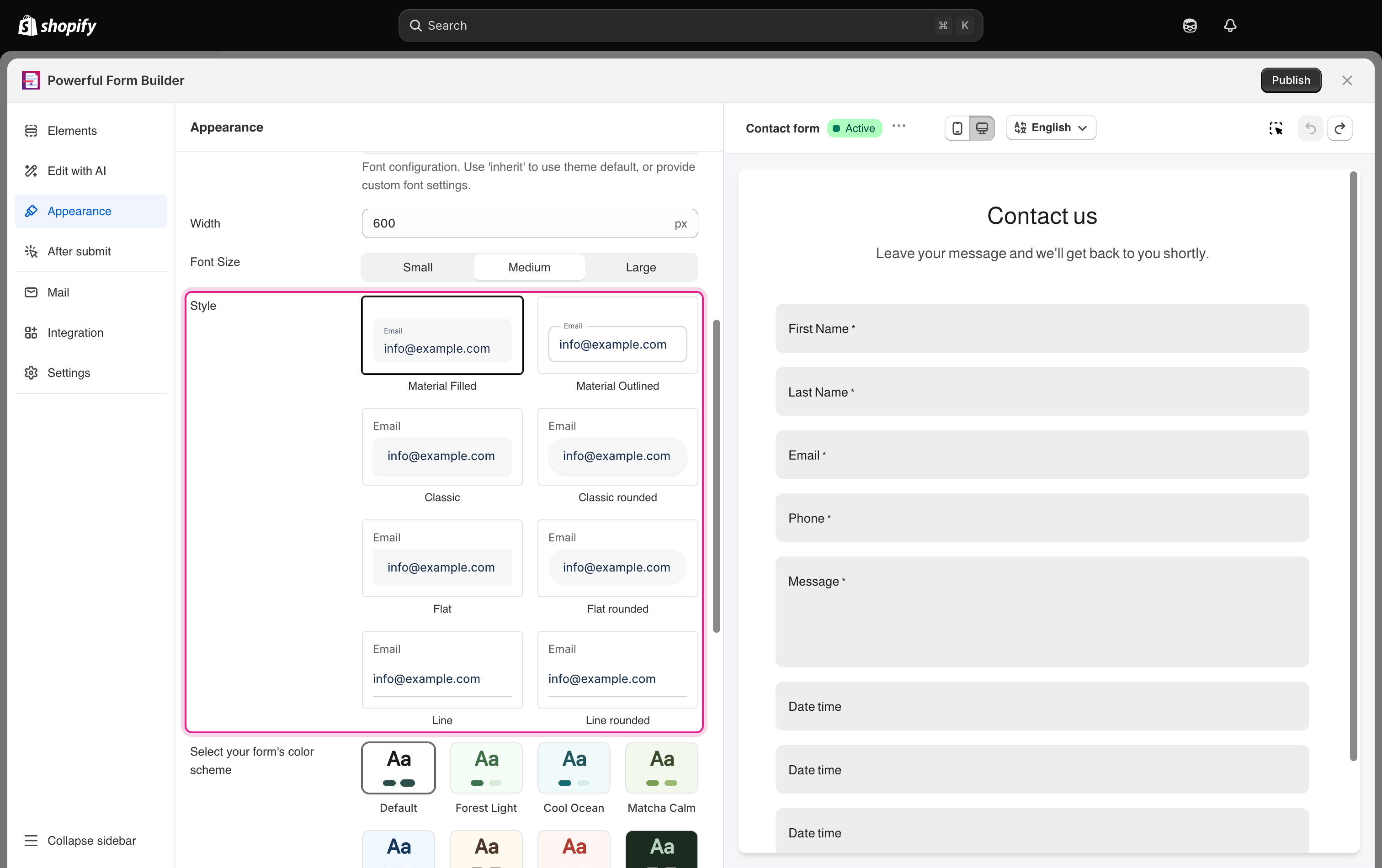
## 🎛️ Style

**Style** decides how the input fields themselves are drawn. Click the control and pick one of eight presets.

<table><thead><tr><th width="238.5333251953125">Style</th><th>Look</th></tr></thead><tbody><tr><td><strong>Material Filled</strong> <em>(default)</em></td><td>Filled field, label lifts above as you type</td></tr><tr><td><strong>Material Outlined</strong></td><td>Same lifting label, outlined field</td></tr><tr><td><strong>Classic</strong></td><td>Square corners, label above</td></tr><tr><td><strong>Classic Rounded</strong></td><td>Classic, rounded corners</td></tr><tr><td><strong>Flat</strong></td><td>Plain square corners, label above</td></tr><tr><td><strong>Flat Rounded</strong></td><td>Flat, rounded corners</td></tr><tr><td><strong>Line</strong></td><td>Lightest style, label above</td></tr><tr><td><strong>Line Rounded</strong></td><td>Line, rounded corners</td></tr></tbody></table>

Each thumbnail shows the treatment, so the quickest way to choose is to click through them and watch the preview.

<figure><img src="https://2907469752-files.gitbook.io/~/files/v0/b/gitbook-x-prod.appspot.com/o/spaces%2FehM2rz7MmKkWcJmgvJOe%2Fuploads%2Fgit-blob-923ffa9082082719f33cf1f2a6d879833d752a10%2Fscreenshot-form-design-style-presets.png?alt=media" alt="The Style control highlighted showing eight field style thumbnails: Material Filled, Material Outlined, Classic, Classic rounded, Flat, Flat rounded, Line and Line rounded"><figcaption><p>Style changes how the input fields themselves are drawn.</p></figcaption></figure>

{% hint style="info" %}
**Style** is ignored when **Match theme styling if possible** is turned on, because the form then takes its field styling from your theme. It is also not used by forms built from the multi-step template.
{% endhint %}

<br>

## Next steps

* [Colors and color schemes](/design-your-form/colours.md) — pick the palette that goes with your font and field style.
* [Choose a display style](/design-your-form/display-style.md) — decide where the form appears before fixing its width.
* [Custom CSS](/settings/custom-css.md) — for spacing and typography beyond these controls.