> For the complete documentation index, see [llms.txt](https://docs.powerfulform.com/llms.txt). Markdown versions of documentation pages are available by appending `.md` to page URLs; this page is available as [Markdown](https://docs.powerfulform.com/design-your-form/display-style.md).

# Choose form layout

Decide how your form appears: in the page, boxed, floating, or as a popup.

The **Layout** setting decides how your form appears to visitors: as part of the page, as a floating button, or as a popup. Set it before you publish, because it changes where the form ends up on your storefront.

## 🔲 The Four Layouts

<table><thead><tr><th width="138.63330078125">Layout</th><th>Appearance</th><th>Best For</th></tr></thead><tbody><tr><td><strong>Default</strong></td><td>Blends into the page, no frame</td><td>Forms that should look like part of the content</td></tr><tr><td><strong>Boxed</strong></td><td>Rounded card with shadow + padding</td><td>Forms that need to stand out as their own block</td></tr><tr><td><strong>Float</strong></td><td>Small icon (+ text) pinned to a screen corner</td><td>Support/feedback forms, always reachable</td></tr><tr><td><strong>Popup</strong></td><td>Opens over the page on a trigger (scroll/timer/exit)</td><td>Newsletter signups, discounts, exit offers</td></tr></tbody></table>

### **Default**

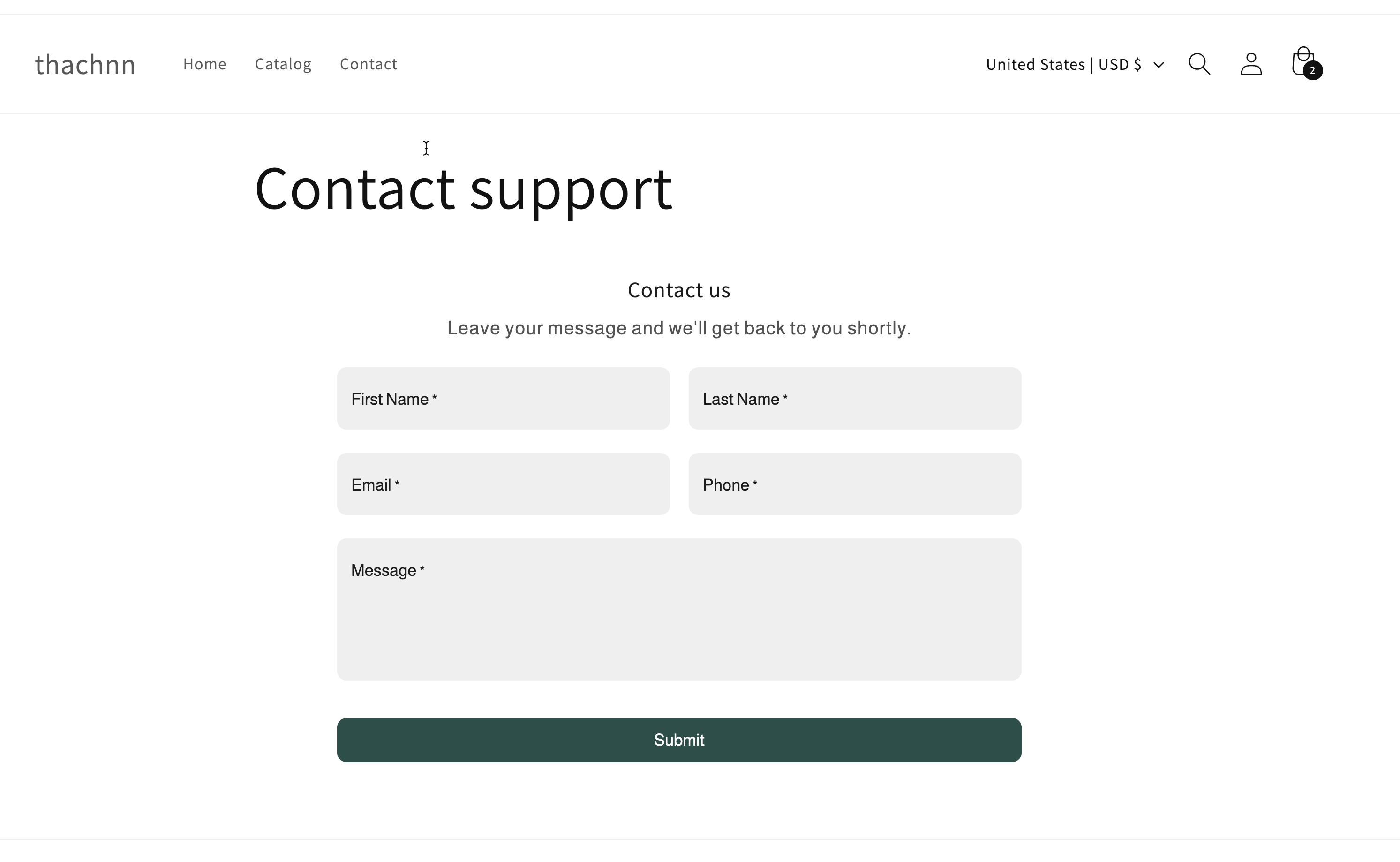
Sits directly in the page, no frame — blends into the surrounding content.

<figure><img src="https://2907469752-files.gitbook.io/~/files/v0/b/gitbook-x-prod.appspot.com/o/spaces%2FehM2rz7MmKkWcJmgvJOe%2Fuploads%2Fgit-blob-59494a72d5a659e8a2e02ab8416c82fae7a14ae7%2F2026-09-25_18-29-44.png?alt=media" alt=""><figcaption></figcaption></figure>

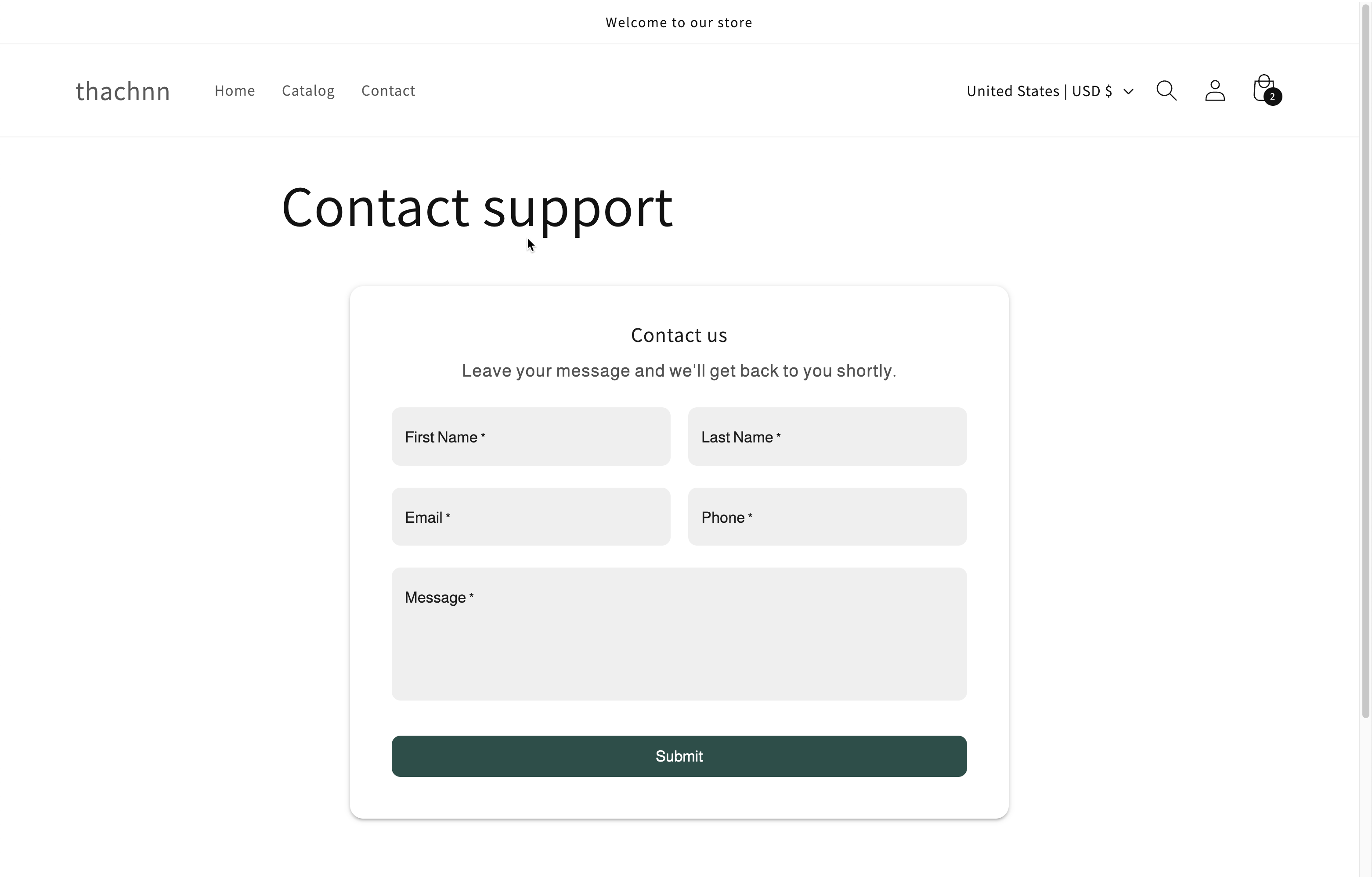
### **Boxed**

Same in-page form, wrapped in a rounded card with shadow and padding.<br>

<figure><img src="https://2907469752-files.gitbook.io/~/files/v0/b/gitbook-x-prod.appspot.com/o/spaces%2FehM2rz7MmKkWcJmgvJOe%2Fuploads%2Fgit-blob-6630445aeefa055a99c4eac03d408d2230b2d28a%2F2026-09-25_18-30-54.png?alt=media" alt=""><figcaption></figcaption></figure>

### **Float**

A small icon (+ optional text) pinned to a screen corner — click to open the form.\
**Example:** A support/feedback button reachable from anywhere, without taking up page space.

<figure><img src="https://2907469752-files.gitbook.io/~/files/v0/b/gitbook-x-prod.appspot.com/o/spaces%2FehM2rz7MmKkWcJmgvJOe%2Fuploads%2Fgit-blob-c7b2737ad86dfbe34049789cf7a550e91c2e1023%2F2026-09-25_18-32-09.png?alt=media" alt=""><figcaption></figcaption></figure>

### **Popup**

Opens automatically over the page when a condition is met (scroll, timer, exit-intent). A floating launcher stays visible to reopen it.<br>

<figure><img src="https://2907469752-files.gitbook.io/~/files/v0/b/gitbook-x-prod.appspot.com/o/spaces%2FehM2rz7MmKkWcJmgvJOe%2Fuploads%2Fgit-blob-943a8b04779744451dbc3c31ff9a780e9ecbafb1%2F2026-09-25_18-32-36.png?alt=media" alt=""><figcaption></figcaption></figure>

## ⚙️ How to Set It

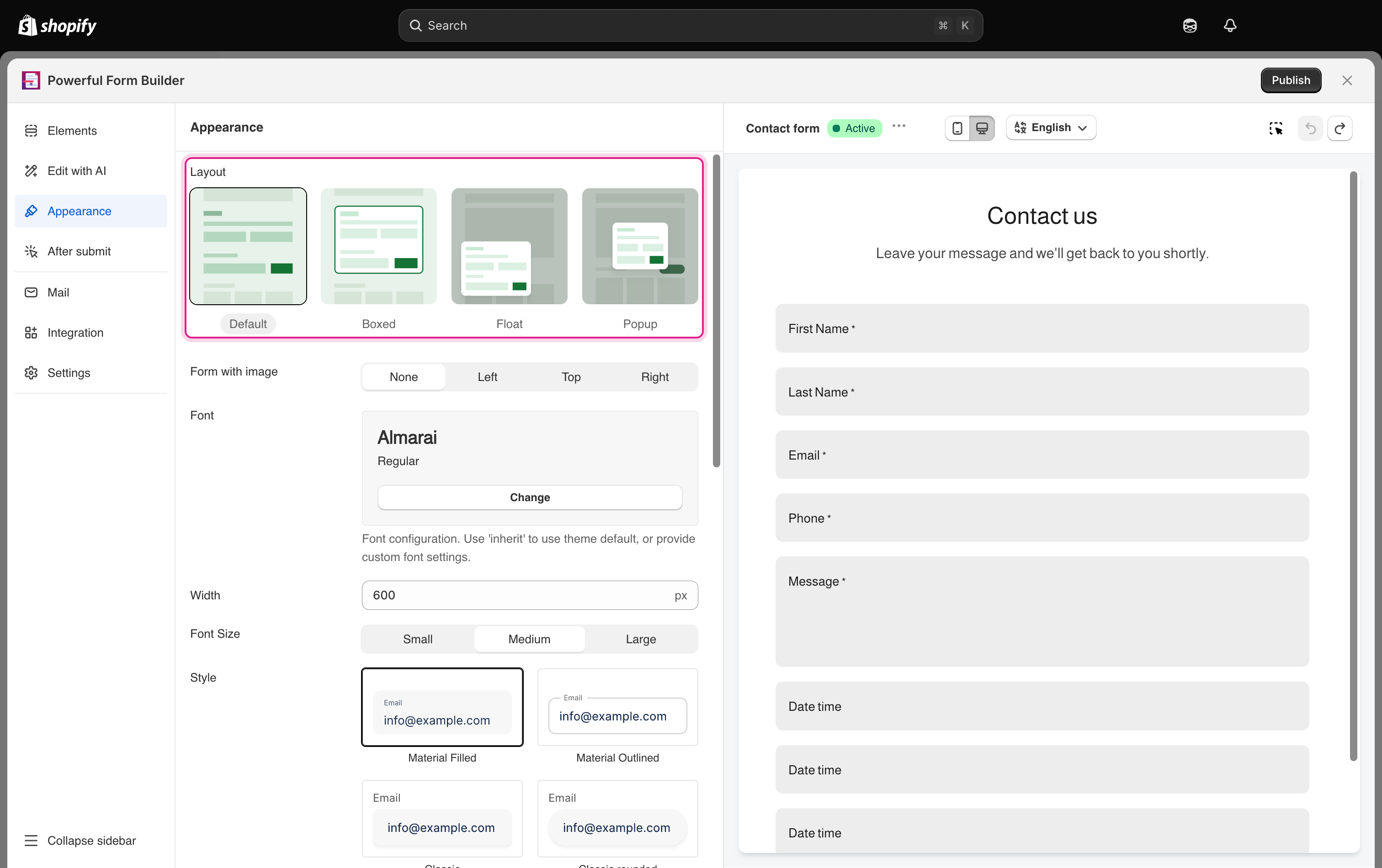
1. Open the app > click **Forms** > open your form > **Appearance** panel
2. Click a layout thumbnail — the preview updates instantly
3. Fill in extra settings (Float/Popup only — see below)
4. **Save**

<figure><img src="https://2907469752-files.gitbook.io/~/files/v0/b/gitbook-x-prod.appspot.com/o/spaces%2FehM2rz7MmKkWcJmgvJOe%2Fuploads%2Fgit-blob-a07d514267494188282399d650edf6fab1608765%2Fscreenshot-form-design-layout-thumbnails.png?alt=media" alt="The four Layout thumbnails highlighted in the Appearance panel: Default, Boxed, Float and Popup"><figcaption><p>Layout decides whether the form sits in the page or appears as a floating trigger or popup.</p></figcaption></figure>

## 📍 Float & Popup Settings

<table data-header-hidden><thead><tr><th width="189.63330078125"></th><th></th></tr></thead><tbody><tr><td>Setting</td><td>What It Does</td></tr><tr><td><strong>Position</strong></td><td>Pick a corner/edge from 10 placement options <em>(default: Bottom-Right)</em></td></tr><tr><td><strong>Floating Icon</strong></td><td>Icon shown on the launcher <em>(default: envelope)</em></td></tr><tr><td><strong>Floating Text</strong></td><td>Optional label next to the icon</td></tr></tbody></table>

<figure><img src="https://2907469752-files.gitbook.io/~/files/v0/b/gitbook-x-prod.appspot.com/o/spaces%2FehM2rz7MmKkWcJmgvJOe%2Fuploads%2Fgit-blob-791efa4ac591051435d8e2203a17a264a0729700%2F2026-09-25_18-34-54.png?alt=media" alt=""><figcaption></figcaption></figure>

## ⏱️ Popup Trigger (Popup Only)

Choose when it opens automatically:

* **Scroll** — at 25% / 50% / 75% / 100% of the page
* **Timer** — after a set number of seconds
* **Exit intent** — when the visitor tries to leave the tab

> **⚠️ Warning:** No trigger is set by default — pick one, or the popup will only open when someone clicks the floating launcher.

<figure><img src="https://2907469752-files.gitbook.io/~/files/v0/b/gitbook-x-prod.appspot.com/o/spaces%2FehM2rz7MmKkWcJmgvJOe%2Fuploads%2Fgit-blob-4071948d7244b9872d5110e117c87b6fa9348e37%2F2026-09-25_18-35-44.png?alt=media" alt=""><figcaption></figcaption></figure>

> **📌 Note:** Multi-step forms can't use a display style — layout options are disabled, and you'll publish directly to a page instead.

<details>

<summary>Multi-step forms cannot use a display style</summary>

If your form was built from the multi-step template, the layout thumbnails are turned off and step 1 of the publish window shows the notice "Display style is not available for this template. Go to the next step to publish form." Continue to step 2 and publish the form on a page.

</details>

<br>

## Next steps

* [Get the short code of a form](/display-and-placement/short-code.md) — the **Theme button** code that opens a **Popup** form from a link you already have.
* [Colors and color schemes](/design-your-form/colours.md) — style the form once the layout is set.
* [Publish the form to a page](/getting-started/quickstart/publish-the-form.md) — choose the pages the form appears on.