> For the complete documentation index, see [llms.txt](https://docs.powerfulform.com/llms.txt). Markdown versions of documentation pages are available by appending `.md` to page URLs; this page is available as [Markdown](https://docs.powerfulform.com/customers-and-registration/email-verification.md).

# Email verification

Make people confirm their email address before their account works, by sending a Shopify account invite instead of creating the account outright.

If you want people to verify their email before a registration is fully accepted, use **Send email invitation**. The customer has to click a confirmation link before the account becomes usable.

It is a straightforward way to keep spam out and make sure only real people finish your forms.

The option's help text says it plainly: *Send Shopify's "account invite" email automatically. New customers that register will need to verify their email address and set a password in order to activate their account*.

{% hint style="info" %}
Registration forms are a paid feature and are not available on the free plan. See [Plans and billing](/settings/plans-and-billing.md).
{% endhint %}

## Set it up

{% stepper %}
{% step %}

### Open the Shopify integration

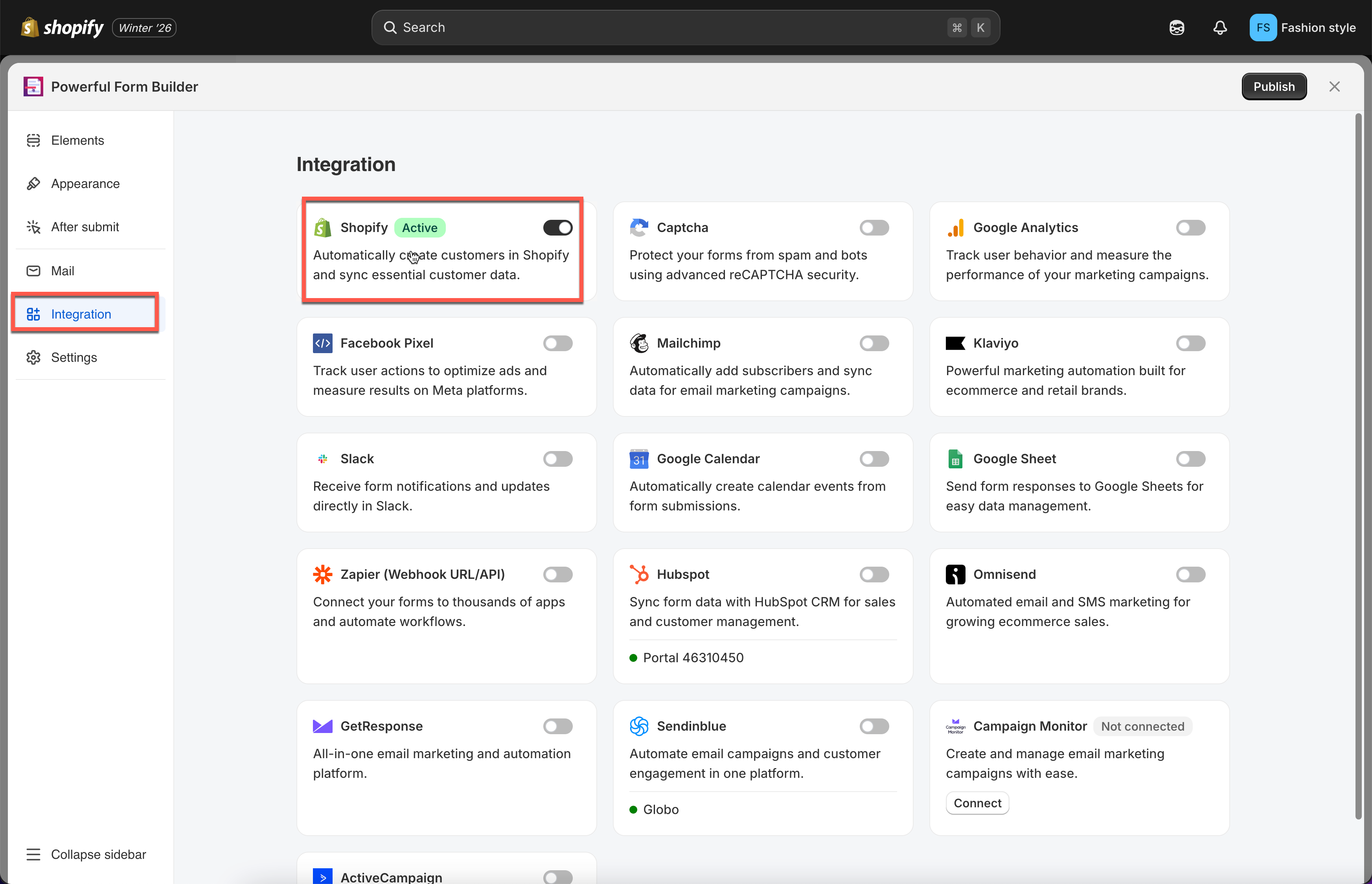
Open the app, click **Forms**, open the form, click the **Integration** icon in the left rail, enable **Shopify** and click **Shopify**.

<figure><img src="https://2907469752-files.gitbook.io/~/files/v0/b/gitbook-x-prod.appspot.com/o/spaces%2FehM2rz7MmKkWcJmgvJOe%2Fuploads%2Fgit-blob-930e99c825fc5532242eecffad1de59914dfa978%2Fcf-note-2.png?alt=media" alt=""><figcaption></figcaption></figure>
{% endstep %}

{% step %}

### Choose Send email invitation

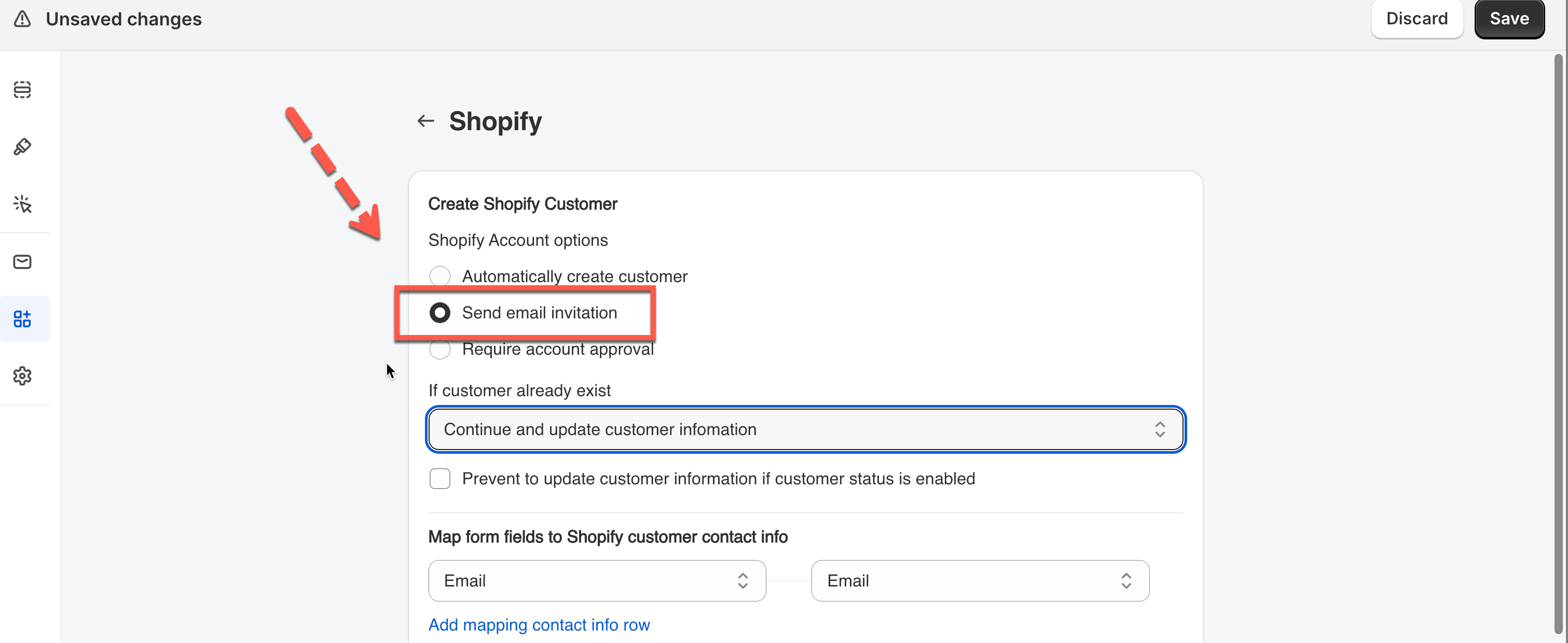
Open **Shopify Account options** and select **Send email invitation**.

<figure><img src="https://2907469752-files.gitbook.io/~/files/v0/b/gitbook-x-prod.appspot.com/o/spaces%2FehM2rz7MmKkWcJmgvJOe%2Fuploads%2Fgit-blob-6651df9f86c7cc7b976754e9d8fc1a14b02a8e42%2Fcf-email-verification-2.png?alt=media" alt=""><figcaption></figcaption></figure>
{% endstep %}

{% step %}

### Map the fields

Pair the Shopify attributes on the right with your form fields on the left.

{% hint style="danger" %}
The form's **Email** field must be mapped to Shopify's **email** attribute — it is the address the invite is sent to.
{% endhint %}
{% endstep %}

{% step %}

### Decide what happens for people who already have an account

Set **If customer already exist** to whichever behavior fits:

| Choice                                      | What happens                                                           | Good for                                           |
| ------------------------------------------- | ---------------------------------------------------------------------- | -------------------------------------------------- |
| **Return error message**                    | The submission is blocked and the shopper sees your error text         | Keeping duplicate accounts out                     |
| **Continue and update customer infomation** | The submission is accepted and the existing customer is updated        | Letting people refresh their own details           |
| **Continue and ignore the error**           | The submission is accepted and the existing customer is left untouched | Recording the entry without touching customer data |

If you pick **Return error message**, turn on **And show message** and write something that helps rather than blocks — the default is *You already registered. Click here to login*, with the word "here" linking to your login page.
{% endstep %}

{% step %}

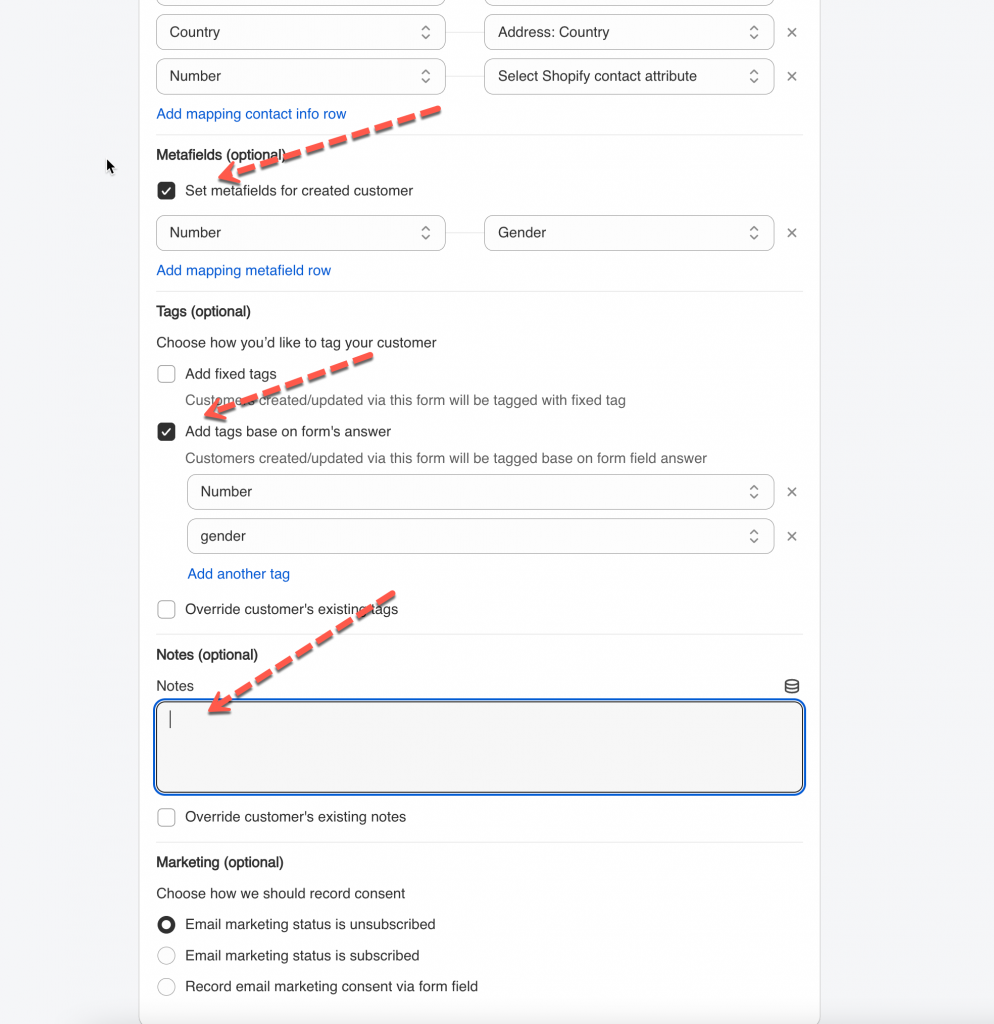
### Add tags, notes, metafields and marketing status

Optional.

<figure><img src="https://2907469752-files.gitbook.io/~/files/v0/b/gitbook-x-prod.appspot.com/o/spaces%2FehM2rz7MmKkWcJmgvJOe%2Fuploads%2Fgit-blob-e3f138b8a216b16fc082af8bec03d48d0b3e66f1%2Fcf-account-approval-3.png?alt=media" alt=""><figcaption></figcaption></figure>
{% endstep %}

{% step %}

### Save

{% hint style="warning" %}
Do not put a password field on a form that uses this mode. The shopper sets their password inside Shopify's invitation flow, so a password field on the form is collected for nothing and only confuses people.
{% endhint %}

Save the form to apply the change.
{% endstep %}
{% endstepper %}

## How it works

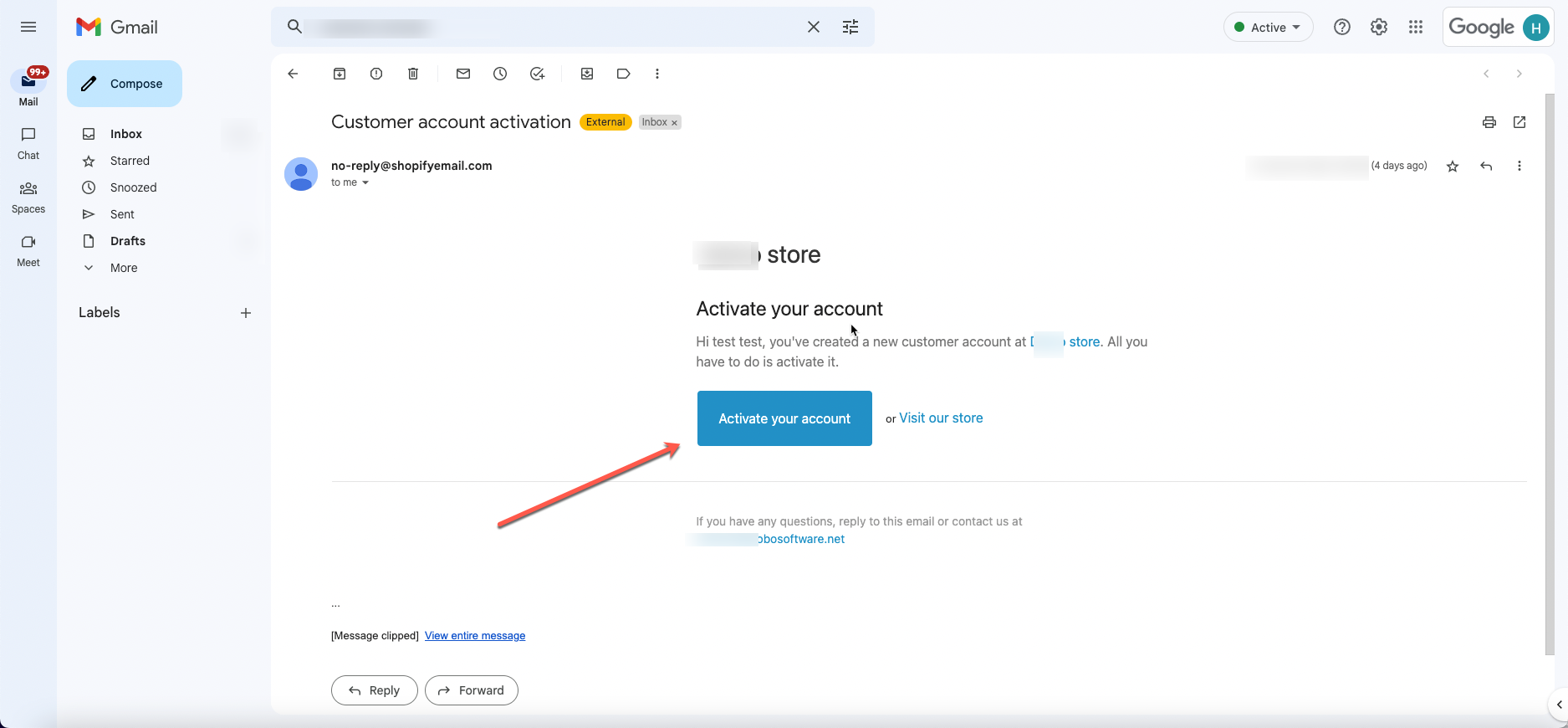
<table><thead><tr><th width="70">Step</th><th>What happens</th></tr></thead><tbody><tr><td><strong>1</strong></td><td>The customer fills in the registration form and enters their email address.</td></tr><tr><td><strong>2</strong></td><td>Shopify sends a <strong>Customer account invite</strong> — an activation email containing a verification link. This email comes from Shopify, not from the app.</td></tr><tr><td><strong>3</strong></td><td>The customer clicks the link. Shopify verifies the address and asks them to set a password.</td></tr><tr><td><strong>4</strong></td><td>The account becomes active and the profile appears under <strong>Customers</strong> in Shopify, with the name, email, phone, address, tags, notes and metafields you mapped.</td></tr></tbody></table>

<figure><img src="https://2907469752-files.gitbook.io/~/files/v0/b/gitbook-x-prod.appspot.com/o/spaces%2FehM2rz7MmKkWcJmgvJOe%2Fuploads%2Fgit-blob-89b4f0fdf00c3adeff501575d81839af4f93c8db%2Fcf-email-verification-4.png?alt=media" alt="The Shopify account activation email, with the link the customer clicks to set a password"><figcaption></figcaption></figure>

## Why use it

* Prevents fake and spam accounts.
* Confirms the email address is real.
* Reduces bounces and improves deliverability.
* Adds a layer of security to your store.
* Keeps protected areas — wholesale, members-only — to verified people.

## If the invitation does not arrive

Work through these before assuming the form is at fault:

<details>

<summary>The customer record was not created at all</summary>

Check **Submissions** in the app. If the entry is there but no customer appeared in Shopify, the **Email** mapping is probably missing or pointing at the wrong field. Reopen the **Shopify** integration and confirm the mapping.

</details>

<details>

<summary>The record exists but no email was sent</summary>

Shopify sends this email, not Powerful Contact Form Builder — so it does not use your sender settings or count against your plan's email allowance. Check the **Customer account invite** notification is enabled in your Shopify notification settings, and look in the shopper's spam folder.

</details>

<details>

<summary>The shopper already had an account</summary>

Shopify does not send an invitation to an existing customer. That is expected. If you want existing customers invited too, use **Automatically create customer** with **Send an account invitation when the customer already exists** turned on instead — see [Create Shopify Customers](/customers-and-registration/create-shopify-customers.md).

</details>

## Important notes

{% hint style="warning" %}

* Email verification only applies when **Send email invite** is selected.
* The customer **cannot log in** until the email is verified.
* Shopify handles the email and the activation link, not the form app.
* Make sure your sender address is verified in Shopify under **Settings** > **Notifications**.
  {% endhint %}

<br>

## Next steps

* [Account options](/customers-and-registration/customer-fields.md#choose-an-account-option) — how this compares with the other two options.
* [Create Shopify Customers](/customers-and-registration/create-shopify-customers.md) — skip verification and create the account immediately.
* [Customer account approval](/customers-and-registration/approve-or-deny.md) — review registrations yourself before any account exists.
* [Customer notifications after registration](/customers-and-registration/registration-emails.md) — the other emails around sign-up.