> For the complete documentation index, see [llms.txt](https://docs.powerfulform.com/llms.txt). Markdown versions of documentation pages are available by appending `.md` to page URLs; this page is available as [Markdown](https://docs.powerfulform.com/customers-and-registration/customer-tags.md).

# Add Customer Tag

Automatically tag customers when they submit a form — the same tag for everyone, or a tag based on their answer.

{% hint style="info" %}
Connect the form to Shopify Customers first:[ Shopify Customers integration.](https://globosoftware.gitbook.io/globosoftware-docs/customers-and-registration/customer-fields)
{% endhint %}

## 🏷️ Choose a tag type

<table><thead><tr><th width="146">Type</th><th width="243.0333251953125">What it does</th><th>Example</th></tr></thead><tbody><tr><td><strong>Fixed tag</strong></td><td>Same tag for every submission</td><td>Everyone who fills the form gets <code>newsletter-signup</code></td></tr><tr><td><strong>Dynamic tag</strong></td><td>Tag matches the customer's answer</td><td>They pick <strong>Wholesale</strong> → tagged <code>Wholesale</code>. Pick <strong>VIP</strong> → tagged <code>VIP</code></td></tr></tbody></table>

## Steps

{% stepper %}
{% step %}

#### Open the Shopify integration

Open the app > **Forms** > open your form > **Integration** icon > enable **Shopify** > click **Shopify**.

<figure><img src="https://2907469752-files.gitbook.io/~/files/v0/b/gitbook-x-prod.appspot.com/o/spaces%2FehM2rz7MmKkWcJmgvJOe%2Fuploads%2Fgit-blob-ccf232663e605508339f701b6f7538d33d98c061%2Fimage%20(37).png?alt=media" alt=""><figcaption></figcaption></figure>
{% endstep %}

{% step %}

#### Map the fields

Pair Shopify attributes with your form fields.

Note: The **Email** field must be mapped to Shopify's **Email** attribute.

<figure><img src="https://2907469752-files.gitbook.io/~/files/v0/b/gitbook-x-prod.appspot.com/o/spaces%2FehM2rz7MmKkWcJmgvJOe%2Fuploads%2Fgit-blob-0d7ef8e1066fde4308d372cff6c4d1472715c452%2Fimage%20(38).png?alt=media" alt=""><figcaption></figcaption></figure>

<br>
{% endstep %}

{% step %}

#### Set up your tag

Tick on checkbox **Set tags for created customer**

* **Option A — Fixed tag**\
  Tick **Add fixed tags** and type the tag(s). Separate several with commas:\
  `wholesale, ordered, B2B`

<figure><img src="https://2907469752-files.gitbook.io/~/files/v0/b/gitbook-x-prod.appspot.com/o/spaces%2FehM2rz7MmKkWcJmgvJOe%2Fuploads%2Fgit-blob-9a0abc193f64d88788ceb32a1edffa3f3883319b%2Fimage%20(39).png?alt=media" alt=""><figcaption></figcaption></figure>

* **Option B — Dynamic tag**\
  Tick **Add tags based on form's answer** > **Add another tag** > pick the field to pull the tag from.

Example: a **Customer type** dropdown with *Retail / Wholesale / VIP* → whatever the customer picks becomes their tag.

<figure><img src="https://2907469752-files.gitbook.io/~/files/v0/b/gitbook-x-prod.appspot.com/o/spaces%2FehM2rz7MmKkWcJmgvJOe%2Fuploads%2Fgit-blob-c8e762a4cc13b543de102691b054389ccea0ee31%2Fimage%20(40).png?alt=media" alt=""><figcaption></figcaption></figure>
{% endstep %}

{% step %}

#### Overwrite existing tags? (optional)

By default, tags are **added** alongside existing ones.
{% endstep %}

{% step %}

#### Save

{% endstep %}
{% endstepper %}

## ✅ What Happens After Submission <a href="#what-happens-after-submission" id="what-happens-after-submission"></a>

<table><thead><tr><th width="383.7999267578125">Example</th><th>Result</th></tr></thead><tbody><tr><td>Fixed tag <code>newsletter-signup</code></td><td>Every submission adds this tag to the customer's Shopify profile</td></tr><tr><td>Dynamic tag on <strong>Customer type</strong>, customer picks <strong>Wholesale</strong></td><td>Profile is tagged <code>Wholesale</code></td></tr><tr><td>Same customer later picks <strong>VIP</strong>, resubmits (overwrite on)</td><td>Old tag removed, <code>VIP</code> assigned instead</td></tr></tbody></table>

<figure><img src="https://2907469752-files.gitbook.io/~/files/v0/b/gitbook-x-prod.appspot.com/o/spaces%2FehM2rz7MmKkWcJmgvJOe%2Fuploads%2Fgit-blob-4c5ff0a8571355575276b3a195570875b2893fb8%2Fimage%20(41).png?alt=media" alt=""><figcaption></figcaption></figure>

<figure><img src="https://2907469752-files.gitbook.io/~/files/v0/b/gitbook-x-prod.appspot.com/o/spaces%2FehM2rz7MmKkWcJmgvJOe%2Fuploads%2Fgit-blob-9789b5a7aba1fd056452e85156c29eab6f1a2888%2Fimage%20(42).png?alt=media" alt=""><figcaption></figcaption></figure>

## 🧩 Fixed tag vs dynamic tag

<table><thead><tr><th width="152.33331298828125">Feature</th><th width="260.933349609375">Fixed tag</th><th>Dynamic tag</th></tr></thead><tbody><tr><td>What it is</td><td>Same tag for everyone</td><td>Tag built from the customer's answer</td></tr><tr><td>Tag value</td><td>Always the same</td><td>Changes with what they pick</td></tr><tr><td>Example</td><td><code>newsletter-signup</code></td><td>Picks <strong>Wholesale</strong> → tagged <code>Wholesale</code></td></tr><tr><td>Mapping needed</td><td>Email only</td><td>Email + the field the tag comes from</td></tr><tr><td>Best for</td><td>Labeling everyone the same, e.g. <code>lead</code>, <code>giveaway-entry</code></td><td>Segmenting by choice, e.g. Retail/Wholesale, Haircut/Coloring</td></tr></tbody></table>

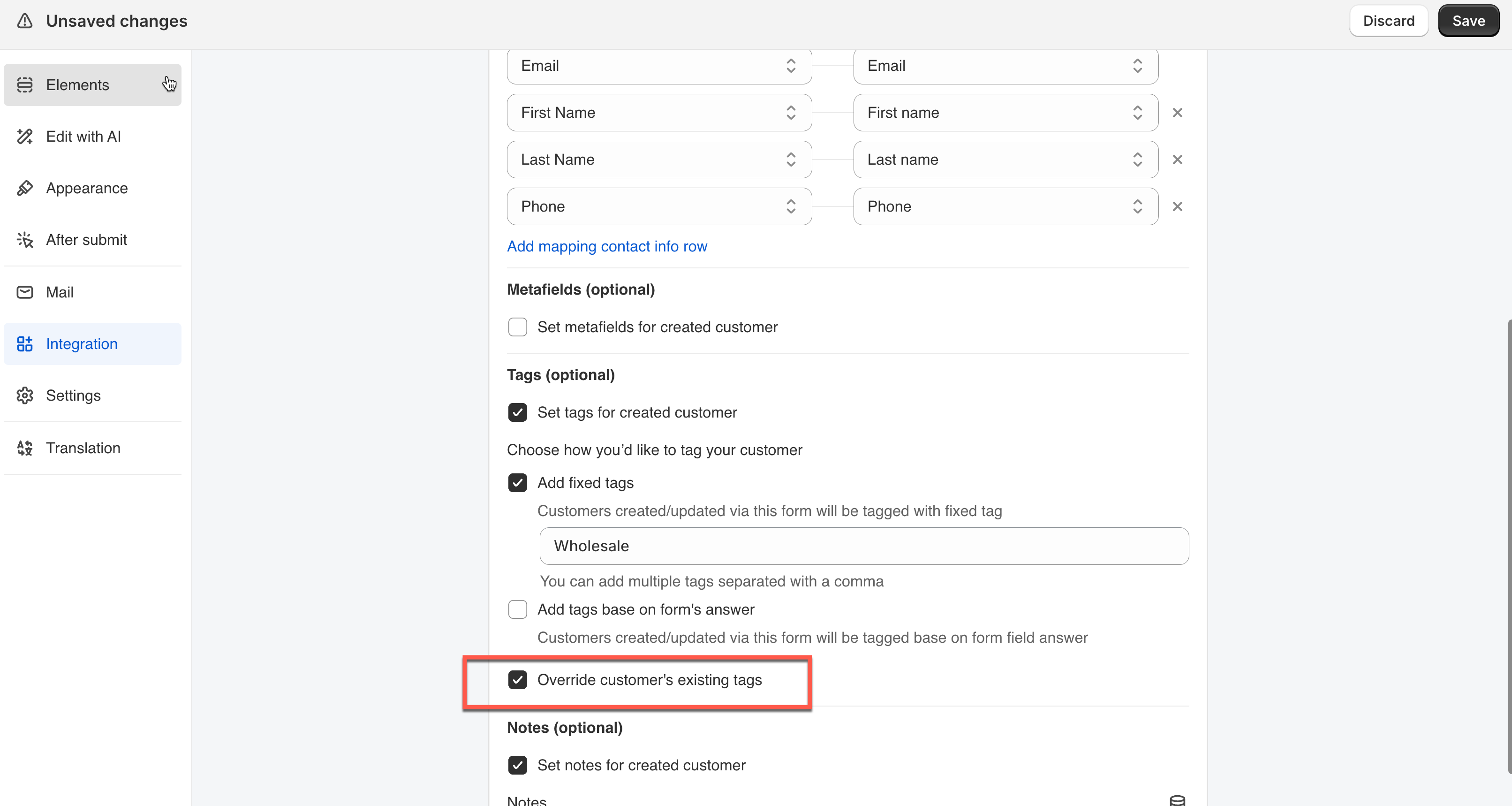
## 🔁 Override customer's existing tags

**Default:** new tags are **added** to the customer's existing ones.

To replace instead:

1. Open the form in the app > go to **Integration** > **Shopify**
2. Scroll to **Tags (optional)**
3. Tick **Override customer's existing tags**
4. Save form

<figure><img src="https://2907469752-files.gitbook.io/~/files/v0/b/gitbook-x-prod.appspot.com/o/spaces%2FehM2rz7MmKkWcJmgvJOe%2Fuploads%2Fgit-blob-ccc667cfc83496fb1cc21be150ae31620765b33a%2F2026-09-29_14-15-59.png?alt=media" alt=""><figcaption></figcaption></figure>

**Example:**

<table data-header-hidden><thead><tr><th width="228.2667236328125"></th><th></th></tr></thead><tbody><tr><td>Moment</td><td>Tags on the customer</td></tr><tr><td>Before the submission</td><td><code>Wholesale</code>, <code>VIP</code>, <code>Priority</code></td></tr><tr><td>The form adds</td><td><code>Retail</code>, <code>New-client</code></td></tr><tr><td>With override on</td><td><code>Retail</code>, <code>New-client</code> — the old three are gone</td></tr></tbody></table>

Turn it on when:

* Tags represent a status that should only ever show the latest value (eg membership tier)
* Customers resubmit the form to update their own info

>