> For the complete documentation index, see [llms.txt](https://docs.powerfulform.com/llms.txt). Markdown versions of documentation pages are available by appending `.md` to page URLs; this page is available as [Markdown](https://docs.powerfulform.com/customers-and-registration/customer-notes.md).
# Add Customer Note
Write submitted data into the Note field of the customer's Shopify profile, so your team sees it without opening the submission.
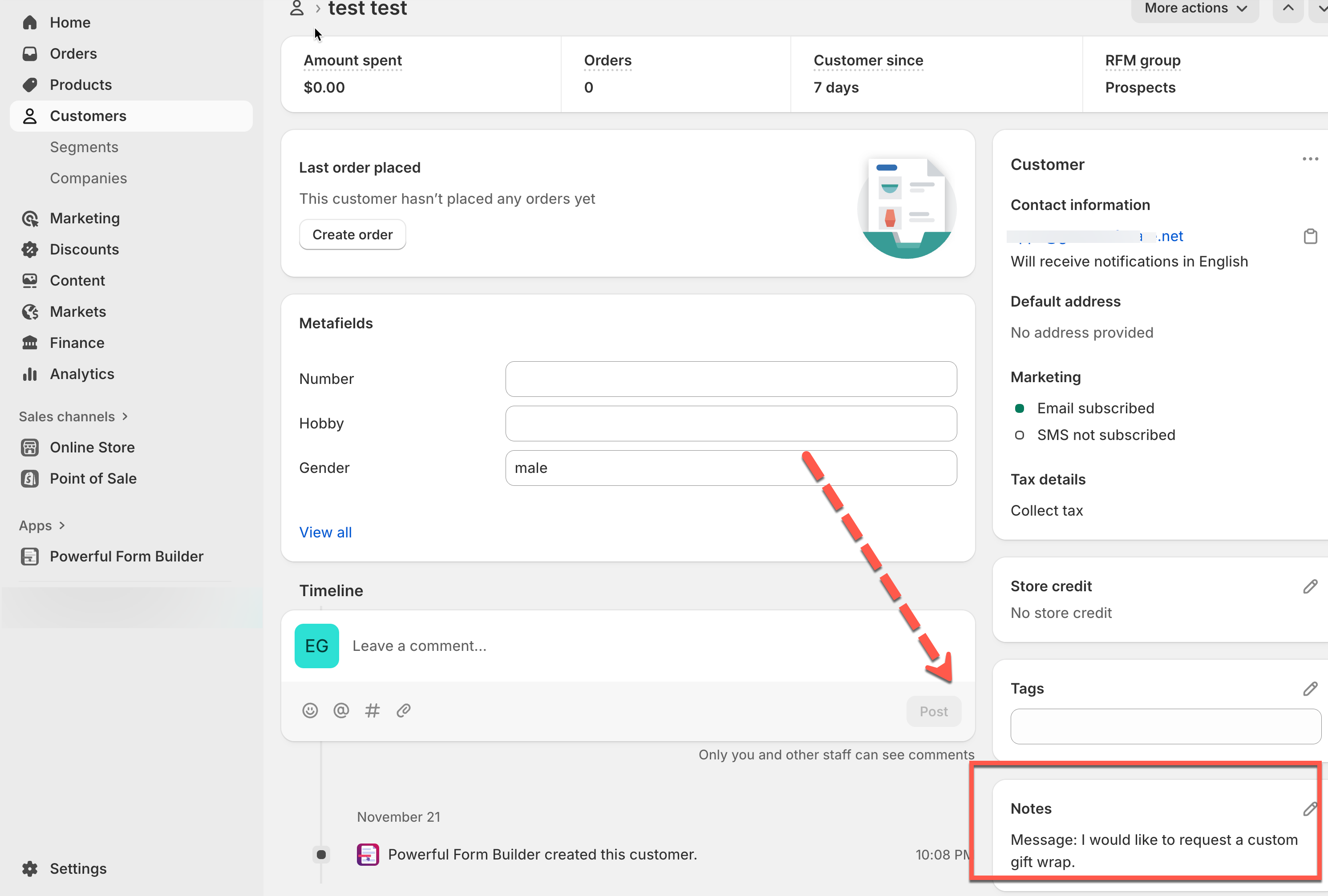
The customer note is visible here.
{% hint style="info" %}
First make sure the form is connected to Shopify customer data — see [Shopify Customers integration](/customers-and-registration/customer-fields.md).
{% endhint %}
## 🔧 Set It Up
{% stepper %}
{% step %}
#### Open the Shopify integration
* Open the app, click **Forms**, open the form
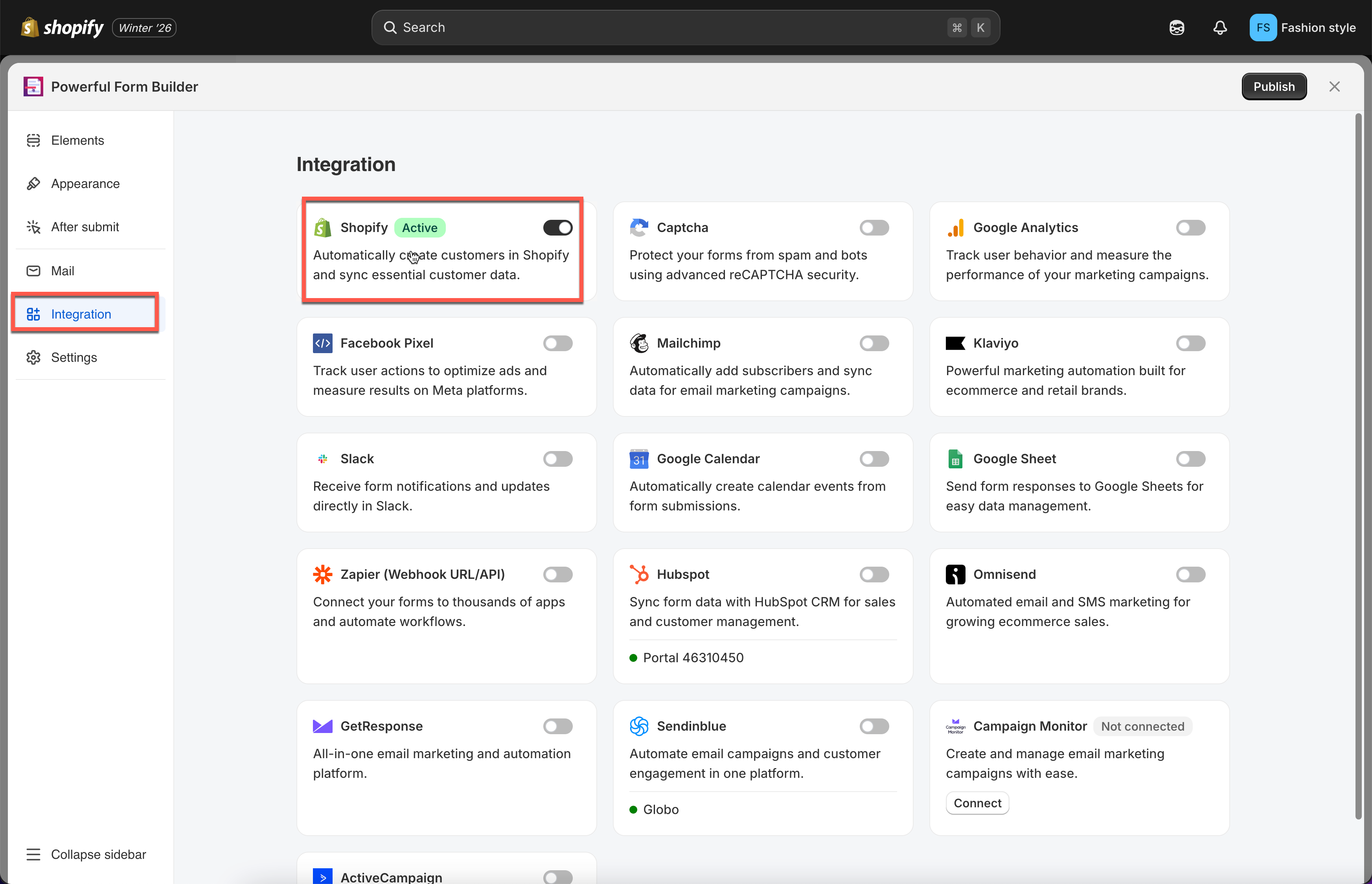
* Click the **Integration** icon in the left rail, enable **Shopify**
* click **Shopify**
{% endstep %}
{% step %}
#### Pick an account option
Open **Shopify Account options** and choose one:
**Automatically create customer**, **Send email invitation** or **Require account approval**.
{% endstep %}
{% step %}
#### Map the fields
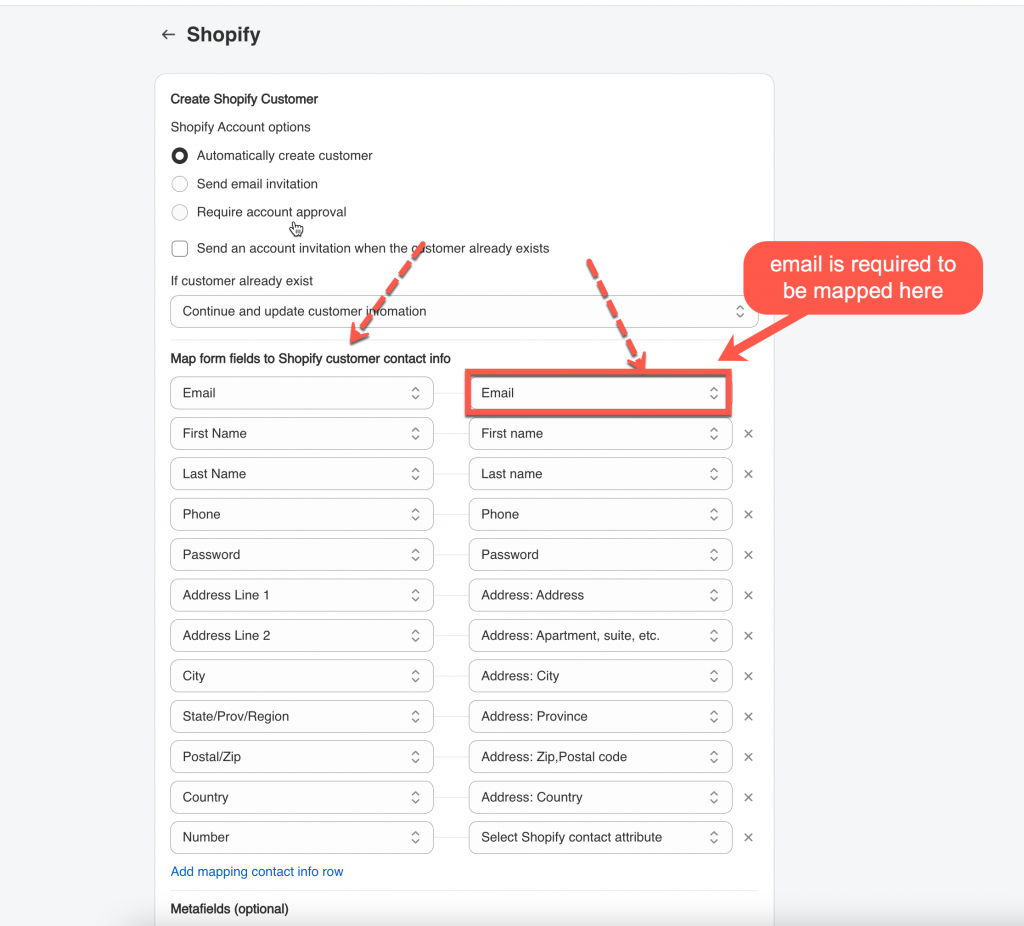
Pair the Shopify attributes on the right with your form fields on the left.
{% hint style="danger" %}
The form's **Email** field must be mapped to Shopify's **email** attribute.
{% endhint %}
{% endstep %}
{% step %}
#### Write the note
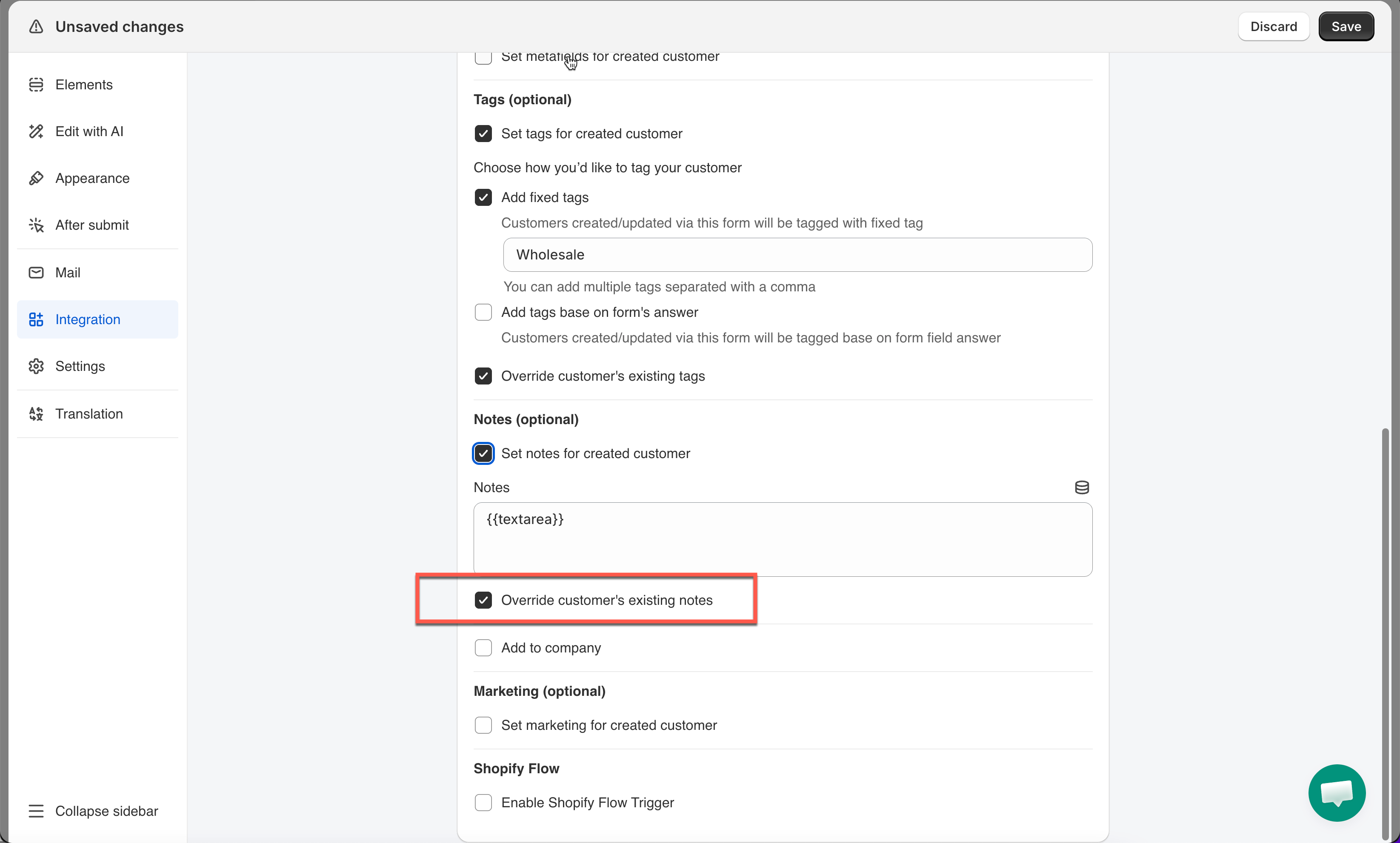
* Tick on checkbox **Set notes for created customer**
* Type into the **Notes** field. Click the **Form input** icon to insert a variable for a form field.
You can combine several fields into one note — for example `Message: [message] — Preferred contact time: [time]`.
{% endstep %}
{% step %}
#### Save
{% endstep %}
{% endstepper %}
{% hint style="warning" %}
**Note:** File Upload fields (like **Attachments**) can't be inserted into the note — only text-based answers.
{% endhint %}
## 🔄 How it works
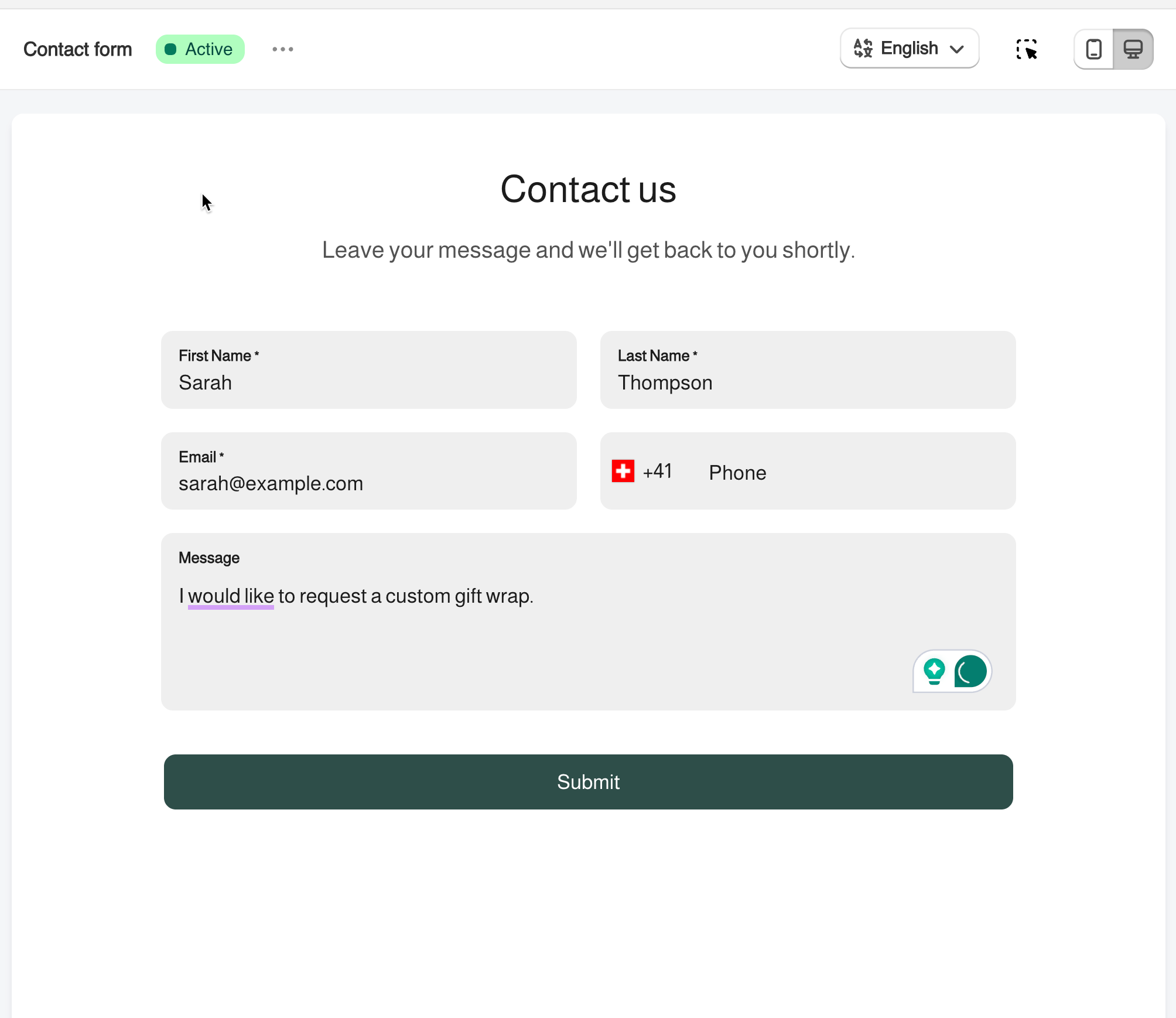
**1. Customer submits the form** — name, email, a message ("I'd like custom gift wrap"), and a phone number.
**2. App writes it to the note** — since **Message** is mapped, it lands on the customer's profile in Shopify:
```
Message: I would like to request a custom gift wrap.
```
**3. The result.** The information sits on the customer profile, so support, sales or fulfilment can read it without digging into submissions.
{% hint style="warning" %}
By default a new note is added alongside what is already there. To replace the previous note instead, see [Overwrite Customer Tags & Notes](/customers-and-registration/customer-tags.md#override-customers-existing-tags).
{% endhint %}
## 🔁 Override customer's existing notes
**Default:** a new note is **added** below the existing one.
To replace instead:
1. Open the form in the app > **Integration** > **Shopify**
2. Scroll to **Notes (optional)**
3. Tick **Override customer's existing notes**
4. Save it
> **⚠️ Warning:** Override replaces the *entire* note, including anything added by other apps or typed manually by your team. Leave it off if anything else writes to this customer's note.
####
## Next steps
* [Add Customer Tag](/customers-and-registration/customer-tags.md) — for values you want to filter and segment on.
* [Customer metafield](/customers-and-registration/customer-metafields.md) — for structured data rather than free text.
* [Overwrite Customer Tags & Notes](/customers-and-registration/customer-tags.md#override-customers-existing-tags) — replace instead of append.