> For the complete documentation index, see [llms.txt](https://docs.powerfulform.com/llms.txt). Markdown versions of documentation pages are available by appending `.md` to page URLs; this page is available as [Markdown](https://docs.powerfulform.com/customers-and-registration/customer-metafields.md).
# Customer metafield
Save an answer straight into a Shopify customer metafield — birthday, preference, membership tier, or any custom attribute you have defined.
This feature saves form answers directly into a **Shopify customer metafield** — a birthday, a preference, a membership status, or any custom attribute Shopify has no native field for.
**What you need**
* A published form in **Powerful Contact Form Builder**.
* A Shopify customer metafield that already exists. Create one in Shopify under **Settings** > **Custom data** > **Customers** > **Add definition**.
## Step 1: Create the metafield in Shopify
{% stepper %}
{% step %}
### Open Metafields
In your Shopify admin, go to **Settings** > **Metafields and metaobjects**, then click **Customers**.
{% endstep %}
{% step %}
### Add a definition
Click **Add definition** and fill in:
* A **name** — Birthday, Preferred language, VIP tier.
* A **namespace and key** — Shopify's internal identifier, for example `custom.gender`.
* A **content type** — text, number, date, boolean, chosen to match the data.
* A description, optionally.
Copy the namespace and key; you will need them in a moment.
{% endstep %}
{% step %}
### Save
Save the definition.
{% endstep %}
{% endstepper %}
## Step 2: Connect a form field to it
{% stepper %}
{% step %}
### Open the Shopify integration
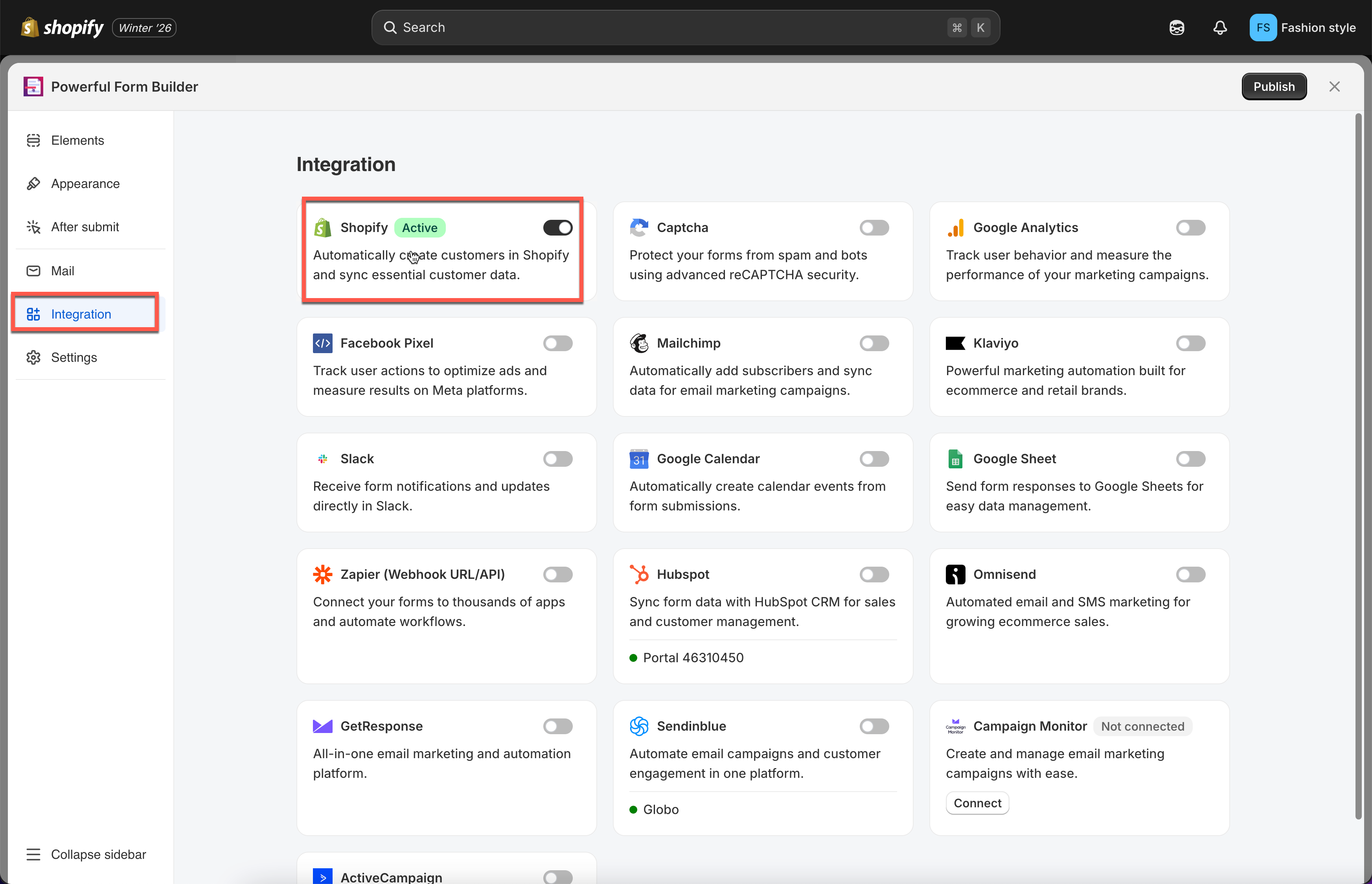
In the app, click **Forms**, open the form, then enable **Shopify** and click the **Shopify** option.
{% endstep %}
{% step %}
### Map the standard fields first
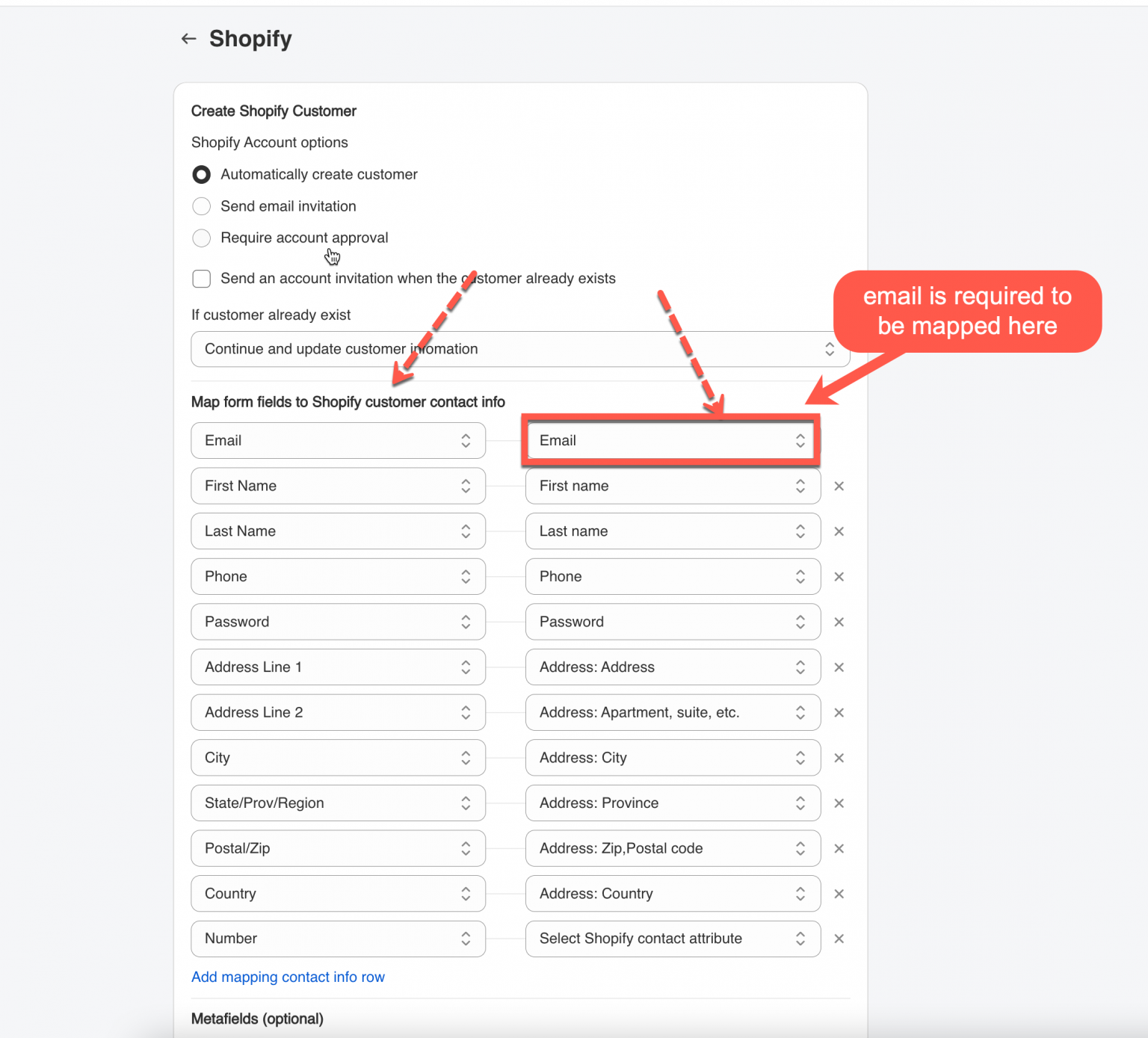
Pair the Shopify attributes on the right with your form fields on the left.
{% hint style="danger" %}
The form's **Email** field must be mapped to Shopify's **email** attribute.
{% endhint %}
{% endstep %}
{% step %}
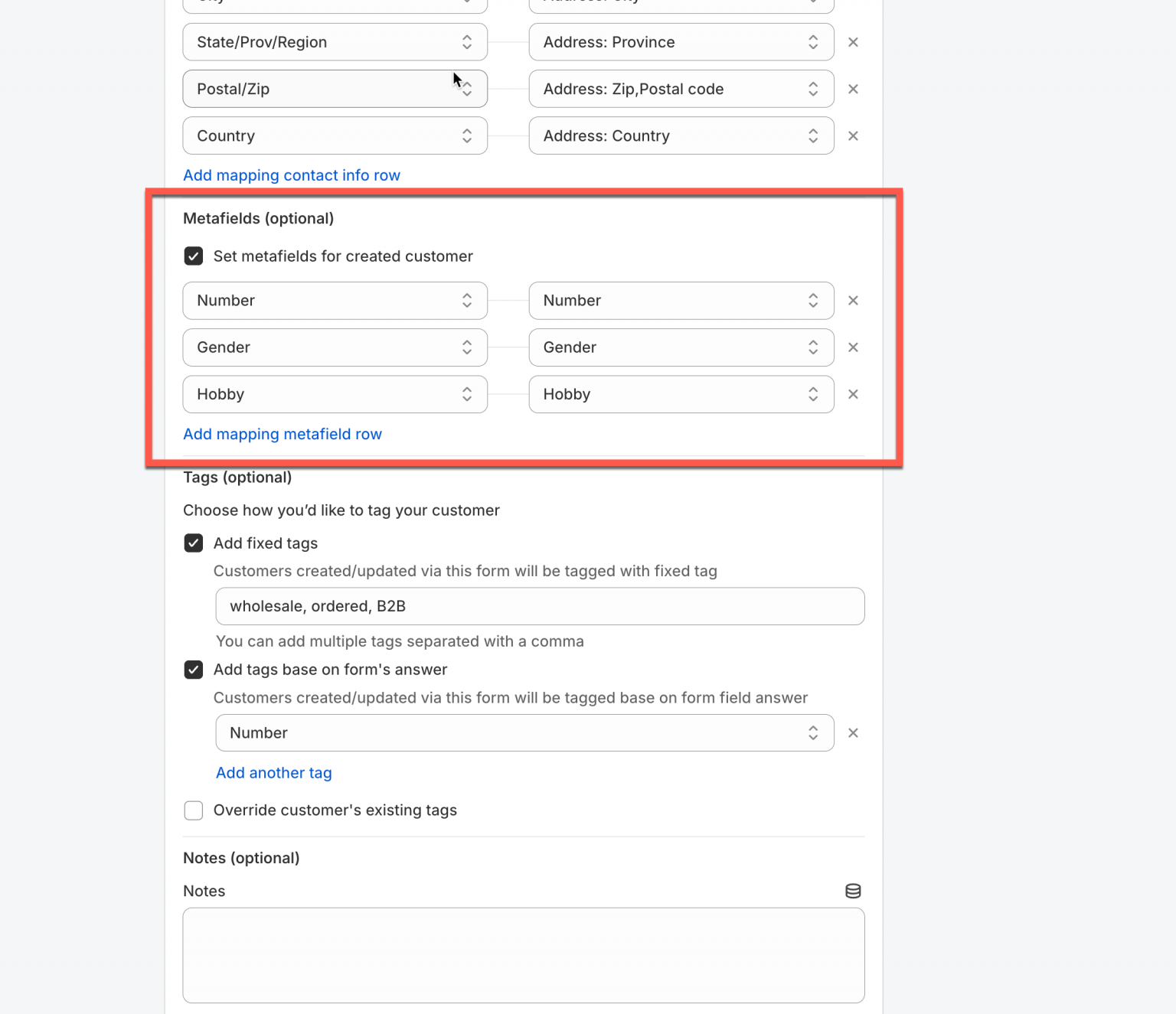
### Tick "Set metafields for created customer"
Then map form fields to metafields. Click **add mapping metafield row** for each extra pair — your form fields on the left, your metafield definitions on the right.
Form field
Shopify metafield
Gender
custom.gender
Hobby
custom.hobby
Number
custom.number
{% endstep %}
{% step %}
### Save
Click **Save** to apply the mappings.
{% endstep %}
{% endstepper %}
> **⚠️ Note:**
>
> File Upload answers are stored as a **link** (URL to the file), not the file itself.
>
> When mapping a File Upload field to a **customer metafield**, set the metafield's type to **Link** (URL) — not **File**.
>
> Mapping it to a File-type metafield won't work correctly.
## How it works
When someone fills in the form and submits, the answer from the field you linked is written to their Shopify customer metafield.
**Example.** Your form has a **Gender** field offering Male, Female and Others, mapped to `custom.gender`.
A customer picks **Male** and submits. The app creates or updates the Shopify customer profile, then writes the answer into the metafield — so in Shopify under **Customers**, that customer now shows **Gender = Male**.
## Next steps
* [Add Customer Note](/customers-and-registration/customer-notes.md) — for free text rather than a structured value.
* [Add Customer Tag](/customers-and-registration/customer-tags.md) — for values you want to segment and filter on.
* [Create Shopify Customers](/customers-and-registration/create-shopify-customers.md) — the mapping this builds on.