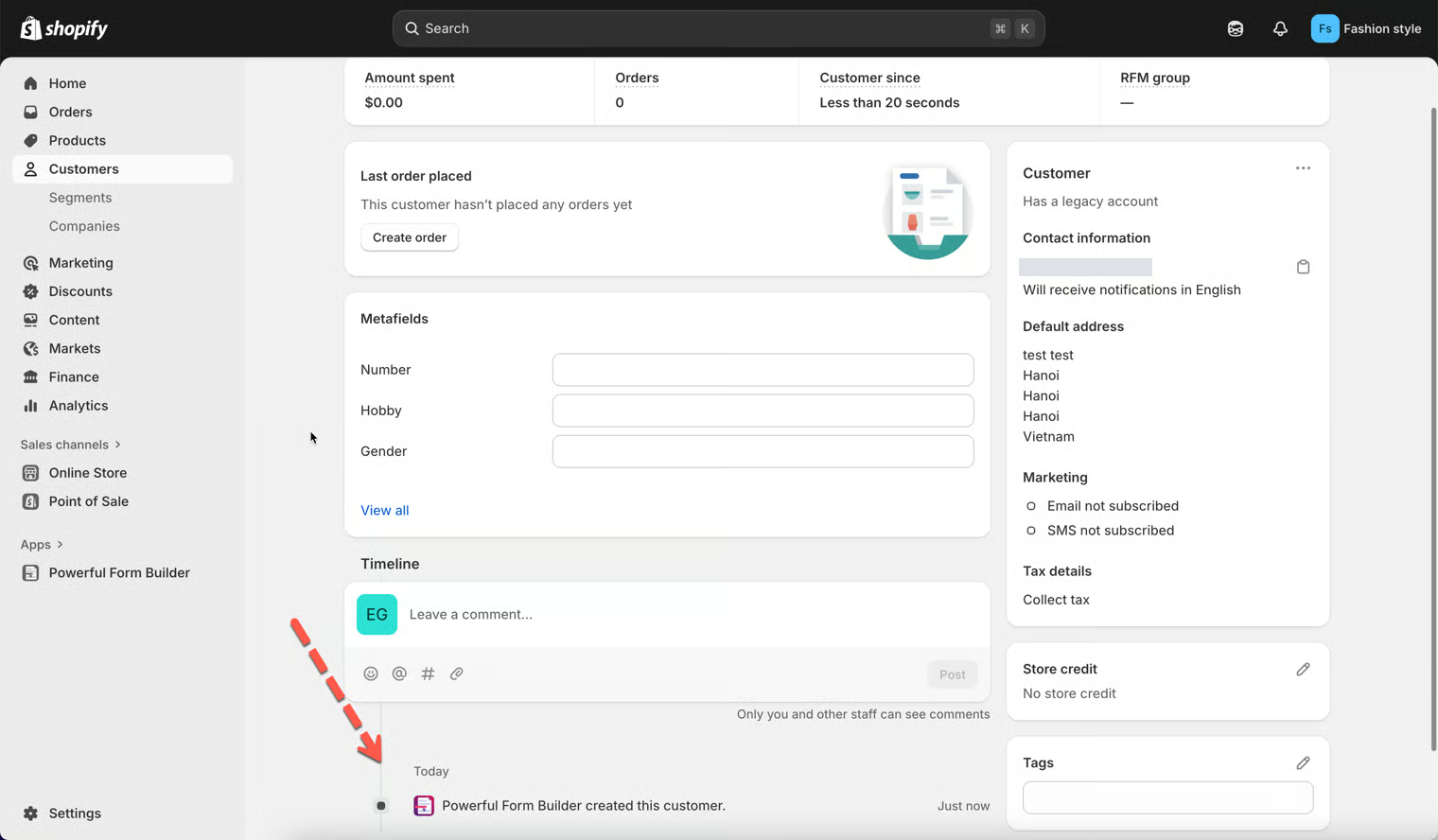
> For the complete documentation index, see [llms.txt](https://docs.powerfulform.com/llms.txt). Markdown versions of documentation pages are available by appending `.md` to page URLs; this page is available as [Markdown](https://docs.powerfulform.com/customers-and-registration/approve-or-deny.md).

# Customer account approval

Hold every registration for review, then approve the ones you want — for wholesale, membership and any store where you decide who gets an account.

If you want full control over who becomes a customer — wholesale, membership, or any restricted-access store — use **Require account approval**. Instead of creating the account immediately, people submit a form and wait for your review.

It suits:

* Wholesale and B2B stores
* Member-only shops
* Any store that validates customers before giving access

The option's own help text reads: *Only create customer records in Shopify after a customer has been approved. New customers who register will require your approval before their account can be activated*.

{% hint style="info" %}
Registration forms are a paid feature and are not available on the free plan. See [Plans and billing](/settings/plans-and-billing.md).
{% endhint %}

## Set up Require account approval

{% stepper %}
{% step %}

### Open the Shopify integration

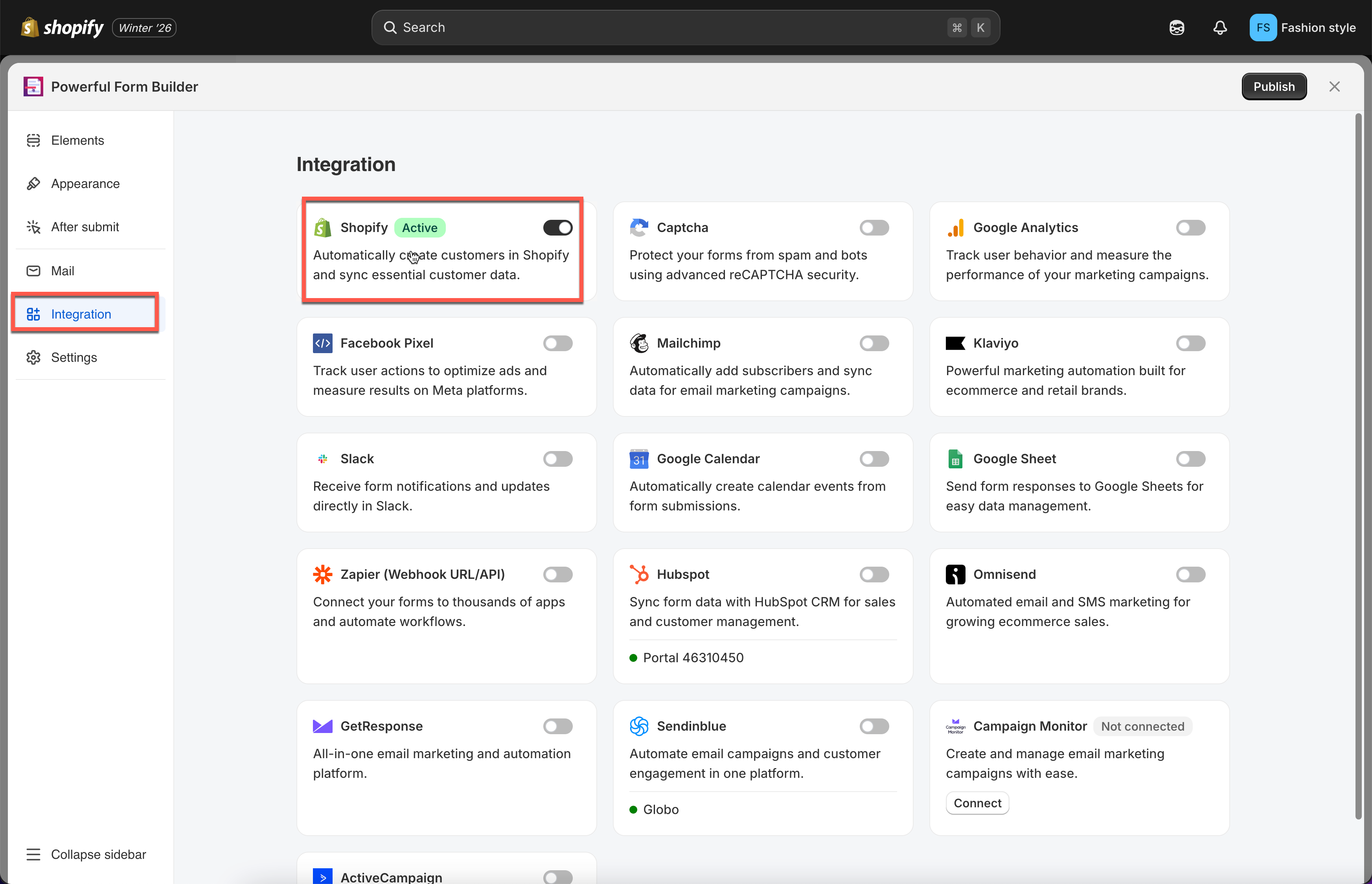
Open the app, click **Forms**, open the form, click the **Integration** icon in the left rail, enable **Shopify**, then click **Shopify** to see its settings.

<figure><img src="https://2907469752-files.gitbook.io/~/files/v0/b/gitbook-x-prod.appspot.com/o/spaces%2FehM2rz7MmKkWcJmgvJOe%2Fuploads%2Fgit-blob-930e99c825fc5532242eecffad1de59914dfa978%2Fcf-note-2.png?alt=media" alt=""><figcaption></figcaption></figure>
{% endstep %}

{% step %}

### Choose Require account approval

Under **Account options**, select **Require account approval**.

<figure><img src="https://2907469752-files.gitbook.io/~/files/v0/b/gitbook-x-prod.appspot.com/o/spaces%2FehM2rz7MmKkWcJmgvJOe%2Fuploads%2Fgit-blob-bf3808666c33eb08be9aeb82cf6d64f38decb186%2Fcf-account-approval-2.png?alt=media" alt=""><figcaption></figcaption></figure>
{% endstep %}

{% step %}

### Ask for what you need to make a decision

Approval only helps if the form gives you enough to judge. For a trade account that usually means a business name, a tax or company registration number, and a phone number you can call.

Add those fields to the form and map the ones that belong on the customer record. Anything you do not map is still saved with the submission, so you can read it while reviewing.
{% endstep %}

{% step %}

### Map the fields

Pair the Shopify attributes on the right with your form fields on the left — the form's **Last name** to Shopify's last name, and so on.

{% hint style="danger" %}
The form's **Email** field must be mapped to Shopify's **email** attribute.
{% endhint %}
{% endstep %}

{% step %}

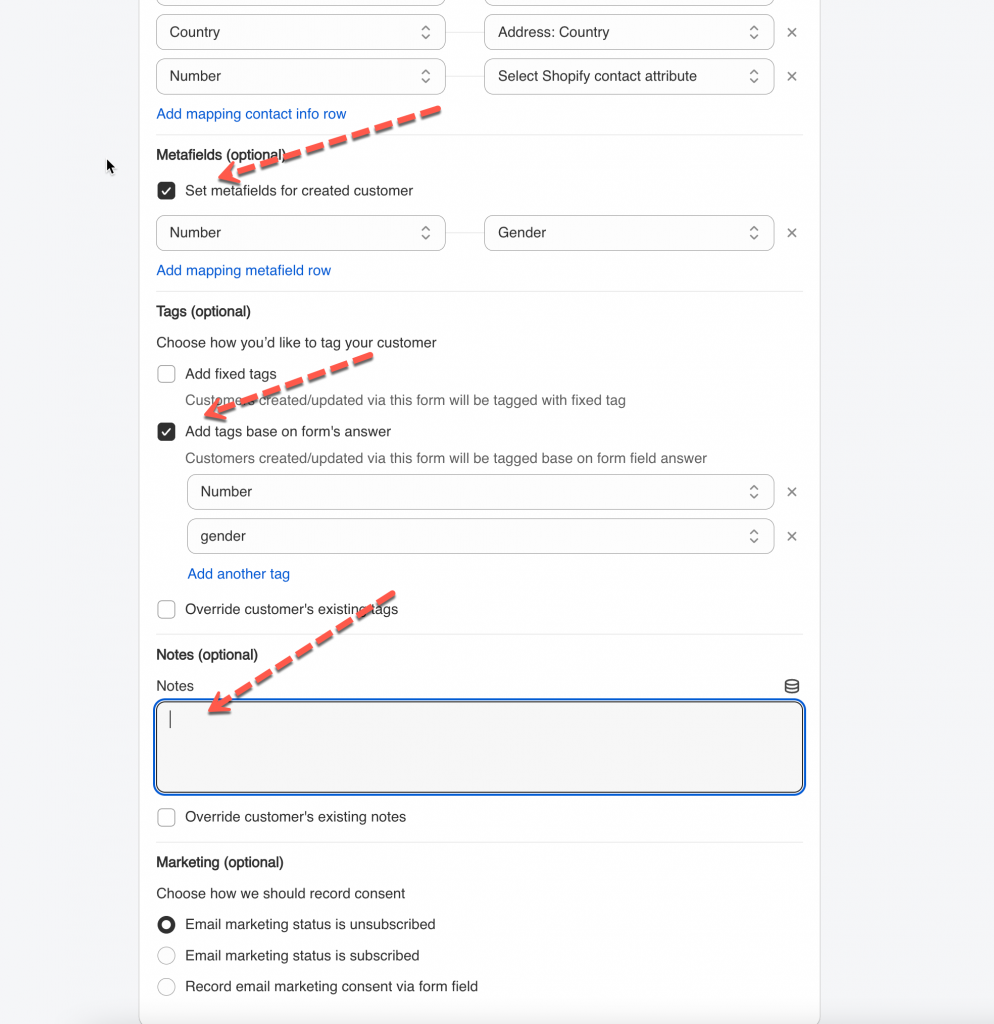
### Add tags, notes, metafields and marketing status

Optional, and useful here: a tag such as `wholesale-pending` makes the queue easy to filter later.

<figure><img src="https://2907469752-files.gitbook.io/~/files/v0/b/gitbook-x-prod.appspot.com/o/spaces%2FehM2rz7MmKkWcJmgvJOe%2Fuploads%2Fgit-blob-e3f138b8a216b16fc082af8bec03d48d0b3e66f1%2Fcf-account-approval-3.png?alt=media" alt=""><figcaption></figcaption></figure>
{% endstep %}

{% step %}

### Save and test

Save the form, then submit it yourself and check the result.
{% endstep %}
{% endstepper %}

## What the shopper experiences

They submit the form and see your after-submit message, so say clearly that their account needs approval and roughly when to expect it. The default success text does not mention approval, and shoppers who are not told will try to sign in immediately and think your store is broken.

Until you approve them, there is no working account and they cannot sign in.

{% hint style="warning" %}
Edit the after-submit message on this form to set expectations, for example: *Thanks — we have received your application. We review trade accounts within one business day and will email you once your account is active.* See [After submit](/build-your-form/after-submit.md).
{% endhint %}

## Approve an account

{% hint style="info" %}
Only customer accounts created from a form appear in the app's **Customers** tab. For an approved account, changing or deleting it in the app is reflected in Shopify's **Customers**.
{% endhint %}

{% stepper %}
{% step %}

### Open the pending queue

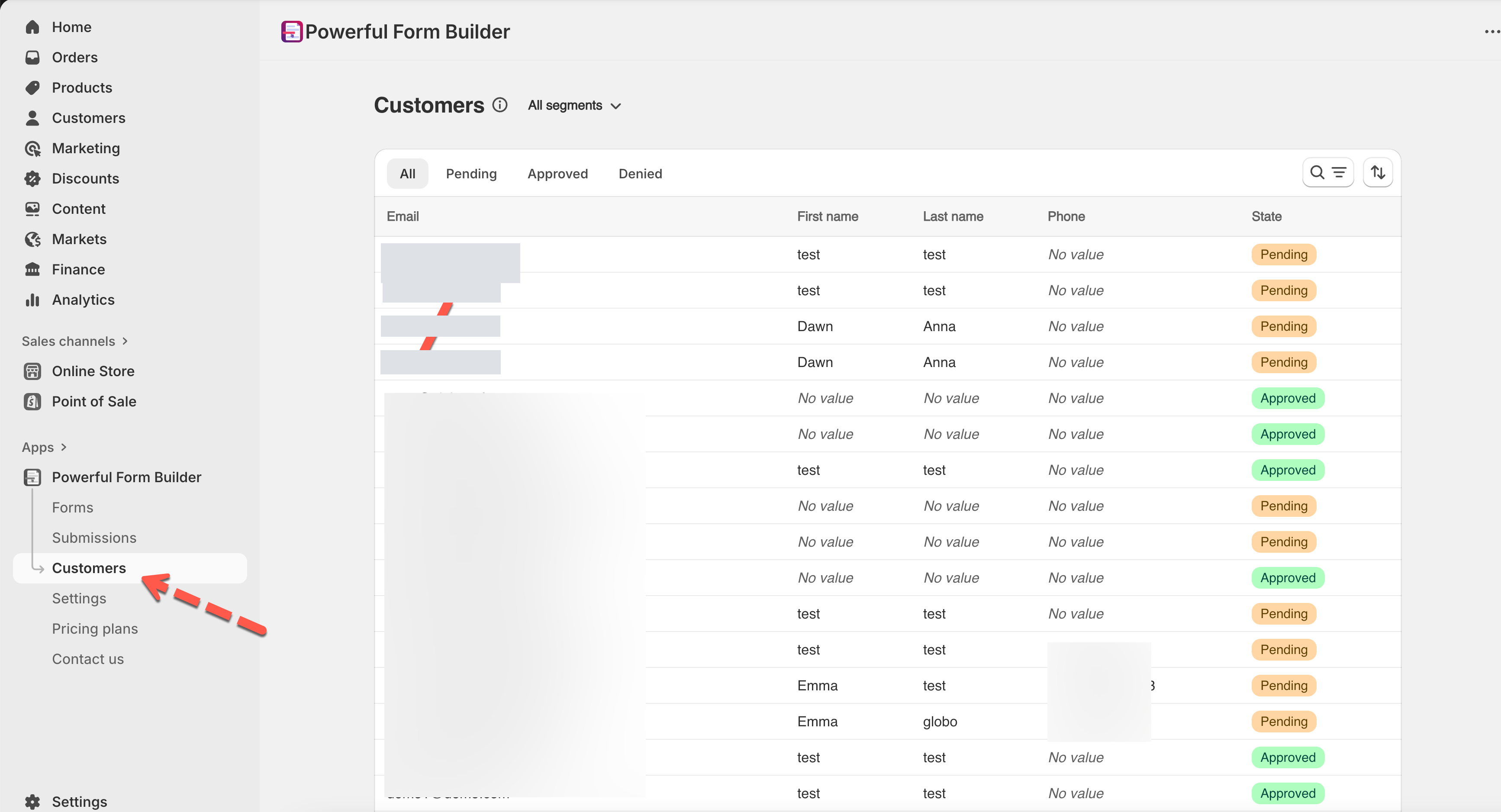
In the app, click **Customers**, then pick **Pending accounts** from the filter dropdown.

<figure><img src="https://2907469752-files.gitbook.io/~/files/v0/b/gitbook-x-prod.appspot.com/o/spaces%2FehM2rz7MmKkWcJmgvJOe%2Fuploads%2Fgit-blob-e4b8b257489968c87f87d518765357379ac699f8%2Fcf-account-approval-4.png?alt=media" alt=""><figcaption></figcaption></figure>
{% endstep %}

{% step %}

### Open the request and approve

Click the customer's name to see the detail, then click **Approve**.

<figure><img src="https://2907469752-files.gitbook.io/~/files/v0/b/gitbook-x-prod.appspot.com/o/spaces%2FehM2rz7MmKkWcJmgvJOe%2Fuploads%2Fgit-blob-218b51d55ee01c90ef6029c318390a50a578584f%2Fcf-account-approval-5.png?alt=media" alt=""><figcaption></figcaption></figure>
{% endstep %}

{% step %}

### Confirm

Confirm on the popup to approve and send an account invite to the customer's email.
{% endstep %}
{% endstepper %}

Once approved, Shopify sends a **Customer account invite** email, the customer clicks the link to set a password, and the account becomes active.

## The approval flow

<table><thead><tr><th width="70">Step</th><th>What happens</th></tr></thead><tbody><tr><td><strong>1</strong></td><td>The customer fills out your form — a wholesale application, a membership registration — and the entry is saved as a <strong>pending account request</strong>.</td></tr><tr><td><strong>2</strong></td><td>You review the details: business information, uploads, tags, metafield values and any custom fields from the form.</td></tr><tr><td><strong>3</strong></td><td>You approve or reject.</td></tr><tr><td><strong>4</strong></td><td>On approval the customer opens the Shopify invite email, sets a password, and logs in.</td></tr><tr><td><strong>5</strong></td><td>The profile is created in Shopify with everything you mapped — name, email, phone, address, tags, notes and metafields.</td></tr></tbody></table>

<table><thead><tr><th width="130">Action</th><th>What happens</th></tr></thead><tbody><tr><td><strong>Approve</strong></td><td>Shopify sends an account invite, the customer activates, and the profile is created in Shopify.</td></tr><tr><td><strong>Reject</strong></td><td>No account is created. You can optionally send a rejection email.</td></tr></tbody></table>

<figure><img src="https://2907469752-files.gitbook.io/~/files/v0/b/gitbook-x-prod.appspot.com/o/spaces%2FehM2rz7MmKkWcJmgvJOe%2Fuploads%2Fgit-blob-4f9781c7c1e55a41700518c32db02f772f2208f9%2Fcf-account-approval-6.png?alt=media" alt=""><figcaption></figcaption></figure>

The customer then has full access to the account area of your storefront.

<br>

## Next steps

* [Account options](/customers-and-registration/customer-fields.md#choose-an-account-option) — how this option compares with the other two.
* [Registration notification emails](/customers-and-registration/registration-emails.md) — the emails sent on approval and denial.
* [Add Customer Tag](/customers-and-registration/customer-tags.md) — tag approved accounts for wholesale pricing.
* [Customer notifications after registration](/customers-and-registration/registration-emails.md) — the emails that go out around approval.
* [Add Customer Tag](/customers-and-registration/customer-tags.md) — tag applicants so the queue is easy to filter.
* [Require login to submit](/customers-and-registration/require-login.md) — protect the forms only approved customers should see.