> For the complete documentation index, see [llms.txt](https://docs.powerfulform.com/llms.txt). Markdown versions of documentation pages are available by appending `.md` to page URLs; this page is available as [Markdown](https://docs.powerfulform.com/customer-fields/overwrite-customer-tags-and-notes.md).
# Overwrite Customer Tags & Notes
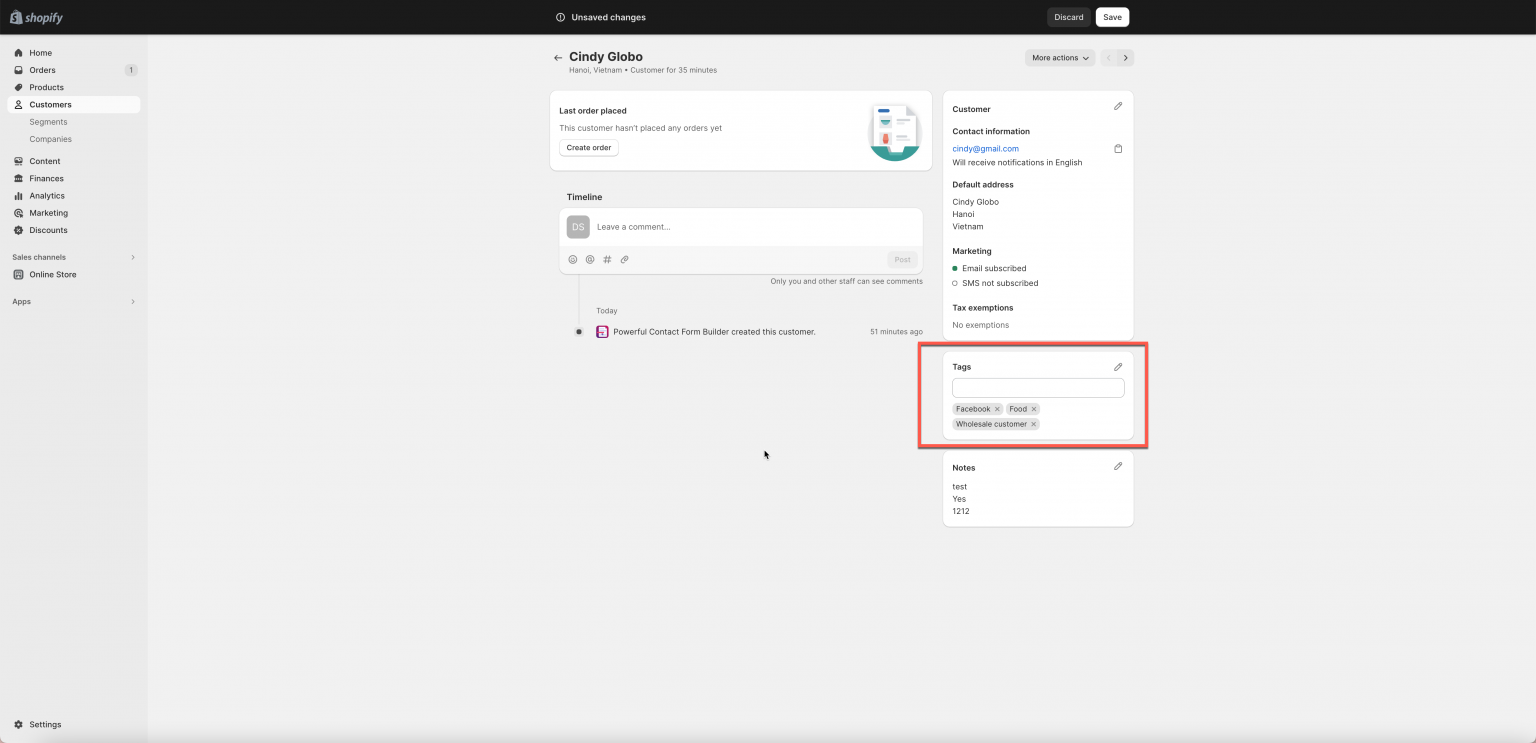
When customers submit your form multiple times, you can choose whether the app should append new tags/notes to their existing Shopify customer profile or overwrite the previous ones.
[Learn more about Customer auto tagging](/customer-fields/add-customer-tag/add-customer-tag-fixed-tag.md)
[Learn more about Automatically edit Customer Note after submitting form](/customer-fields/add-customer-note.md)
By default, new tag(s) or note content will be added each time the form is submitted. If you want the new tags or note content replace the old one (the old data is deleted), please enable the setting: **Overwrite customer’s existing tags and notes**
***
### 🛠️ How to Enable Overwrite Tags & Notes
1\. Open the app > click **Forms** > open the form you want to edit
2\. Click the **Integration** icon on the left side > enable **Shopify** and click on **Shopify** option
3. Connect form data with Shopify data and set tag or note you want to add to customer detail
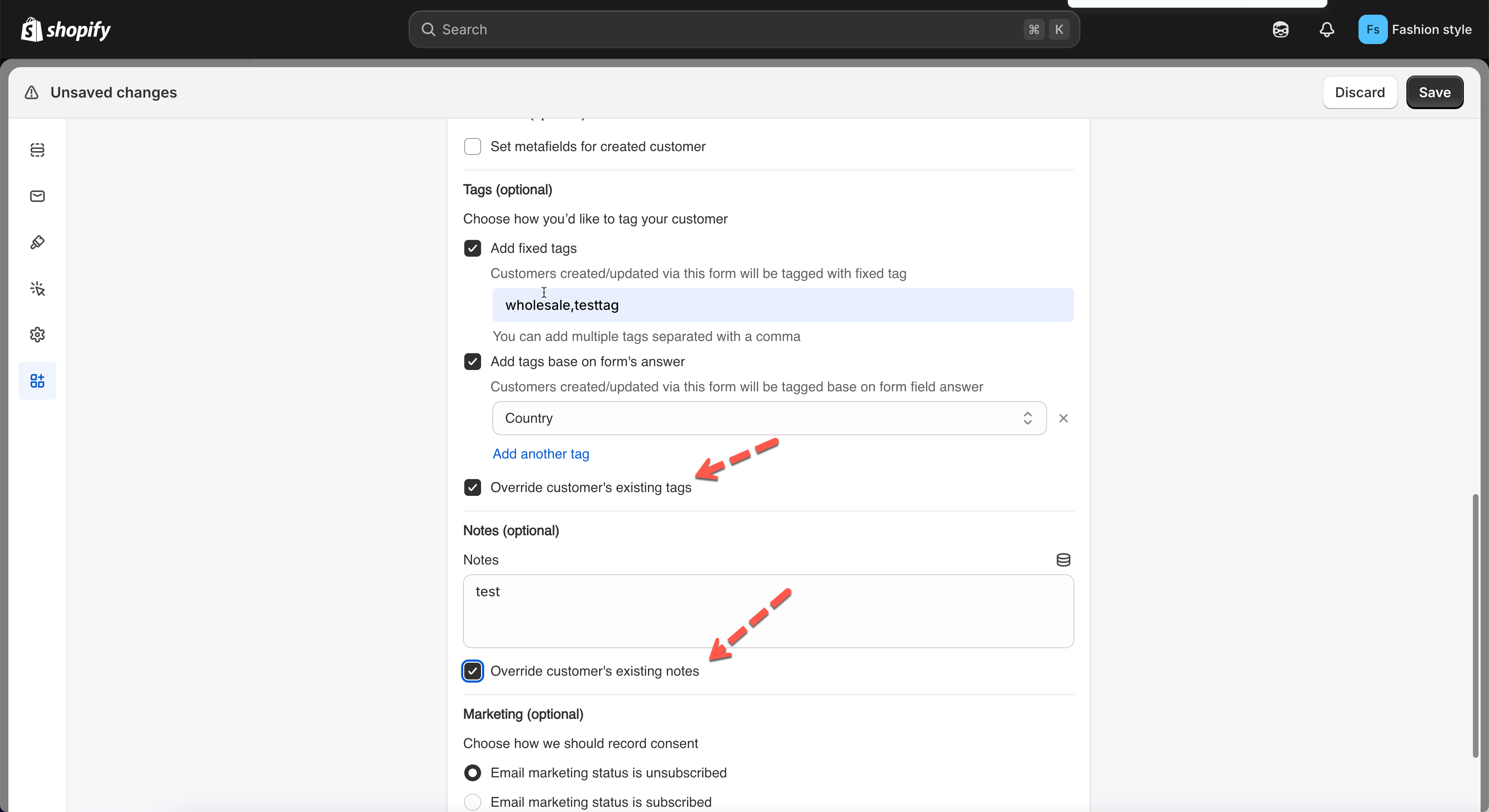
4. Tick on checkox **Override customer's existing tags** and **Override customer's existing notes**
**☑️ Overwrite customer’s existing tags**
This removes *all* previous tags and replaces them with new ones from the form submission
**☑️ Overwrite customer’s existing notes**
This clears the old note and replaces it entirely with the new note generated from the form.
5. Save the form to update the changes
***
### ✅ How It Works
#### Example 1: Overwrite Tags
**Before Submission**
Customer tags in Shopify:\
`Wholesale`, `VIP`, `Priority`
**New Form Submission**
Form adds tags:\
`Retail`, `New-client`
**If “Overwrite tags” is enabled**
Old tags are removed → replaced with:\
`Retail`, `New-client`
***
#### Example 2: Overwrite Notes
**Before Submission**
Customer note:
> “Requested delivery on Monday.”
**New Form Submission**
Generated note from form:
> “Prefers evening appointments.”
**If “Overwrite notes” is enabled**
The old note is replaced entirely with the new one.
***
### 🎯 When Should You Enable Overwrite?
Use overwrite mode when you want:
* A customer’s latest submission to always represent their current status
* Tags to behave like categories (only ONE active category at a time)
* Notes to reflect only the most recent form data
* Customers updating their profile repeatedly (e.g., membership type, customer category, preferences)
***
#### Need More Help?
If you still need assistance, please contact us at . Our team will be happy to help you resolve any issues or guide you further