> For the complete documentation index, see [llms.txt](https://docs.powerfulform.com/llms.txt). Markdown versions of documentation pages are available by appending `.md` to page URLs; this page is available as [Markdown](https://docs.powerfulform.com/build-your-form/special-form-types/multi-step-forms.md).
# Multi-step forms
Split a long form into smaller steps so it is easier to complete and less overwhelming.
A **multi-step form** splits long forms into smaller pages (steps), making them easier to complete and less overwhelming. This guide shows you how to create, customize, and manage a multi-step form in just a few minutes.
In the app, **step**, **page** and **group** all mean the same thing.
## 📝 Steps to create a multi-step form
{% stepper %}
{% step %}
### Create or open your form
* Open the app > click **Forms** > click **Create new form**
* Select the **Multi-step** form
{% endstep %}
{% step %}
### Add more steps to your form
#### **Add a step**
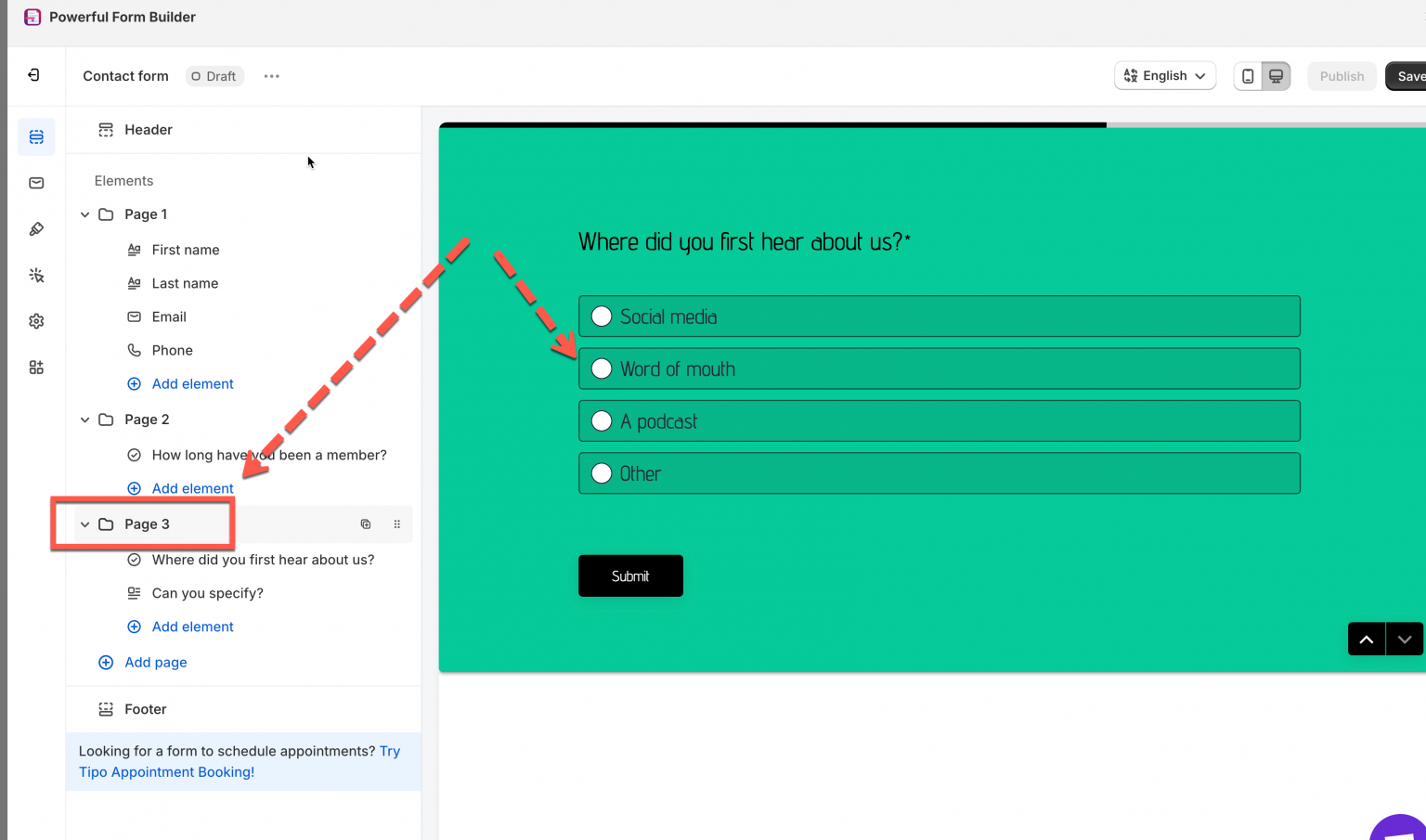
Your form starts with a single default step (Page 1, 2, 3). To add more:
1. Click **Add page** in the left sidebar
2. A new step (Page 4, Page 5, and so on) appears
3. Drag to reorder pages if needed
Click a page name and its preview opens on the right.
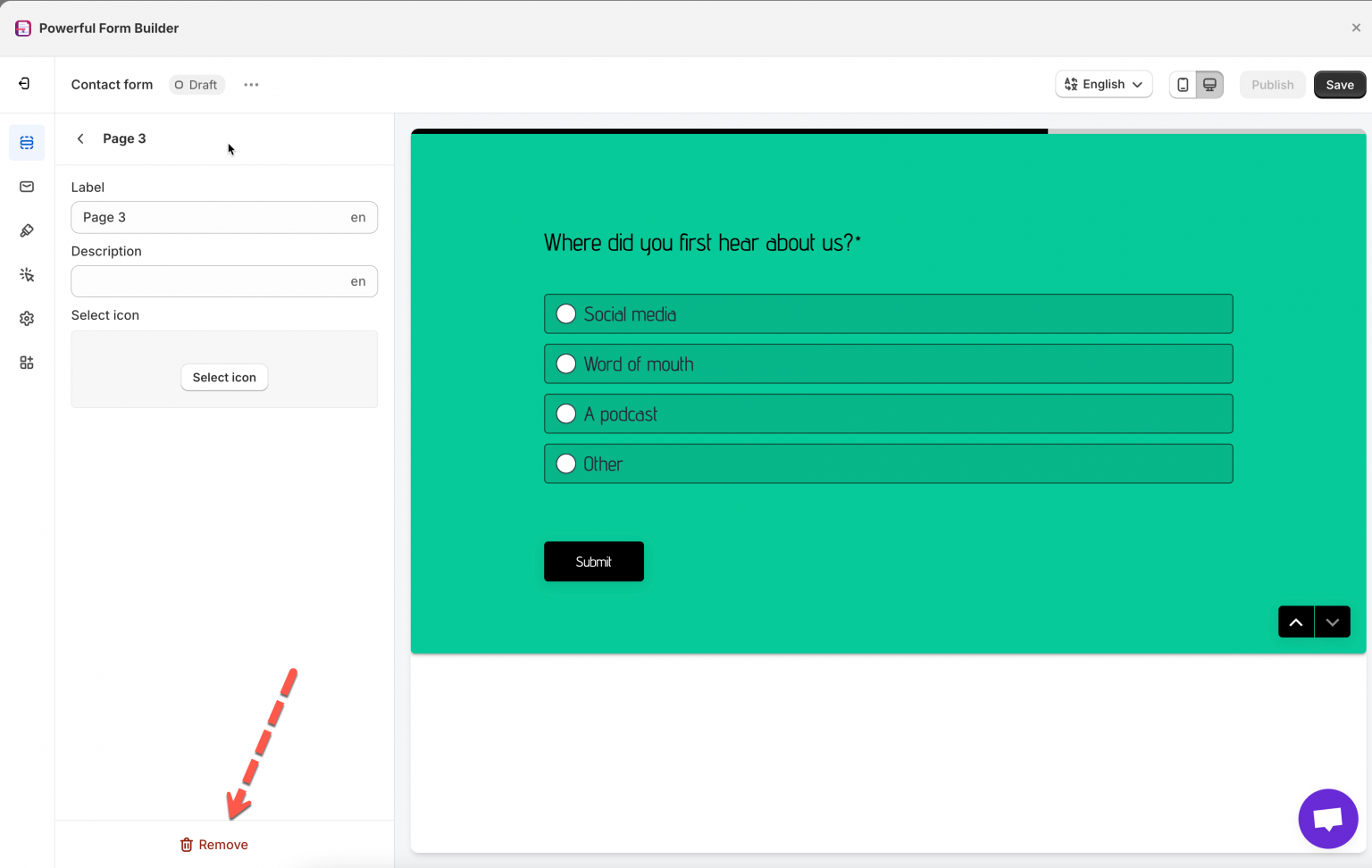
#### **Remove a step**
Click the page name, then click **Remove** at the bottom left.
{% endstep %}
{% step %}
### Add fields to each step
Click a step, then add the form fields you want on it.
* Keep step 1 simple — name, email.
* Put extra details or optional fields on later steps.
* Use short text and clear labels.
{% endstep %}
{% step %}
### Preview your multi-step form
Click the **Desktop / Mobile preview icons** at the top right to see how people will move through the steps. Check the step transitions, field spacing, progress bar and mobile layout.
{% endstep %}
{% step %}
### Publish your multi-step form
Once everything looks good, click **Publish** and choose where to display the form — a page, a product. See [Display a form on a specific page](/display-and-placement/specific-page.md).
{% endstep %}
{% endstepper %}
## 📝 Add conditional logic (optional)
You can make a multi-step form smarter: show a step *only* when someone chooses a certain answer, or skip steps automatically to shorten the form. See [Set logic conditions for form](/build-your-form/conditional-logic.md).
## 💡 How it works on your storefront
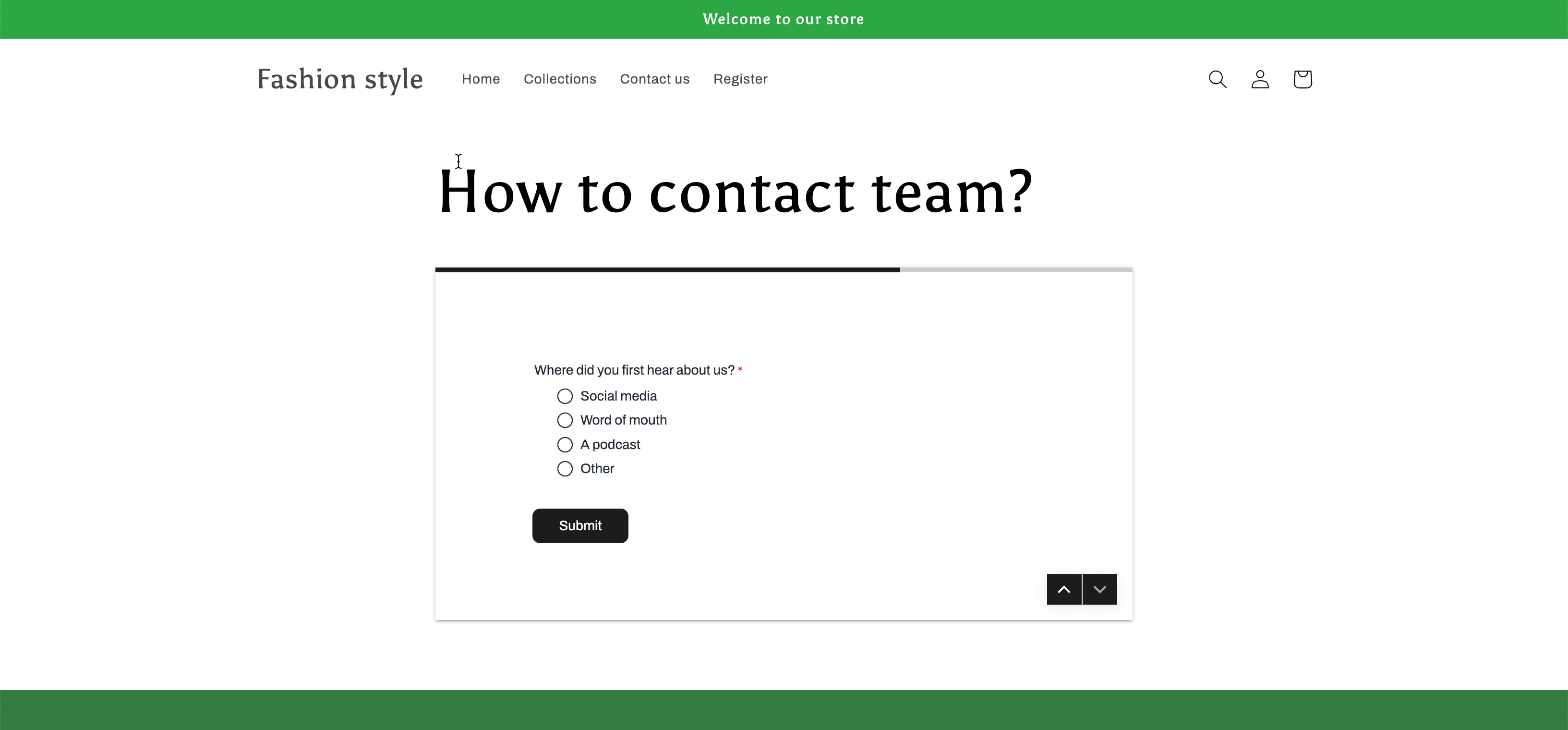
When a multi-step form is published, customers do not see every question at once. The form is broken into clear steps, which makes it faster to finish.
* **Start the form.** The customer opens the page and sees the first group of questions only — name, email, phone. They fill them in and click **Next**.
* **Continue to the next section.** After **Next**, the form moves smoothly to the following step.
* **Last page.** On the final step the customer answers the last questions and clicks **Submit**.
Once submitted, all steps are combined into a single submission, and the data goes to the app, your email notifications and your integrations.
{% hint style="info" %}
Multi-step form template can not show up as a popup form on the site.
{% endhint %}
## Next steps
* [Set logic conditions for form](/build-your-form/conditional-logic.md) — show or skip a step based on an answer.
* [Add and arrange elements](/build-your-form/add-and-arrange-elements.md) — move fields between steps.
* [Publish the form to a page](/getting-started/quickstart/publish-the-form.md) — put the finished form on your store.