> For the complete documentation index, see [llms.txt](https://docs.powerfulform.com/llms.txt). Markdown versions of documentation pages are available by appending `.md` to page URLs; this page is available as [Markdown](https://docs.powerfulform.com/build-your-form/special-form-types/bulk-order-form.md).

# Bulk Order Form

Let customers pick multiple products, variants, and quantities in one form, then send you the request.

## ℹ️ Before You Begin

<table><thead><tr><th width="172.9000244140625">Good to know</th><th>Detail</th></tr></thead><tbody><tr><td><strong>No automatic orders</strong></td><td>The form only <strong>collects order data</strong>. It doesn't create a real Shopify order.</td></tr><tr><td><strong>Limit</strong></td><td>One Bulk Order Form per store</td></tr><tr><td><strong>Plan</strong></td><td>Paid plan required</td></tr></tbody></table>

## 🔧 Create the Form

1\. Open the app > click **Forms** > click **Create new form** button

2\. In the template list, select **Order** > choose **Bulk Order** **form**

<figure><img src="https://2907469752-files.gitbook.io/~/files/v0/b/gitbook-x-prod.appspot.com/o/spaces%2FehM2rz7MmKkWcJmgvJOe%2Fuploads%2Fgit-blob-2197b2b2ea580e5c4ebc5ee2ca64a230a4a149ca%2Fimage%20(20).png?alt=media" alt=""><figcaption></figcaption></figure>

3\. Add **products** to this form (see detailed guideline below)

4\. Set up other needed form elements

5\. Click **Save** to finish.

<figure><img src="https://2907469752-files.gitbook.io/~/files/v0/b/gitbook-x-prod.appspot.com/o/spaces%2FehM2rz7MmKkWcJmgvJOe%2Fuploads%2Fgit-blob-85121bb7d1a0a992d5a06d8a40c5c1a3b6f8aa2a%2Fimage%20(21).png?alt=media" alt=""><figcaption></figcaption></figure>

***

## ⚙️ **Add products to bulk order form** <a href="#add-products-to-bulk-order-form" id="add-products-to-bulk-order-form"></a>

1\. Click **Products for Bulk Order** element

<figure><img src="https://2907469752-files.gitbook.io/~/files/v0/b/gitbook-x-prod.appspot.com/o/spaces%2FehM2rz7MmKkWcJmgvJOe%2Fuploads%2Fgit-blob-358e9a5ea54195db3a69293d65a16571e606e23a%2F2026-09-28_16-06-07.png?alt=media" alt=""><figcaption></figcaption></figure>

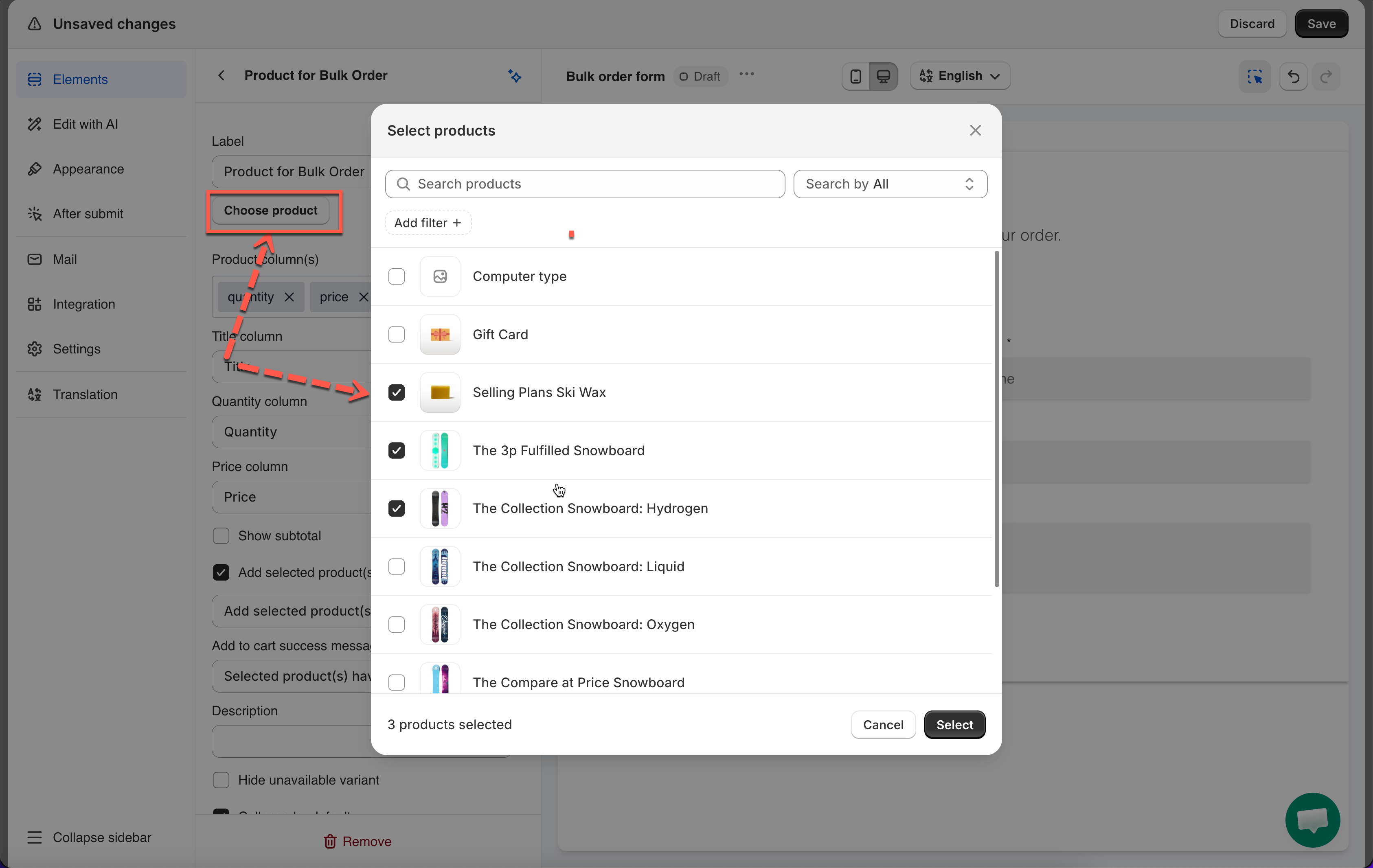
2\. Click **Choose product** button > tick on the corresponding checkbox to select any products to showcase on this form.

The list of selected items will appear under the **Choose product** button. You can delete or change the position of each product.

<figure><img src="https://2907469752-files.gitbook.io/~/files/v0/b/gitbook-x-prod.appspot.com/o/spaces%2FehM2rz7MmKkWcJmgvJOe%2Fuploads%2Fgit-blob-df31bc9a1dd9e1d5c5cb75003bcece7842ac28b8%2F2026-09-28_16-06-42.png?alt=media" alt=""><figcaption></figcaption></figure>

3\. Select the product information in **Product column(s).** They are **quantity, price, and total**

<figure><img src="https://2907469752-files.gitbook.io/~/files/v0/b/gitbook-x-prod.appspot.com/o/spaces%2FehM2rz7MmKkWcJmgvJOe%2Fuploads%2Fgit-blob-9628c5222fbc1862e41aa481838eb0b22b46f8d3%2F2026-09-28_16-07-50.png?alt=media" alt=""><figcaption></figcaption></figure>

4\. Enable **Add selected product(s) to cart** option if you want to allow customers adding selected items to the cart page

5\. Click **Save** to finish

## 🌐 Display form on the store <a href="#display-form-on-the-store" id="display-form-on-the-store"></a>

To show the form on front store, please view this guide: <https://docs.powerfulform.com/form-setup/display-a-form-on-a-specific-page>

Result on the front store:

<img src="https://2907469752-files.gitbook.io/~/files/v0/b/gitbook-x-prod.appspot.com/o/spaces%2FehM2rz7MmKkWcJmgvJOe%2Fuploads%2Fgit-blob-2135def320113da85e7ca18ca831ccd293ee859a%2Fcf-bulk-order-form-products.png?alt=media" alt="" height="994" width="1536">

***

#### 🧩 How the form works <a href="#how-the-form-works" id="how-the-form-works"></a>

**On the Storefront (Customer Experience)**

```
Customer picks products and quantities  
→  Submits the form  
→  You get the request in Submissions

```

#### **Customer side:**

1. **Select products.** They see the products you chose. Each one expands to show its variants (size, color).
2. **Choose variants and quantities.** Prices show next to each item.
3. **Add to cart (optional).** If you enabled it, they can add the selection to their cart.
4. **Fill in contact details.** Name, email, phone, plus an optional message (for example, asking for a quote).
5. **Submit.**

<figure><img src="https://2907469752-files.gitbook.io/~/files/v0/b/gitbook-x-prod.appspot.com/o/spaces%2FehM2rz7MmKkWcJmgvJOe%2Fuploads%2Fgit-blob-f3aa219fb917a3cdf10e819ceac7c4917aefbf2e%2Fimage%20(22).png?alt=media" alt=""><figcaption></figcaption></figure>

#### **Your side:**

The request appears in **Submissions**, with the selected products and variants, quantities and prices, and the customer's details.

Contact them by email or phone to send a quote, create an invoice, or confirm pricing and availability.

<figure><img src="https://2907469752-files.gitbook.io/~/files/v0/b/gitbook-x-prod.appspot.com/o/spaces%2FehM2rz7MmKkWcJmgvJOe%2Fuploads%2Fgit-blob-e8e0e5de52e511e83e498c05937cc836a68afc5e%2Fimage%20(23).png?alt=media" alt=""><figcaption></figcaption></figure>

## 📺 Tutorial video

{% embed url="<https://www.youtube.com/watch?v=zUH1wfQCwO4>" %}