> For the complete documentation index, see [llms.txt](https://docs.powerfulform.com/llms.txt). Markdown versions of documentation pages are available by appending `.md` to page URLs; this page is available as [Markdown](https://docs.powerfulform.com/build-your-form/form-editor-overview.md).

# Form editor

Learn your way around the form editor so you can find every control quickly.

The form editor is the full-screen workspace where you build a form. This section explains the left icon rail, the top bar and the live preview, so the rest of the guides make sense. Read it once before you start editing.

## 📝 Open the editor

* Open the app > click **Forms**
* Click the form you want to edit. The editor opens over the whole screen: editing panels on the left, a live preview of the form on the right.

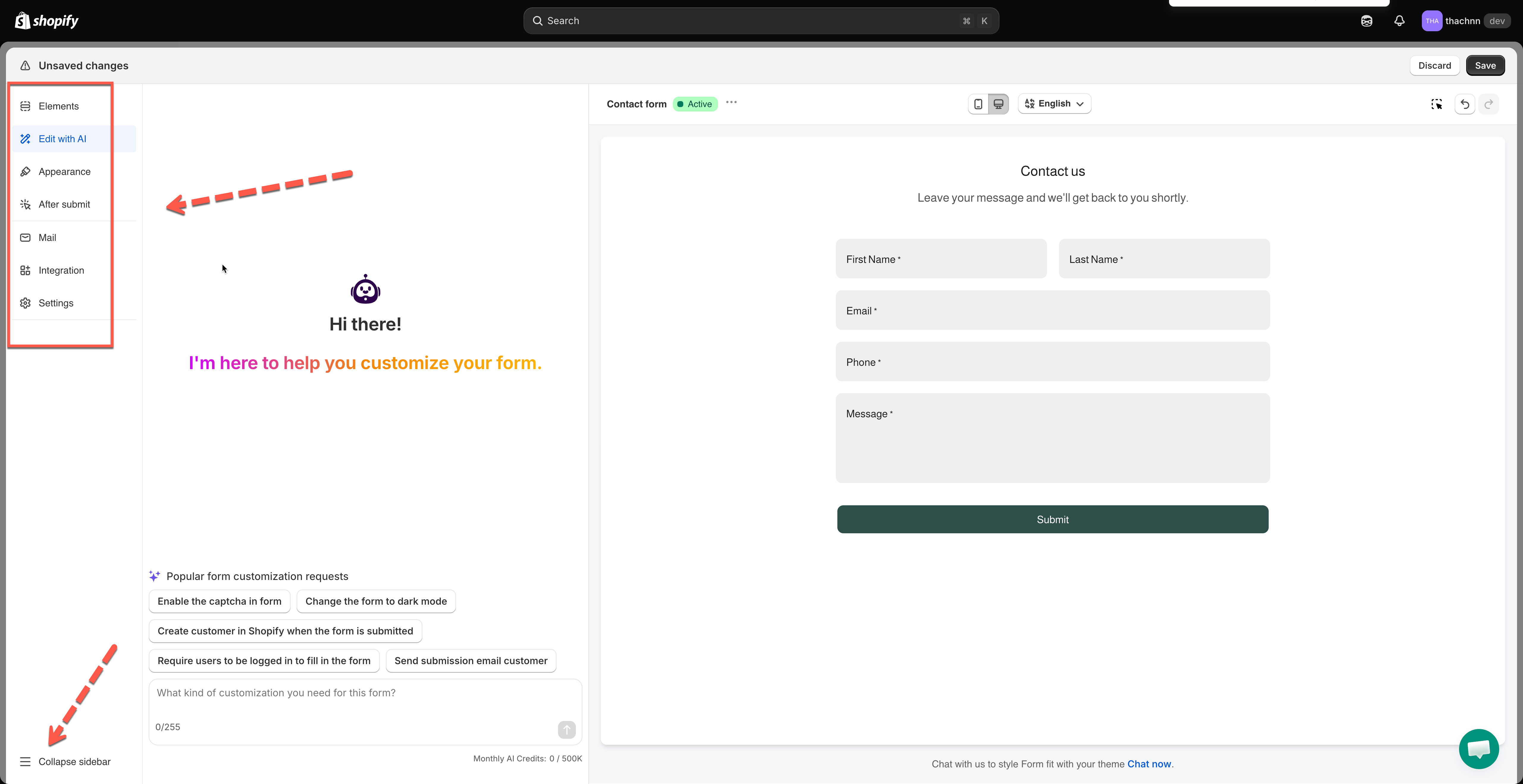
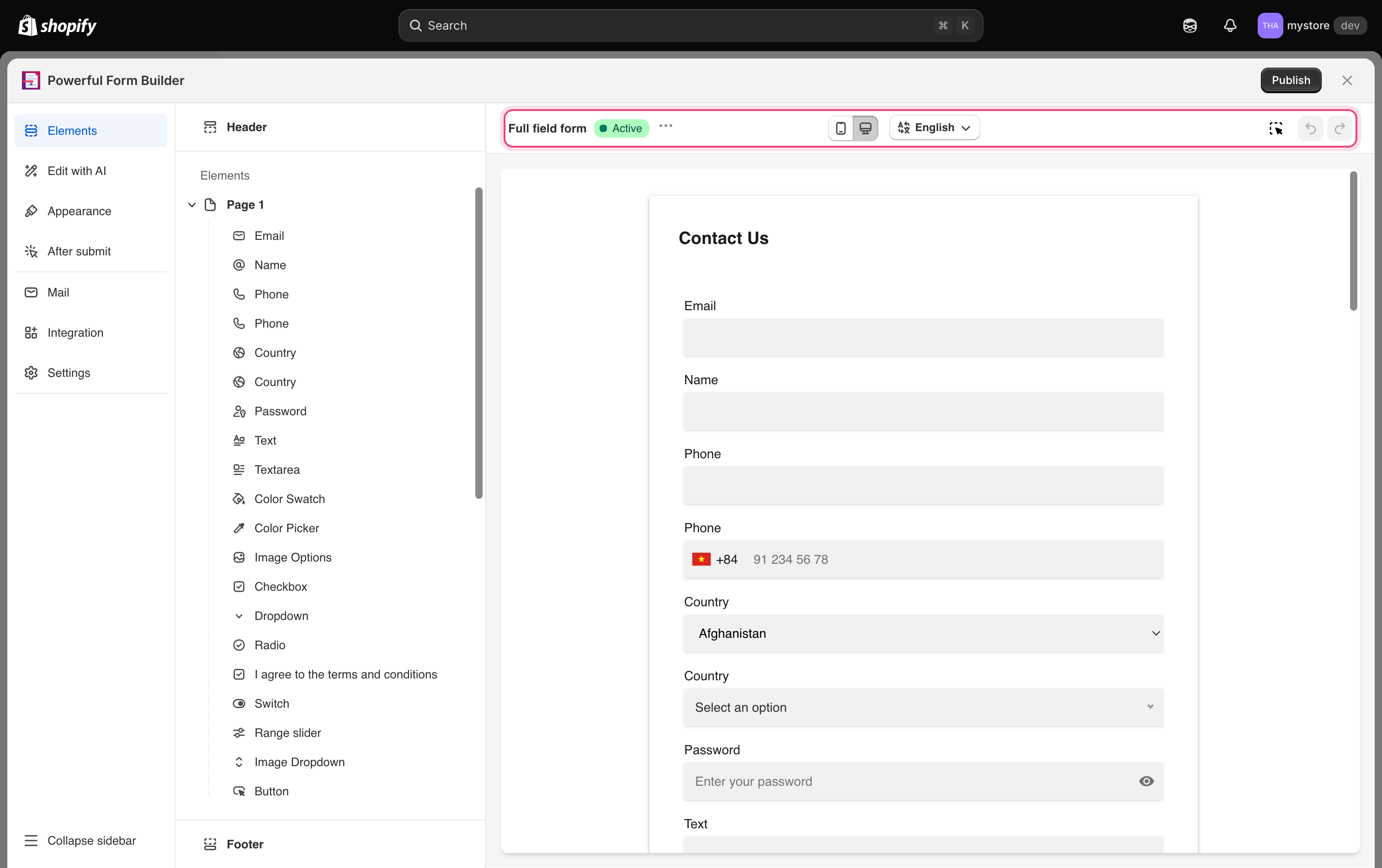
<figure><img src="https://2907469752-files.gitbook.io/~/files/v0/b/gitbook-x-prod.appspot.com/o/spaces%2FehM2rz7MmKkWcJmgvJOe%2Fuploads%2Fgit-blob-ce06b2d46d671c8d1e3147f01e614f763fb4bb2f%2Fscreenshot-build-your-form-editor-overview.png?alt=media" alt="The full form editor with a form open. Highlight three areas: the left icon rail, the editing panel next to it, and the live preview pane on the right."><figcaption><p>The full form editor with a form open.</p></figcaption></figure>

***

## 📋 Left Sidebar

<table><thead><tr><th width="183.933349609375">Tab</th><th>What it's for</th></tr></thead><tbody><tr><td><strong>Elements</strong></td><td>Header, fields, Footer <em>(opens here by default)</em></td></tr><tr><td><strong>Edit with AI</strong></td><td>Describe a change in plain language</td></tr><tr><td><strong>Appearance</strong></td><td>Layout, colors, font, width, background</td></tr><tr><td><strong>After submit</strong></td><td>What visitors see once they submit</td></tr><tr><td><strong>Mail</strong></td><td>Email notifications (you + customer)</td></tr><tr><td><strong>Integration</strong></td><td>Third-party connections</td></tr><tr><td><strong>Settings</strong></td><td>Error messages, form schedule</td></tr></tbody></table>

<figure><img src="https://2907469752-files.gitbook.io/~/files/v0/b/gitbook-x-prod.appspot.com/o/spaces%2FehM2rz7MmKkWcJmgvJOe%2Fuploads%2Fgit-blob-464f81fced7480a4ae0c9d7f586dc3eb55ad1cdd%2F2026-09-25_17-38-10.png?alt=media" alt=""><figcaption></figcaption></figure>

> **💡 Tip:** Click **Collapse sidebar** at the bottom to shrink it to icons only.

## 🔝 Top Bar

| Control                  | What it does                                 |
| ------------------------ | -------------------------------------------- |
| Form name + status badge | Shows **Active**, **Draft**, or **Limited**  |
| **···** menu             | **Rename** the form                          |
| 📱 🖥️ toggle            | Preview at phone width or full width         |
| 🌐 Language              | Switch which language you're editing text in |
| Editor / Preview mode    | Toggle between editing and testing the form  |
| Undo / Redo              | `Ctrl+Z` / `Ctrl+Shift+Z` *(⌘ on Mac)*       |

<figure><img src="https://2907469752-files.gitbook.io/~/files/v0/b/gitbook-x-prod.appspot.com/o/spaces%2FehM2rz7MmKkWcJmgvJOe%2Fuploads%2Fgit-blob-f406f14db6c09159beadd8b18f775d6b877a451f%2Fscreenshot-build-your-form-editor-top-bar.png?alt=media" alt="The editor top bar outlined, showing the form name, its Active badge, the … menu, the mobile and desktop preview toggle, the language button, and undo and redo."><figcaption><p>Everything about the form as a whole lives in the top bar.</p></figcaption></figure>

**Saving**: Changes aren't live until saved. Making a change shows Shopify's save bar — **Save** keeps it.

## 👀 Live Preview

Renders your real form and updates instantly as you edit.

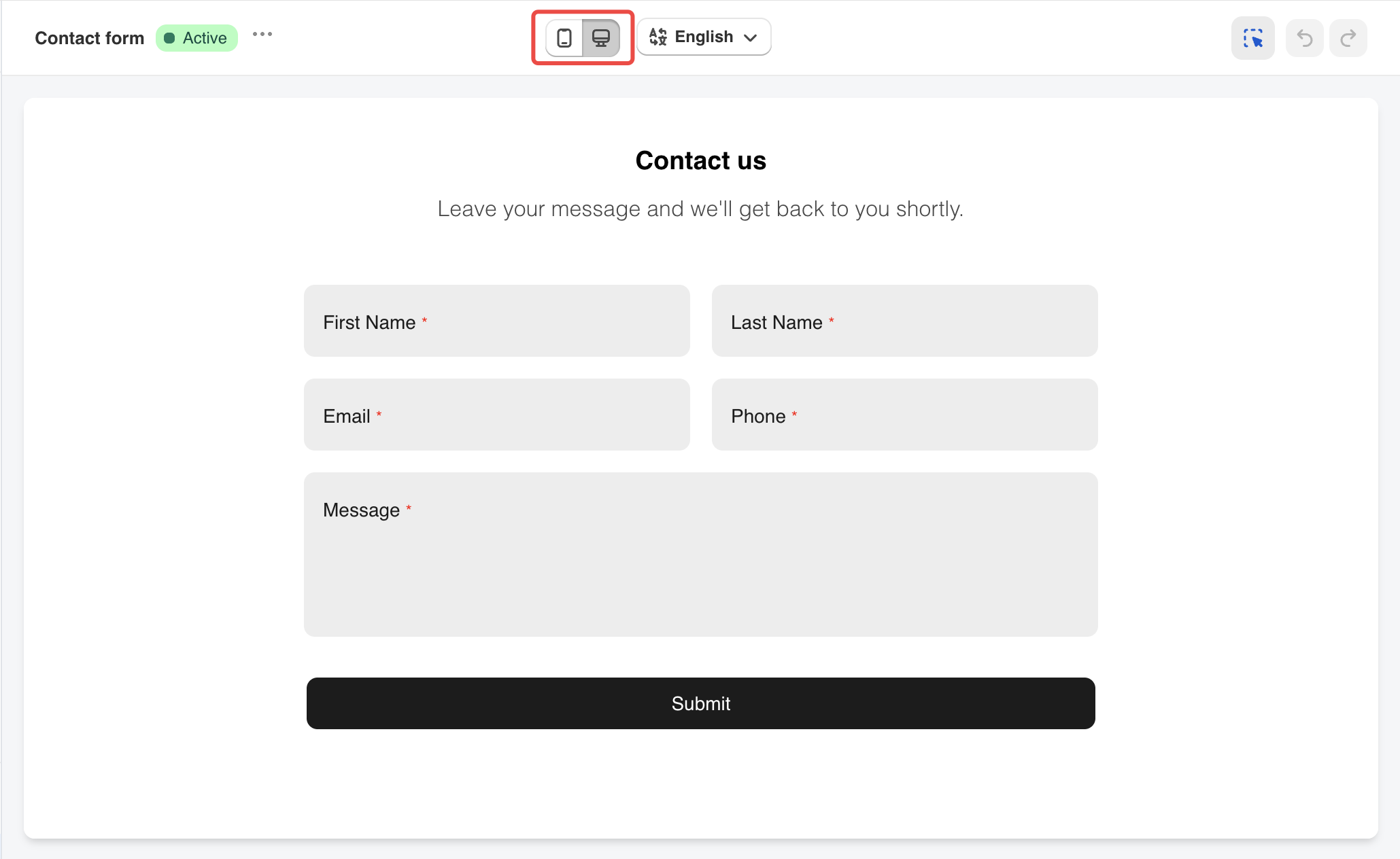
* **📱 / 🖥️ toggle** — changes preview width only, not the actual form
* **Preview mode** — form behaves exactly like the published version, so you can test-fill it

<figure><img src="https://2907469752-files.gitbook.io/~/files/v0/b/gitbook-x-prod.appspot.com/o/spaces%2FehM2rz7MmKkWcJmgvJOe%2Fuploads%2Fgit-blob-563a01251619cf77d32ddfd6a33b005c3ba7b516%2Fscreenshot-build-your-form-preview-viewport-toggle.png?alt=media" alt="Close-up of the top bar with the mobile and desktop preview icons. Highlight the segmented icon pair and show the preview narrowed to phone width."><figcaption><p>Close-up of the top bar with the mobile and desktop preview icons.</p></figcaption></figure>

* **Editor mode** — click any element to select, drag, and edit it

<figure><img src="https://2907469752-files.gitbook.io/~/files/v0/b/gitbook-x-prod.appspot.com/o/spaces%2FehM2rz7MmKkWcJmgvJOe%2Fuploads%2Fgit-blob-78ba3ca59e289282765e7918389d045f1429919e%2Fimage%20(11).png?alt=media" alt=""><figcaption></figcaption></figure>

## Next steps

* [Add and arrange elements](/build-your-form/add-and-arrange-elements.md) — start building the form.
* [Edit a form with AI](/build-your-form/edit-with-ai.md) — make changes by describing them.