> For the complete documentation index, see [llms.txt](https://docs.powerfulform.com/llms.txt). Markdown versions of documentation pages are available by appending `.md` to page URLs; this page is available as [Markdown](https://docs.powerfulform.com/build-your-form/edit-with-ai.md).

# Edit a form with AI

Change an existing form by describing what you want in plain language.

**Edit with AI** lets you change a form by describing the change instead of hunting for the setting. This page covers the chat panel in the editor, the wand buttons on individual elements, and how to get a good result.

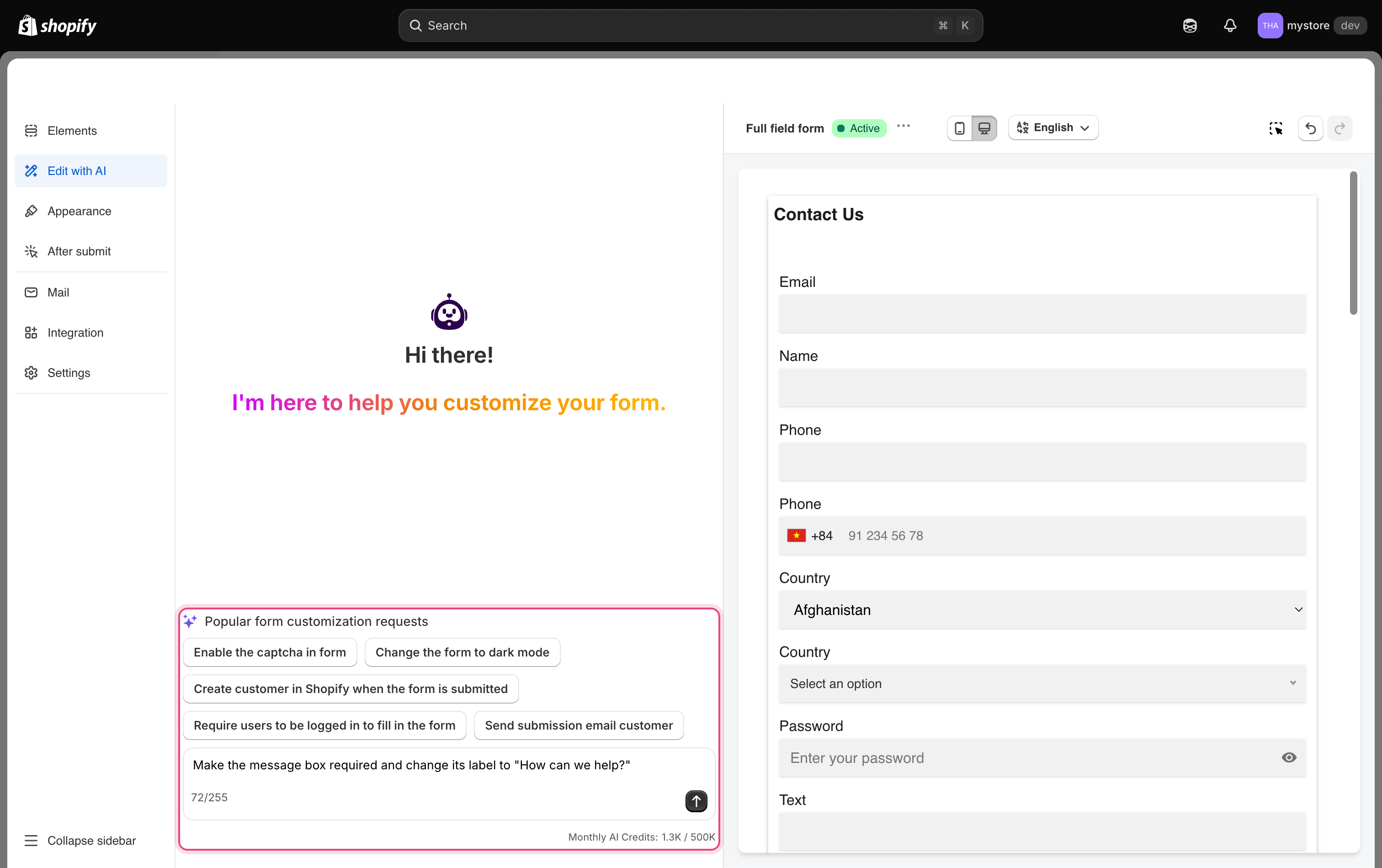
<figure><img src="https://2907469752-files.gitbook.io/~/files/v0/b/gitbook-x-prod.appspot.com/o/spaces%2FehM2rz7MmKkWcJmgvJOe%2Fuploads%2Fgit-blob-b8a49bb2af11fc724a9ec0a4a6f88f02d757590d%2Fscreenshot-build-your-form-edit-with-ai-panel.png?alt=media" alt="The Edit with AI panel open in the left side of the form editor, showing the suggestion list, the message box with its character counter, and the Monthly AI Credits counter underneath."><figcaption><p>The Edit with AI panel open in the left side of the form editor, showing the suggestion list, the message box with its character counter, and the Monthly AI Credits counter underneath.</p></figcaption></figure>

## 📝 The Edit with AI panel

{% stepper %}
{% step %}

### Open the panel

* Open the app > click **Forms**
* Open the form you want to edit
* Click **Edit with AI** — the wand icon, second in the left icon rail
  {% endstep %}

{% step %}

### Describe the change

Type your request into the box at the bottom of the panel. It shows the hint ***What kind of customization you need for this form?***

You can also click one of the suggestions listed under *Popular form customization requests* to send it straight away.

<figure><img src="https://2907469752-files.gitbook.io/~/files/v0/b/gitbook-x-prod.appspot.com/o/spaces%2FehM2rz7MmKkWcJmgvJOe%2Fuploads%2Fgit-blob-bb30a52f705f45cb5391dda5619b885318d73321%2F2026-09-30_10-31-47.png?alt=media" alt=""><figcaption></figcaption></figure>
{% endstep %}

{% step %}

### Send it

Press **Enter**, or click the arrow button beside the box.
{% endstep %}

{% step %}

### Check the preview

The app applies the change and the live preview updates. Read the reply in the chat and look at the form before you accept the result.

<figure><img src="https://2907469752-files.gitbook.io/~/files/v0/b/gitbook-x-prod.appspot.com/o/spaces%2FehM2rz7MmKkWcJmgvJOe%2Fuploads%2Fgit-blob-87c438e1d8f6b7aff21ff83746a0732bd5a65c93%2F2026-09-30_10-34-01.png?alt=media" alt=""><figcaption></figcaption></figure>
{% endstep %}

{% step %}

### Save or undo

If the change is right, click **Save** on the Shopify save bar. If it is not, click **Undo** in the top bar to step back, or ask again with a clearer description.
{% endstep %}
{% endstepper %}

**Example:**

> **You type:** *Make the phone field required and change its label to "Mobile Number"*\
> **Result:** The Phone field becomes required, its label updates instantly in the preview

{% hint style="info" %}
AI requests draw on a monthly credit allowance that depends on your plan. When the allowance runs out you see a message telling you to try again later or upgrade. See [Plans and billing](/settings/plans-and-billing.md).
{% endhint %}

## 💡 Tips for a Good Request

<table><thead><tr><th width="219.4000244140625">Do</th><th>Example</th></tr></thead><tbody><tr><td><strong>Name the field</strong></td><td>"Make the <strong>phone field</strong> required" — not "make it required"</td></tr><tr><td><strong>One change at a time</strong></td><td>Two unrelated asks in one message often come back half-done</td></tr><tr><td><strong>Say what, not how</strong></td><td>"Only show company name if they say they're a business"</td></tr><tr><td><strong>Quote exact wording</strong></td><td>Put the exact text you want in quotation marks</td></tr></tbody></table>

**Requests that work well:**

* *"Add a dropdown asking how the customer heard about us, with five common options."*
* *"Put the first name and last name fields on the same line."*

## 🛠️ If Something Goes Wrong

| Message                         | What to Do                                               |
| ------------------------------- | -------------------------------------------------------- |
| Message too long                | Shorten it or split into two requests                    |
| "Sorry, I can't help with that" | Be more specific — name the exact field                  |
| "Something went wrong"          | Try again. Still failing? Edit manually or email support |
| Daily limit reached             | Wait until tomorrow, or upgrade your plan                |

> **⚠️ Note:** Changes apply in the editor immediately, but aren't live until you click **Save**. Always check the preview first.<br>

## Next steps

* [Create a form with AI](/getting-started/with-ai.md) to build a whole form from a description.
* [Add and arrange elements](/build-your-form/add-and-arrange-elements.md) to make the same changes by hand.
* [The form editor](/build-your-form/form-editor-overview.md) for the **Undo**, **Save** and preview controls.
* [Plans and billing](/settings/plans-and-billing.md) to check your monthly AI credits.
