> For the complete documentation index, see [llms.txt](https://docs.powerfulform.com/llms.txt). Markdown versions of documentation pages are available by appending `.md` to page URLs; this page is available as [Markdown](https://docs.powerfulform.com/build-your-form/conditional-logic.md).
# Set logic conditions for form
Show or hide fields based on what the visitor has already answered.
## 📝 Show or Hide Individual Form Fields
*(Useful when you want extra questions to appear only if needed.)*
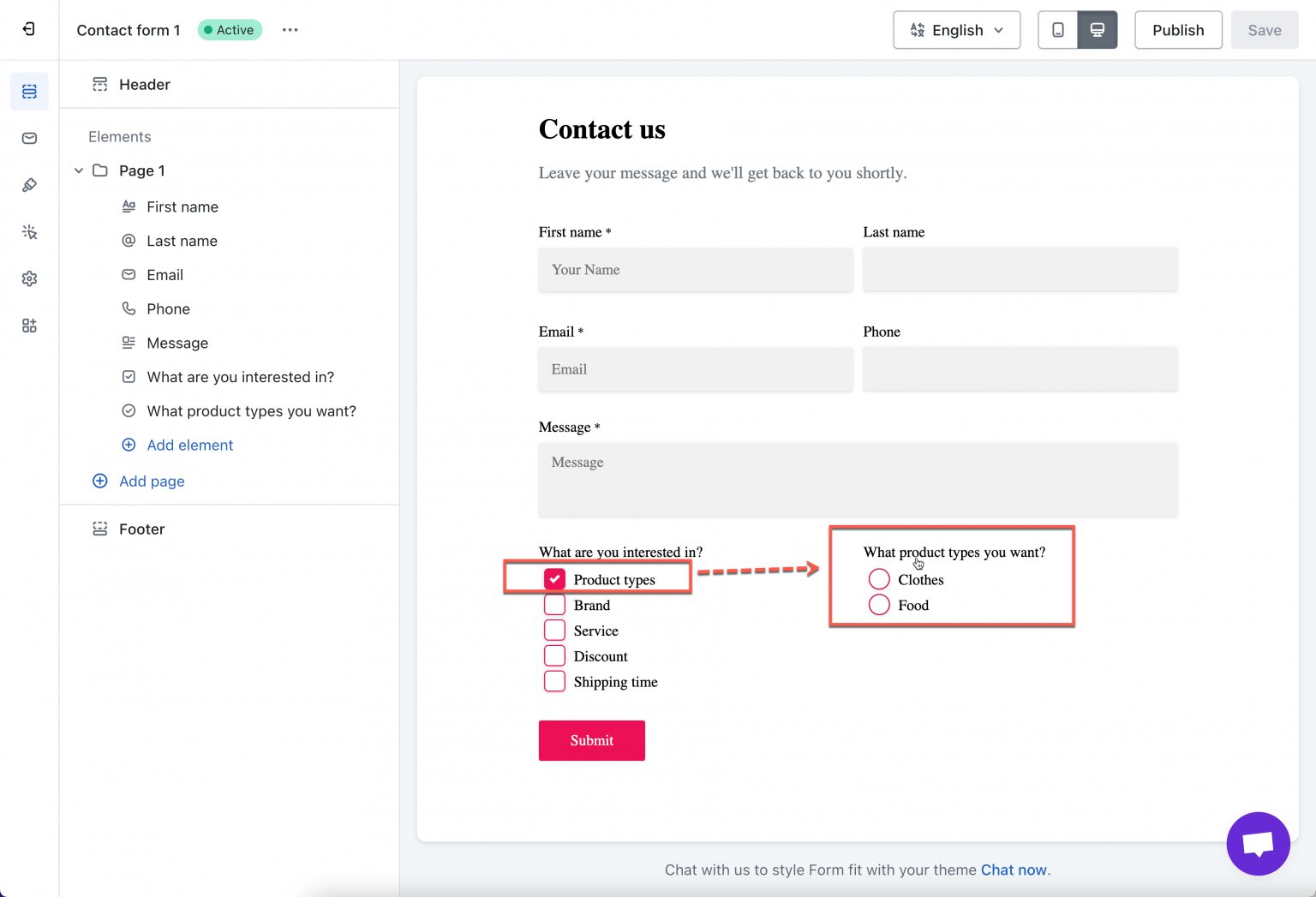
The app allows set up to show a field based on an option selected of a field above.
Example: Display the "Product Types" field only when the user selects "Yes" for "Are you interested in our products?"
### 📝 Steps to set condition for fields
1\. Open the app > click **Forms** > open a form or create new one
2\. Add fields you want to display with condition to the form > click to open the field/element detail
3\. In the field settings, turn on **Conditional** **display**, then click **Condition**
4. Create a rule:
**Show this field when:**
* **What are you interested in?**
* **is equal to**
* **Product types**
5, Click **Save** and test the result
### ✅How it works
* When the user checks **“Product types” →** the extra field appears
* If they don’t check it → the field stays hidden
Your form now shows the **“Product Types”** field *only when relevant*, keeping the form shorter and easier to complete.
## 📝 Show or Hide Entire Steps (Multi-Step Form)
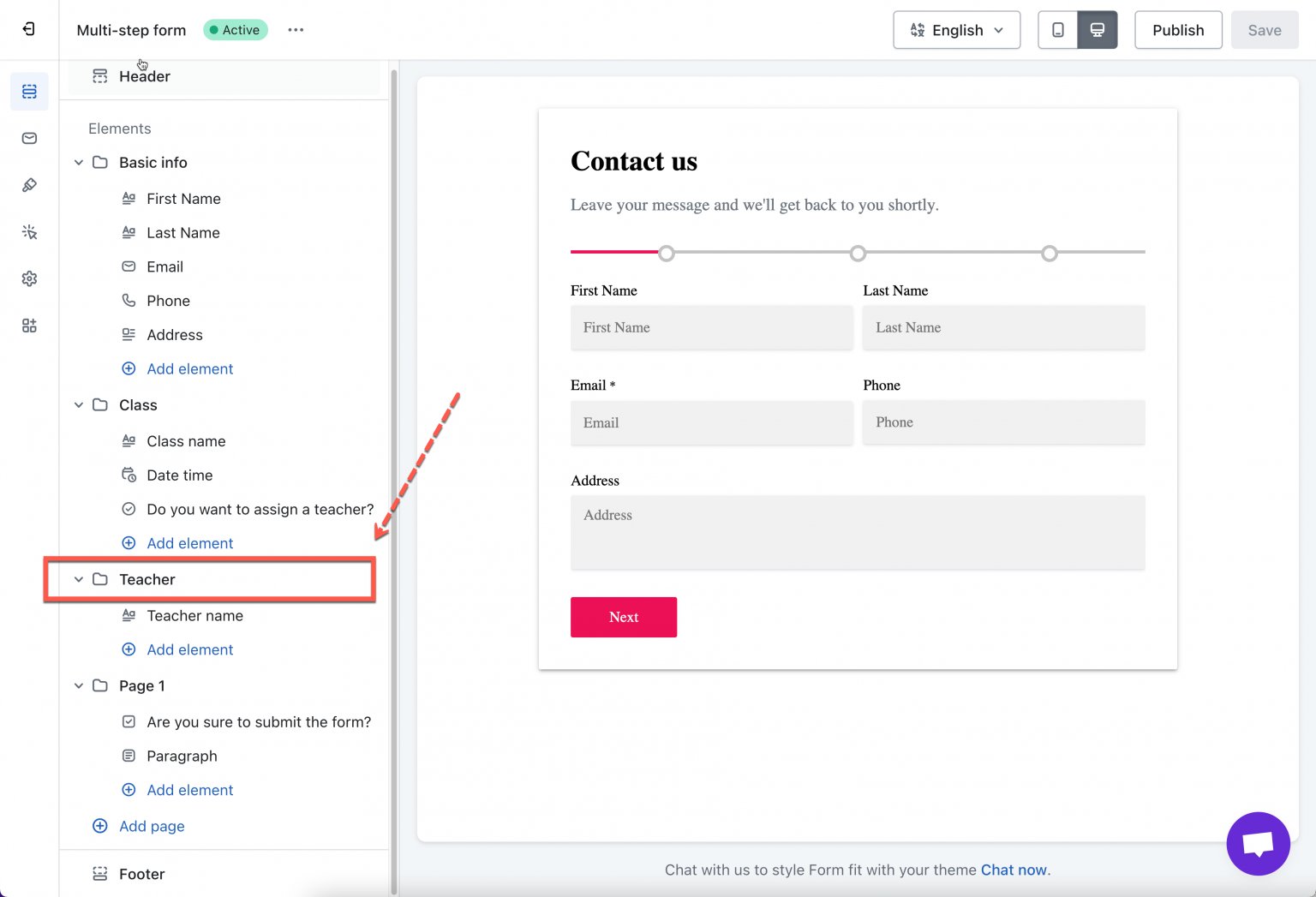
Our app allows displaying one step/page on the form based on a selected option on the previous step.
**Example:** Display the **“Teacher Details”** step *only when* the user selects **“Yes”** for **“Do you want to assign a teacher?”**
### 📝 Steps to set conditions for pages
1\. Open the app > click **Forms** > open a form or create new one > add fields and pages you want to display with condition to the form
2\. Click on the **Page** name to open it
3. In the step settings, turn on **Conditional** **display** > click **Condition**
4. Create a rule:
Show this step when:
* **Do you want to assign a teacher?**
* **is equal to**
* **Yes**
4. Click **Save**
### ✅ How it works
* If user selects **Yes →** the Teacher Details step appears
* If they select **No →** the step is skipped
Your multi-step form now behaves like a guided flow, only showing the teacher section for users who need it.
## 🎥 Tutorial video
{% embed url="" %}
## 💡 Troubleshooting
If conditional logic doesn’t work:
* Make sure you saved the condition
* Check values you selected match exactly (e.g., “Yes”)
* Ensure the trigger field appears before the conditional field/step
* Refresh preview or test on the live store
## Next steps
* [Multi-step forms](/build-your-form/special-form-types/multi-step-forms.md) — skip a whole page conditionally.
* [Admin emails with conditions](/email-notifications/admin-emails-with-conditions.md) — the same idea on notifications.