> For the complete documentation index, see [llms.txt](https://docs.powerfulform.com/llms.txt). Markdown versions of documentation pages are available by appending `.md` to page URLs; this page is available as [Markdown](https://docs.powerfulform.com/build-your-form/after-submit.md).
# After submit
Control what happens the moment someone submits your form — a thank-you message, a discount code, or a redirect.
### 🔧 Where to Set It
* **Forms** > open your form > **After submit** in the left sidebar.
* Choose an Action
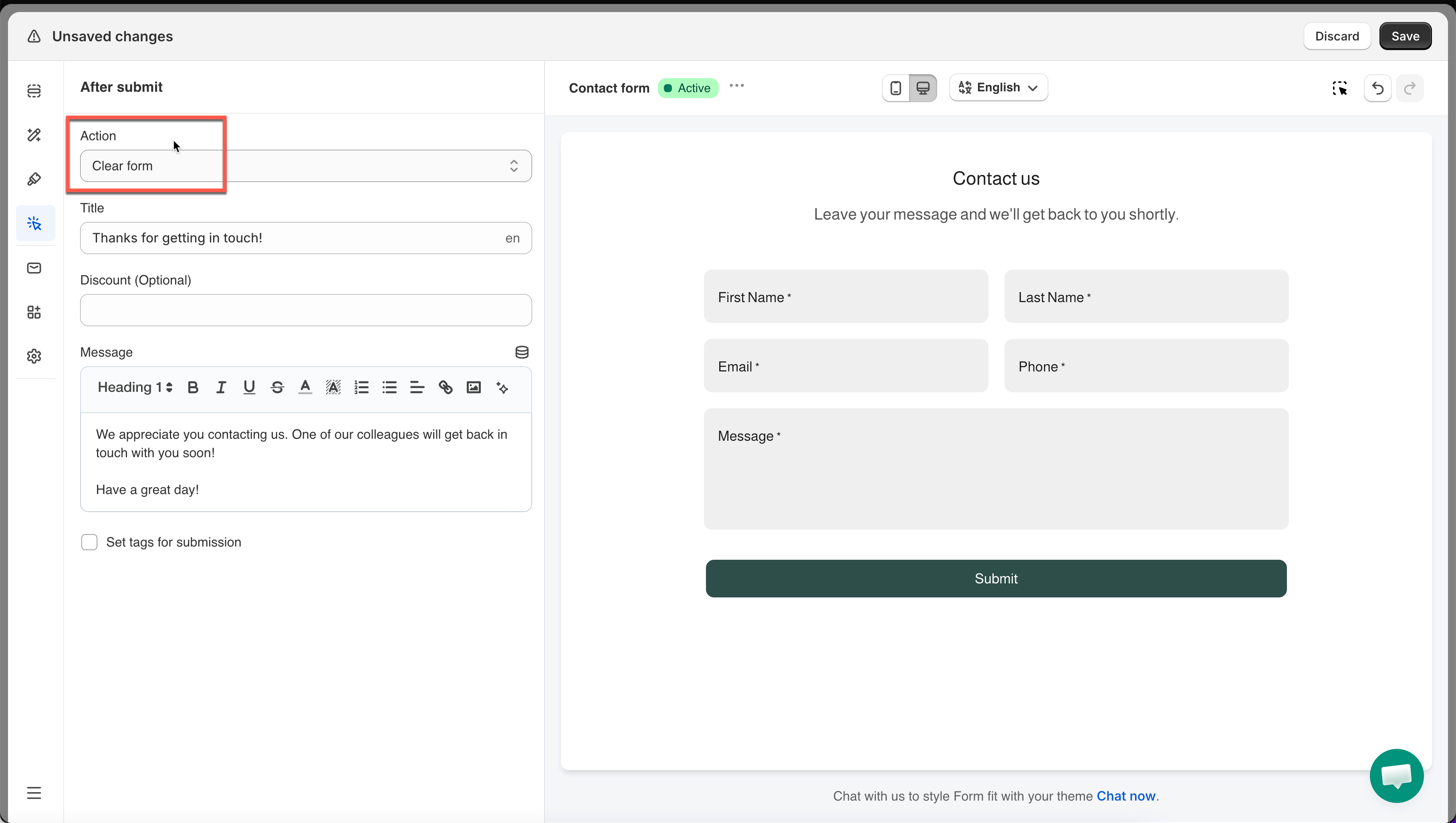
Action
What the visitor sees
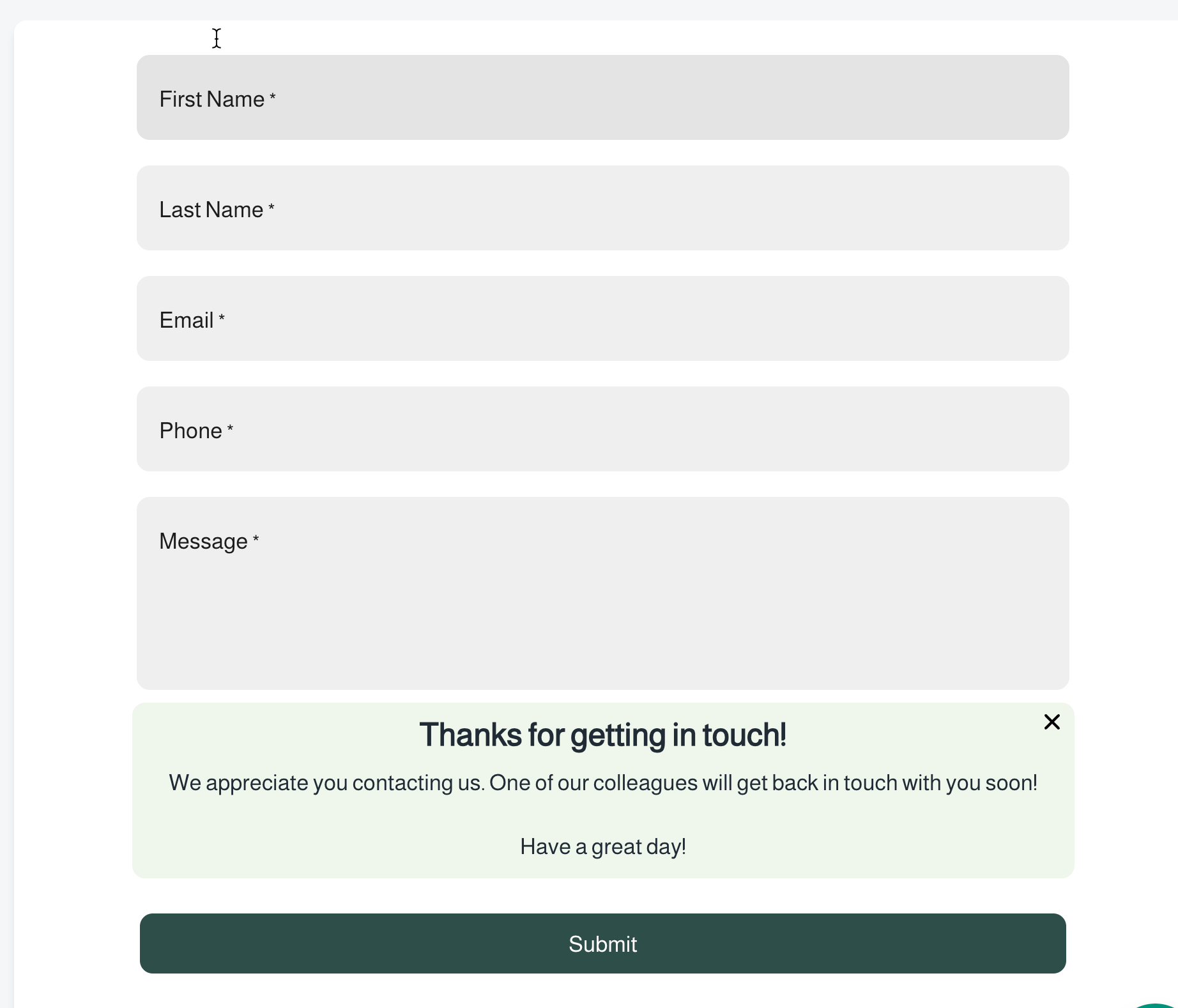
Clear form(default)
Fields empty out, form stays, thank-you message shows
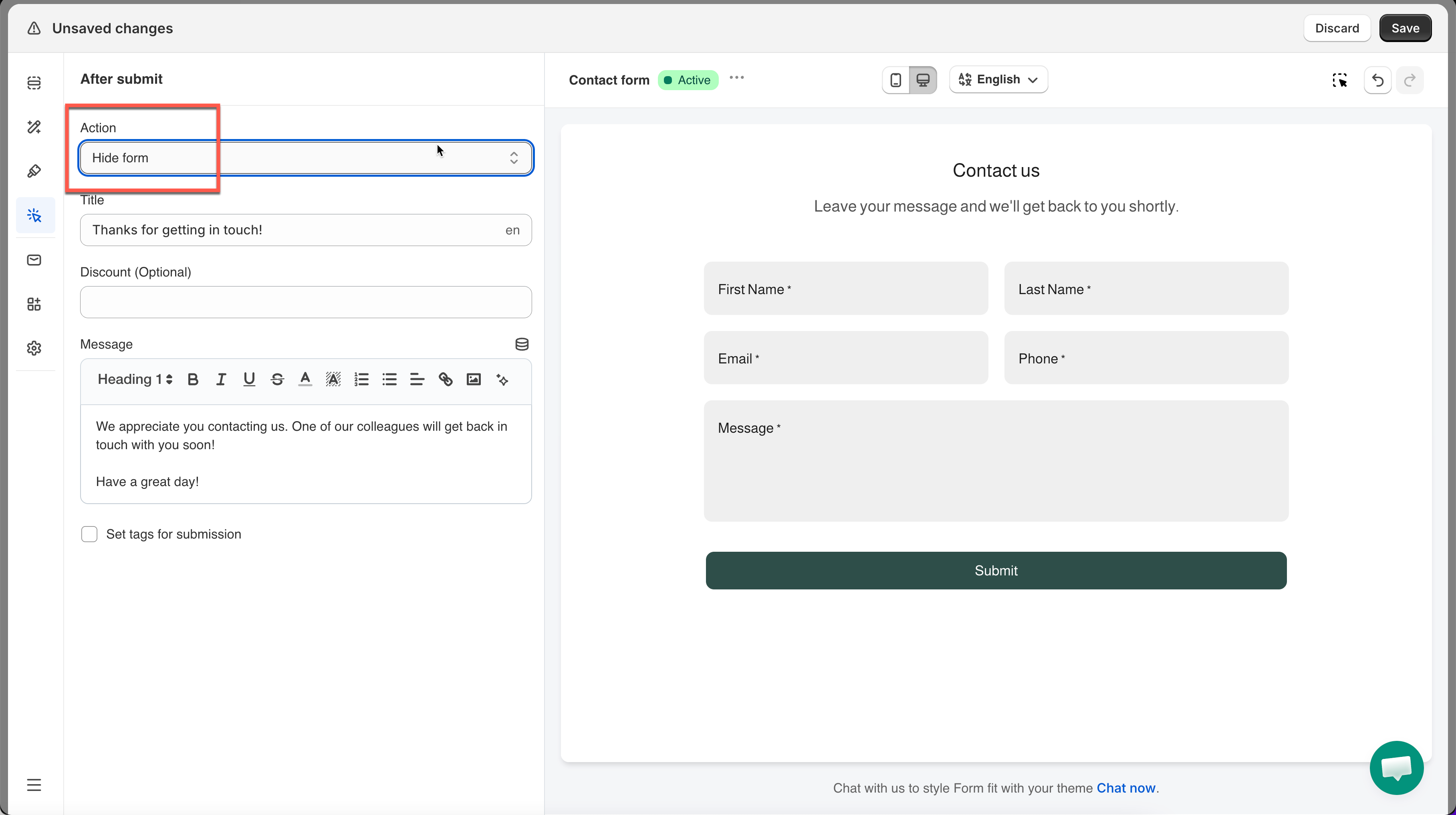
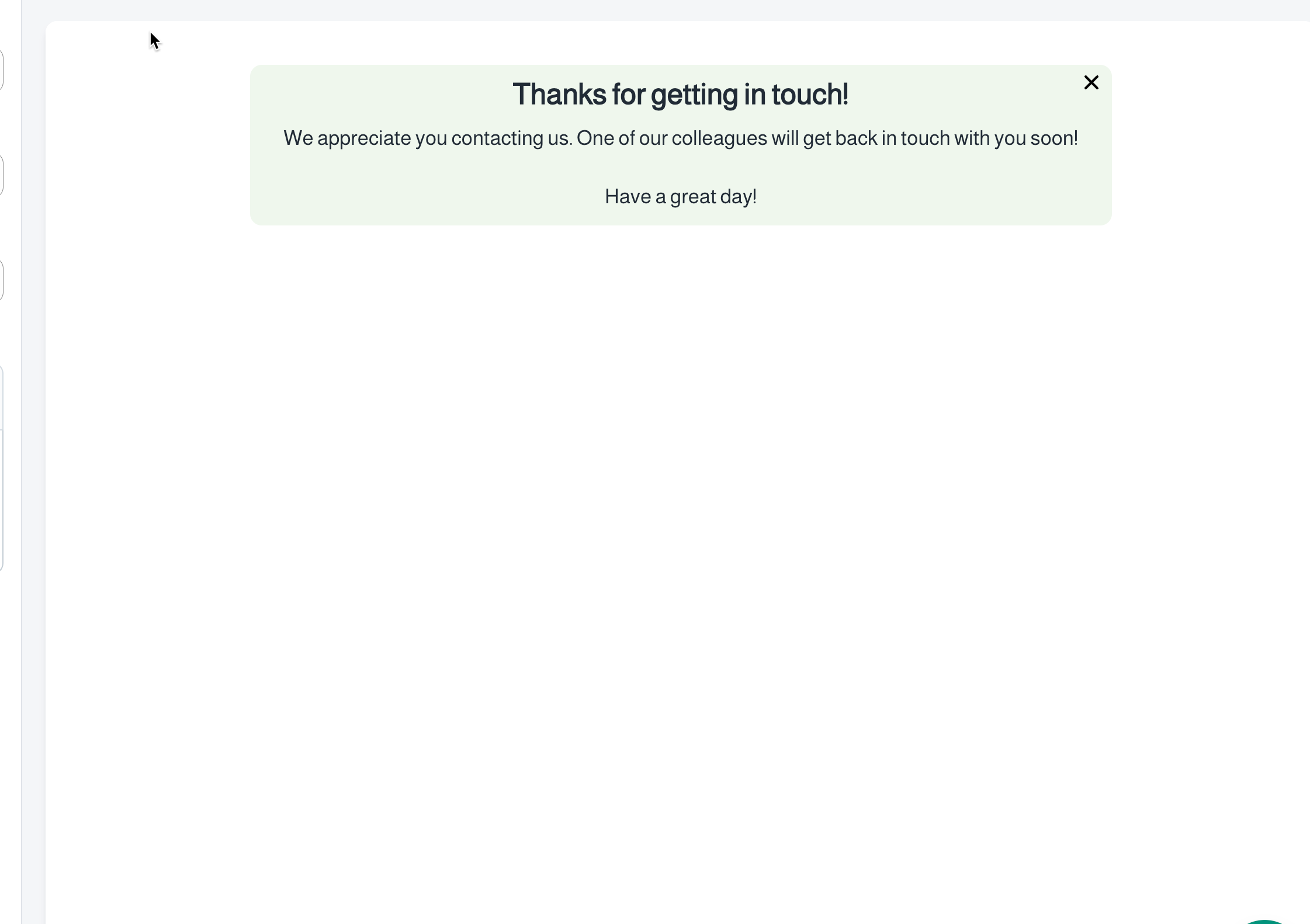
Hide form
Form disappears, thank-you message takes its place
Redirect to page
Visitor is sent to another URL — no message shown
### 1️⃣ Clear Form
#### **How to set it:**
In **After submit**, set **Action** to **Clear form**.
#### **How it works:**
All fields empty out, but the form stays on the page. Your thank-you message appears above or alongside it, so the visitor can submit again right away.
**Example:** A newsletter signup form — after someone subscribes, the fields clear and a message says *"You're subscribed! Want to refer a friend?"* — with the empty form still there for the next person.
### **2️⃣ Hide Form**
#### **How to set it:**
Set **Action** to **Hide form**.
#### How it works:
The **form disappears completely** and is replaced by your thank-you message (and discount code, if you added one). Nothing invites a second submission.
**Example:** A contact form — after submitting, the form vanishes and the visitor sees *"Thanks for reaching out! We'll reply within 24 hours."* This is also the best fit if you're showing a **discount code**, since the code becomes the main focus with the form out of the way.
### **3️⃣ Redirect to Page**
#### **How to set it:**
In the form, set **Action** to **Redirect to page** > enter a **Redirect URL** > **Save** the form.
**Redirect URL** accepts either form:
| What you type | Goes to |
| ---------------------------- | ---------------------------------------------------------------------------------------- |
| `/pages/giveaway-confirmed` | That page on your own store. The shortest option when the destination is a page you own. |
| `https://example.com/thanks` | Any full address, on your store or anywhere else. |
Then submit the form once on your storefront to confirm it lands where you meant — a typo in this box sends people to a 404 and the form gives no warning.
#### **How it works:**
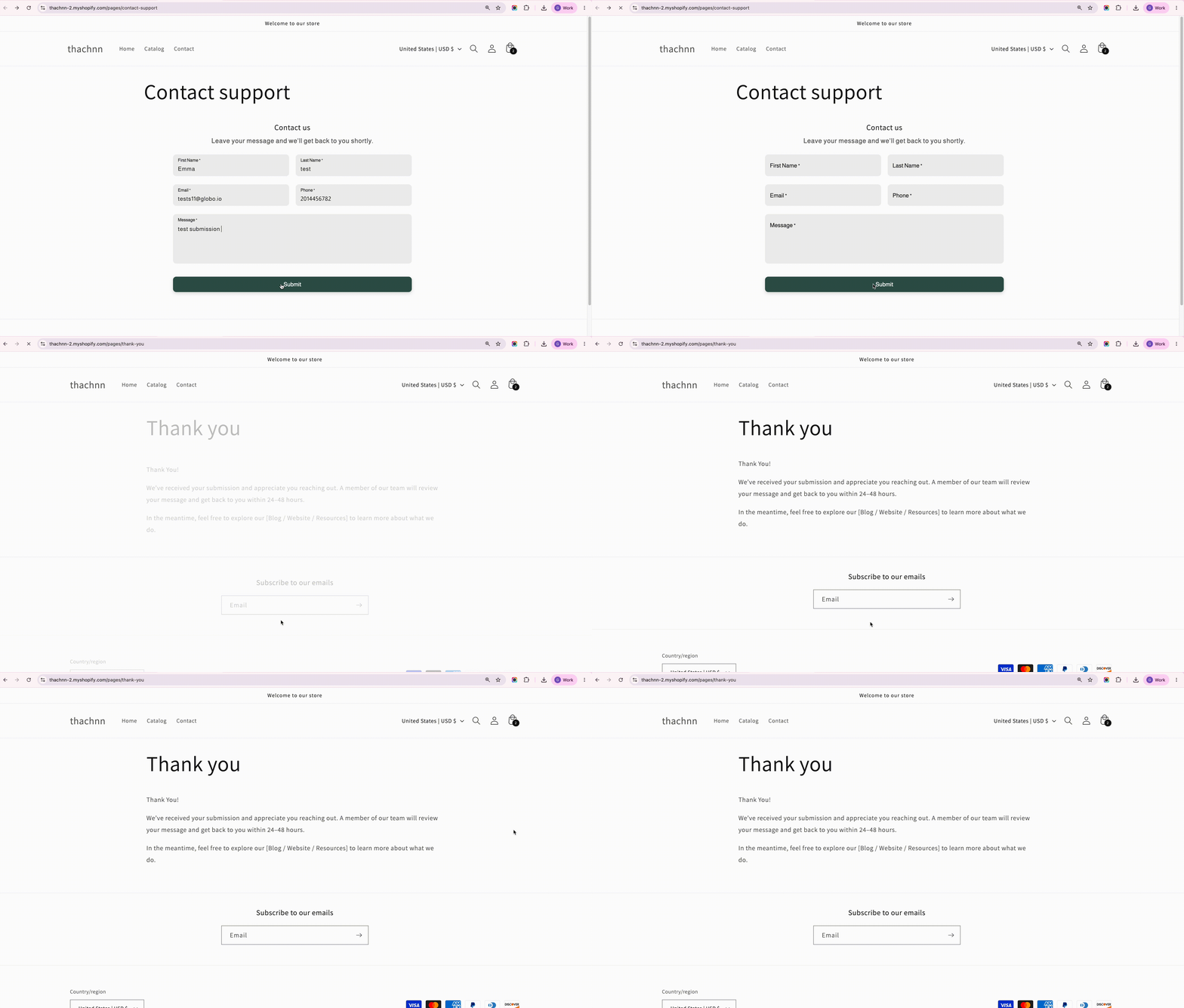
The visitor is sent to a different page entirely, no thank-you message is shown at all, since they've left the original page.
**Example:** A giveaway entry form redirects to `/pages/giveaway-confirmed`, a dedicated page with next steps, social share buttons, or related products.
> **⚠️ Note:** This won't work if the form is opened via a [standalone share link](https://globosoftware.gitbook.io/globosoftware-docs/display-and-placement/share-form). The visitor just stays put after submitting. Use **Clear form** or **Hide form** with a message in that case.
### ✏️ **Edit the "after submit" message**
1\. In the app, click **Forms** > open the form you want
2\. Click **After submit** icon on the left side > select **Hide form** or **Clear form** option
3\. Edit content of thank you message in the **Message** box
Examples:
* “Thank you! We’ll get back to you shortly.”
* “Your request has been received — check your email for confirmation.”
* “Thanks for contacting us! Our support team will reply within 24 hours.”
You can edit:
* Text
* Formatting
* Links (optional)
4\. **Save** form to apply changes
## 🏷️ Set Tags for Submissions
You can automatically add tags to your form submissions to help organize and identify them later.
1. Go to **Forms** and open the form you want to edit
2. Click **After submit** in the left sidebar
3. Enable **Set tags for submission**
4. Choose one or both tagging options:
* **Add fixed tags:** Add the same tags to every submission from this form, such as `wholesale, application`.
* **Add tags based on form's answer:** Add **Your product** field for example
5. Click **Save** to apply your changes.
#### Result:
Once a form is submitted, the assigned tags appear in the submission details. You can also filter submissions by tag to find the ones you need more easily.
If your form asks customers which product they’re interested in, you can use their answers to organize submissions automatically.
* If a customer selects **Shirt**, the submission is tagged `Shirt`.
* If a customer selects **Shoe**, the submission is tagged `Shoe`.
* A fixed tag `wholesale` is always added.
#### 💡 **Tip for an affective "thank you" message**
* Be Clear and Concise: Ensure the message clearly confirms the submission.
* Provide Next Steps: Inform users what to expect next, such as response times.
* Maintain Brand Voice: Keep the tone consistent with your brand's communication style.


.png?alt=media)


