> For the complete documentation index, see [llms.txt](https://docs.powerfulform.com/llms.txt). Markdown versions of documentation pages are available by appending `.md` to page URLs; this page is available as [Markdown](https://docs.powerfulform.com/build-your-form/add-and-arrange-elements.md).

# Add & configure fields

Add fields to your form, put them in order, and set up how each one works.

## ➕ Add a Field

Three ways to open the field picker — all work the same:

1. **Add element** button at the end of a page
2. The **+ handle** between two existing fields
3. **+ handles** on a field in the live preview (top/bottom = above/below, left/right = side by side)

Pick a field type from the picker (grouped by category), or type a description and let AI add it for you.

<figure><img src="https://2907469752-files.gitbook.io/~/files/v0/b/gitbook-x-prod.appspot.com/o/spaces%2FehM2rz7MmKkWcJmgvJOe%2Fuploads%2Fgit-blob-d3c6dcf0080d0a28daf67d6394e4d5ffe705c01f%2F2026-09-25_16-33-29.png?alt=media" alt=""><figcaption></figcaption></figure>

<figure><img src="https://2907469752-files.gitbook.io/~/files/v0/b/gitbook-x-prod.appspot.com/o/spaces%2FehM2rz7MmKkWcJmgvJOe%2Fuploads%2Fgit-blob-15612690830da855d7b7f86532ad929486c578d9%2F2026-09-25_16-33-48.png?alt=media" alt=""><figcaption></figcaption></figure>

<figure><img src="https://2907469752-files.gitbook.io/~/files/v0/b/gitbook-x-prod.appspot.com/o/spaces%2FehM2rz7MmKkWcJmgvJOe%2Fuploads%2Fgit-blob-85c48b4644238af62bcdd54a14bb41d846d15ff2%2F2026-09-25_16-34-19.png?alt=media" alt=""><figcaption></figcaption></figure>

**Field categories:**

<table><thead><tr><th width="157.9666748046875">Category</th><th>Includes</th></tr></thead><tbody><tr><td>Contact info</td><td>Email, Name, Phone, Password, Country</td></tr><tr><td>Text</td><td>Text, Textarea</td></tr><tr><td>Number</td><td>Number, Quantity</td></tr><tr><td>Selects</td><td>Checkboxes, Dropdown, Radio, Consent, Switch, Range slider, Image options, Button, Product</td></tr><tr><td>Input</td><td>URL, Date time, Hidden, Repeater, Signature</td></tr><tr><td>Ratings</td><td>Feedback, Matrix, Rating level, Rating star</td></tr><tr><td>File upload</td><td>File Upload</td></tr><tr><td>Color</td><td>Color Swatch, Color Picker</td></tr><tr><td>Static text</td><td>Heading, Paragraph, HTML, Divider</td></tr></tbody></table>

> **📌 Note:** Grayed-out types need a plan upgrade.

## 🔀 Reorder Fields

**In the Elements list:** drag a row's handle to move it — reorder within a page, move between pages, or reorder pages themselves.

<figure><img src="https://2907469752-files.gitbook.io/~/files/v0/b/gitbook-x-prod.appspot.com/o/spaces%2FehM2rz7MmKkWcJmgvJOe%2Fuploads%2Fgit-blob-aa7a7fe8df055d773ab0d8b4e0f21f7ecd8af5d8%2F2026-09-25_16-35-42.png?alt=media" alt=""><figcaption></figcaption></figure>

**In the live preview:** click a field to select it, then drag by its toolbar handle. Drop on the top/bottom edge to reposition, or the left/right edge to place two fields side by side.

<figure><img src="https://2907469752-files.gitbook.io/~/files/v0/b/gitbook-x-prod.appspot.com/o/spaces%2FehM2rz7MmKkWcJmgvJOe%2Fuploads%2Fgit-blob-16c7f598e5c054dd581188db54cb59b1b5528be8%2F2026-09-25_16-36-01.png?alt=media" alt=""><figcaption></figcaption></figure>

## 📋 Duplicate, Hide & Delete

Hover a field in the **Elements** list:

<table><thead><tr><th width="191.533447265625">Icon</th><th>Action</th></tr></thead><tbody><tr><td>👁️ Eye</td><td>Hide from the published form (stays in editor)</td></tr><tr><td>📄 Duplicate</td><td>Copy the field with all its settings</td></tr></tbody></table>

<figure><img src="https://2907469752-files.gitbook.io/~/files/v0/b/gitbook-x-prod.appspot.com/o/spaces%2FehM2rz7MmKkWcJmgvJOe%2Fuploads%2Fgit-blob-6bfb841b208fe99ea483d3fe5f47d7f9dbb2f5cf%2F2026-09-25_16-38-14.png?alt=media" alt=""><figcaption></figcaption></figure>

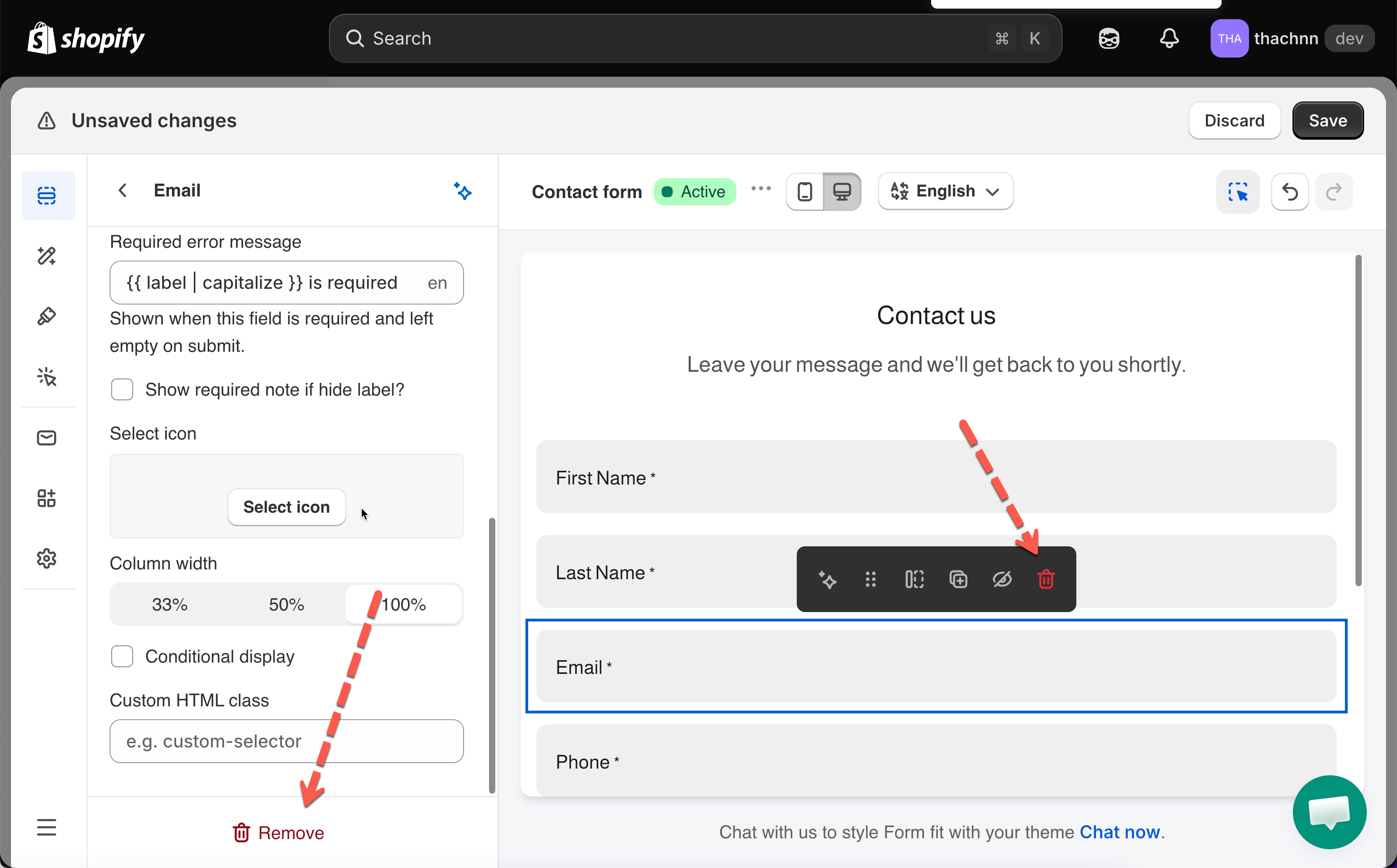
To delete: select the field > **Remove** at the bottom of its settings pane or click Delete icon on the for preview.

<figure><img src="https://2907469752-files.gitbook.io/~/files/v0/b/gitbook-x-prod.appspot.com/o/spaces%2FehM2rz7MmKkWcJmgvJOe%2Fuploads%2Fgit-blob-91ddfbfd1e008887146da23bfcdaa43558f8771f%2F2026-09-25_16-44-48.png?alt=media" alt=""><figcaption></figcaption></figure>

## ⚙️ Configure a Field's Settings

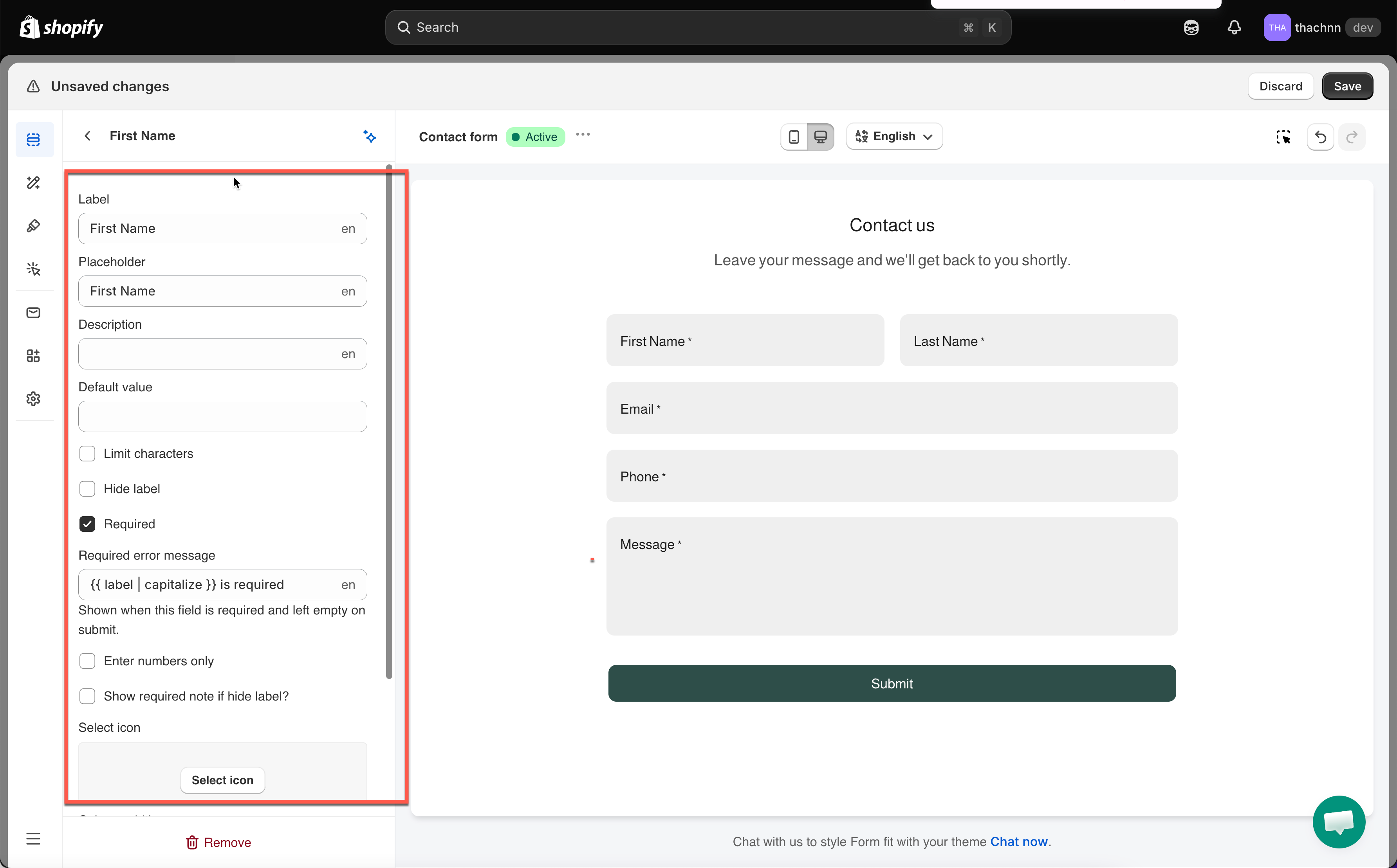
Click any field to open its settings in the left panel. Changes preview live — click **Save** to publish.

**Settings shared by most fields:**

| Setting                 | What it does                                |
| ----------------------- | ------------------------------------------- |
| **Label**               | Visible name above/beside the field         |
| **Placeholder**         | Gray hint text inside the input             |
| **Description**         | Helper text under the field                 |
| **Default value**       | Pre-filled answer the visitor can edit      |
| **Limit characters**    | Turns on Min/Max character limits           |
| **Hide label**          | Removes the label from the published form   |
| **Required**            | Visitor must fill it in to submit           |
| **Select icon**         | Adds a built-in icon inside the input       |
| **Column width**        | 33% / 50% / 100% — for side-by-side layouts |
| **Conditional display** | Show/hide this field based on other answers |
| **Custom HTML class**   | Adds a CSS class for custom styling         |

<figure><img src="https://2907469752-files.gitbook.io/~/files/v0/b/gitbook-x-prod.appspot.com/o/spaces%2FehM2rz7MmKkWcJmgvJOe%2Fuploads%2Fgit-blob-1e0defaf361fc39f617686f96696a36e3e4e5cc0%2F2026-09-25_16-46-08.png?alt=media" alt=""><figcaption></figcaption></figure>

<figure><img src="https://2907469752-files.gitbook.io/~/files/v0/b/gitbook-x-prod.appspot.com/o/spaces%2FehM2rz7MmKkWcJmgvJOe%2Fuploads%2Fgit-blob-6ba938d23a458374b67322a3e9e70e6b873a6d51%2F2026-09-25_16-46-18.png?alt=media" alt=""><figcaption></figcaption></figure>

> **Note:**\
> Not every field has every setting — a Divider has almost none; static text fields (Heading, Paragraph) only have text + Column width + Conditional display + Custom HTML class.

## 🌐 Translating Field Text

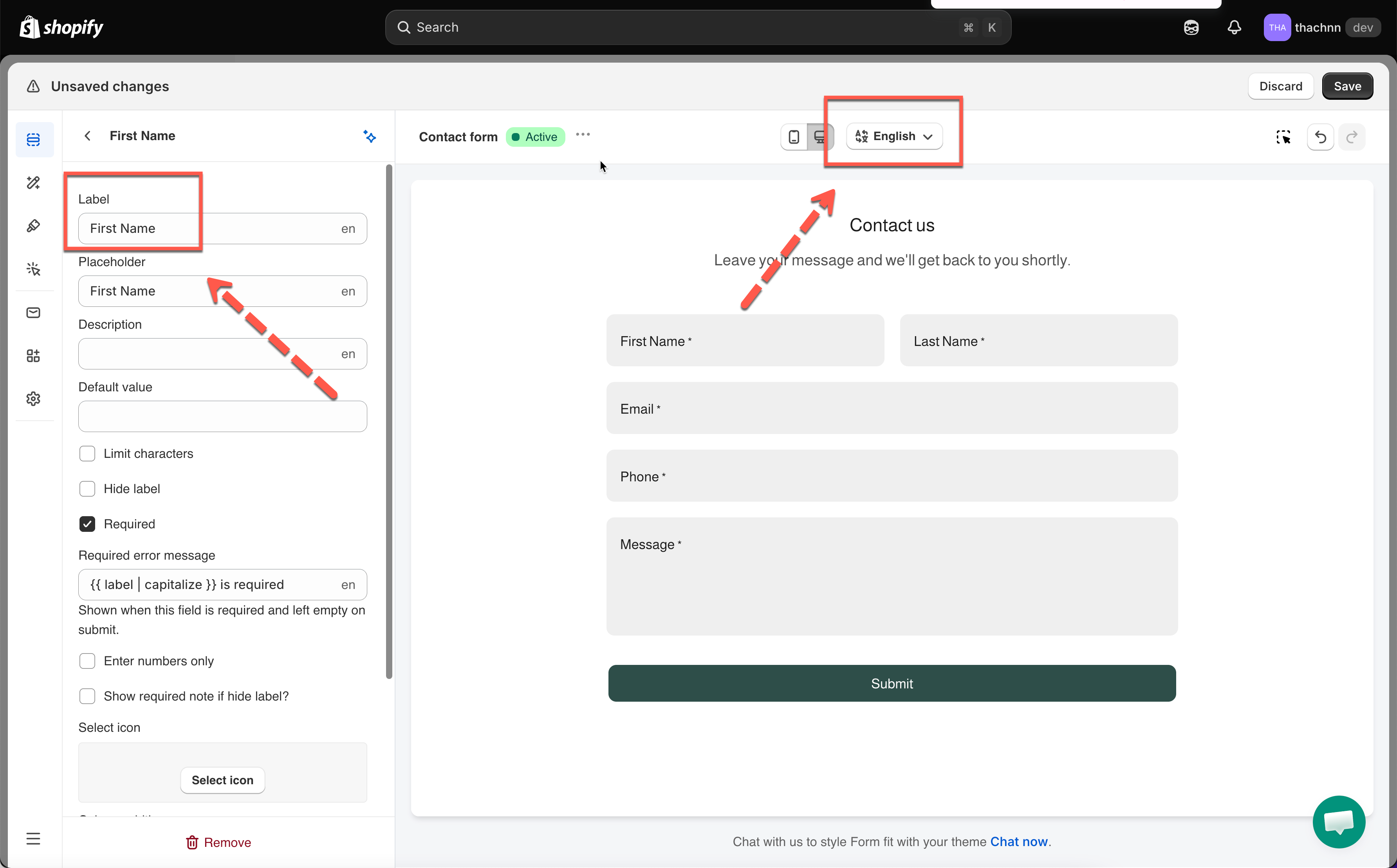
* Switch the editor to another language, and every text setting (Label, Placeholder, Description, etc.) shows a language code beside it
* Type your translation there
* Save form

> **📌 Note:** Editing a second language requires a plan that supports multiple languages.

<figure><img src="https://2907469752-files.gitbook.io/~/files/v0/b/gitbook-x-prod.appspot.com/o/spaces%2FehM2rz7MmKkWcJmgvJOe%2Fuploads%2Fgit-blob-b29ff296eadf1601256556dc7250c96011077b1b%2F2026-09-25_16-57-09.png?alt=media" alt=""><figcaption></figcaption></figure>

The app also provides the Auto-translate function. [Lean more](https://globosoftware.gitbook.io/globosoftware-docs/build-your-form/translate-a-form)

## 📺 Tutorial video

{% embed url="<https://youtu.be/a3QWDH8xIUk>" %}